YSP_Users_E.pdf - 第78页
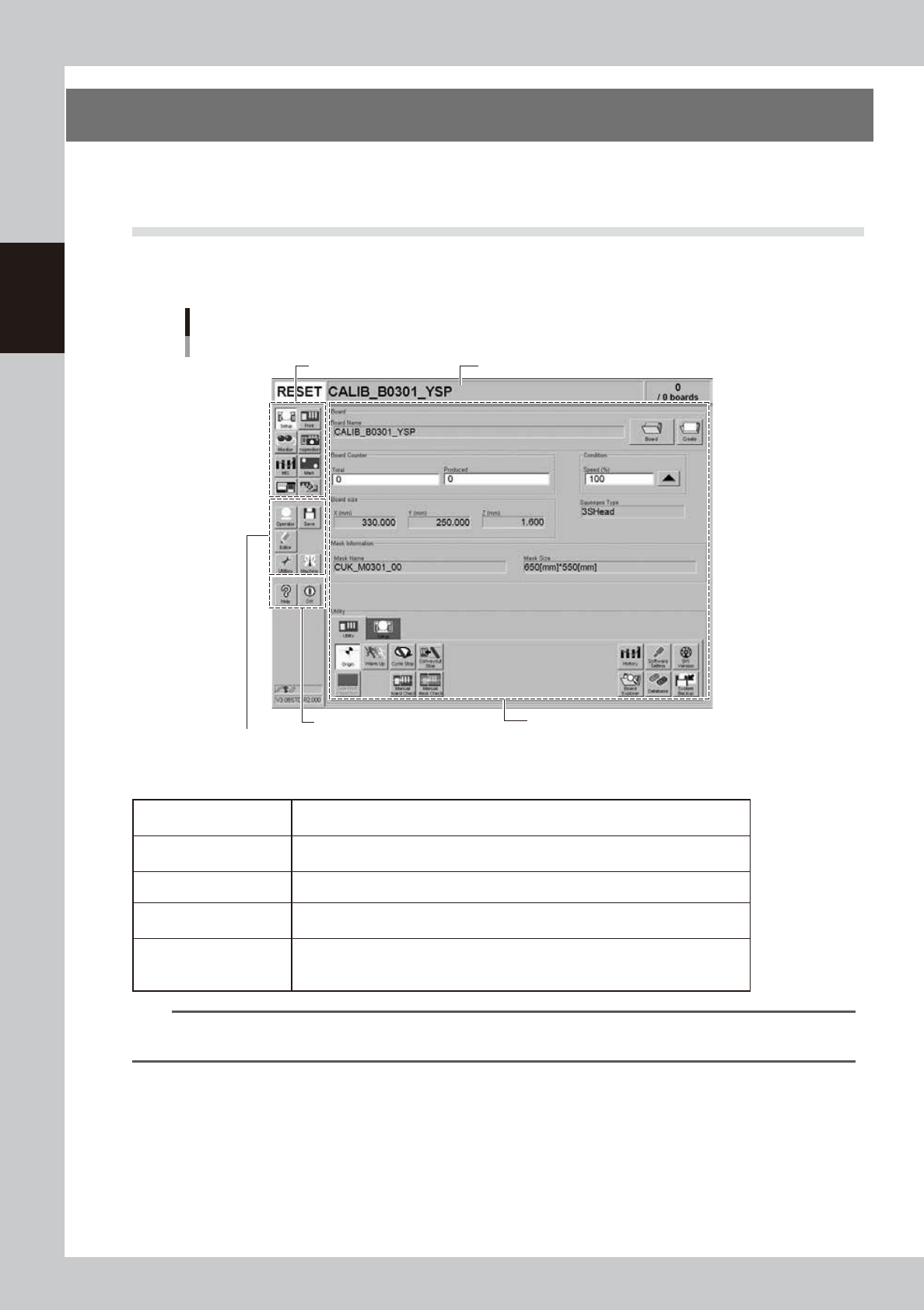
2-14 2 Basic operations 3. Operation screen description This section explains the basic configuration of a typical operation screen, data input methods and Help screens. 3.1 Basic configuration of operation screen T he o…

2-13
2
Basic operations
4
Press the [OK] button when the shutdown confirmation dialog box appears.
The application software automatically closes.
e
5
Press the emergency stop button.
When the emergency stop dialog box appears, press the emergency stop button and then press the
[OK] button.
6
Turn off the machine power switch.
When the message "Ready to shut down" appears, press the [OK] button and then turn off the machine
power switch by turning it to the left.
c
CAUTION
Data or machine might be damaged or lost if you turn off the power without following the above sequence.
c
CAUTION
To start the machine again after the power has been turned off, wait for 2 sec. or longer and turn on the power. If you
ignore this instruction, a trouble may occur when starting the machine again.
2-14
2
Basic operations
3. Operation screen description
This section explains the basic configuration of a typical operation screen, data input methods and Help
screens.
3.1 Basic configuration of operation screen
The operation screen can be divided into the "Status", "Main menu button" and "Submenu button and
parameter" areas as shown below.
Operation screen basic elements
Setup screen (after selecting board data)
Submenu button
and parameter area
Main menu button area 1
Main menu button area 3
Main menu button area 2
Status area
64208-L3-00
n
Description of each area
Status area
Displays the current machine status on the left end, the selected board data name
in the middle and the number of boards that were produced on the right end.
Main menu button area 1
Shows the main menu buttons used to operate the machine. The submenu button
and parameter area will change according to the selected main menu button.
Main menu button area 2 Shows the menu buttons used to call up auxiliary functions.
Main menu button area 3
Shows the [Help] button to call out the help screen and also the [Off] button to quit
the software.
Submenu button and
parameter area
Displays the submenu buttons and parameters for machine operation and data
setting.
This area will change according to the selected main menu button.
TIP
The submenu button and parameter area will change according to the selected main menu button. For details on
the menu button functions and parameter items on the operation monitor, see Chapters 3 and 6 in this manual.
2-15
2
Basic operations
3.2 Various buttons and parameter input grids
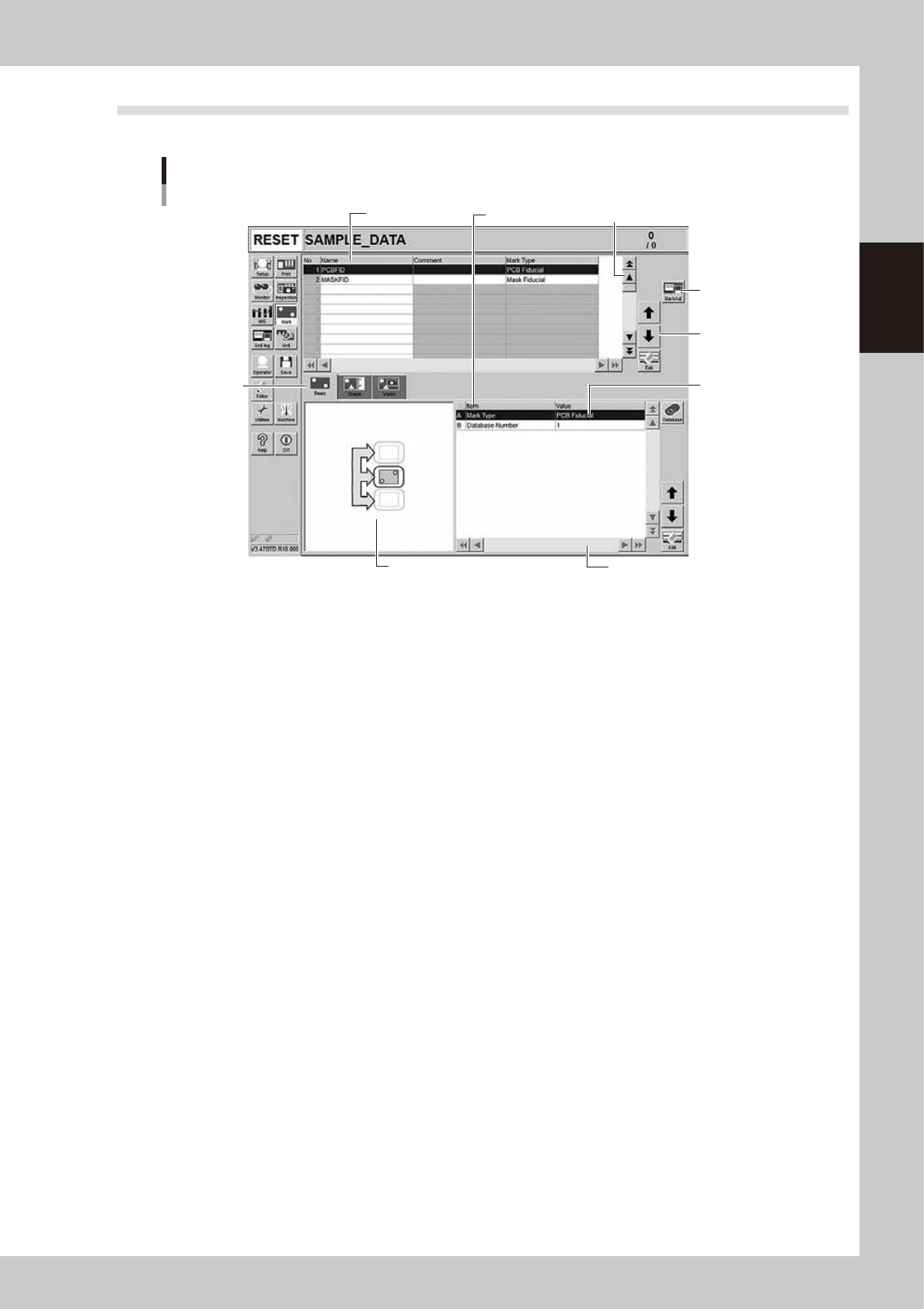
Various types of buttons, selection tabs and parameter input grids are used on the operation screen.
Operation screen basic elements
Mark screen
Data No. list
1
1
2
3
4
5
6
Parameter list
64209-L3-20
1. Scroll bar and button (up/down, left/right)
Use the scroll bars or arrow buttons to see hidden items in the data No. list or parameter list.
2. Operation button
Press these buttons to open the next operation screen or dialog box.
3. Line up/down button
Use these buttons to move the cursor up or down through the data No. list or parameter list.
4. Parameter input box
Select, enter or edit parameters here. When the keyboard is used, double-click on a parameter input box to enter or edit
the data.
When a touch screen (option) is used, press the [Edit] button on the lower right of the parameter list. The edit box then
pops up for data input and editing.
5. Selection tab
Select this tab to switch the parameter input screen.
6. Assistant screen
Shows an illustration or information useful for parameter input or editing.
Alphabet characters shown in the parameter list and in the illustration on this screen correspond to each other.