YSP_Users_E.pdf - 第141页
4-38 4 Creating and setting the data E, F: Search Area X, Search Area Y As a general guide, set this parameter to the mark diameter plus 3mm. F or example, when the mark diameter is 1mm, set this parameter to "4mm&q…
4-37
4
Creating and setting the data
7.4 Vision parameters
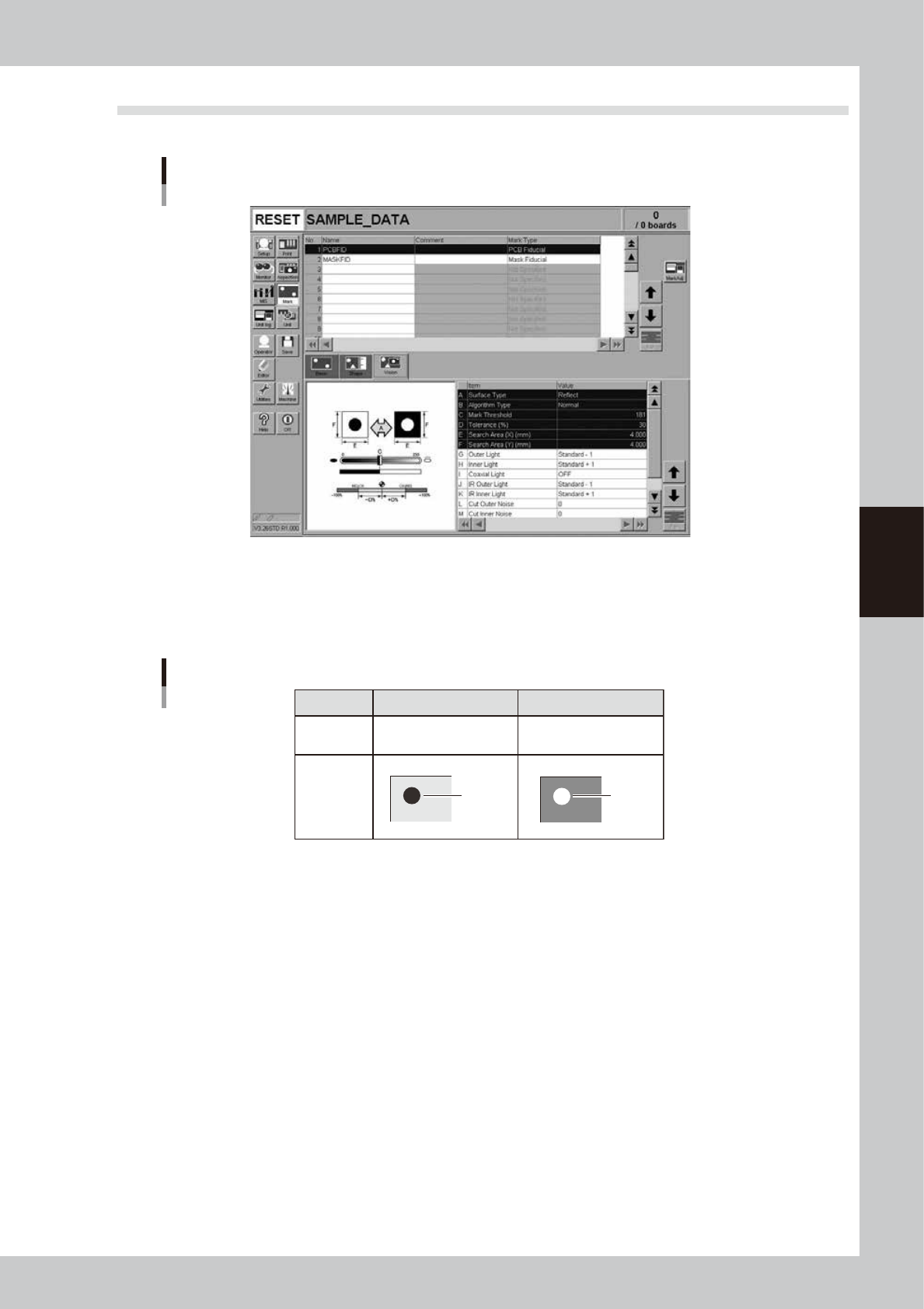
In the list on the [Mark]-[Vision] tab, set the following parameters used for mark recognition.
Vision parameters
64432-L3-20
A: Surface Type
This specifies the bright and dark relation between the mark surface and the surrounding area. Select "NonReflect" when
the mark is darker than the surrounding area. Select "Reflect" when the mark is brighter than the surrounding area as
shown below.
NonReflect
Board is brighter than mark.
Reflect
Mark is brighter than Board.
Setting
Brightness
comparison
Image
Mark
Mark
Surface Type setting
63423-L3-00
B: Algorithm Type
There are 5 algorithm types selectable for mark recognition.
Normal
In typical recognition, all types of marks should be set to "Normal". Try setting to other parameters if the mark cannot
be recognized with the "Normal" setting.
Special 1
Select this if the mark cannot be recognized with the "Normal" setting.
Special 2
Select this if the mark which cannot be recognized with the "Normal" setting has a cutout area.
PTRN Outline, PTRN GrayLev, PTRN Whole
Select these parameters when the "Shape Type" parameter is set to "Pattern". For more details, refer to "2. Pattern
matching" in Chapter 6.
C: Mark Threshold
This is the threshold level for the binary image used to recognize the mark. An optimum threshold level can be found in
the Mark Adjust mode explained later in this section.
D: Tolerance
This specifies a tolerance percentage for the mark size when the mark is recognized with the vision camera. (Typically
this should be set to "30".)

4-38
4
Creating and setting the data
E, F: Search Area X, Search Area Y
As a general guide, set this parameter to the mark diameter plus 3mm. For example, when the mark diameter is 1mm, set
this parameter to "4mm" as shown below. If other marks (such as resist, silk print, other patterns) exist in this search area,
set the search area X and Y separately or make the "Search Area" setting smaller.
Pattern
1mm
4mm
4mm
4mm
2.5mm
Search Area
Search Area
Mark
63424-L3-00
c
CAUTION
When a "0" is entered in Mark Search Area Y, marks are recognized within the square of Mark Search Area X.
G to K: Light level
Lighting for recognizing a mark is divided into several zones. The light level in each zone is displayed here. Optimum
light levels can be found in the Mark Adjust mode explained later.
L, M: Cut Outer Noise, Cut Inner Noise
When the mark image is digitized and shown in binary (black and white), noise may appear outside or inside the mark.
In this case, adjusting these parameter values in the Mark Adjust mode (described later) can cut the noise.
4-39
4
Creating and setting the data
7.5 Mark Adjust mode
This operation checks whether the parameter settings are correct. For parameters which are unspecified, the
optimal values can be obtained by performing "VISION TEST" here.
1
Select the mark data.
In the data list on the Mark screen, line up the cursor with the mark data you want to check.
2
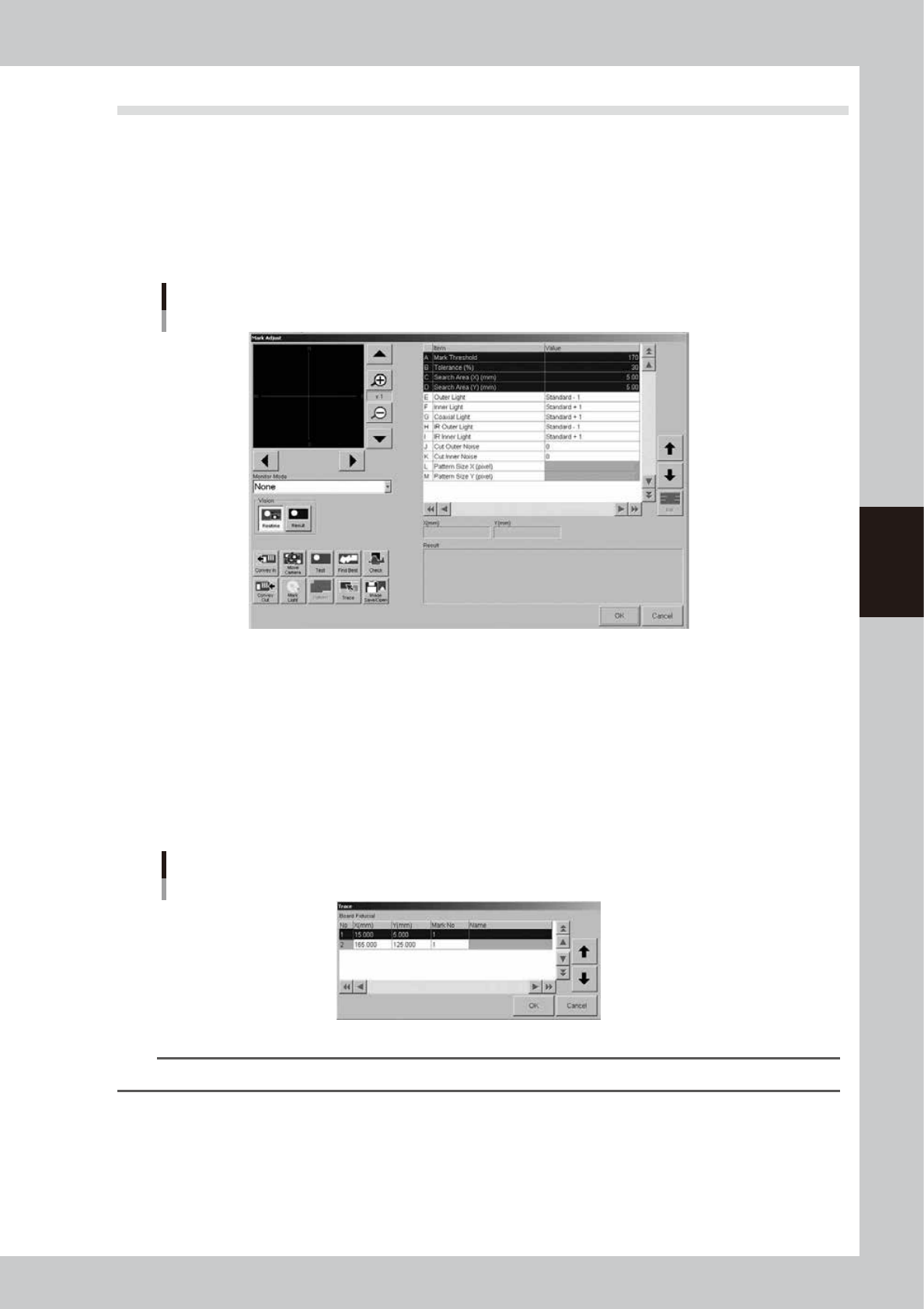
Press the [Mark Adjust] button to enter the Mark Adjust mode.
The Mark Adjust screen appears as shown below.
Mark Adjust screen
64433-E3-00
3
Set the board on the conveyor and clamp it.
To clamp the board, press the [Convey In] button and follow the message that appears.
When adjusting fiducial marks on a mask, clamp the mask on the printing table.
4
Perform a trace to the mark.
1. Press the [Trace] button to open the "Trace" dialog box.
2. Press the [OK] button to perform a trace to the selected mark position.
For board fiducial marks, the board moves to a point just under the board vision camera. For mask
fiducial marks, the mask vision camera moves to a point directly under the mark on the mask frame.
Trace dialog box
64434-L3-00
TIP
For details on the trace and teaching functions, see "1. Teach and trace" in Chapter 6.