YSP_Users_E.pdf - 第263页
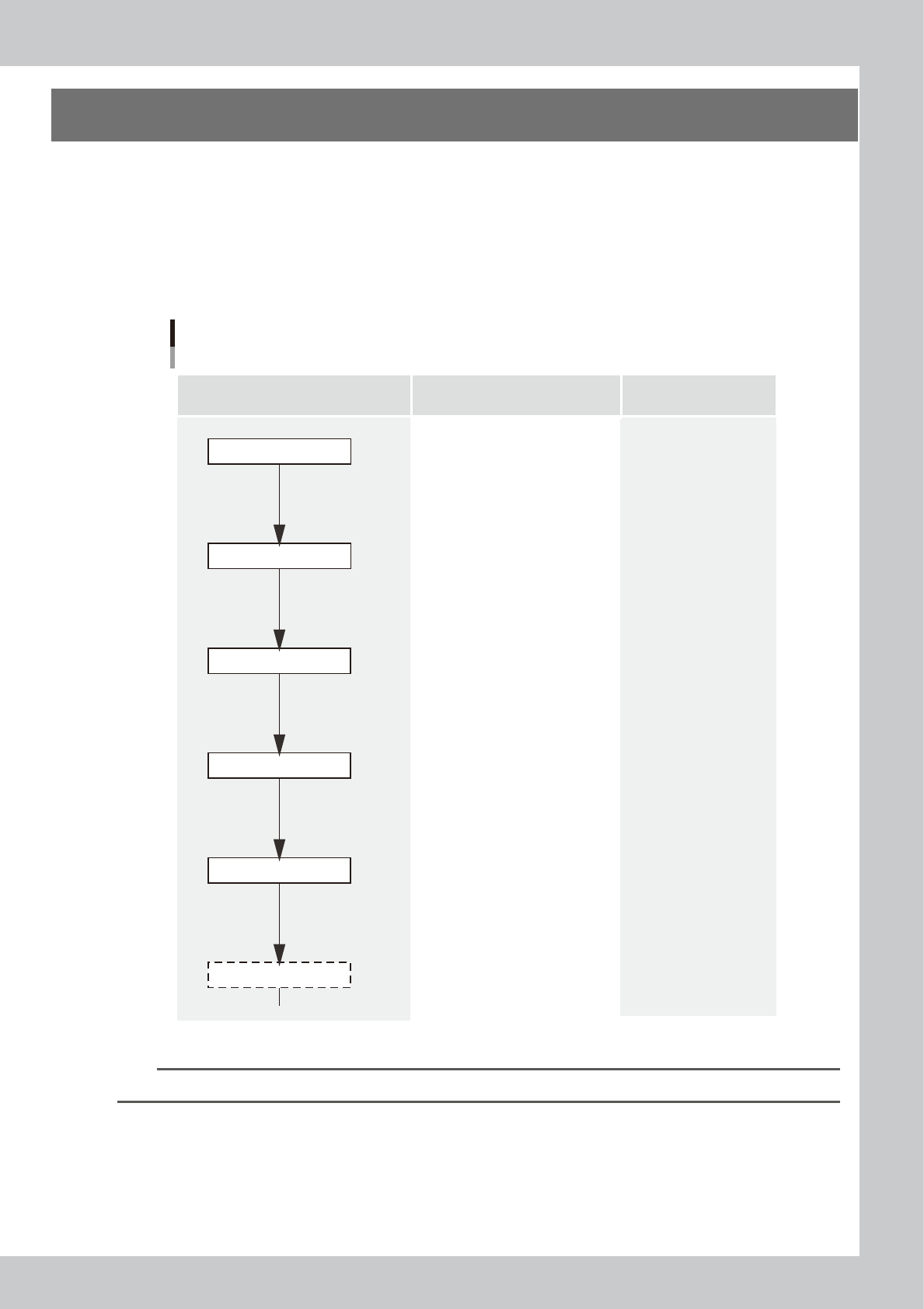
E-1 Printing guide 1. Flow of printing condition setting The following diagram shows the flow of the condition setting (data setting) and the setup work necessar y to perfor m the printing with excellent quality . • Befo…

Printing guide
Contents
1. Flow of printing condition setting E-1
2. Data and condition setting E-2
2.1 Material and setup information E-2
2.2 Alignment offset setting E-4
2.3 Rolling E-5
2.4 Printing and production conditions E-6
3. Details of each parameter item E-7
3.1 Board clamp E-7
3.1.1 Edge clamp pressure E-7
3.1.2 Backup jig E-8
3.2 Board and mask mark recognition (Mark position) E-8
3.3 Alignment offset E-8
3.4 Squeegee (Rolling) E-9
3.4.1 Squeegee speed E-9
3.4.2 Squeegee pressure E-9
3.4.3 Attack angle (degree (°)) E-9
3.5 Solder supply interval E-10
3.6 Detach pattern E-10
3.6.1 Board separation speed E-10
3.6.2 Board separation distance E-11
3.7 Cleaning E-11
3.7.1 Cleaning interval E-11
3.7.2 Cleaning repeat E-11
3.7.3 Cleaning speed E-11
4.
Causes of troubles predicted from symptoms (Appendix)
E-12
4.1 Positional deviation E-12
4.2 Blur E-12
4.3 Insufficient filling E-12
4.4 Solder spread, solder bridge E-13
4.5 Scraping trouble E-13
4.6 Solder enlargement E-13
4.7 Solder chipping, mask remaining E-13
EUL3200_AP
E-1
Printing guide
1. Flow of printing condition setting
The following diagram shows the flow of the condition setting (data setting) and the setup work necessary to
perform the printing with excellent quality.
•
Before starting the condition setting, it is necessary that the basic data input and the setup work have been completed.
•
The parameter change results after completion of the condition setting may slightly vary depending on the solder and/
or mask status.
•
It is recommended to first perform the test print with the default values and gradually narrow the conditions from the
test print results.
Printing condition setting
Contents of work Items to be set Related troubles
Setup work
Basic data input
・Alignment offsets X, Y, R
・Board size
・Mask information
・Squeegee type
・Edge clamp pressure
・Fiducial position coordinates
・Backup jig setting
・Board clamp status check
・Mark information check
Print deviation
Solder spread
Solder bridge
Print deviation
Solder enlargement
Solder chipping, mask remaining
Solder spread, solder bridge
Blur
Scraping trouble
Insufficient filling
・Squeegee pressure
・Squeegee speed
・Attack angle
・Board separation speed
・Board separation distance
・Alignment offset Z
・Solder supply interval
Solder chipping, mask remaining
Solder spread, solder bridge
・Cleaning interval
・Cleaning repeat
・Cleaning speed
Alignment offset
Cleaning conditions
Printed status check
Graphic alignment
Test print
Rolling
63E10-L3-00
n
NOTE
For more details about work procedures and contents of each parameter, see the relevant sections of this manual.
E-2
Printing guide
2. Data and condition setting
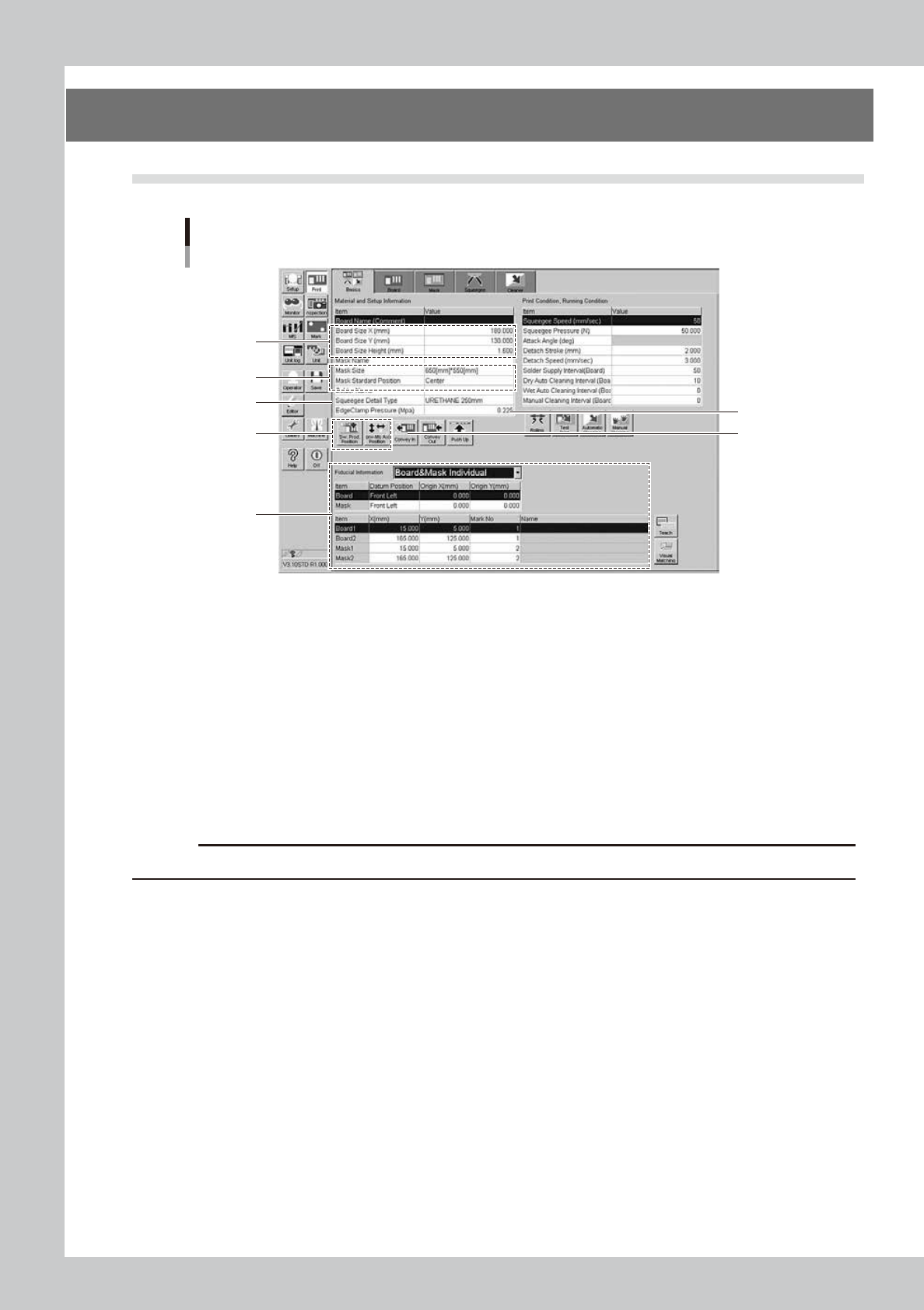
2.1 Material and setup information
Material and setup information
1
2
3
4
6
8
5
64E03-L3-10
1
Enter board size data.
Enter accurate size data (X, Y, height) of the board to be printed.
X : Sets the main stopper position.
Y : Sets the conveyor width.
Height : Sets the backup height.
2
Enter mask information.
1. Select a size of the mask to be used.
2. Select a mask standard position (standard position during the mask processing) (center or front
position).
c
CAUTION
In the YSP, you cannot use the rear position. Always select either the center or front position.
3
Select a squeegee type.
Select a type and size of the squeegee to be used. Each squeegee type has the features described
below.
Urethane squeeze : If the squeegee pressure level is too high, the squeegee is deformed, causing the
solder to be scraped away too much.
Metal squeeze : This metal squeegee is not deformed by the squeegee pressure. pressure and is less
affected by the squeegee pressure.
4
Set the backup jig.
e
1. Press the [SW. Prod. Pos.] button and check that the conveyor has moved to the setup position.
2. Press the [Conv. MS Axis Pos.] button and check that the main stopper has moved to the correct
position.
3. Press the emergency stop button and set the backup jig on the matrix plate.