YSP_Users_E.pdf - 第189页
6-5 6 Other functions l Multi-point input T he following steps explain the teaching method when the [Clic k Move] button is pressed. (If not using clic k movement, use the [Axis movement] buttons to mo ve the teaching un…
6-4
6
Other functions
7
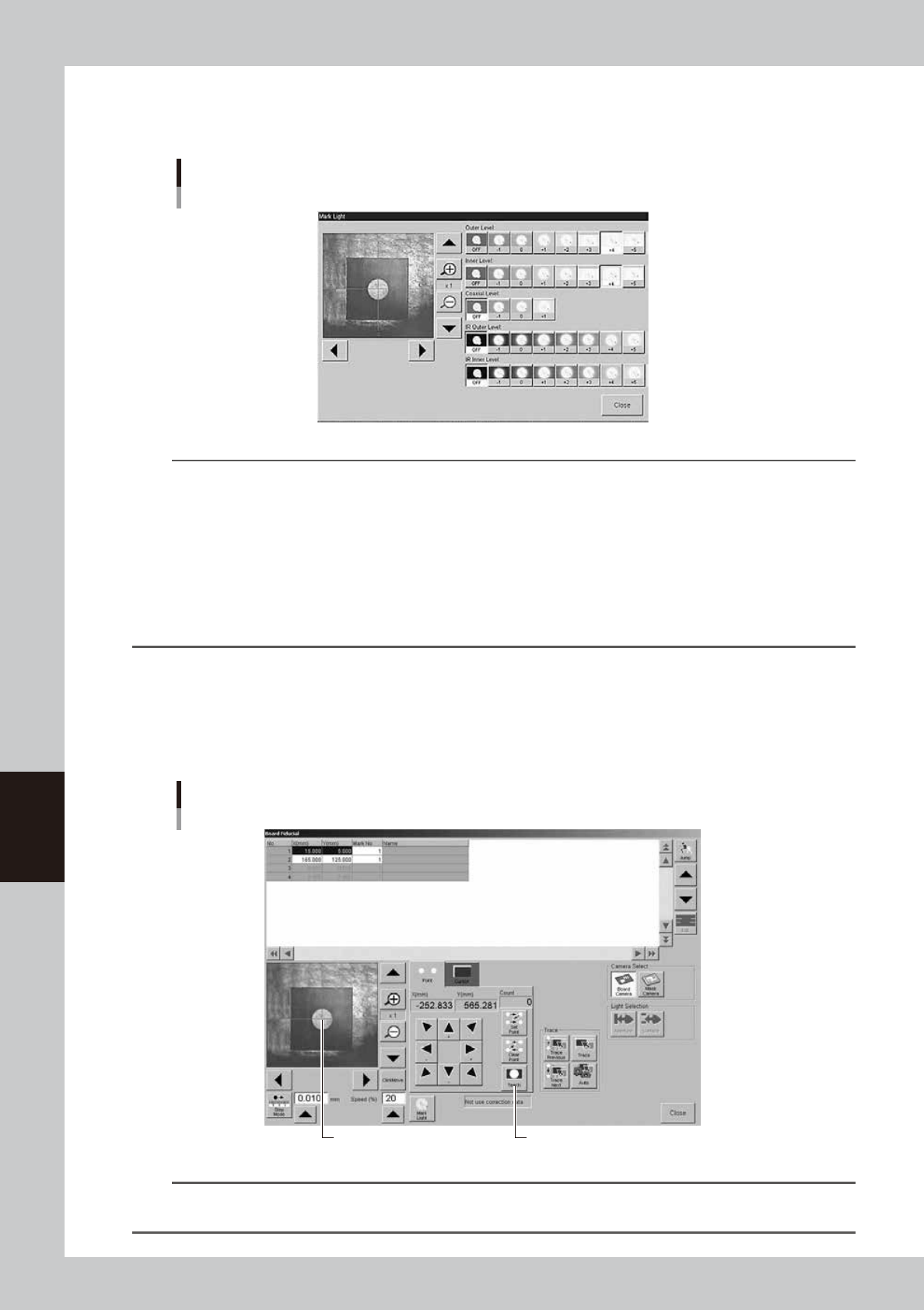
Adjust the lighting levels as needed.
If the target image is not clearly displayed on the vision monitor, press the [Light] button and adjust the
lighting levels. After adjusting, press the [Close] button to return to the Teach screen.
Light level adjustment
64604-L3-00
TIP
Optimum light levels depend on the materials of the board, mask frame and mark. Use the following method to find
optimum light levels.
1. Turn off all light units.
2. Turn on, one at a time, "Outer Light", "Inner Light", "Coaxial Light, "IR Outer Light" and "IR Inner Light" at the
maximum level, to see how clearly the mark can be seen.
3. Combine the light units that were effective, and adjust their light levels.
As a general guide for adjusting board mark lighting, try these suggestions.
• Flat surface marks reflecting light : "Coaxial Light" is effective.
• Flat surface marks made of copper oxide : "IR Inner Light" is effective.
• Marks with uneven surface diffusing light : "IR Outer Light" is effective.
8
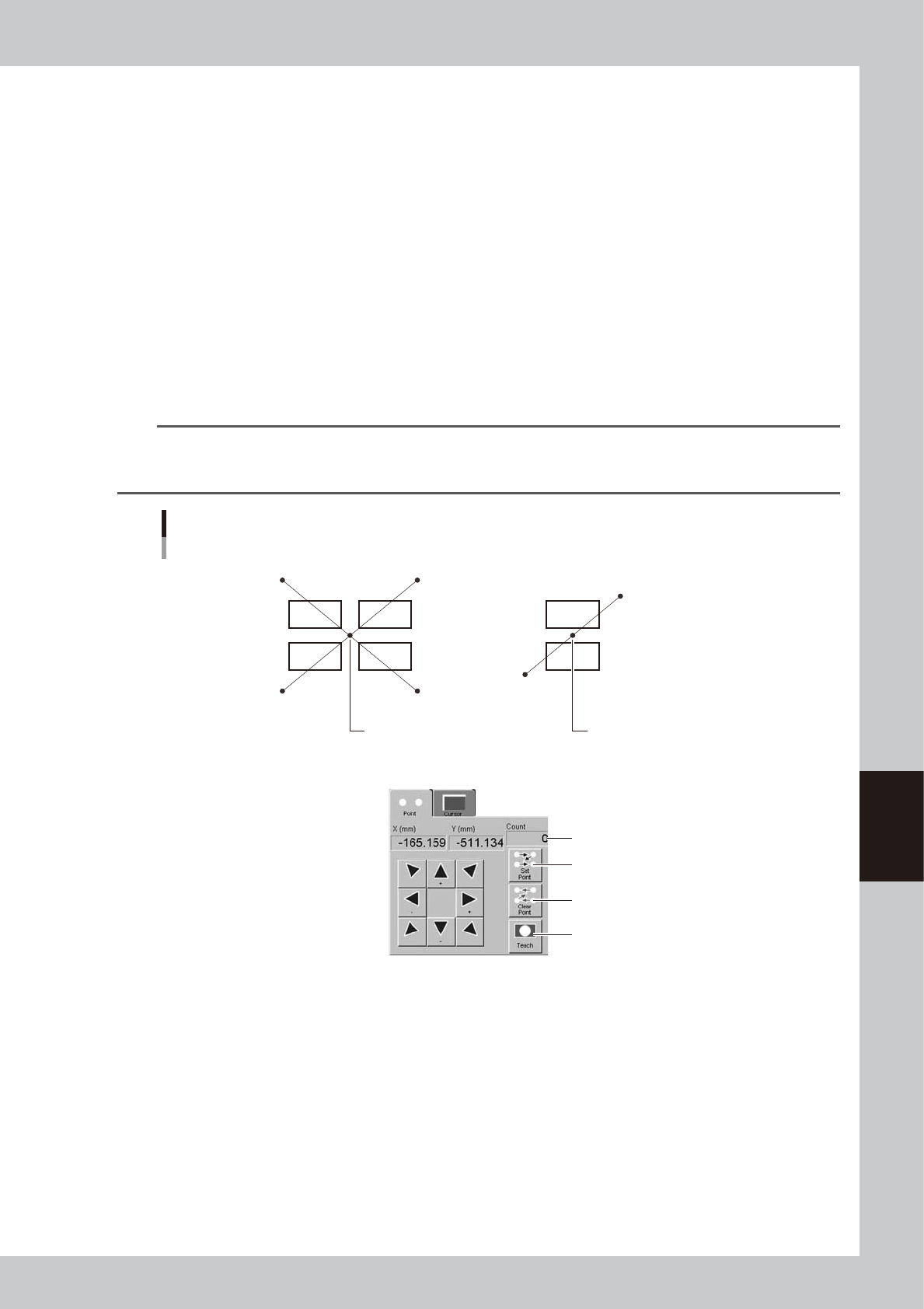
Press the [Teach] button to perform teaching input.
There are two ways to perform teaching input: "one-point input" and "multi-point input".
l
One-point input
After checking that the center of the target point is aligned with the center of the vision monitor,
press the [Teach] button.
One-point input
Center position data is input. [Teach] button
64605-L3-00
TIP
When the [Click Move] button is turned on (pressed), clicking the mouse at the target point where you want to
perform teaching makes it easier to align the target point with the center of the vision monitor.
6-5
6
Other functions
l
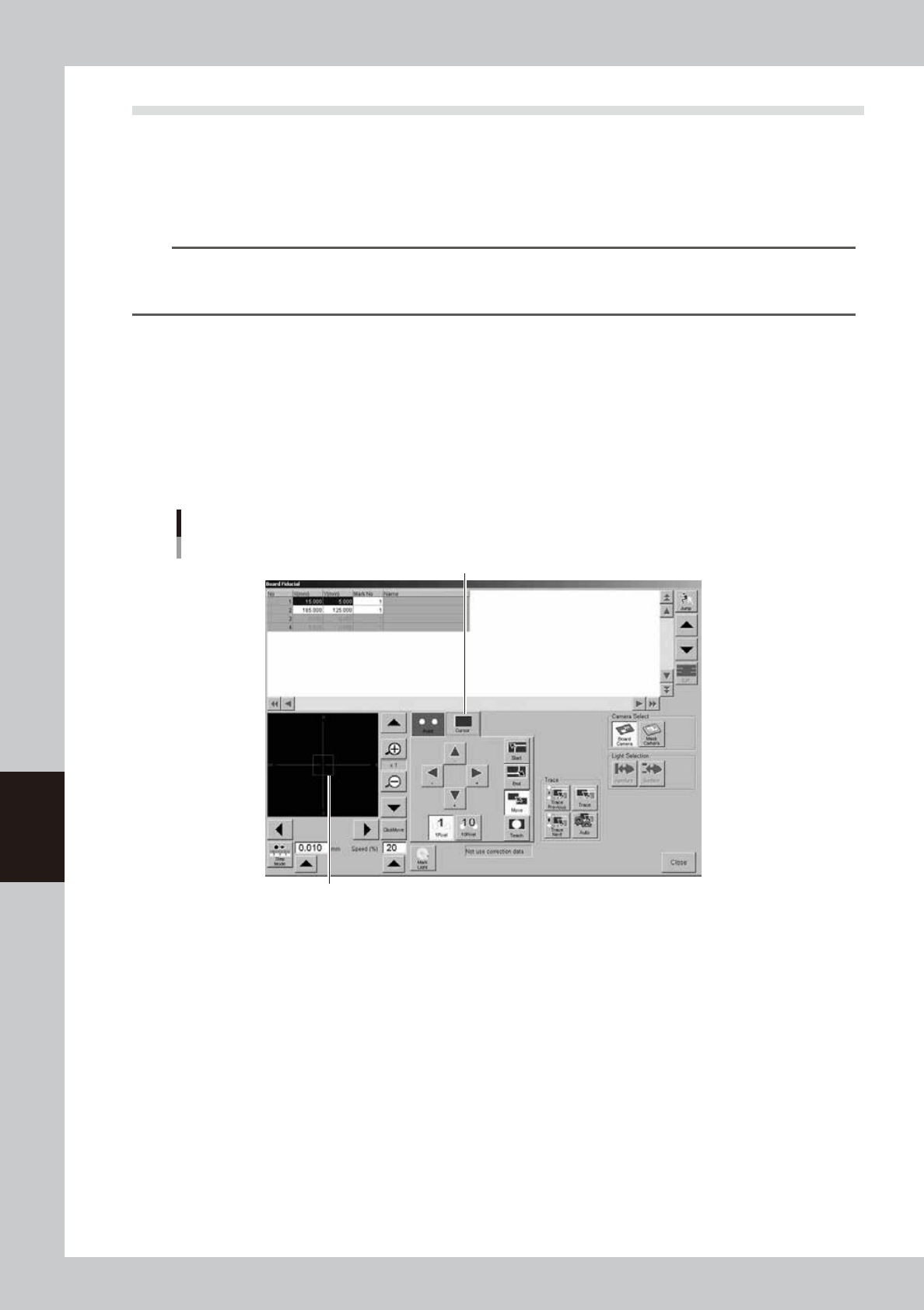
Multi-point input
The following steps explain the teaching method when the [Click Move] button is pressed. (If not using click movement,
use the [Axis movement] buttons to move the teaching unit to each target point.)
1. Click the mouse button at the first point.
The teaching unit moves to the first point and the first point is displayed at the center of the vision monitor.
2. Press the [Set Point] button.
3. Click the mouse button at the second point.
The teaching unit moves to the second point and the second point is displayed at the center of the vision monitor.
4. Press the [Set Point] button.
5. Click the mouse button at the third point.
The teaching unit moves to the third point and the third point is displayed at the center of the vision monitor.
6. Press the [Set Point] button.
7. Click the mouse button at the fourth point.
The teaching unit moves to the fourth point and the fourth point is displayed at the center of the vision monitor.
8. Press the [Teach] button.
The center position of the four points is input as the teaching position.
TIP
For two-point input, perform teaching at two points as shown below. The center coordinates of the two points are
input as the teaching position. The number of teaching points (2 in this case) is shown in the "Count" box. To cancel
the previous point, press the [Clear Point] button.
Multi-point teaching
Center coordinates of
4 points are input.
4th point 3rd point
1st point
4-point input teaching 2-point input teaching
Center coordinates of
2 points are input.
Number of input points
[Set Point] button
[Clear Point] button
[Teach] button
2nd point
1st point
2nd point
63601-L3-00
6-6
6
Other functions
1.4 Cursor teaching
In cursor teaching, a teaching window of any desired size is displayed on the vision monitor, and the position
data at the center of the window is input as the teaching position. The cursor teaching allows obtaining a more
accurate value than with normal teaching. Note that this function cannot be used unless the marks and patterns
fit in the vision monitor.
1
Press the [Teach] button to open the Teach screen.
TIP
When you perform teaching on a board and the board is not yet clamped on the conveyor, a check dialog box
appears asking you to load a board. Follow the message on the screen to load a board on the conveyor.
When you perform teaching on a mask, clamp the mask on the printing table.
2
Move the teaching unit to the target position.
Follow steps 2 to 6 for point teaching.
3
Adjust the lighting levels as needed.
If the target image is not clearly displayed on the vision monitor, press the [Light] button to adjust the
lighting levels just as with point teaching.
4
Open the [Cursor] tab.
A window (red frame) appears on the vision monitor for cursor teaching.
[Teach] screen
[Cursor] tab
Cursor teach window (red frame)
64606-L3-00