YSP_Users_E.pdf - 第180页
5-24 5 Managing the data 3.2 Production and operation log settings Press the [Software Setting] button or [History] button on the [Setup]-[Utility] tab screen to set the log. 3.2.1 Specifying the auto-save destination Lo…
5-23
5
Managing the data
[Clear] button (on "MIS" screen only)
Use this button to delete all log data currently displayed on the screen. Data cannot be deleted in rows.
When a confirmation dialog box appears, press the [Yes] button to delete the log data.
c
CAUTON
Data cannot be recovered once deleted, so use caution.
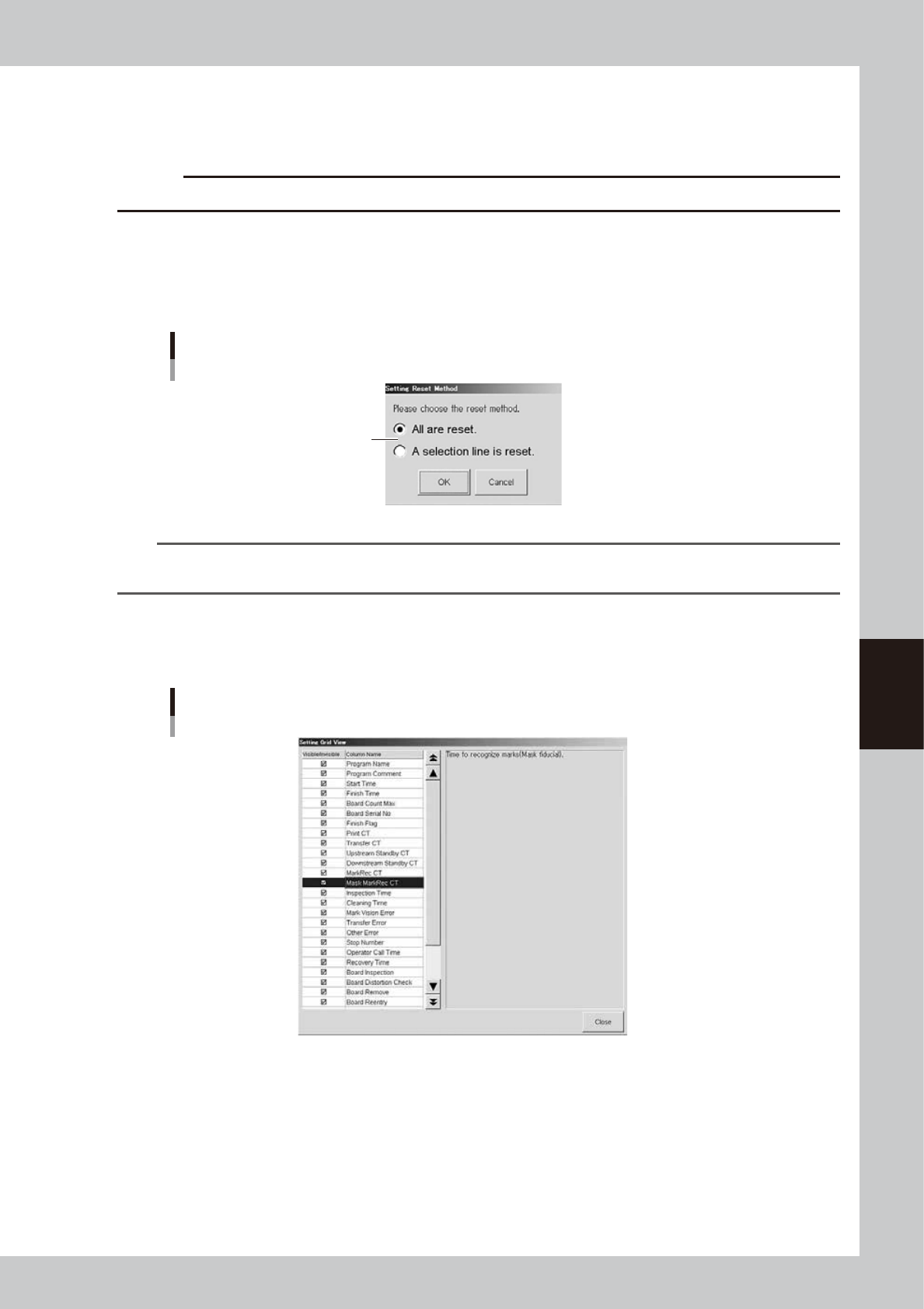
[Reset] button ("Unit Log" screen only)
Use this button to reset the contents currently displayed on the screen.
1. Press this button to open the "Setting Reset Item" dialog box, select the reset method, and press the [OK] button.
2. When a conformation dialog box appears, press the [Yes] button to reset the selected items.
“Setting Reset Item” dialog box
[Conveyor] tab
Select reset method.
64556-L3-00
TIP
If you want to clear/reset all production log data to an external medium at one time, make settings on the "History
Utility" screen. For information on the "History Utitiliy" screen, refer to "4.2.3 History Utility" described later on.
[Option] button
Pressing the [Option] button opens the "Setting Grid View" screen that allows you to show or hide each log data item.
Check the items you want to display, and uncheck the items you do not want to display.
Selecting the items to display
64557-L3-00
5-24
5
Managing the data
3.2 Production and operation log settings
Press the [Software Setting] button or [History] button on the [Setup]-[Utility] tab screen to set the log.
3.2.1 Specifying the auto-save destination
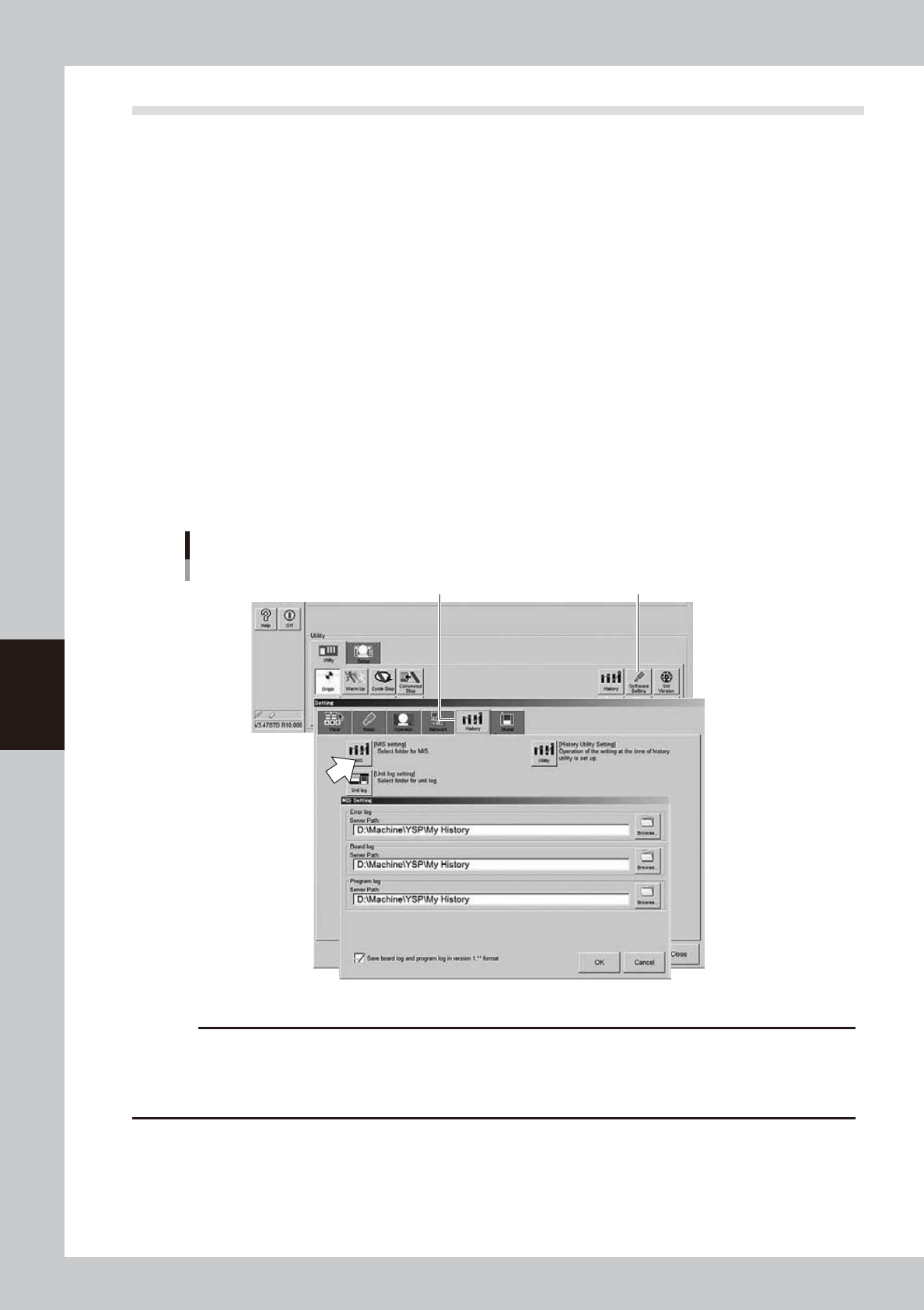
Log data can be automatically saved in the specified locations at the time when the machine is turned off. To
specified the save destination, follow these steps.
1
Press the [Software Setting] button on the Setup screen.
The "Setting" screen then appears. Open the [History] tab.
2
Press the [MIS] or [Unit log] button.
• Press the [MIS] button to set the save destination of production log data.
The "MIS Setting" dialog box appears.
• Press the [Unit Log] button to set the save destination of operation log data.
The "Unit Log Setting" dialog box appears.
3
Set the server paths.
1. Press the [Browse] button and specify the path to each folder where the log data will be stored. (You
can directly enter the paths in each path entry box.)
2. After specifying the folders, press the [OK] button.
Log data will be automatically saved in the folders specified here.
Specifying the destination to save log data
[History] tab
[Software Setting] button[History] tab
64558-L3-00
c
CAUTION
A file, into which the production log or operation log is saved, has a name that date is attached to the file name. In
this case, the log data on the same day is updated every time the board is changed.
As the number of files increases by date, the free area may become insufficient. As a result, the board data may not
be saved or it may be failed to start up the software. Therefore, do not specify the machine for the save destination.
5-25
5
Managing the data
n
File names automatically saved
Item Display item File name example
MIS
Error log ErrLog20140310.csv
Board log PcbLog20140310.csv
Program log LotLog20140310.csv
Unit log
Conveyor YvpConv20140310.csv
Mask YvpMask20140310.csv
Squeegee YvpSqueegee20140310.csv
Cleaner YvpCleaner20140310.csv
TIP
Each file is automatically named when saved. It consists a predetermined log name (ErrLog, PcbLog, etc.) followed
by a number representing the date such as "20140310" (March 10, 2014).
A new file is created each day.
4
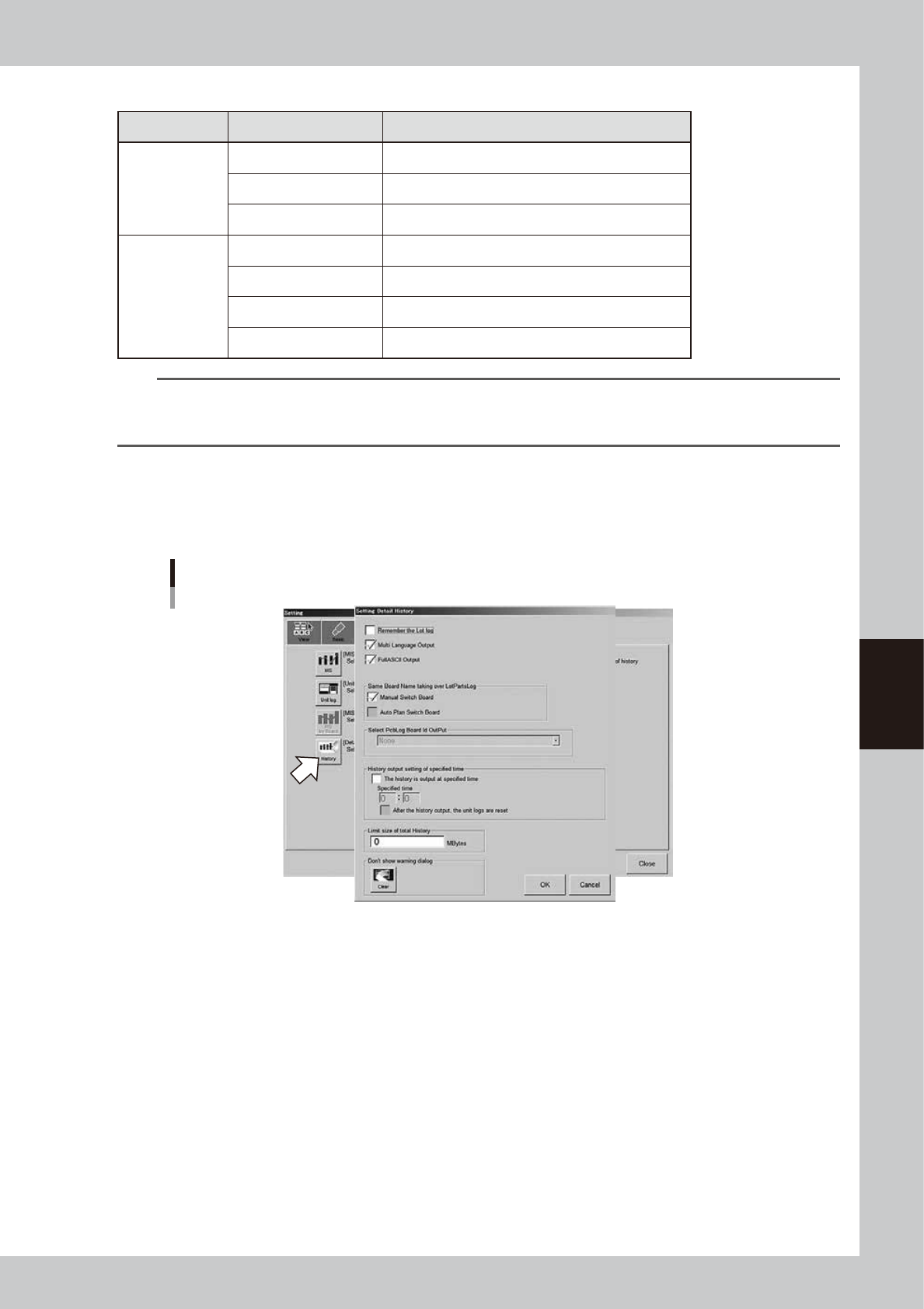
Press the [History] button on the “Setting” screen.
The “Setting Detail History” dialog box then appears.
5
Select the check boxes as needed.
“Setting Detail History” dialog box
64559-L3-00
• "Remember the lot log" check box
When this check box is selected, the board data that was in use when the machine power was
turned off will be loaded again the next time the power is turned on, in order to take over its
operation history data.
• "Multi Language Output" check box
When this check box is selected, the operation history data can be saved or loaded in multi-
language mode.
• "FullASCII Output" check box
When this check box is selected, characters not applicable to this machine (illegal characters) are
converted automatically in the file read process.
Illegal characters (example): !#$%&@*<>?/, etc.