YSP_Users_E.pdf - 第175页
5-19 5 Managing the data n Items displayed on the "MIS" screen [Error Log], [Board Log] and [Program Log] tabs Items to be display ed on these tabs can be viewed by pressing the [Option] button on the lower rig…
5-18
5
Managing the data
3. Production log management
It is possible to collect, store, and display log data such as various types of production information and
errors that occurred during automatic operation.
This useful function allows you to collect daily operation conditions and production logs, and also supports
an automatic log data collection system through the network.
3.1 Production log types
This machine stores production logs per machine and per board data.
The production logs are broadly grouped into 2 types. One is a log history and the other is a machine operation
data count log.
3.1.1 Production log (MIS)
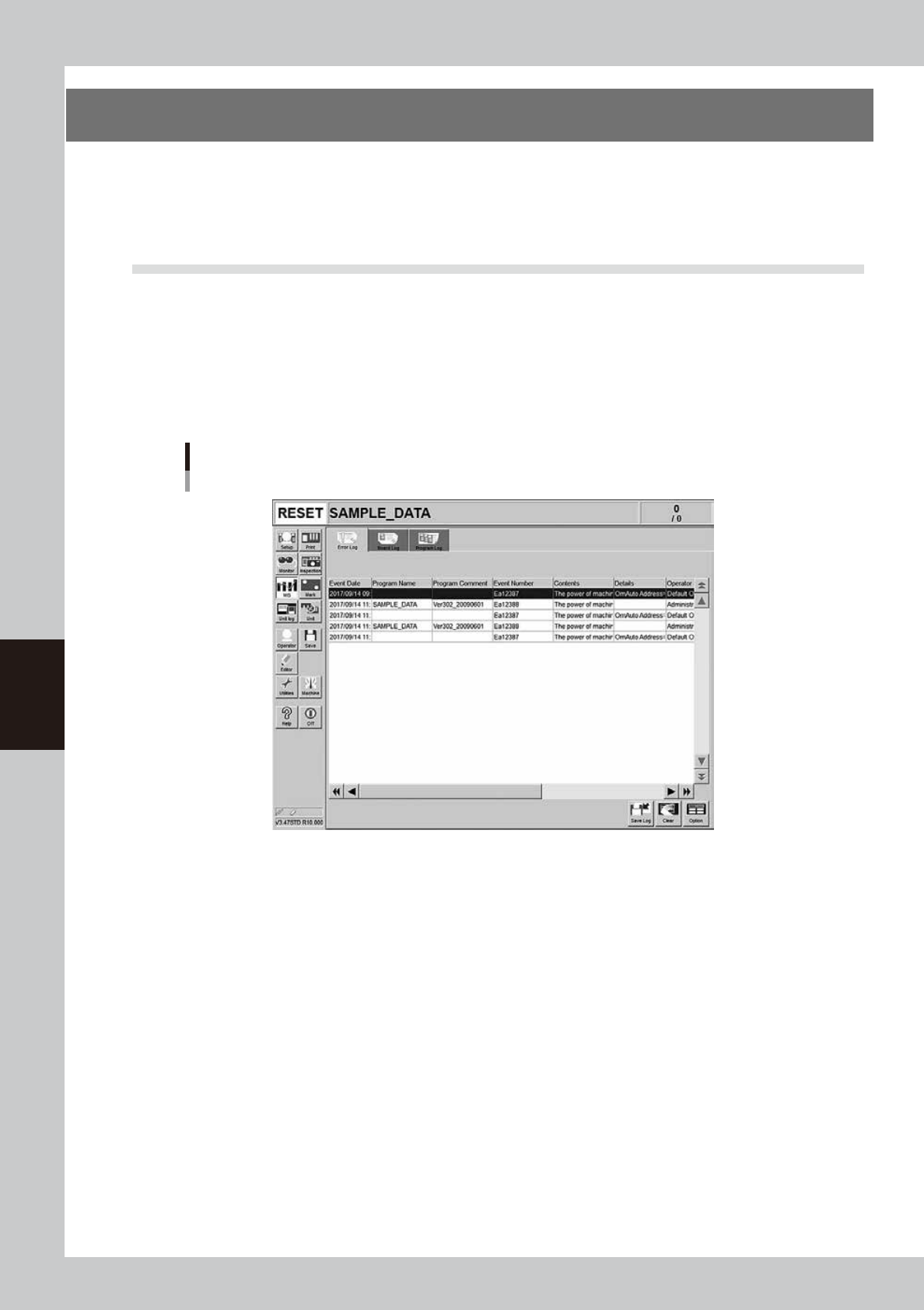
When pressing the [MIS] button, the production log screen appears that is separated by the [Error], [Board],
and [Program] tabs, allowing you to easily check the production log.
Production log ("MIS" screen)
[Error Log] tab
64550-L3-00
Error Log
Displays error and operation logs.
One error or one operation is listed in one data row. Up to 1000 rows can be displayed.
Board Log
Displays production logs per board.
One data row is used to record one board. Up to 1000 rows can be displayed.
Program Log
Displays production results per lot, with one lot treaded as the interval from the loading of a program (board data) until
switching over to the next program.
One data row is used to record one lot. Up to 1000 rows can be displayed.
5-19
5
Managing the data
n
Items displayed on the "MIS" screen
[Error Log], [Board Log] and [Program Log] tabs
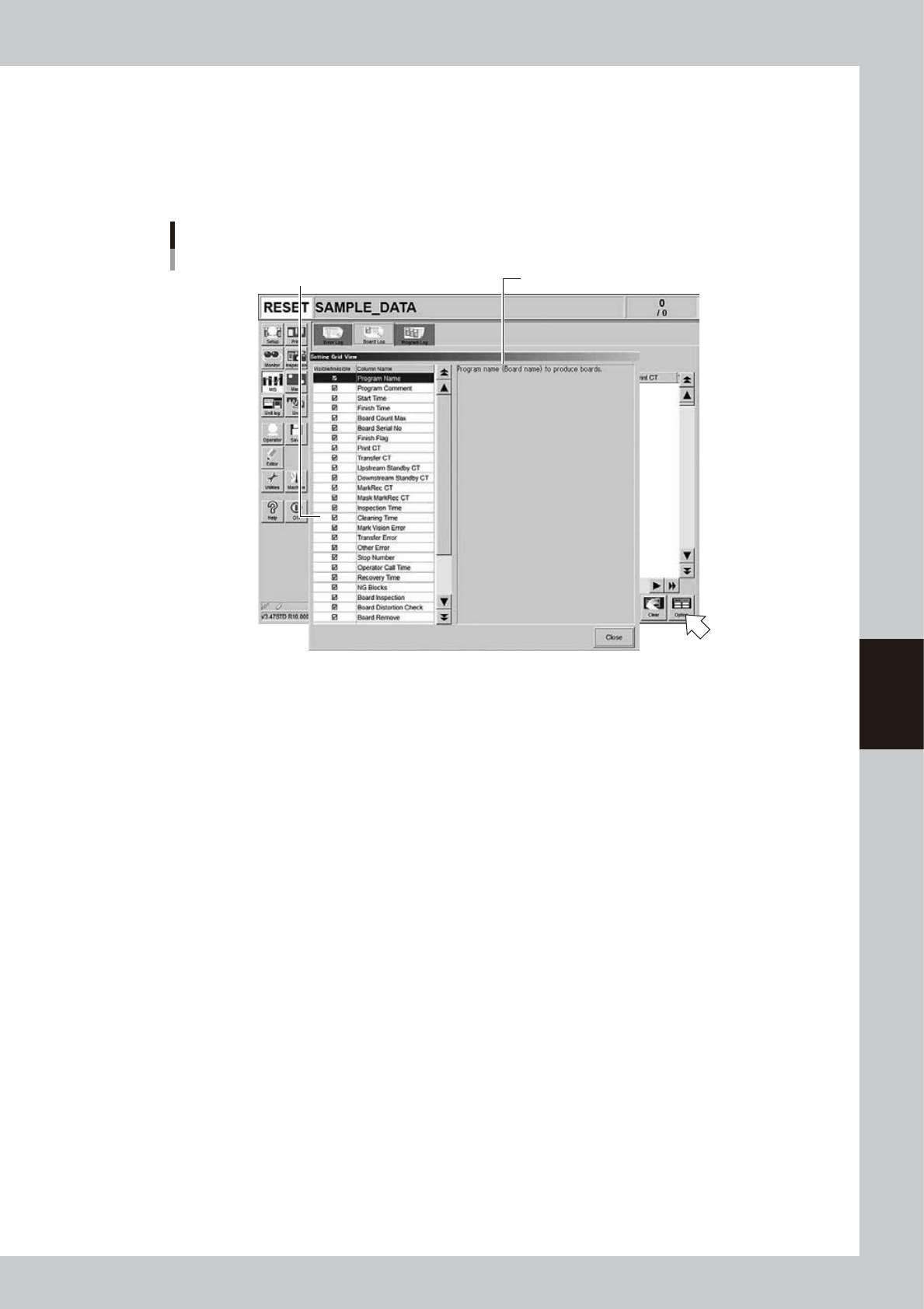
Items to be displayed on these tabs can be viewed by pressing the [Option] button on the lower right of the "MIS" screen.
Pressing the [Option] button opens the "Setting Grid View" screen as shown below. Selecting each item in the left-hand
list shows the contents of that item on the right side.
“Setting Grid View” screen
[MIS] - [Board Log] tab
Select item.
Description of the selected item is displayed.
64551-L3-00
5-20
5
Managing the data
3.1.2 Operation log (Unit Log)
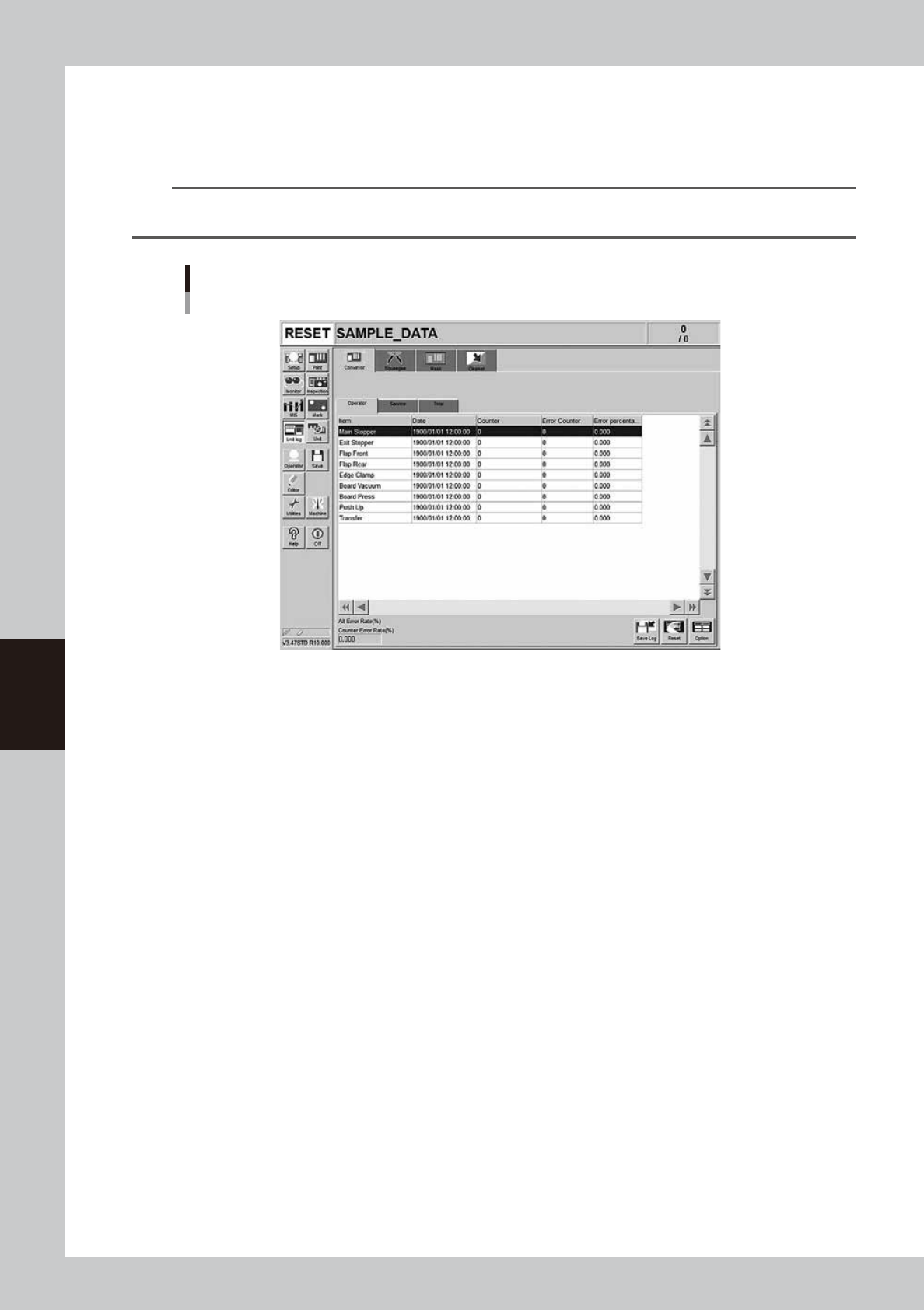
The operation logs of various units used in the machine are recorded. To check these operation logs, press the
[Unit log] button on the main menu button area. The operation logs relating to the conveyor, squeegee, mask
and cleaning unit are displayed by selecting the corresponding tab.
TIP
Three kinds of data, data that can be arbitrarily reset by the user, maintenance data, and total data, are displayed
on each tab screen.
Operation log (“Unit Log” screen)
[Conveyor] - [Operator] tab
64552-L3-00
Conveyor
The operation log of each conveyor unit, such as exit stopper, flap, board pickup, and push-up is displayed.
The operation log is separated by the [Operator], [Service], and [Total] tabs to display it according to the purpose that is
used. The log data on the [Operator] and [Service] tab screens can be reset, but the log data on the [Total] tab screen
cannot be reset.
Error percent
Number of operation errors divided by number of operations
×
100 (%).
Counter error rate
The "Counter error rate" box shows the total number of operation errors recorded on the tab divided by the total number
of operations
×
100 (%).
Squeegee
The operation status of the metal squeegee or urethane squeegee is displayed. The log is counted by double squeegee
type and it can be selected from the drop-down list at the upper left portion.
Contents of each item to be displayed and button functions are the same as the [Conveyor] tab screen.
Mask
The operation log of the mask clamp or mask vacuum and the mask operation counts are displayed. The mask operation
counts are displayed by the mask name. When the board is produced with the same mask name, one mask name is
counted even when the different board data is used.
Contents of each item to be displayed and button functions are the same as the [Conveyor] tab screen.
Cleaner
The operation log of the blower motor is displayed.
Contents of each item to be displayed and button functions are the same as the [Conveyor] tab screen.