YSP_Users_E.pdf - 第113页
4-10 4 Creating and setting the data 3.2 Board data detail setting When you press the [Detail] button on the [Print]-[Board] tab, a dialog box with the [Manual Board Chec k], [Board Distortion P arameter] and [Local Fid.…
4-9
4
Creating and setting the data
V: Alignment
Select the processing method after fiducial mark recognition. Set to "UseAlign" in normal operation, and the machine
immediately stops when a mark recognition error occurs. When this is set to "IgnoreErr", the machine continues operation
even if a mark recognition error occurs.
W: Print Feedback
Always set this parameter to "Use" when producing boards. (If you want to check the squeegee head movement without
controlling the printing pressure, set this parameter to "NotUse".
X: Board Distortion Tol.
This parameter specifies the allowable distortion limit when checking the distortion component in the board fiducial
recognition position and local fiducial mark recognition positions on the board. The distortion check is not performed
when this parameter is set to "0.00".
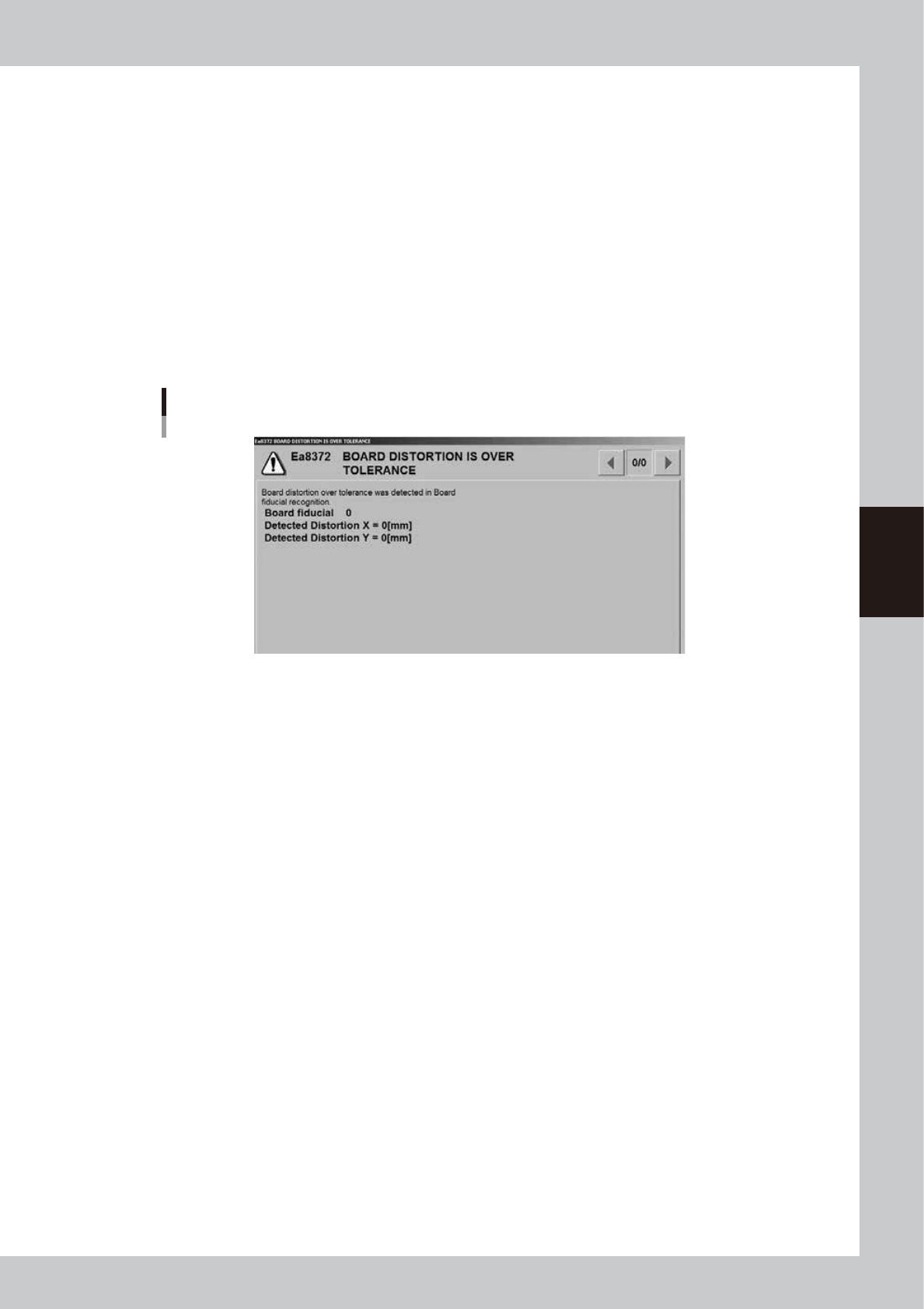
If the distortion component calculated by recognizing the board fiducial marks or local fiducial marks during automatic
operation exceeds the allowable limit specified here, an error message box appears as shown below and the machine
stops. After closing the error message box, you can select whether to print solder on the board or to convey the board
out without printing solder according to the dialog box that appears.
Error message for board distortion
64412-L3-00
Y: Air conditioner interlock
When an optional temperature control unit is used, set whether or not to enable the interlock mechanism that functions
if an abnormal temperature is detected.
4-10
4
Creating and setting the data
3.2 Board data detail setting
When you press the [Detail] button on the [Print]-[Board] tab, a dialog box with the [Manual Board Check],
[Board Distortion Parameter] and [Local Fid.] tabs appears. You can set the board check positions, board
distortion offset parameters and local fiducial function here. Setting methods are explained below.
l
Board check positions
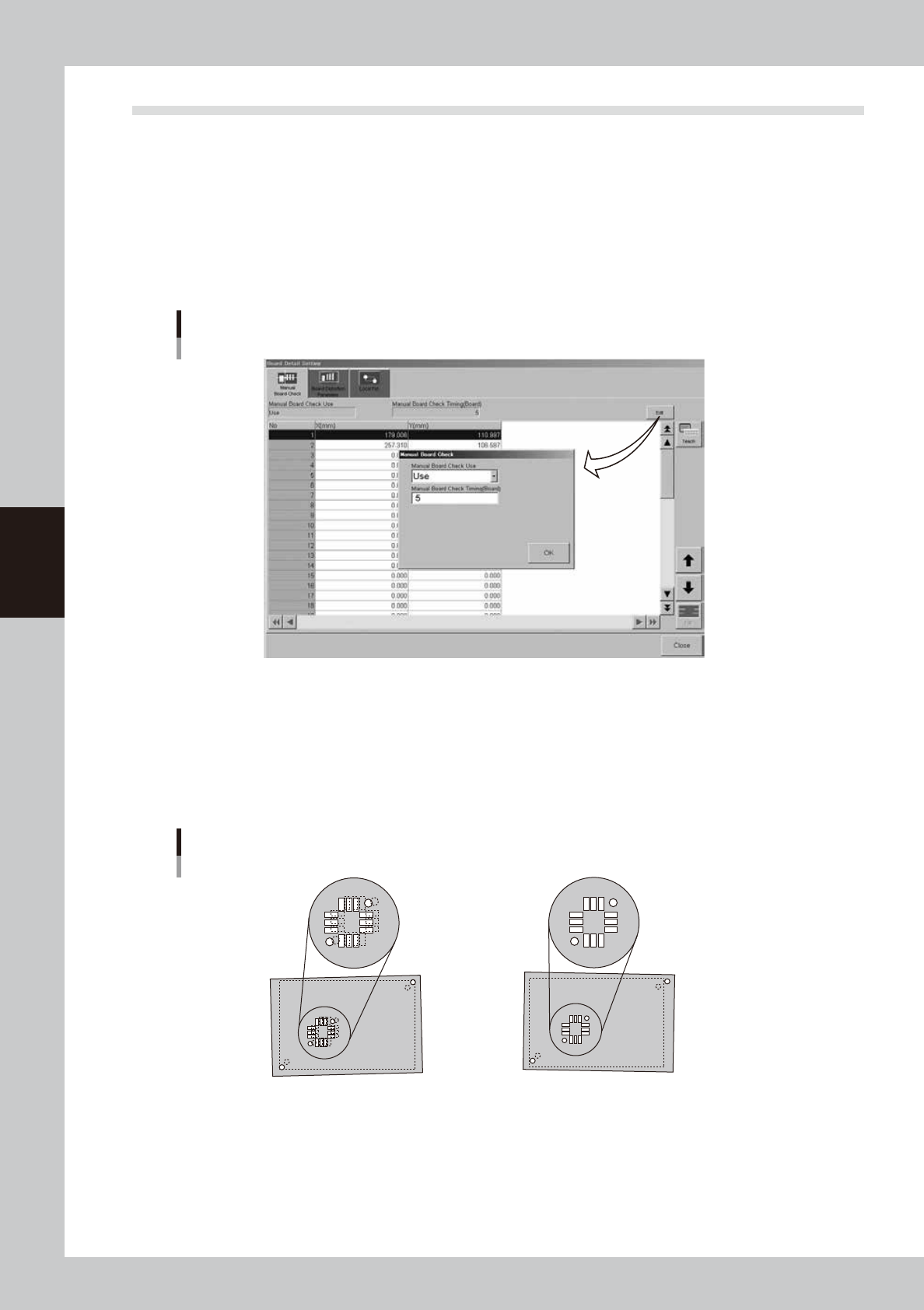
On the [Manual Board Check] tab, you can specify the positions on the board where you want to make a visual check of
printed solder. (Refer to "9. Making a test print" in this chapter for solder-print testing.) Pressing the [Edit] button at the
upper right opens the "Manual Board Check" dialog box. Set whether to use this function or not, as well as the board
interval to make a visual check.
[Manual Board Check] tab
64413-L3-10
l
Board distortion offset *Print inspection function (option)
When boards in the same lot tend to be elongated or distorted in the same direction, or the same problem appears only
in the board fiducial positions, then overall position deviations might occur in the solder-print inspection. These
deviations can occur regardless of whether print accuracy was maintained by visual alignment. If this happens, use the
board distortion offset function to add correction offsets to the overall inspection coordinates to get the correct position
using solder-print inspection results (solder position) of the printed board used as the reference.
Board distortion offset
1. When the board fiducial positions have
elongation or distortion, the board clamping
deviation cannot be corrected, and overall
position deviations will occur in the
solder-print inspection results.
2.
Solder accurately printed on the land patterns
is recognized by the vision camera and the
position offset data is used as feedback.
(overall shift)
63406-L3-00
4-11
4
Creating and setting the data
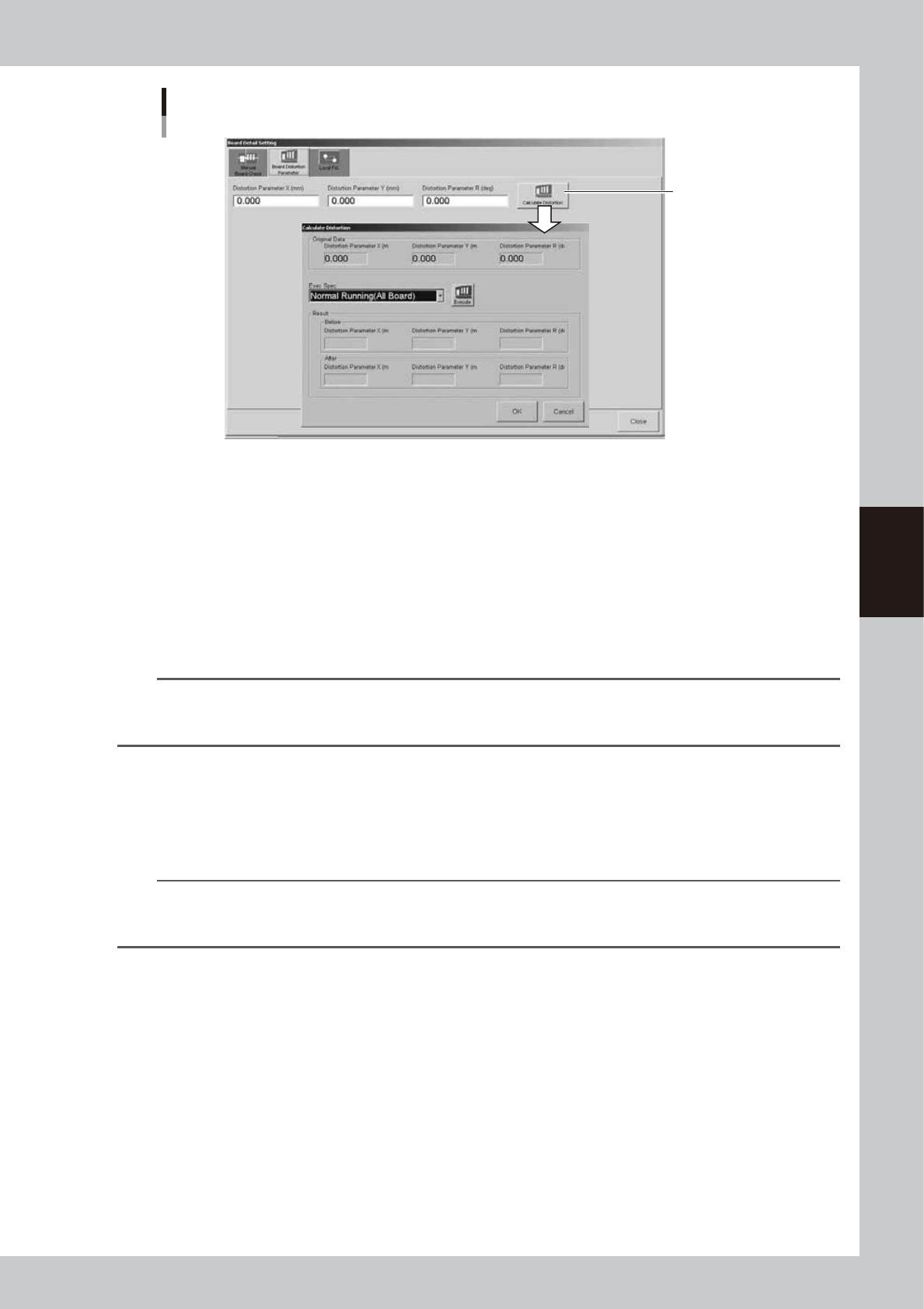
Board distortion offset parameter setting
[Calculate Distortion]
button
64414-L3-00
Pressing the [Calculate Distortion] button on the right of the [Board Distortion Parameter] tab shows the "Calculate
Distortion" dialog box. Inside this dialog box, the "Original Data" group box shows the original settings before
corrections were obtained.
Press the [Execute] button to run the solder-print inspection and detect the overall deviation in solder print positions. The
X, Y and R distortion corrections are then acquired automatically.
The "Results" group box shows corrections "Before" the current solder-print inspection. It also shows corrections (offsets)
newly acquired "After" the solder-print inspection. These "Before" and "After" correction values are compared and the
solder-print inspection repeated until these values no longer change. The solder-print inspection has to be run several
times (3 to 5 times) before this process is complete. Press the [OK] button to enable the corrections now obtained. Press
the [Cancel] button to discard these values.
n
NOTE
The solder-print inspection is run to acquire distortion values so solder-print inspection data must be created in
advance. As much objects to be inspected as possible should be entered in order to detect the correct print position
for the entire board. (For details, see "Print inspection function" in the separate Option Manual.)
l
Local fiducial function
Uniform printing accuracy at important points can be ensured by recognizing marks near positions where it is essential
to maintain good printing accuracy. This is especially true when printing on board within the same lot having elongation
or distortion irregularities. The [Local Fid.] tab allows you to set the type of mark and position coordinates of the local
fiducial marks being used.
TIP
Position correction with local fiducial marks is also used to calculate the print position, as well as calculate the printing
position for running the solder-print inspection on machines equipped with the solder-print inspection function
(option).