JANETS_INM.pdf - 第102页
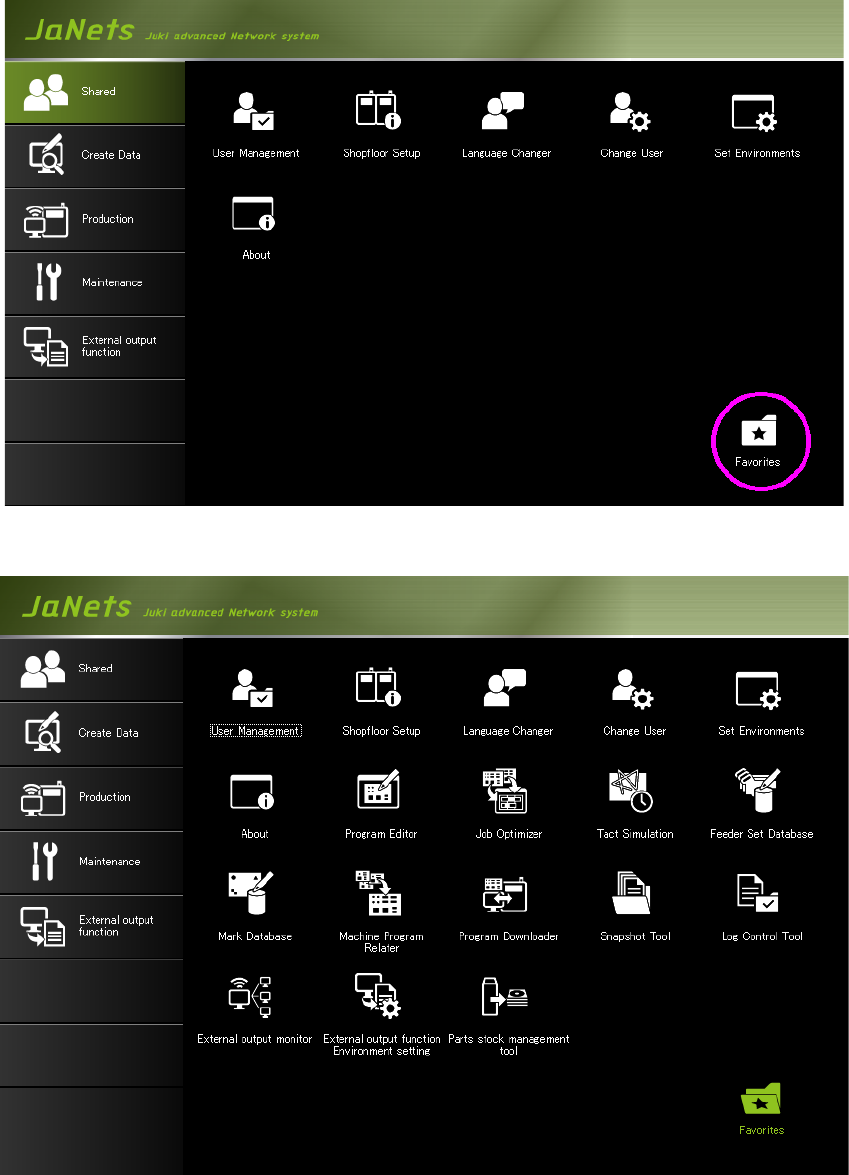
JaNets Instr ucti on Man ual 3. Launcher 3-7 The applic ation regi stered in Favorite is dis playe d by clicki ng the Favor ite ico n. Figu re 3.3 -3 Favorite icon Figu re 3.3 -4 Favorite scre en
JaNets Instruction Manual 3. Launcher
3-6
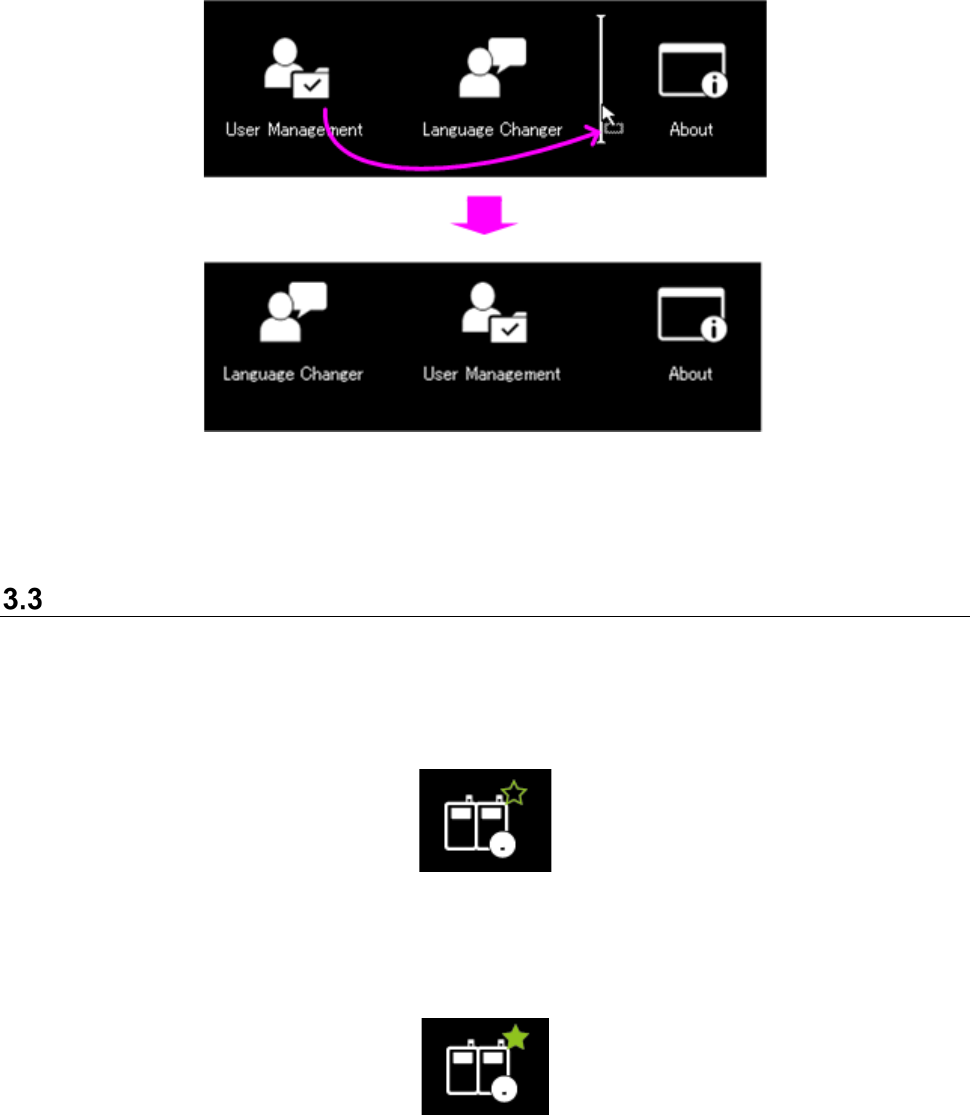
The applications can be sorted by dragging them.
Figure 3.2-2 Sorting of applications
The arrangement of applications can be set for each user.
Favorite
The applications to be used frequently can be arranged in one group by registering the application
of each tab into “Favorite.”
The Favorite button is displayed on the upper right side of the icon by single-clicking an application
icon.
Figure 3.3-1 Favorite button (not registered)
An application can be registered as a favorite by clicking the Favorite button. Favorite can be
reset by the Favorite button of a registered application. Favorite can be set for each user.
Figure 3.3-2 Favorite button (registered)
JaNets Instruction Manual 3. Launcher
3-7
The application registered in Favorite is displayed by clicking the Favorite icon.
Figure 3.3-3 Favorite icon
Figure 3.3-4 Favorite screen
JaNets Instruction Manual 3. Launcher
3-8
Changing a User
When you log in the JaNets Launcher again, you can change the user who logged in the JaNets
Launcher at start-up to another one.
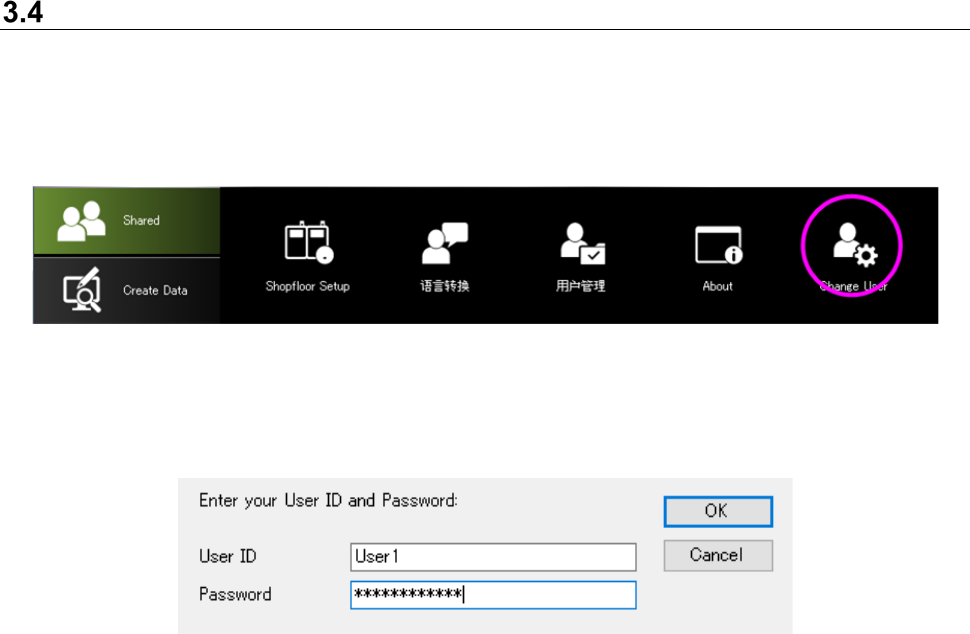
Click the [Shared] command, and then the [Change User] command on the “User Management”
menu.
Figure 3.4-1 Menu for changing the user
The “Login” dialog box appears on the screen. Enter the user ID and the password.
Figure 3.4-2 “Login” dialog box
* While an application program (except for the tool for switching the language) is being
executed, you cannot change the user.