JANETS_INM.pdf - 第349页
JaNets In structio n Manual 7. Program Editor 7- 142 (2) D efaul t S etup Determine s the de fault set tings. Figure 7.6 - 38 “ Set Environments (De fault Setup) ” screen Select “ Default Se tup ” from the tr ee view to …
JaNets Instruction Manual 7. Program Editor
7-141
Setting the environment
Select the [Set Environments] command from the “Tools” menu to set the operation of the Program
Editor, the items displayed on the list screen, and whether to display the panel or hide it.
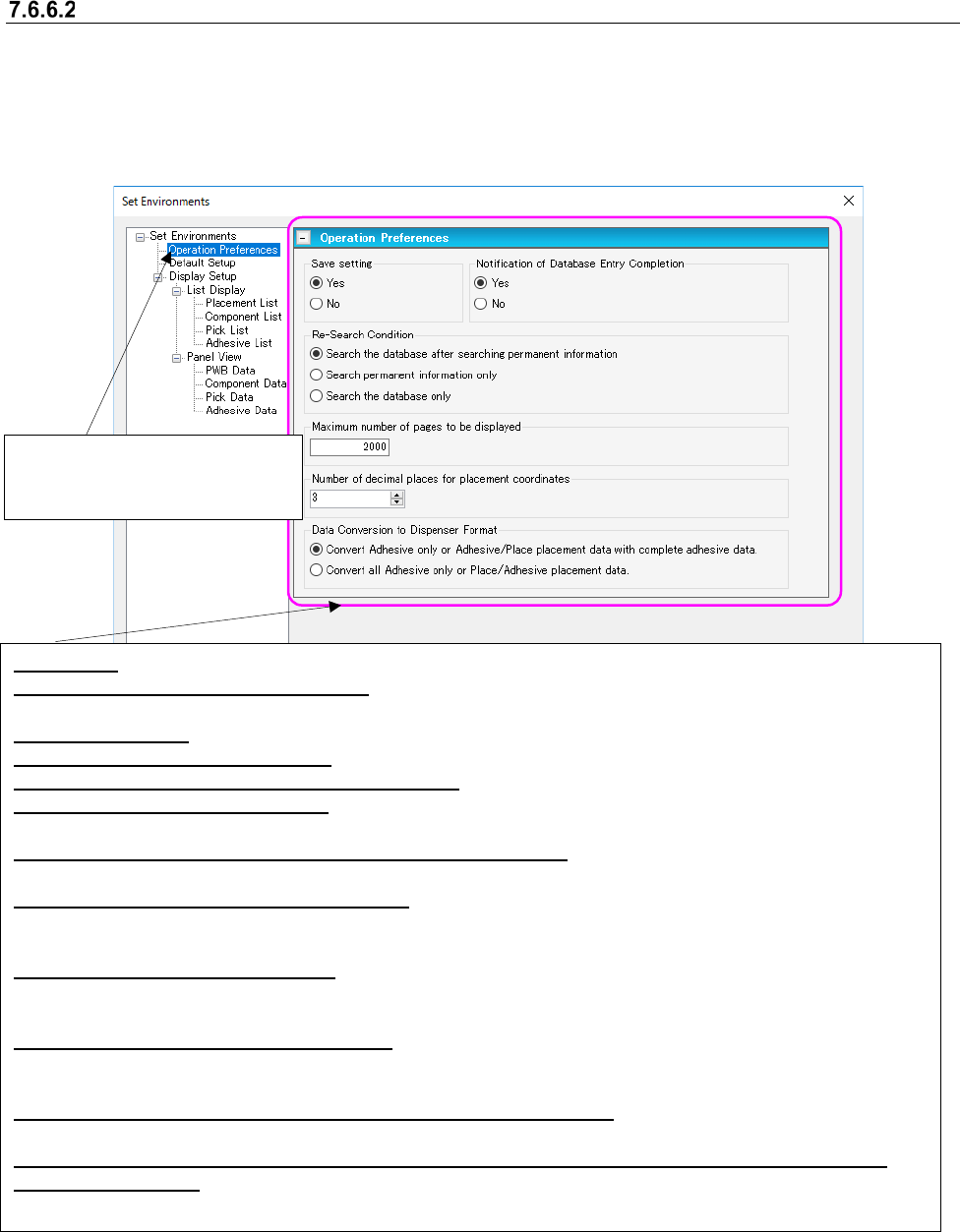
(1) Operation Preferences
Determines the settings for the operation of Program Editor.
Figure 7.6-37 “Set Environments (Operation Preferences)” screen
Save setting: Select whether to save the condition under which you quit the Program Editor.
Notification of Database Entry Completion: Select whether to be notified of completion of entry into the database
when the system exports data into the database.
Re-Search Condition: Select the condition for searching the database with the [Re-search] command.
Data Conversion to Dispenser Format: Select a method to convert the placement data into the dispenser format.
Number of decimal places for placement coordinates: Specify the number of digits after decimal point.
Reverse video of an SOT component: Select whether to reverse an SOT component image on the “Board Viewer”
right to left.
Default value of the gap for searching for an adjacent component: Specify the initial value of the “Gap” field to
be used for searching for an adjacent component.
Automatic acquisition from the mark database: Select whether to automatically obtain data whose name is the
same as the entered mark name if there is any on the database when you enter a mark name.
(This item is enabled with the Line Manager, the Data Manager or Equipment Manager only.)
Automatic batch loading of Mark data: Select whether to obtain mark data from the database before the data
coherence check starts. (This item is enabled with the Line Manager, the Data Manager or Equipment Manager
only.)
Automatic batch loading of Component data: Select whether to obtain Component data from the database
before the data coherence check starts. (This item is enabled with the Line Manager, the Data Manager or
Equipment Manager only.)
Message displayed when a component that can be inserted is selected: Select whether to display the
message indicating that you have to make the setting for deciding that a component can be inserted.
Data is fixed when the outer dimensions are changed after component data on an insertion component
is created completely: Select whether to set the default data when the outer dimensions of an insertion
component whose data is created completely are changed.
Select “Operation Preferences”
from the tree view to display the
“Operation Preferences” screen.
JaNets Instruction Manual 7. Program Editor
7-142
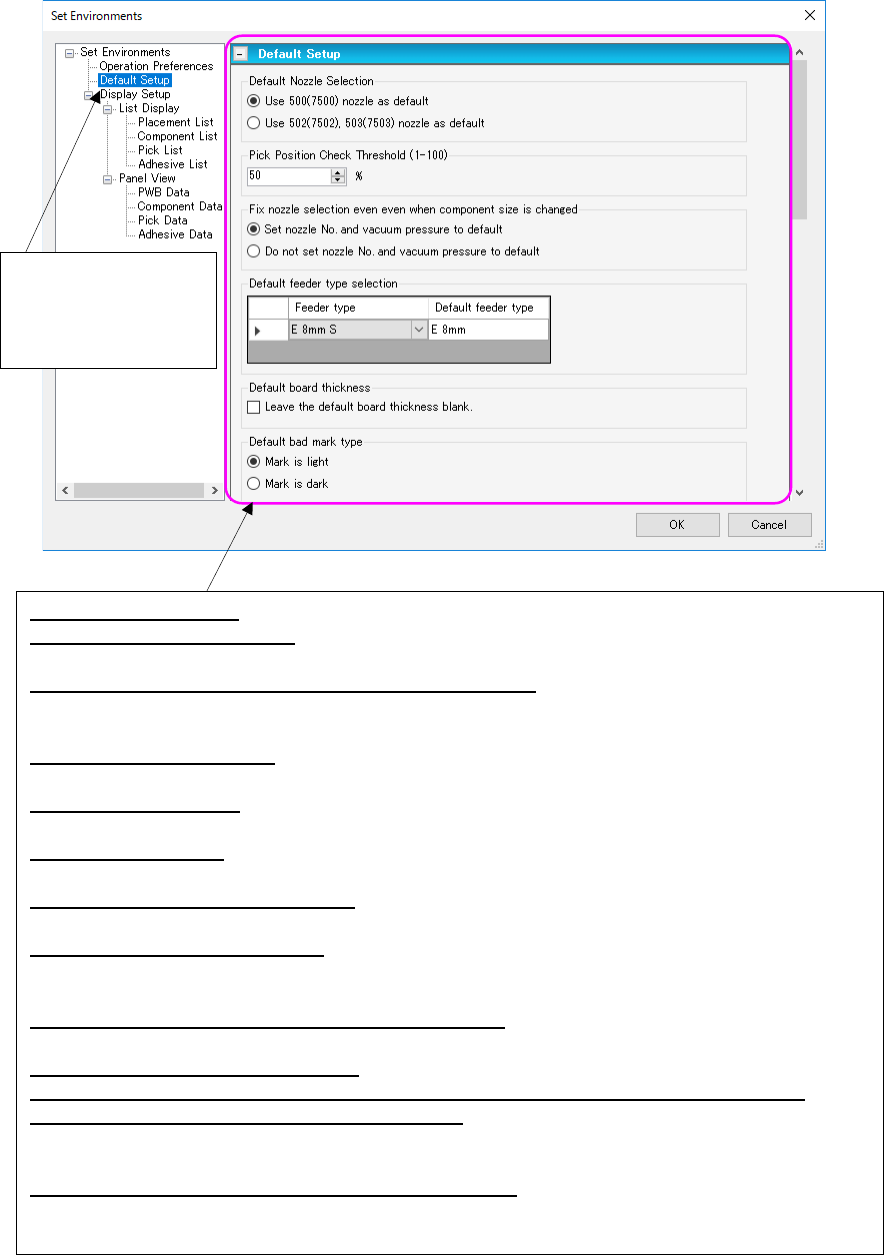
(2) Default Setup
Determines the default settings.
Figure 7.6-38 “Set Environments (Default Setup)” screen
Select “Default Setup”
from the tree view to
display the “Default
Setup” screen.
Default Nozzle Selection: Set the default nozzle to create the Component data.
Pick Position Check Threshold: Set a value to be used to calculate the value for judging whether a
component pick-up position is shifted or not.
Fix nozzle selection even when component size is changed: Select whether to restore the nozzle
number and the vacuum pressure to their default values respectively when you change the di-
mensions of a component.
Default feeder type selection: Set the default feeder type that is displayed on the screen when editing
Pick data. The default type can be set for the feeder that has two or more types.
Default board Thickness: Specify whether to make PWB thickness of PWB data blank (Not set) or to
default it when a new production program is created.
Default Bad Mark Type: Set the default bad mark type of PWB data to be applied when you create new
data.
Placement Monitor 120 default setting: Specify the default settings made in the “Placement Monitor
120” column to be applied when you create new data.
Default for use of RX-7 series data: Specify the default setting for whether RX-7 series data will be
used or not to be
applied when you create new data.
Default value of the number of RX-7 series components: Set the default number of components to
be applied when you create new data.
Default Nozzle Selection (RX-7 series): Set the default nozzle to create the Component data.
Default Nozzle Selection (JM-100 series): Set the default nozzle to create the Component data.
Default value of a placed component height check: Specify the default value for a placed component
height check. You can use a different default value depending on the SMT/MI. When a pro-
duction line includes a JM series machine, the system uses the default value for MI.
Default value of the component height before placement: Specify the default value for a component
height check before placement of a component.
JaNets Instruction Manual 7. Program Editor
7-143
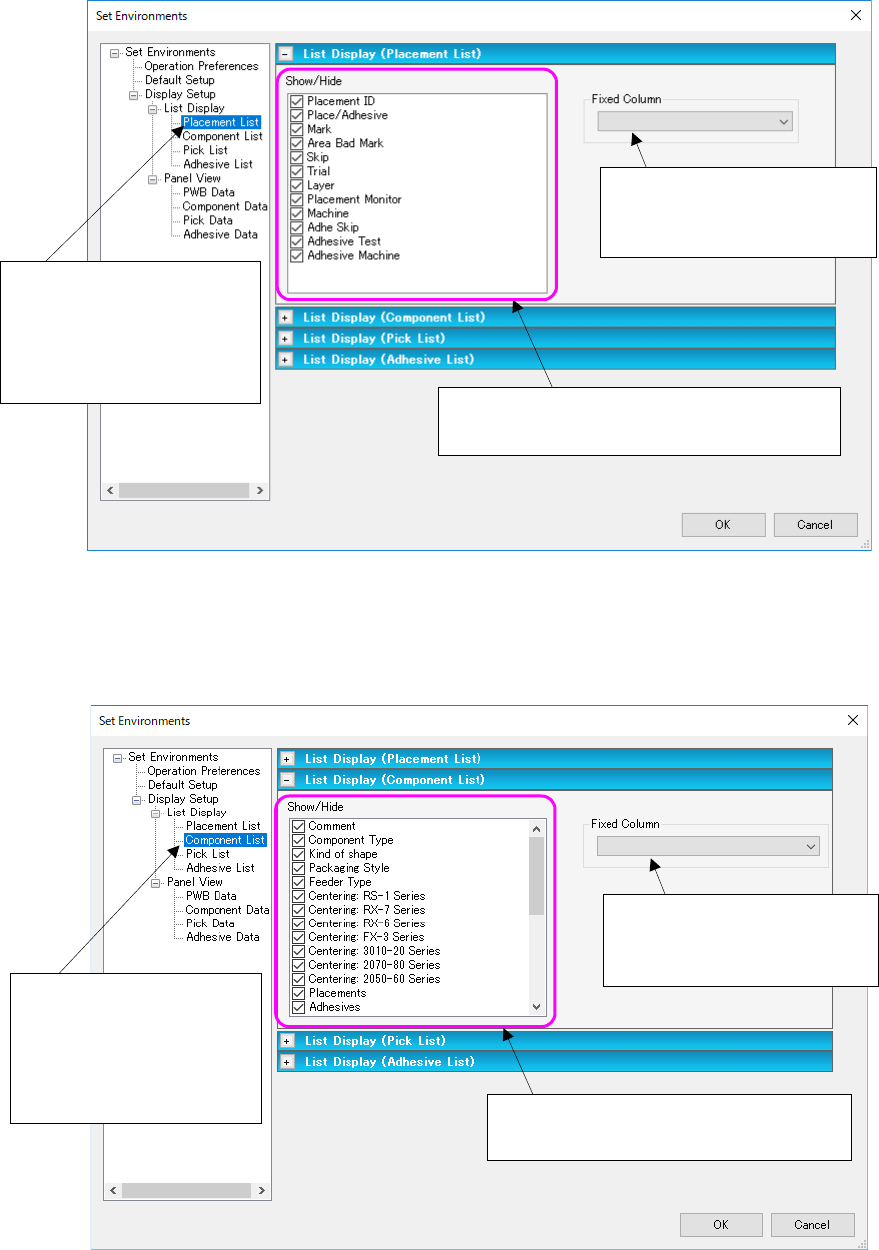
(3) List Display (Placement List)
When you select “Placement List,” you can display or hide each item on the “Placement List”
screen.
Figure 7.6-39 “Set Environments (Placement List)” screen
(4) List Display (Component List)
When you select “Component List,” you can display or hide each item on the “Component List”
screen.
Figure 7.6-40 “Set Environments (Component List)” screen
Select “Display Setup” from
the tree view, “List Display”
and then “Placement List” to
display the “List Display
(Placement List)” screen.
The checked items are to be displayed on the
“Placement Data” list screen.
Set the number of the item
fixed (always displayed) when
you scroll the list screen.
Select “Display Setup” from
the tree view, “List Display”
and then “Component List”
to display the “List Display
(Component List)” screen.
The checked items are to be displayed on
the “Component Data” list screen.
Set the number of the item
fixed (always displayed) when
you scroll the list screen.