JANETS_INM.pdf - 第352页
JaNets In structio n Manual 7. Program Editor 7- 145 (7) Display Setup ( P WB Data Panel) This is a screen t o set the display /no d isplay of the P WB data pane l. Figure 7.6 - 43 “ Display Setup: PWB Data Panel ” scree…
JaNets Instruction Manual 7. Program Editor
7-144
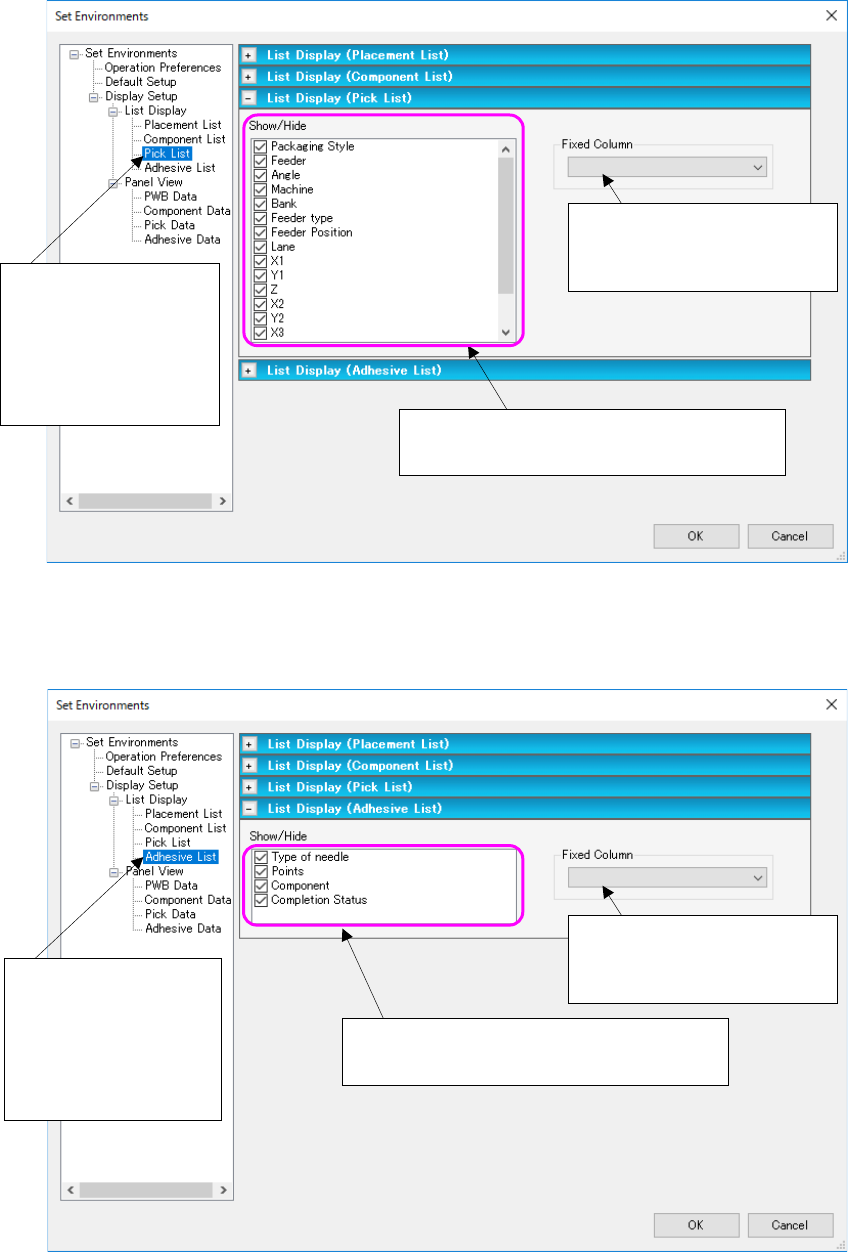
(5) List Display (Pick List)
When you select “Pick List,” you can display or hide each item on the “Pick List” screen.
Figure 7.6-41 “Set Environments (Pick List)” screen
(6) List display (Adhesion list)
This is a screen to set the display/no display of adhesion list screen items.
Figure 7.6-42 “Set Environments (Adhesion list)” screen
Set the number of the item
fixed (always displayed) when
you scroll the list screen.
The checked items are to be displayed on
the “Pick Data” list screen.
Select “Display Setup”
from the tree view, “List
Display” and then “Pick
List” to display the “List
Display (Pick List)”
screen.
Set the number of the item
fixed (always displayed) when
you scroll the list screen.
The checked items are to be displayed on
the “Adhesion Data” list screen.
Select “Display Setup”
from the tree view, “List
Display” and then “Pick
List” to display the “List
Display (Adhesion list)”
screen.
JaNets Instruction Manual 7. Program Editor
7-145
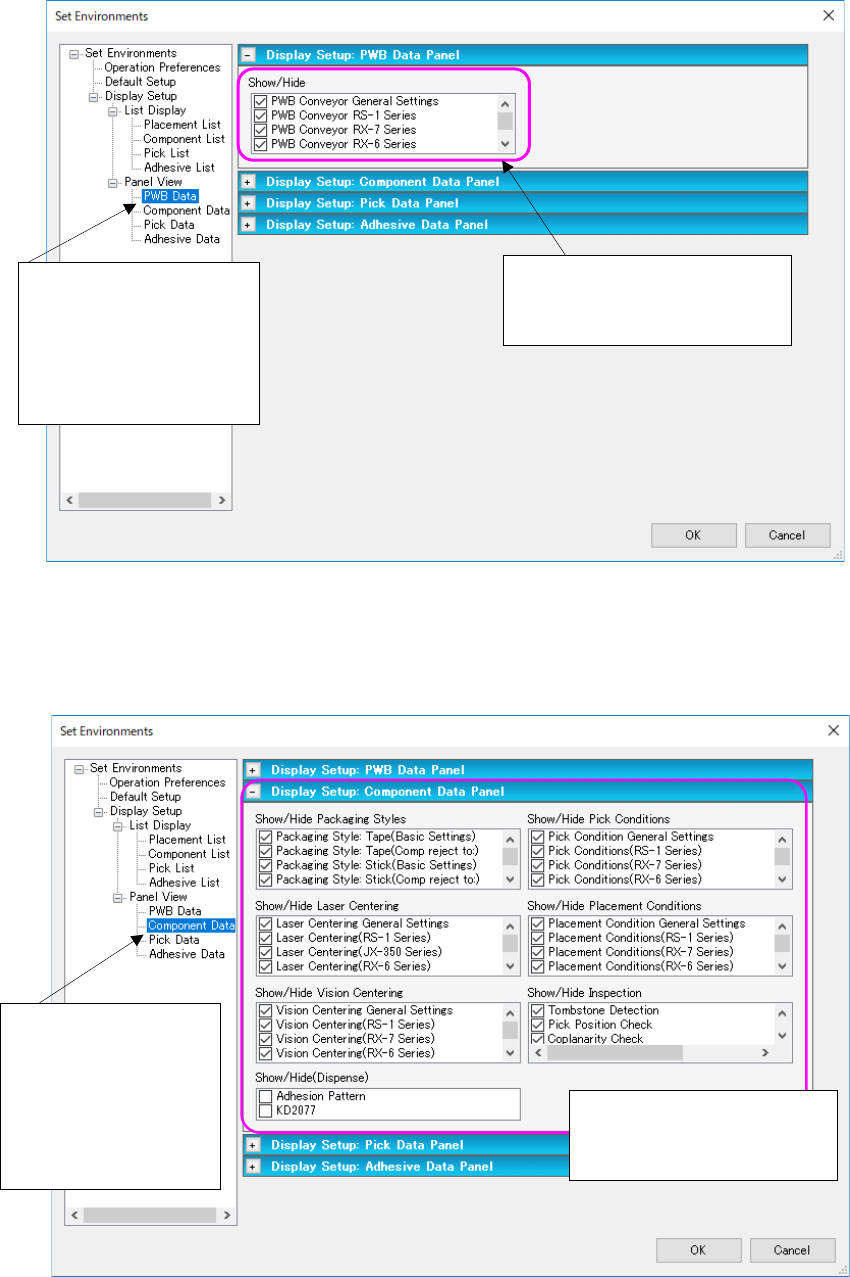
(7) Display Setup (PWB Data Panel)
This is a screen to set the display/no display of the PWB data panel.
Figure 7.6-43 “Display Setup: PWB Data Panel” screen
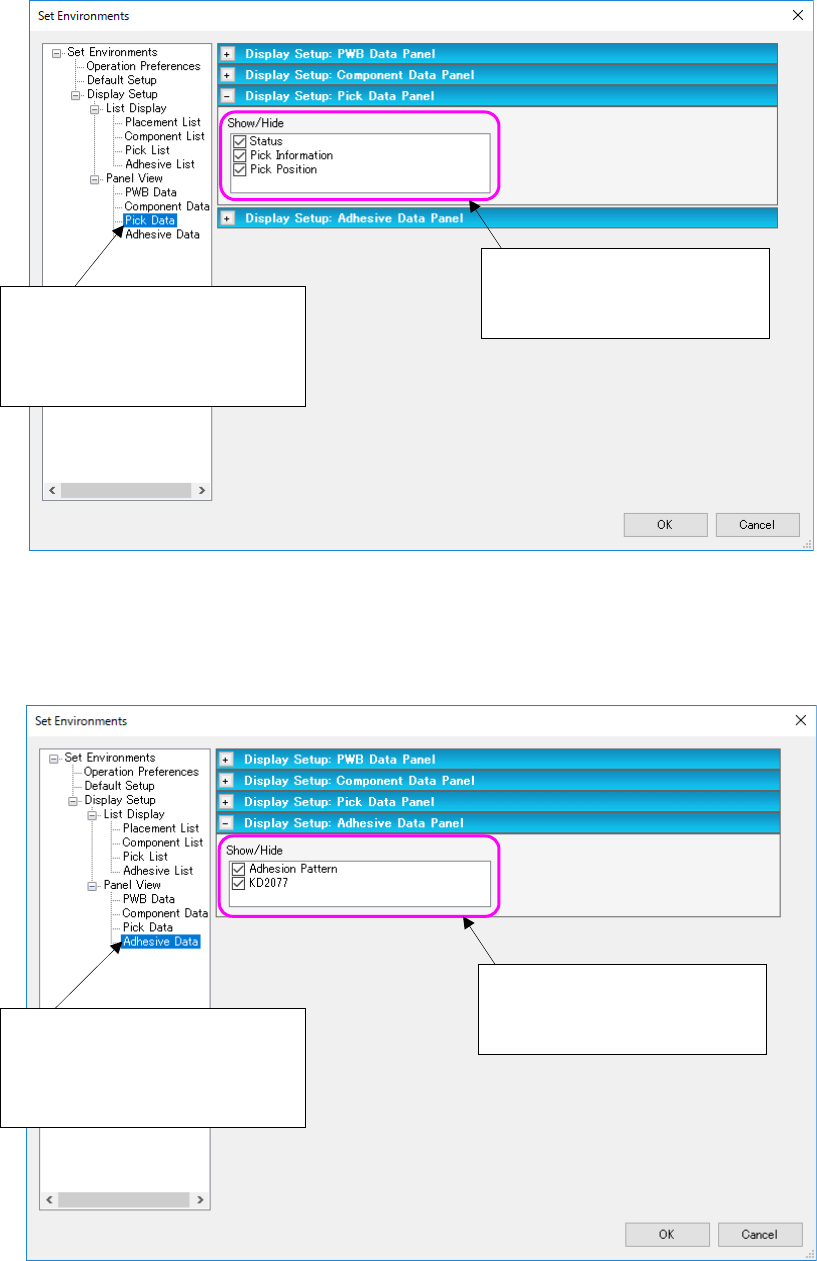
(8) Display Setup (Component Data Panel)
When you select “Panel View,” and then “Component Data,” you can display or hide the
Component data panel.
Figure 7.6-44 “Display Setup: Component Data Panel” screen
When you check each check
box, the corresponding data
entry panel opens.
Select “Display Setup”
from the tree view,
“Panel View” and then
“Component Data” to
display the “Display
Setup: Component Da-
ta Panel” screen.
Select “Display Setup”
from the tree view, “Panel
View” and then “PWB
Data” to display the “Dis-
play Setup: PWB Data
Panel” screen.
When you check each check
box, the corresponding data
entry panel opens.
JaNets Instruction Manual 7. Program Editor
7-146
(9) Display Setup (Pick Data Panel)
When you select “Panel View,” and then “Pick Data,” you can display or hide the Pick data
panel.
Figure 7.6-45 “Display Setup: Pick Data Panel” screen
(10) Display Setup (Adhesion Data Panel)
When you select “Panel View,” and then “Adhesion Data,” you can display or hide the Pick
data panel.
Figure 7.6-46 “Display Setup: Adhesion Data Panel” screen
* In the EPU mode, only the items required for each machine model are displayed.
Select “Display Setup” from the
tree view, “Panel View” and then
“Pick Data” to display the “Display
Setup: Pick Data Panel” screen.
Select “Display Setup” from the
tree view, “Panel View” and then
“Adhesion Data” to display the
“Display Setup: Pick Data Panel”
When you check each check
box, the corresponding data
entry panel opens.
When you check each check
box, the corresponding data
entry panel opens.