JANETS_INM.pdf - 第132页
JaNets In structio n Manual 5. Shopflo or Setu p 5- 12 Renaming a production line Select a des ired line (or EPU) from t he floor conf igur ation tree, and p erform the operati on ① or ② below . ① Select the [File] comm …
JaNets Instruction Manual 5. Shopfloor Setup
5-11
Line – How to Operate
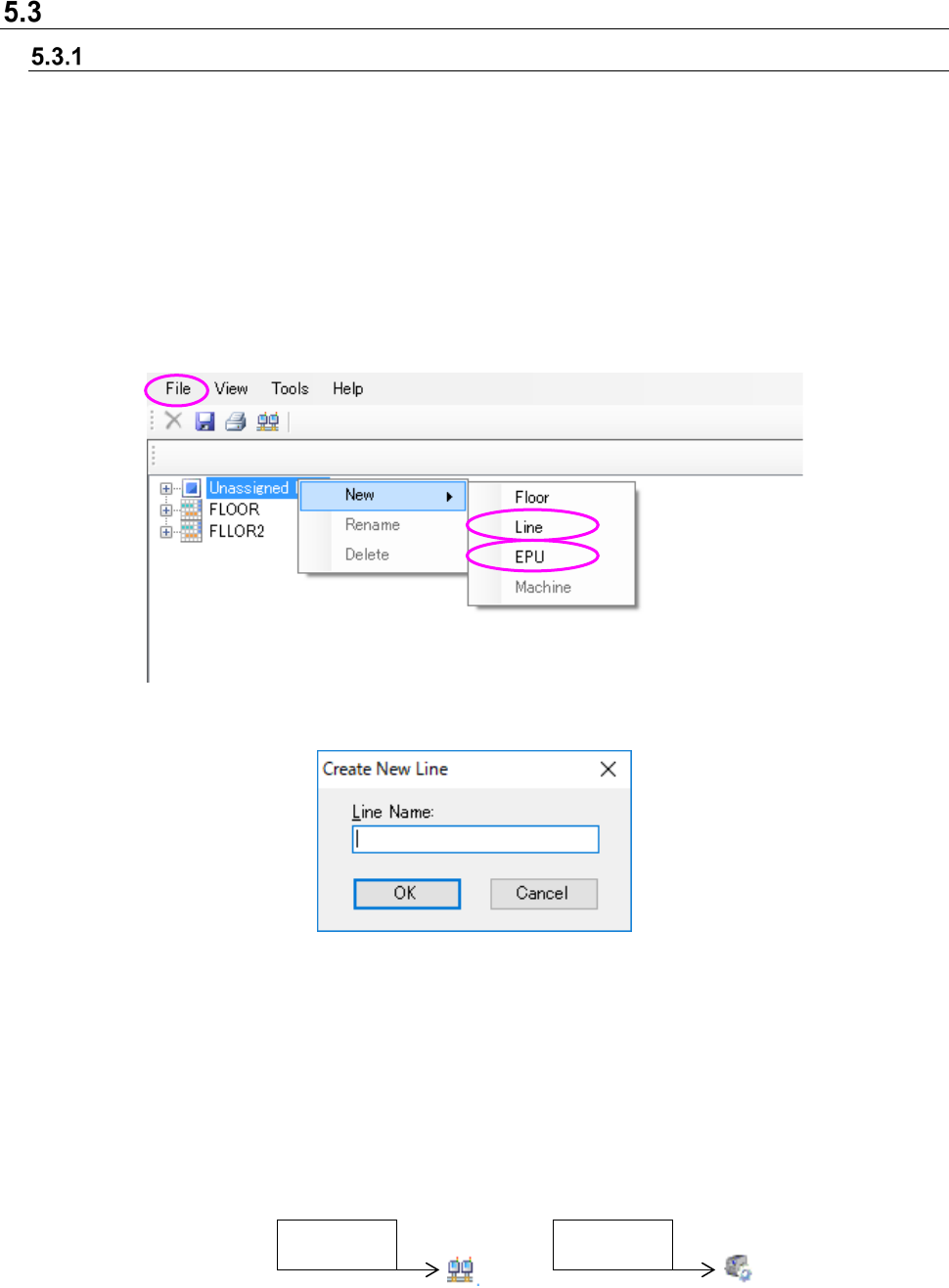
Creating a new production line
Select an unassigned production line or a floor from the floor configurations tree, and then perform
the operation ① or ② below.
To create a line configuration of the line mode, select Line. To create a line configuration of the
EPU mode, select EPU.
Line can be selected only when a Line Manager option is added.
① Select the [File] command from the menu bar, the [New] command and the [Line] (or [EPU])
command in this order.
② Click the right button of a mouse to display the pop-up menu. Select the [New] command, and
then the [Line] (or [EPU]) command from this pop-up menu.
Figure 5.3-1 Creating a new production line (Operation ②)
Figure 5.3-2 “Create New Line” dialog box
Line Name: You can enter up to 20 characters, and the lower cases are not distinguished from
the upper cases. You can enter half-width alphanumeric characters and the
following special characters.
However, you cannot use the following special characters: (”)「#」「&」「’」「<」「>」)
You cannot enter same line name between floor and machine, equipment.
OK: The system adds a production line.
Figure 5.3-3 Configuration tree icon
LINE mode
EPU mode
JaNets Instruction Manual 5. Shopfloor Setup
5-12
Renaming a production line
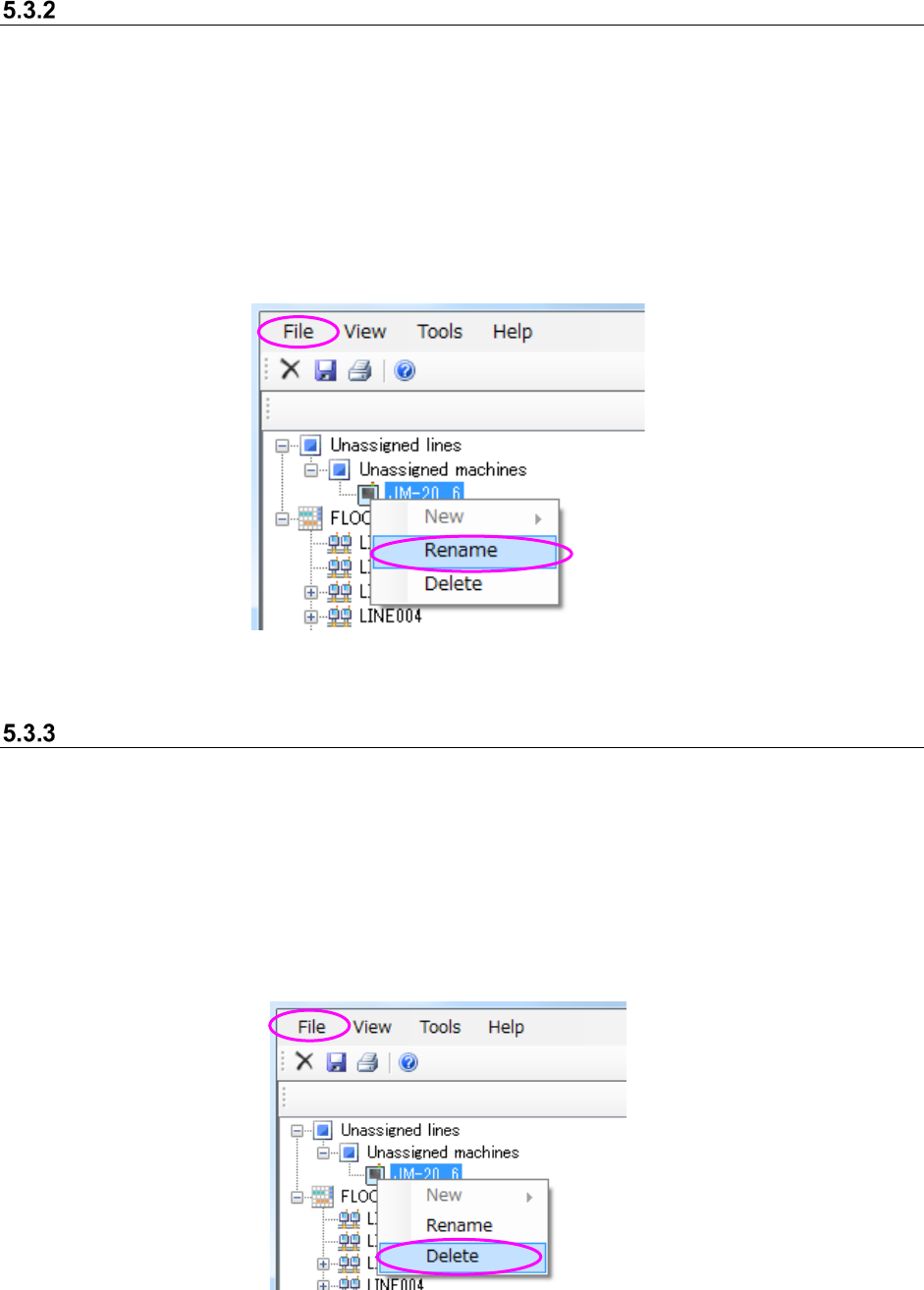
Select a desired line (or EPU) from the floor configuration tree, and perform the operation ① or
② below.
① Select the [File] command from the menu bar, and then the [Rename] command from the “File”
menu.
② Click the right button of a mouse to display the pop-up menu. Select the [Rename] command
from this pop-up menu.
* When you perform the operation ① or ②, the selected production line hierarchy can accept
your input, and you can change the production line name.
Figure 5.3-4 Changing the production line name (Operation ②)
Deleting a production line
Select a production line (or EPU) from the floor configuration tree, and perform the operation ①
or ② below.
① Select the [File] command from the menu bar, and then the [Delete] command from the “File”
menu.
② Click the right button of a mouse to display the pop-up menu. Select the [Delete] command
from this pop-up menu.
* You cannot delete any unassigned machine hierarchy.
Figure 5.3-5 Deleting a production line name (Operation ②)
JaNets Instruction Manual 5. Shopfloor Setup
5-13
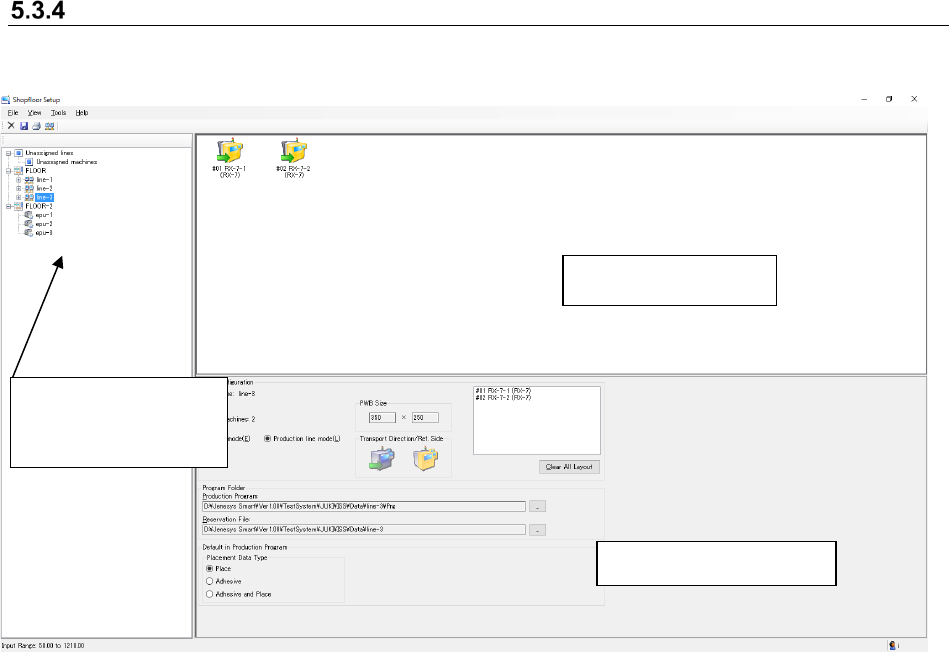
Production line view (Production line information display)
Set the order of machines assigned to a production line on the production line view.
Figure 5.3-6 Example of a screen for selecting a production line
Production line view: You can check the assignment of machines to a production line. You can
change the order of assigned machines.
Production line details: The list of machines in a production line, the maximum value of the board
size for the production line, the board transport direction and the
reference side are displayed here.
Set the line mode or EPU mode. The line mode can be selected only
when a Line Manager option is added.
You can set the initial folder to which a production program is to be output.
Set a placement data type. This can be set in the line mode.
Production line view:
Select the desired
production line on the
floor configuration tree.
Production line details