JANETS_INM.pdf - 第619页
JaNets In structio n Manual 16 Component D ataba se 16 - 19 When you se lect “Y es” for t he menu item “ Confi rm ov erwrite at import,” the follow ing screen appears. Figure 16.5 -3 Confirmation window for ov erwri ting…
JaNets Instruction Manual 16 Component Database
16-18
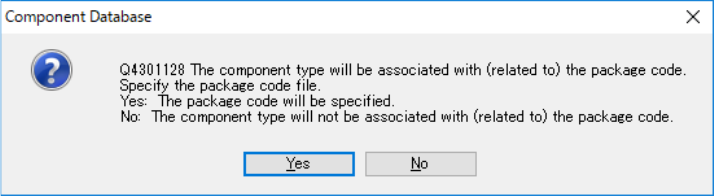
After specifying an MDB file to be imported, the following message appears on the screen.
Figure 16.5-2 Package code association confirmation message
When you select the <Yes (Y)> button, the “File” dialog box appears on the screen. Specify a
package code file (*.pkg) used with the Component Database of the main unit.
When you select the <No (N)> button, the system imports only data registered in the MDB file
without associating it with any package code.
However, a package code file specified when you import an MDB file is used to check association
of component data with package codes (to obtain a package code name). Since the system does
not import any package code, import a package code(s) before importing an MDB file. If a package
code is already registered, you do not have to import a package code file.
* Caution Items at Importing MDB File
When MDB file other than the latest version was imported, updating is performed in sequence up
to the latest version Table internally before parts registration.
For the reason, please be careful of taking time for update processing until the latest version when
old version MDB file is imported.
(The update processing time may differ depending on the version of MDB file to be imported and
the number of parts to be registered.)
JaNets Instruction Manual 16 Component Database
16-19
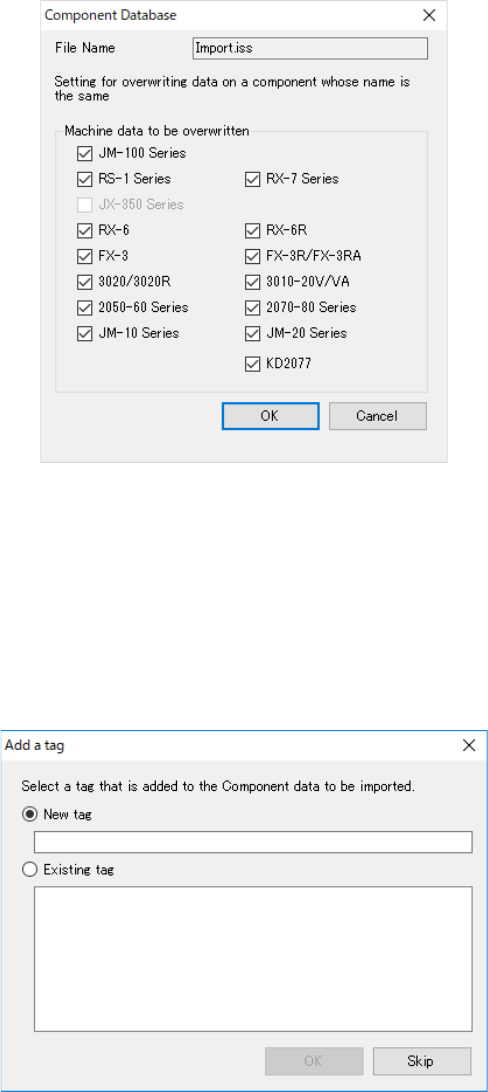
When you select “Yes” for the menu item “Confirm overwrite at import,” the following screen
appears.
Figure 16.5-3 Confirmation window for overwriting data at import
Data unique to the machine model(s) whose corresponding check box(es) is (are) checked off is
overwritten.
Data of the machine models whose corresponding check boxes are not checked off remains the
same as registered data in the database.
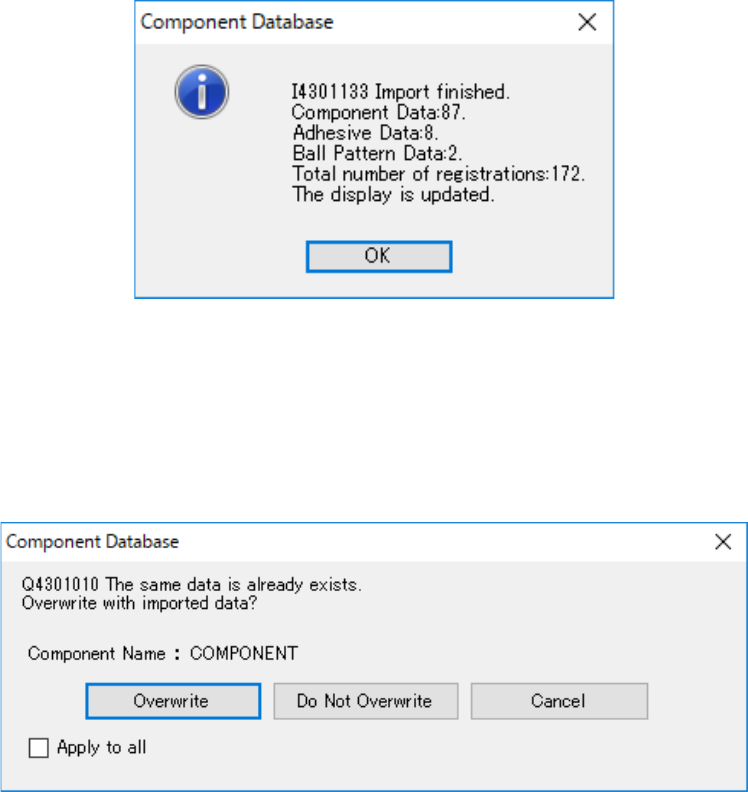
When data is imported, the following screen appears to allow you to assign a tag to Component
data to be imported.
Figure 16.5-4 “Add a tag” screen displayed at import
JaNets Instruction Manual 16 Component Database
16-20
When data finishes being imported, the following screen appears.
Figure 16.5-5 Screen for checking the total number of registered data records
* After data is registered, the system displays the number of imported component data records,
that of imported adhesive data records and that of imported ball patterns, and the total number
of data records registered in the database, and then update the component list screen.
* When you try to overwrite registered data, the confirmation message asking you whether to
overwrite it appears on the screen.
Firure 16.5-6 Confirmation dialog box for overwriting the data
[Overwrite] : Overwrites Component data.
[Do Not Overwrite] : Does not overwrite Component data.
[Cancel] : Cancels the operation of importing external data. It does not overwrite or add
any data.
[Appy to all] : For the checked box (at Check ON): if the component data updated after
components are speficied has been associated when the "Overwrite" button
has been pressed, information on the component data other than the
packaging style is overwritten with imported data and registered.
For the unchecked box (at Check OFF): the component data for duplicated
components after components are specified is not overwritten with imported
data when the "Do Not Overwrite" button is pressed. However, only new
components are registered.