JANETS_INM.pdf - 第456页
J aN et s Instr ucti on M anua l 9. Tact S imul at ion 9- 14 Result log (Deta ils – Mach in e – Co mpo nent ) 9.4.3 The s im ul ation l og of eac h com ponent of eac h m achi ne is di sp layed on t his s cr een. Figur e …
JaNets Instruction Manual 9. Tact Simulation
9-13
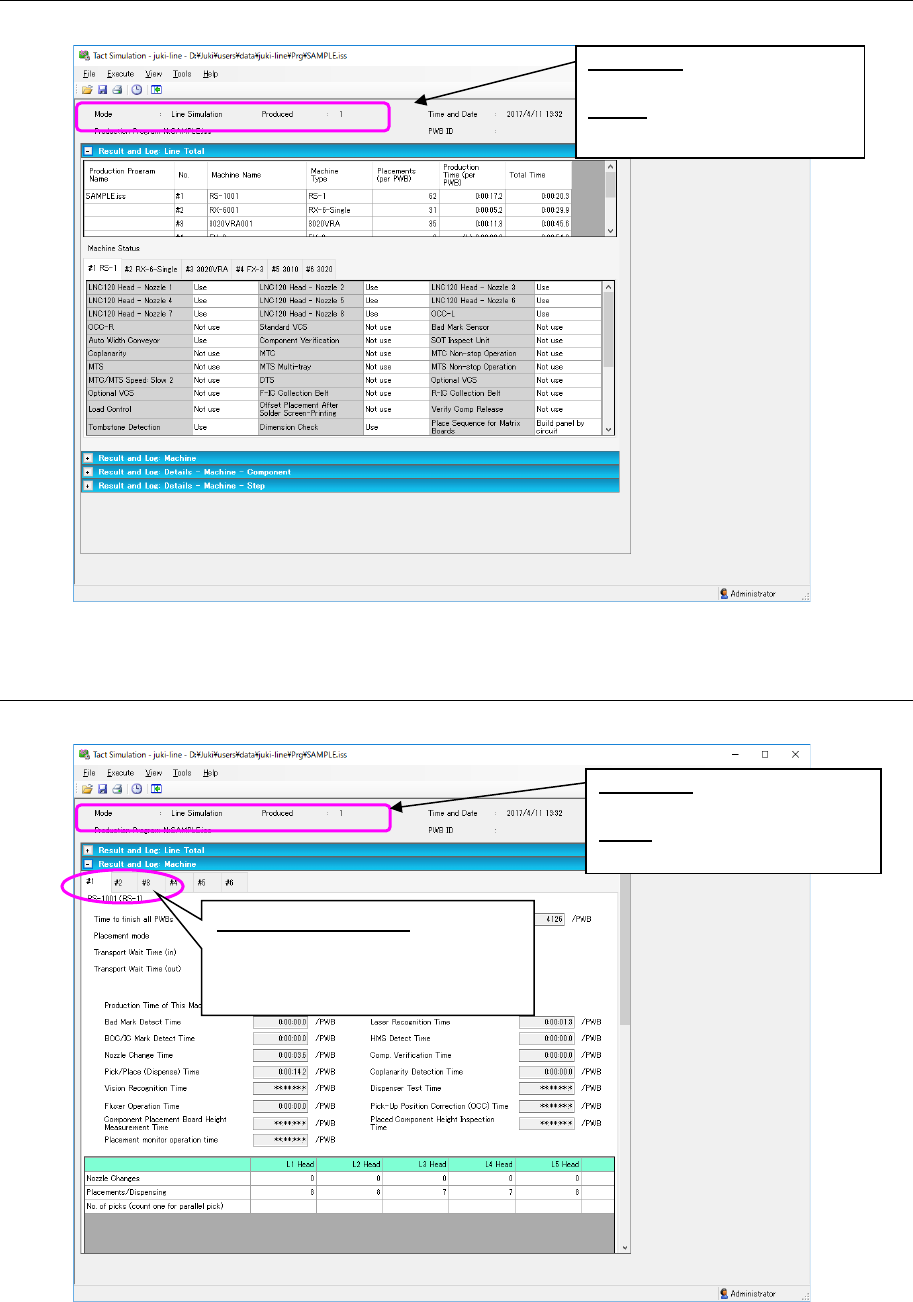
Result log (Line Total) 9.4.1
The result and log of simulation of the entire line are displayed on this screen.
Figure 9.4-2 Result log (Line Total) screen
Result log (overall – machine) 9.4.2
The result and log of simulation of each machine are displayed on this screen.
Figure 9.4-3 Result log (overall – machine) screen
Machine selection tab: Allows you to
select a machine whose simula-
tion result and log are to be dis-
played.
Produced: Displays the number
of simulated PWBs.
Mode: Displays the simulation
mode.
Produced: Displays the number
of simulated PWBs.
Mode: Displays the simulation
mode.
JaNets Instruction Manual 9. Tact Simulation
9-14
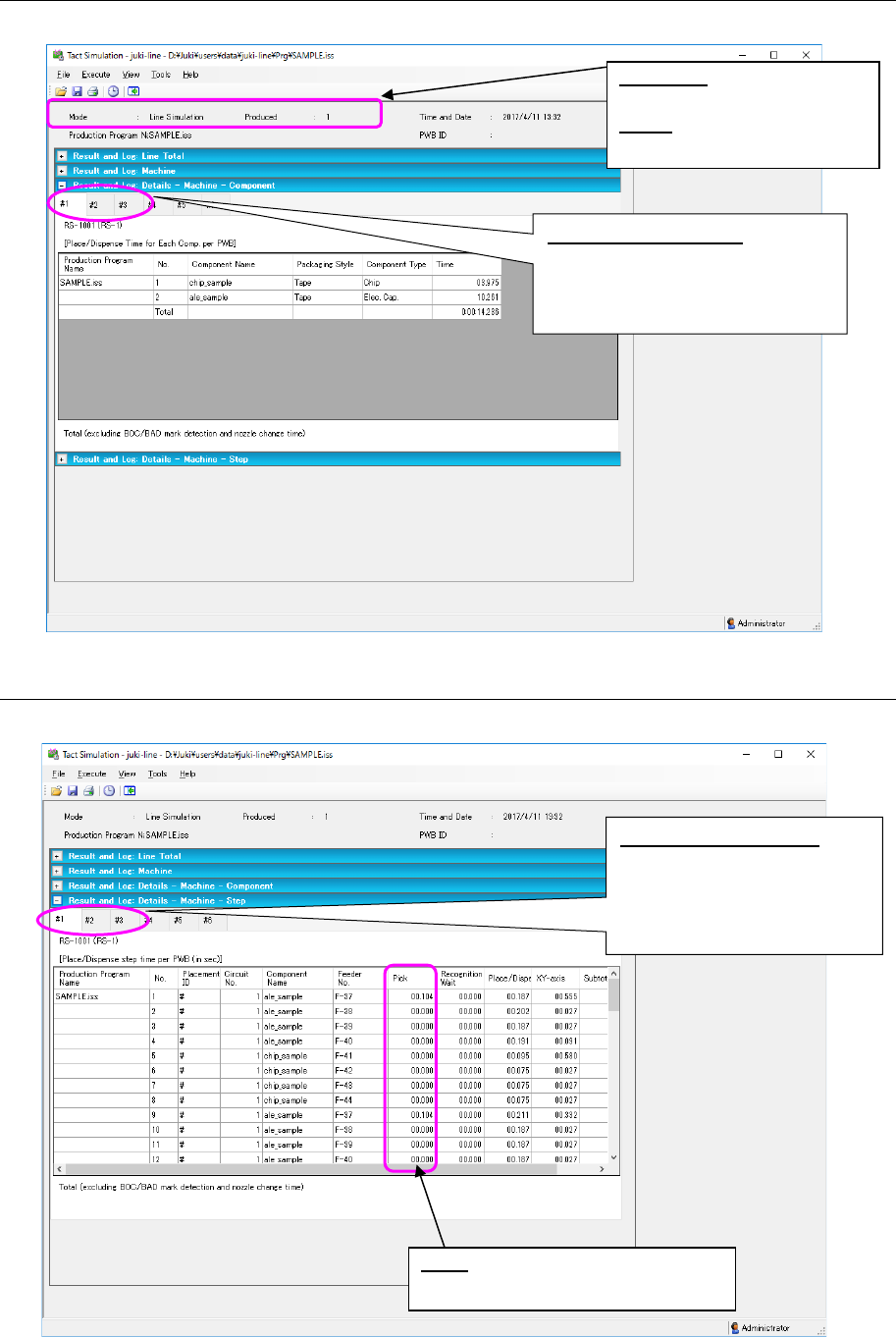
Result log (Details – Machine – Component) 9.4.3
The simulation log of each component of each machine is displayed on this screen.
Figure 9.4-4 Result log (Details – Machine – Component) screen
Result log (Details – Machine – Step) 9.4.4
The simulation log of each step of each machine is displayed on this screen.
Figure 9.4-5 Result log (Details – Machine – Step) screen
Machine selection tab: Allows you
to select a machine whose sim-
ulation result and log are to be
displayed.
Produced:
Displays the num-
ber of simulated PWBs.
Mode: Displays the simulation
mode.
Machine selection tab: al-
lows you to select a ma-
chine whose simulation re-
sult and log are to be dis-
played.
Pick: Displays the time that was re-
quired to pick up a component.
JaNets Instruction Manual 10. Feeder Set Database
10-1
Feeder Set Database 10.
What is the Feeder Set Database?
While the Feeder Layout application displays the machine assignment of a production line, this
application displays component pick-up information for one feeder to be assigned to a machine,
and uses the database to manage feeder set data for one machine as a feeder group. In addi-
tion, this application allows you to add, edit and/or delete the feeder set data.
Starting Up or Quitting the Feeder Set Database 10.1
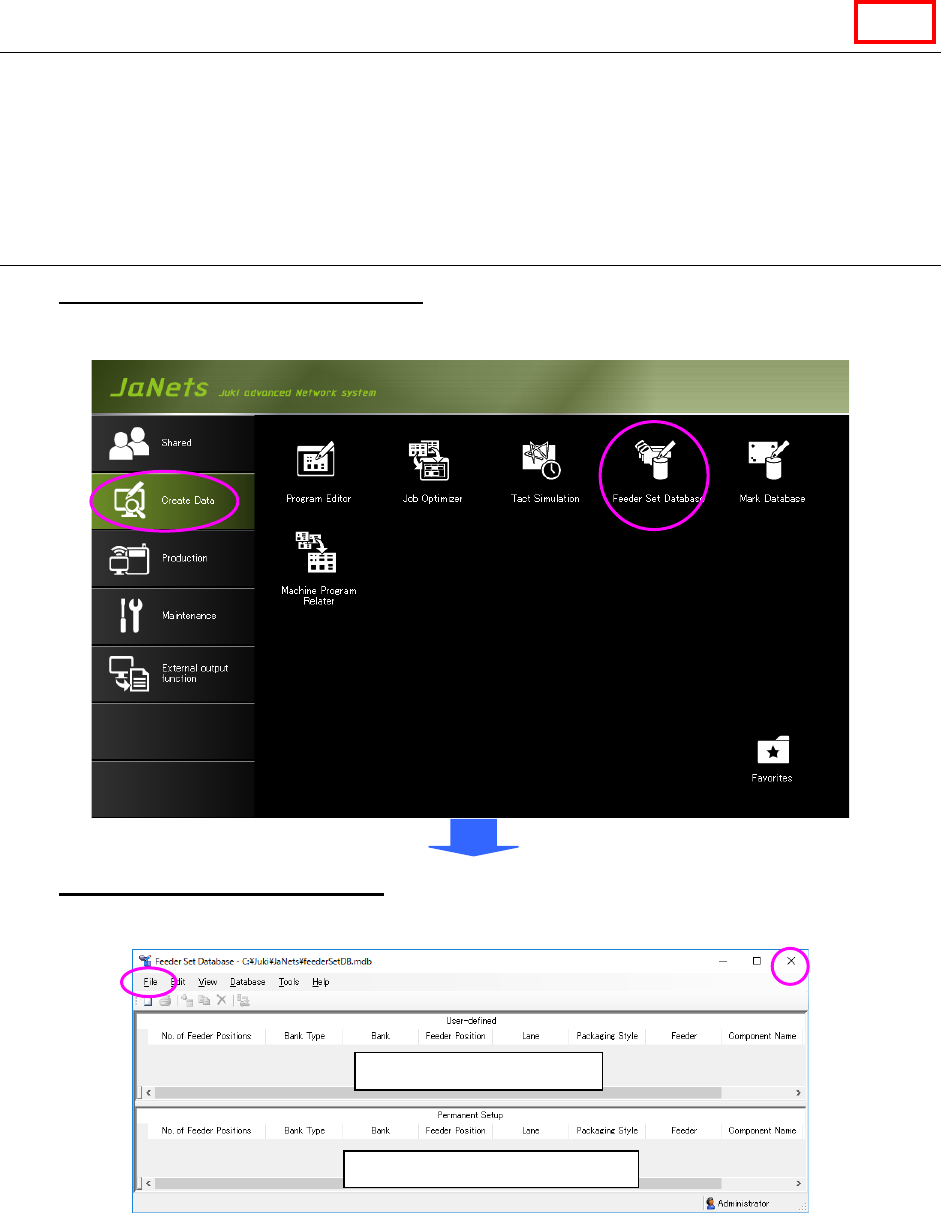
To start up the Feeder Set Database: Double-click the “Create Data” tab from the JaNets
Launcher, and then the “Feeder Set Database” icon.
To quit the Feeder Set Database: Select the [File] command from the menu bar, and then the
[Exit Feeder Set Database] command on the “File” menu, or select the close (×) button located
on the upper right corner of the title bar.
Figure 10.1-1 Starting up the Feeder Set Database from the JaNets Launcher
* The information displayed on the above screen is displayed only. You cannot edit it directly.
* A feeder group associated with a machine is called “Permanent Setup” group, while one not
associated with a machine is called “User-defined” group. To associate a feeder with a ma-
chine, use the [Permanent Setup] command of the Shopfloor Setup application. (You cannot
edit the “Permanent Setup” group with this Feeder Set Database. You can edit it with the
[Permanent Setup] command of the Shopfloor Setup only.
“User-defined” feeder list
“Permanent Setup” feeder list
Line