JANETS_INM.pdf - 第473页
J aN et s Instr ucti on M anua l 10 . Feed er S et D at a ba se 10 - 17 Prin t/Save as T ext 10.3.14 This c omm and p r ints or outp uts feeder set dat a di sp lay ed on th e l ist as text . T o p r int or outp ut dat a …

JaNets Instruction Manual 10. Feeder Set Database
10-16
The files that can be imported are as follows:
Table 10.3-1 Importable external data
File types
Description
Production Program ( *.iss)
Production program file created with JaNets
Optimized division file (*.i01 to
*.i10)
Division file for each machine created after optimization with Pro-
gram Editor
HLC format file (*.h8h, *.h7h, *h5h,*.h4h)
Production program file created with HLC
2050, 2050R format file (*.e45)
Production program file created with 2050 or 2050R
2055R, 2060, 2060R format file (*.e46)
Production program file created with 2050, 2060 or 2060R
2070 format file (*.e47)
Production program file created with 1070 (*) or 2070
2080, 2080R format file (*.e48)
Production program file created with 2080 or 2080R
3020, 3020R format file (*.x21)
Production program file created with 3020 or 3020R
3010,3010A format file (*.x11)
Production program file created with 3010 or 3010A
3020V, 3020VR, 3020VA, 3020VRA format
file (*.x21)
Production program file created with 3020V, 3020VR, 3020VA or
3020VR
FX-3, FX-3R, FX-3RA format file (*.x01)
Production program file created with FX3, FX3R or FX-3RA
RX-6, RX-6R format file (*.j01x)
Production program file created with RX-6 or RX-6R
RX-7, RX-7R format file (*.prd)
Production program file created with RX-7 or RX-7R
RS-1, RS-1R format file (*.s01x)
Production program file created with RS-1 or RS-1R
2077 format file (*.x4d)
Production program file created with 2077
JM-10 format file (*.e71)
Production program file created with JM-10
JM-20 format file (*.X41)
Production program file created with JM-20
JM-100 format file (*.s30x)
Production program file created with JM-100
HLC permanent text file (*.txt)
Permanent text file created with HLC
Reservation file (*.rsv)
Reservation file created with IS, IS Lite and JaNets
IS server export file (*zip)
File for the feeder set database exported from IS DB2
csv files (*.csv)
csv file created with text output from the feeder set database
* A reservation file imports the cluster data created when cluster optimization is performed with
the Job Optimizer. For this reason, it is necessary that cluster optimization is being performed
in the reservation file.
* When importing a HLC permanent text file and a reservation file, it is necessary that the
component being assigned to the pick position is registered in the component database.
* When a file including an unsupported model is opened, this is displayed as an error and the
processing is discontinued.
* The IS server export file is intended for a file output by DB2 data export tool supplied by JUKI,
having a version of IS server Ver12.10A or later.
JaNets Instruction Manual 10. Feeder Set Database
10-17
Print/Save as Text 10.3.14
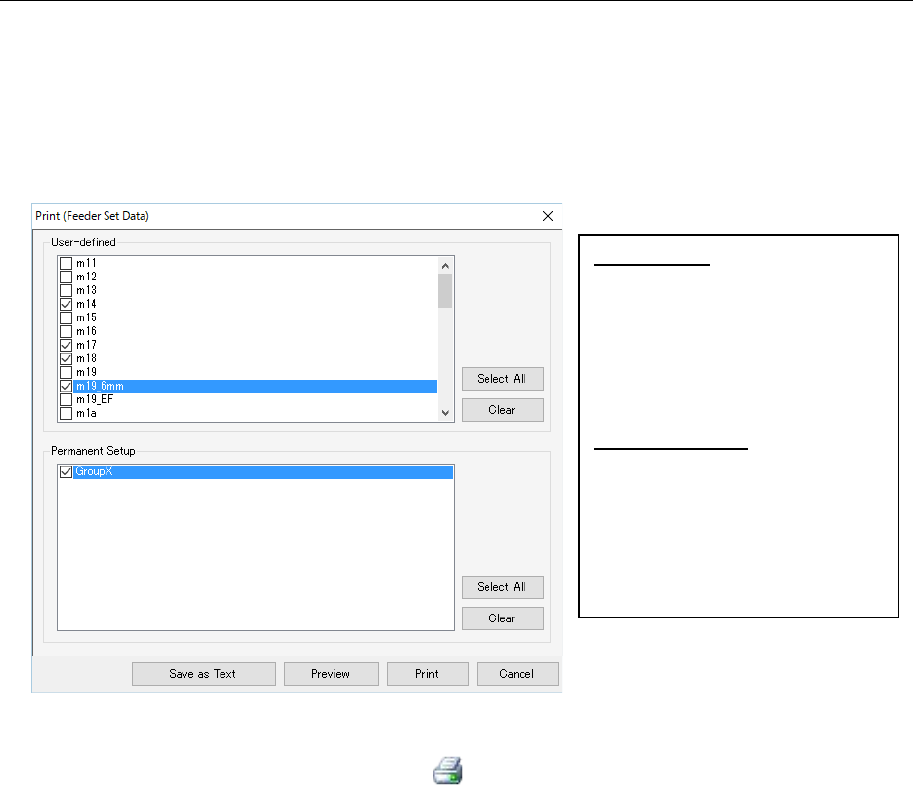
This command prints or outputs feeder set data displayed on the list as text.
To print or output data as text, perform one of the operations described below.
1. When you select the [File] command from the menu bar, and then the [Print/Save as Text]
command on the “File” menu. The “Print” setting screen appears.
Select the item to be performed on the displayed screen.
Figure 10.3-19 “Print” setting screen
2. Select the “Print/Save as Text” button ( ) of the toolbar. The “Print” setting screen ap-
pears. Select an item you want to execute on the displayed screen. (Operate in the same
manner as you do at 1 above.)
User-defined: Displays the list of
the user-defined feeder groups
registered in the database in the
form of check boxes. Only feed-
er group information whose
check box you checked is to be
printed or output as text.
Permanent Setup: Displays the list
of the permanent feeder groups
registered in the database in the
form of check boxes. Only feed-
er group information whose
check box you checked is to be
printed or output as text.
JaNets Instruction Manual 11. Mark Database
11-1
11. Mark Database
What is the Mark Database?
The mark data controlled by database can be registered, updated or checked. Obtain the
teaching data on a BOC mark and an area fiducial mark from the production program in which
the corresponding teaching data is stored, and then register it in the database.
Controlled mark data is displayed on the list for each machine type, and you can change a
mark name and/or a mark ID.
Up to 10,000 BOC marks can be recorded, and up to 10,000 area fiducial marks can be
recorded too.
* Teaching data on the user-defined template is not controlled with the database.
11.1 Starting Up or Quitting the Mark Database
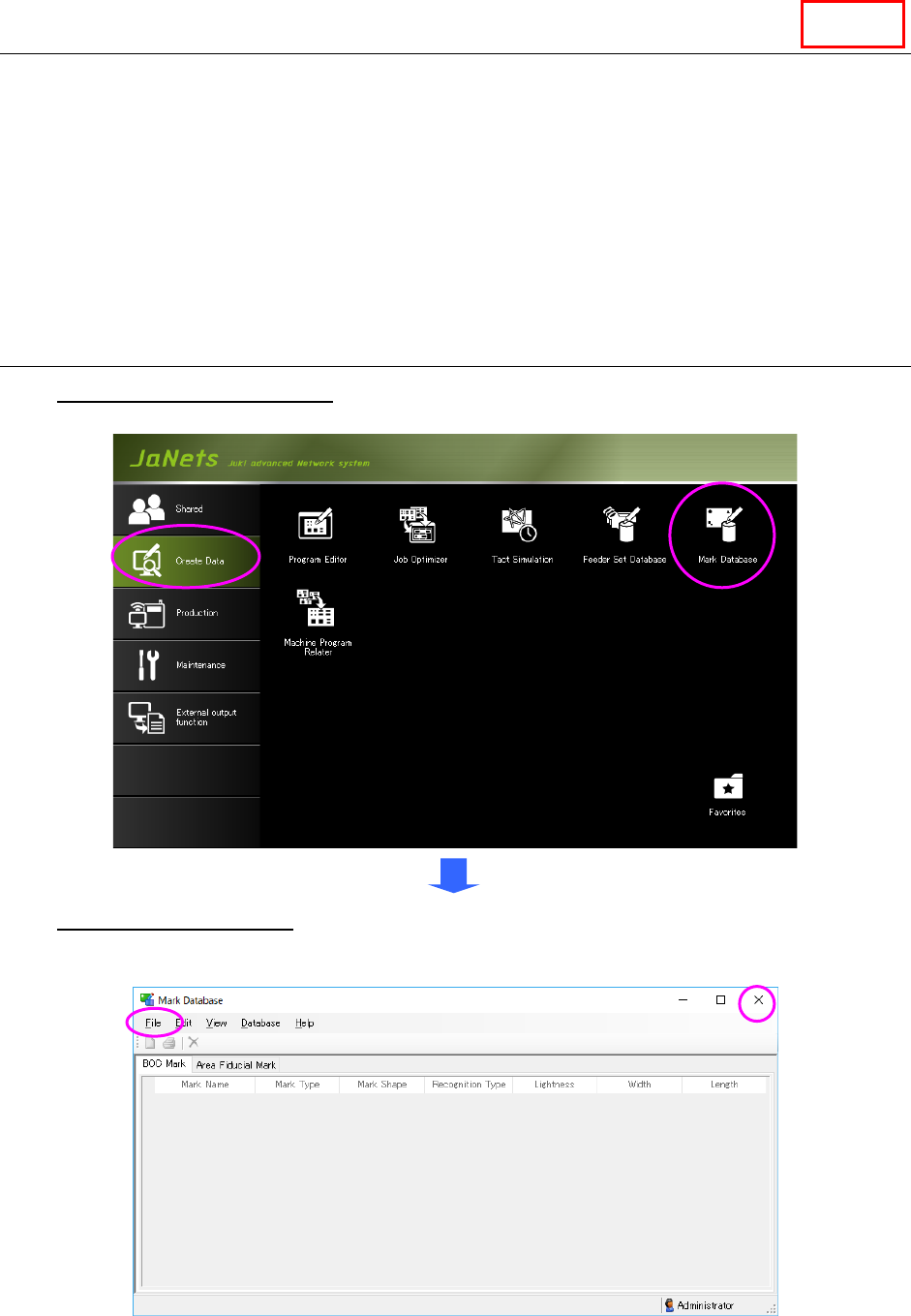
To start up the Mark Database: Double-click the “Create Data” tab from the JaNets Launcher,
and then the “Mark Database” icon.
To quit the Mark Database, select the [File] command from the menu bar, and then the [Exit
Mark Database] command on the “File” menu, or select the close (×) button located at the
upper right corner of the title bar.
Figure 11.1-1 “Mark Database” screen
(displayed when the Mark Database starts up for the first time)
Line