JANETS_INM.pdf - 第529页
JaNets Instr ucti on Man ual 13 . Program D ownloa der 13 - 33 13.9.10.8 Requirements for switching production to the next reservation file Y ou have to switc h produc tion to the next reser vation file o nly if all prod…
JaNets Instruction Manual 13. Program Downloader
13-32
13.9.10.6 When the next reservation file is registered normally
When the next reservation file is registered normally, a reservation file whose production has
finished and that exists in the production schedule list is deleted from the list, and then a
reservation file registered newly is added to the list.
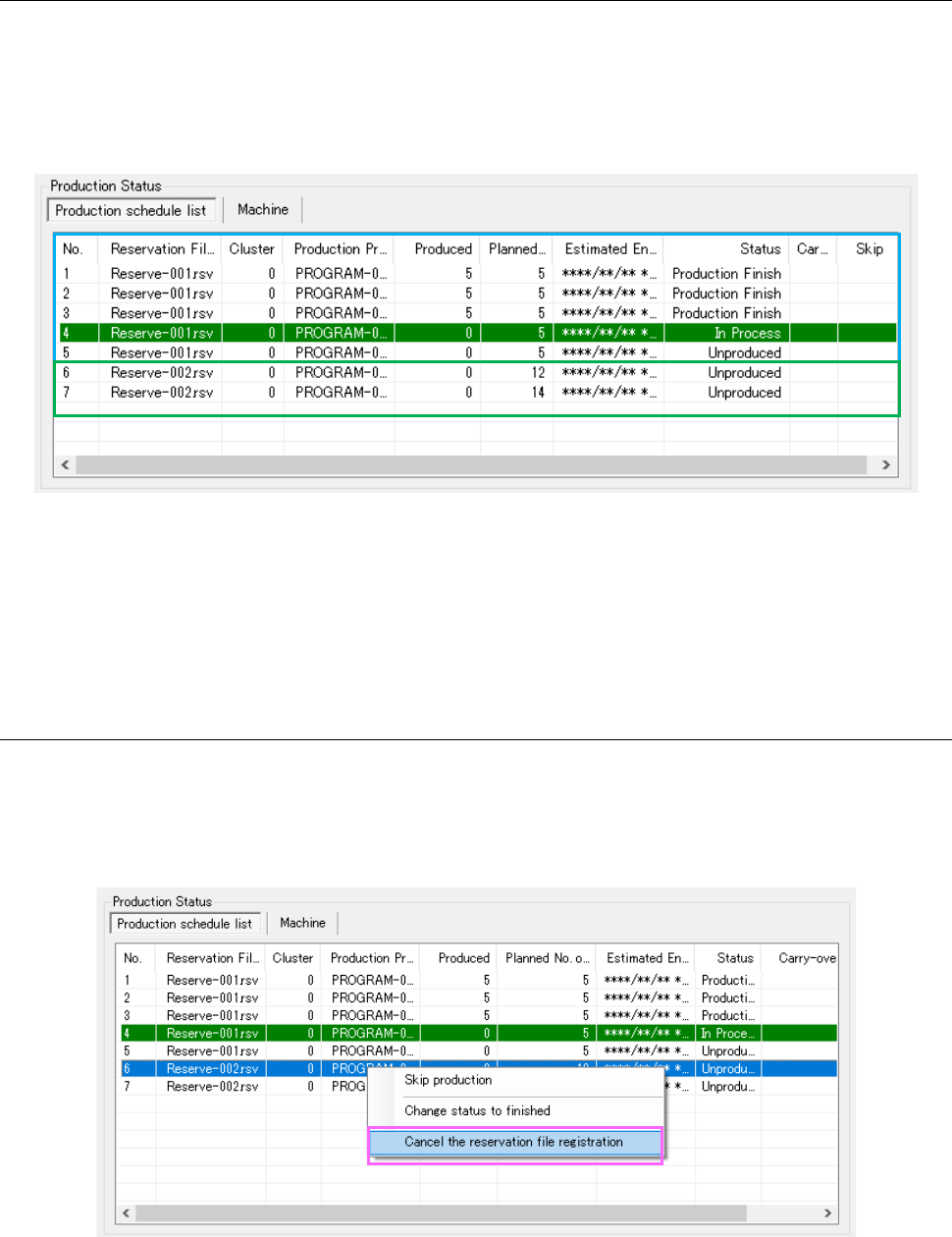
When the next reservation file is registered normally, the screen appears as shown in Figure
13.9-26.
Figure 13.9-26 Production Status panel displayed after the next reservation file is registered
Note that when the “Automatic check-in” check box is enabled on the “Set Environments” screen
of the Program Downloader, the system automatically displays the check-in dialog box for a
reservation file that finishes the corresponding production, is already checked out and is stored in
the production schedule list after the next reservation file is registered.
13.9.10.7 Canceling registration of the next reservation file
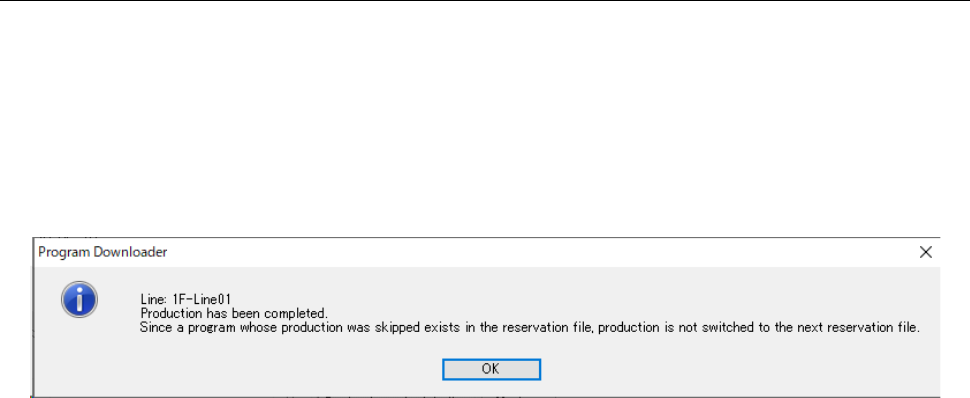
When you right-click a reservation file displayed in the production schedule list, and then select
[Cancel the reservation file registration], the selected reservation file is deleted from the production
schedule list. You cannot delete the first reservation file in the production schedule list or a
reservation file containing a production program that is being used for production.
Figure 13.9-27 Canceling registration of the next reservation file
JaNets Instruction Manual 13. Program Downloader
13-33
13.9.10.8 Requirements for switching production to the next reservation file
You have to switch production to the next reservation file only if all production programs of the
current reservation file finish being used for production. When you select “Machine” for the menu
item “Loading Mode,” the current reservation file is switched to the next one sequentially from a
machine that has finished production of all programs stored in the current reservation file.
If there is no program to be downloaded in a reservation file when production of all programs does
not finish, for example, because some program of the reservation file is set to “Skip production,”
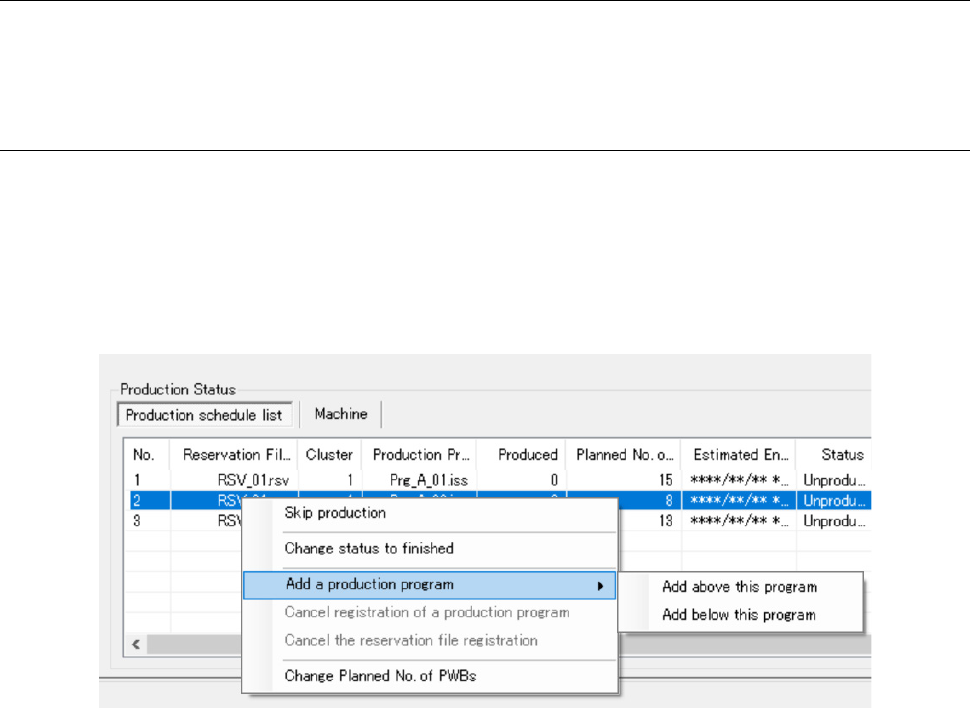
the message shown in Figure 13.9-28 appears on the screen after uploading. Any file that exists
in the next reservation file is not automatically downloaded.
Figure 13.9-28 If a program of the reservation file
whose production has finished completely is set to “Skip production”
To restart the production in this state, perform one of the operations below.
1. Restart production of the reservation file: Set a program that is contained in the reservation
file and whose “Skip production” state is ON to OFF, and then download the program from the
menu.
2. Start production of the next reservation file: right-click a program that is contained in the
reservation file and whose “Skip production” state is ON, select [Change status to finished] to
put the production into the completion state, and then download a program from the menu.
JaNets Instruction Manual 13. Program Downloader
13-34
13.9.11 Interruption production
This is a function for adding a production program not planned to the Production schedule list.
You can add a program to production either according to a production program or a reservation
file.
13.9.11.1 Calling the function
Select a program located at a positon to which you want to add another program among programs
displayed in the Production schedule list, and click the right button of the mouse. The menu
including the command [Add a production program] appears on the screen. Next, select the
positon to which you want to add a program on the submenu. Select the command [Add above
this program] to add a program above the selected program. Select the command [Add below
this program] to add a program below the selected program.
Figure 13.9-29 Calling the function for adding a production program
When you select the menu command [Add above this program] or [Add below this program], you
are supposed to specify a file to be added. The operation varies depending on whether you use
the Data Manager or not. If you cannot add any program to the selected position, the menu is
disactivated. The conditions under which any program cannot be added are described below.
[1] If all programs displayed in the Production schedule list finished the corresponding
productions, you cannot add any program.
[2] When you select the first program in the Production schedule list, you cannot select the
command [Add above this program].
[3] You cannot add any program between two programs whose productions have finished.
[4] If there is data to which “Cluster teaching” is specified in a reservation file, any program
cannot be added to the reservation file regardless of whether you will perform teaching
operation or not.