JANETS_INM.pdf - 第662页
JaNets In structio n Manual 17 Program Expl orer 17 - 10 Displa y of a production line that is producing PWBs (on the “ Floor Configuration ” scr een only when a production line is being used with the Shopfloor Setup) Ch…
JaNets Instruction Manual 17 Program Explorer
17-9
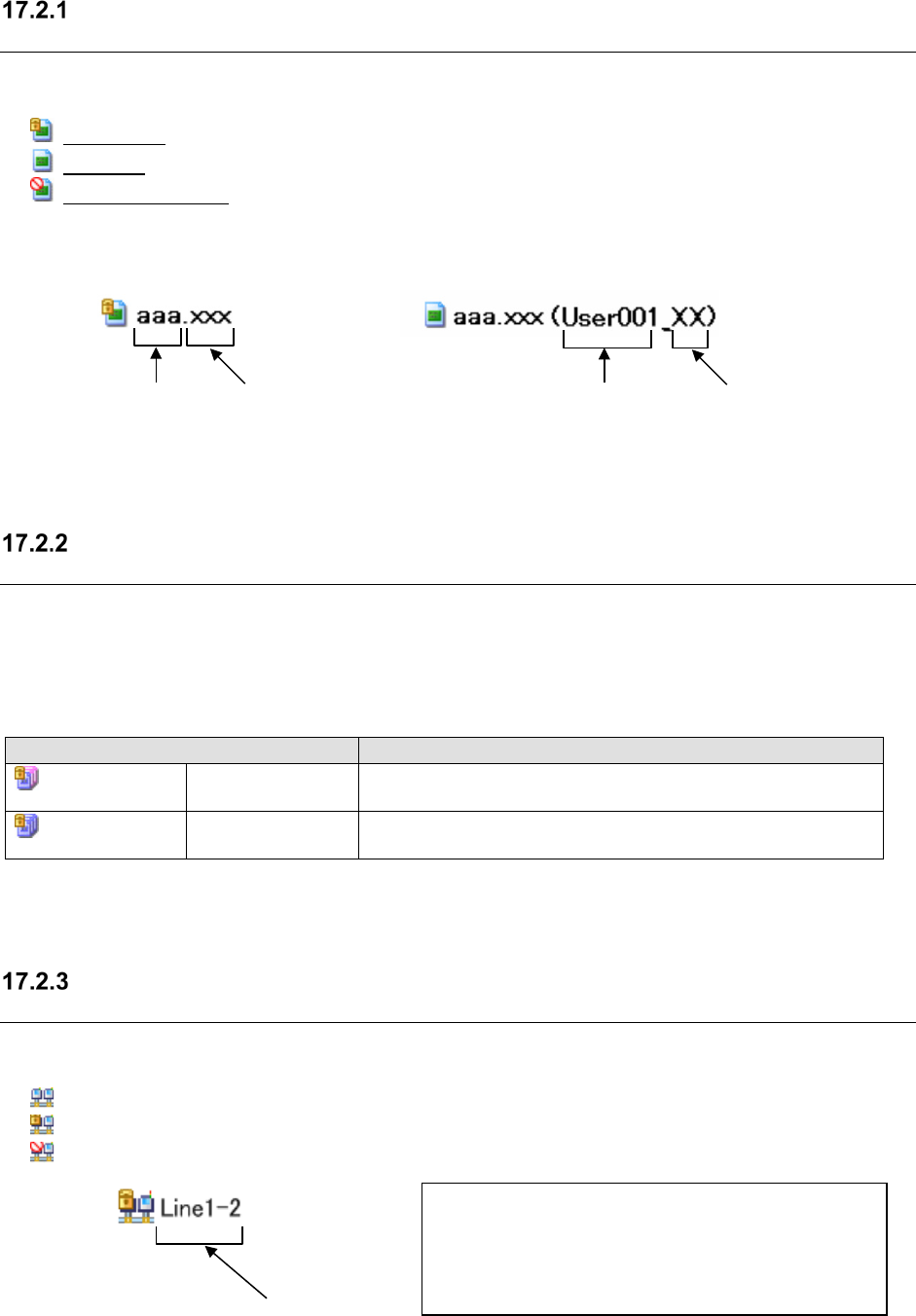
Display of the use condition of a file (on the “Manage,” “Production
Program” or “Reservation File” screen)
Check the use condition of a file in the database.
(key mark): A file is controlled within the database only and not used (*).
(normal): A file is checked out in the logged-in environment, and is being used.
(prohibition mark): A file is checked out by another client or user.
* This is the condition under which the contents of a file cannot be edited unless it is checked
out to a client.
Figure 17.2-1 Not-used file (you cannot edit it) Figure 17.2-2 Used file (you can edit it)
About an optimized file (on the “Manage,” “Production Program” or
“Reservation File” screen)
Check the optimized condition of a file controlled with the database. When you store a reservation
file into the database when it is being used for PWB production or is already used for PWB
production, the color of its icon changes.
Table 17.2-2 Description of icons indicating an optimized file (reservation file)
Icon
Description
(Partially purple)
A PWB is being
produced.
Some production programs registered in a reservation file finish
being used for PWB production (*1).
(Totally purple)
PWBs finish being
produced.
All production programs registered in a reservation file finish
being used for PWB production (*1).
*1 Since only optimized files can be used for executing PWB production, the system judges that
files are already optimized.
Display of a monitored production line (on the “Floor Configuration”
screen used with the Program Downloader only)
Check the setting of a production line (monitored with the Downloader) with the production line
icon.
(normal): A production line is not monitored.
(key mark): A production line is monitored with your client PC.
(prohibition mark): A production line is monitored with another client PC.
Figure 17.2-3 Icon indicating that a production line is being monitored
Extension
Name of a user
that uses a file
Name of a client
that uses a file
Line name
* When you use the Shopfloor Setup application, it
displays the icon with the prohibition mark if the
production line is being monitored (regardless of
which PC monitors it, your PC or another client PC).
You cannot edit any production line in this case.
File name
JaNets Instruction Manual 17 Program Explorer
17-10
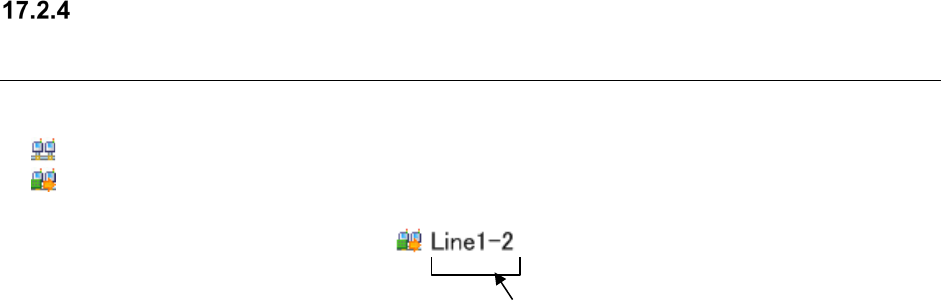
Display of a production line that is producing PWBs (on the “Floor
Configuration” screen only when a production line is being used with the
Shopfloor Setup)
Check the setting of a production line that is producing PWBs with the production line icon.
(normal): A production line is not producing any PWB (you can edit it).
(producing a PWB): A production line is producing a PWB (you cannot edit it).
Figure 17.2-4 Icon indicating that a production line is producing PWBs
Production line name
JaNets Instruction Manual 17 Program Explorer
17-11
Operating Procedure
Operating the database
You can operate the database on the “Manage” screen only.
17.3.1.1 Registering a production program into the database
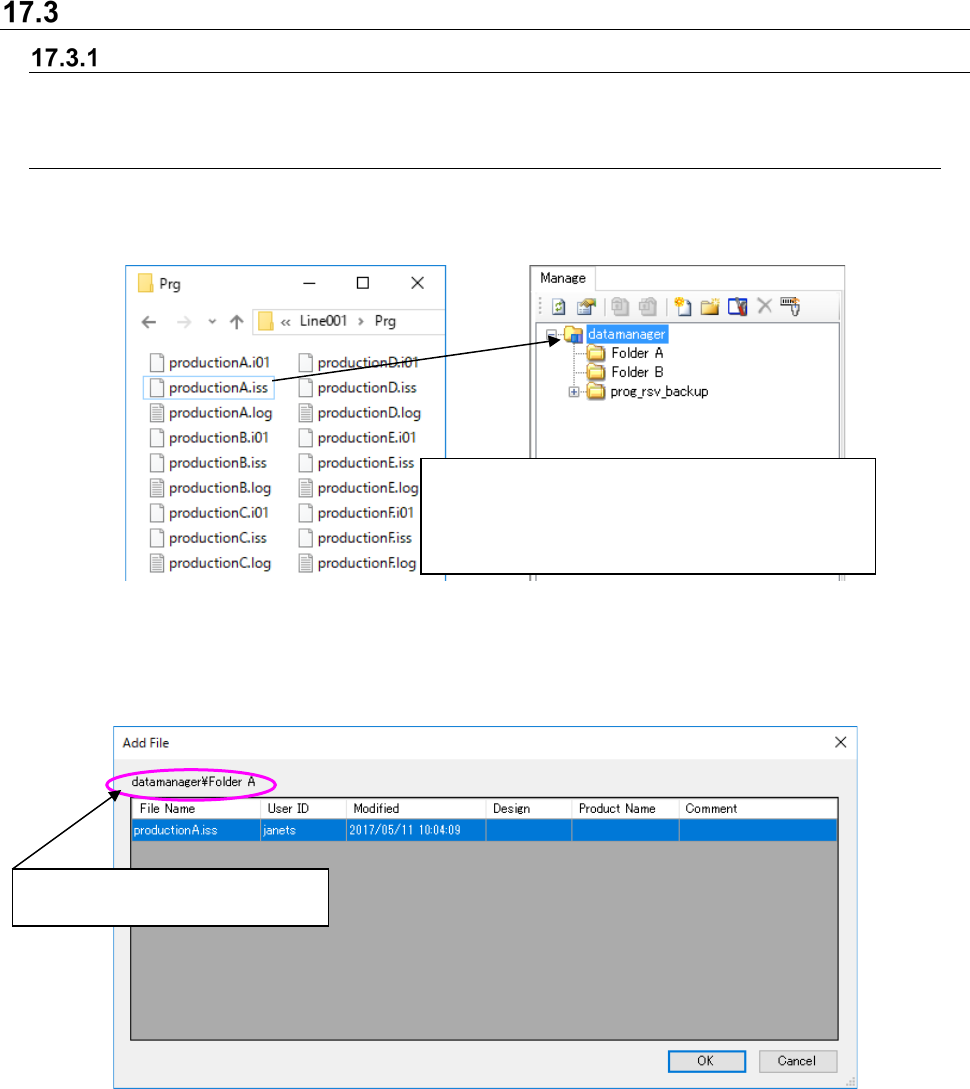
Follow one of the procedures 1 to 3 shown below.
1. Perform the operations ① and ② below.
Figure 17.3-1 Registering a file
(Left: Windows explorer Right: Program Explorer)
After performing the operation ② above, the system automatically displays the confirmation
dialog box for registering the file.
Figure 17.3-2 Confirmation dialog box for registering a file
File Name: Displays the name of a file to be registered.
Design: Enter the design control number of a production program (for a production
program only).
Product Name: Enter the product name specified in a production program (for a production
program only).
Comment: Enter the user’s comment on a production program (for a production program only).
* See Section 17-3-1-2 “Entering the ‘Design,’ ‘Product Name’ and ‘Comment’” for how to enter
the “Design,” “Product Name” and “Comment.”
①
Select a file (you can select two or more files at a
time) with the Windows Explorer.
② Drag and drop the selected files in a folder
displayed on the “Manage” screen.
A folder in which the selected file is
to be registered is displayed here.