JANETS_INM.pdf - 第505页
JaNets Instr ucti on Man ual 13 . Program D ownloa der 13 -9 13.5.3.2 Pr oduc tion skip setting/change status to finished From the men u that is d isplayed by c lick ing the right button of the mouse after sele cting pro…
JaNets Instruction Manual 13. Program Downloader
13-8
13.5.3 Production status
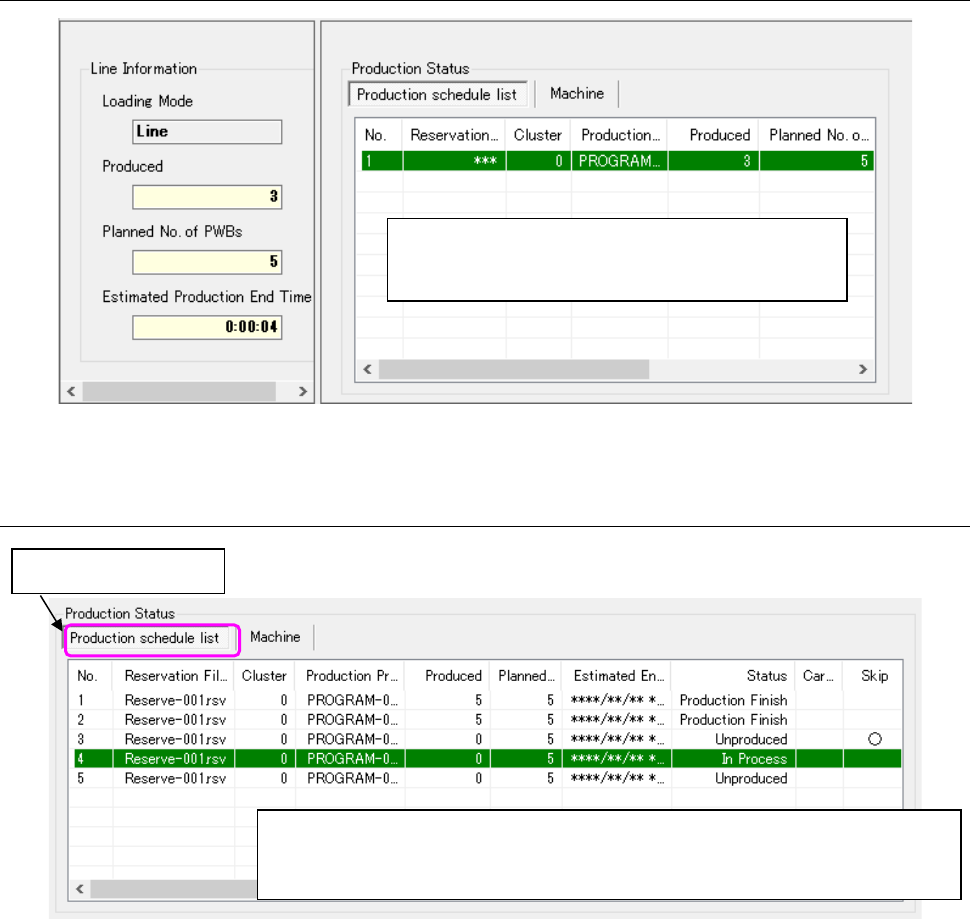
Figure 13.5-3 Production status
13.5.3.1 Production status of the reservation file
Figure 13.5-4 Production status of the reservation file
The production status of the production program
reserved in a reservation file and the production
program in each machine are displayed.
The production status of the production program registered in the reservation file
during production is displayed. The displayed items and display color can be
changed. (⇒ 13.14 “Setting the Displayed Items” )
Double-click this tab.
JaNets Instruction Manual 13. Program Downloader
13-9
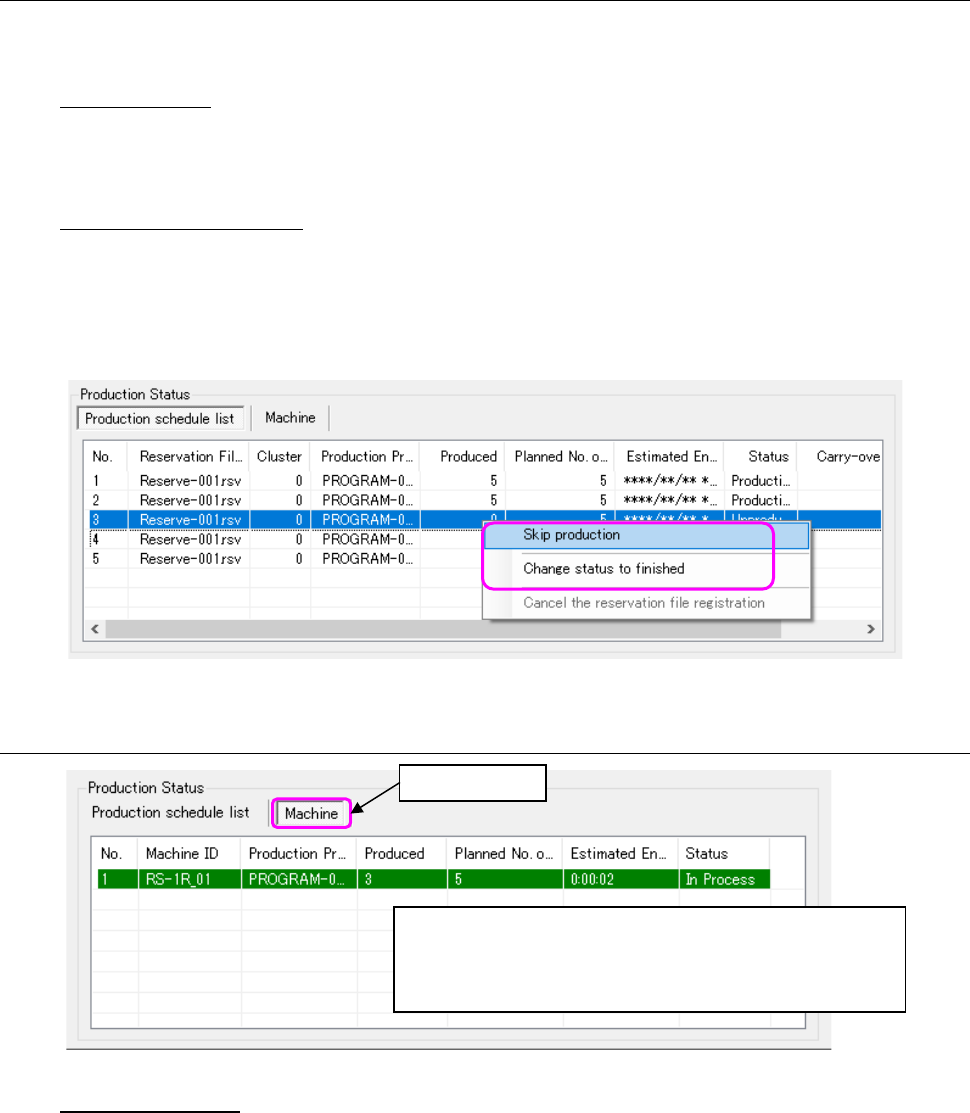
13.5.3.2 Production skip setting/change status to finished
From the menu that is displayed by clicking the right button of the mouse after selecting production
programs (multiple files can be selected), select “Skip production” or “Change status to finished.”
Skip production: Set a production program to skip production out of the production
programs registered in the reservation file. In this case, the
production program set to Skip remains in a non-production status
and the production of the reservation file is not finished.
Change status to finished: Set the production program in a “non-production” or “in the process
of production” to “Finished.” The production program set to
“Completion” remains in a non-production and the production of the
reservation file is finished.
* Since the status is set to a finished status, uploading is not executed.
Figure 13.5-5 Production skip setting
13.5.3.3 Machine production status
Figure 13.5-6 Machine production status
Estimated end time
The estimated end time of each machine can be obtained by dividing the placement-related time
by the number of produced boards and then multiplying the mean production time per board by the
residual estimated end time.
Regarding the placement-related time, the stop time, board carry-in wait time, and stop time are
not included.
Time related to the placement of RX-7/RX-7R: Placement time and placement invalid time of the
production control information
Time related to placement of others than RX-7/RX-7R: Operation time of the production control
information
Click this tab.
The production status of the production program in each
machine in the line is displayed. The display items and
display color can be customized.
(⇒ 13.14 Setting the Displayed Items)
JaNets Instruction Manual 13. Program Downloader
13-10
13.5.4 Switching the Display Format of the Line Monitor
Select the menu commands: [View] and [Line Monitor] in this order or select the “Line Monitor”
icon of the tool bar, and then select the display format.
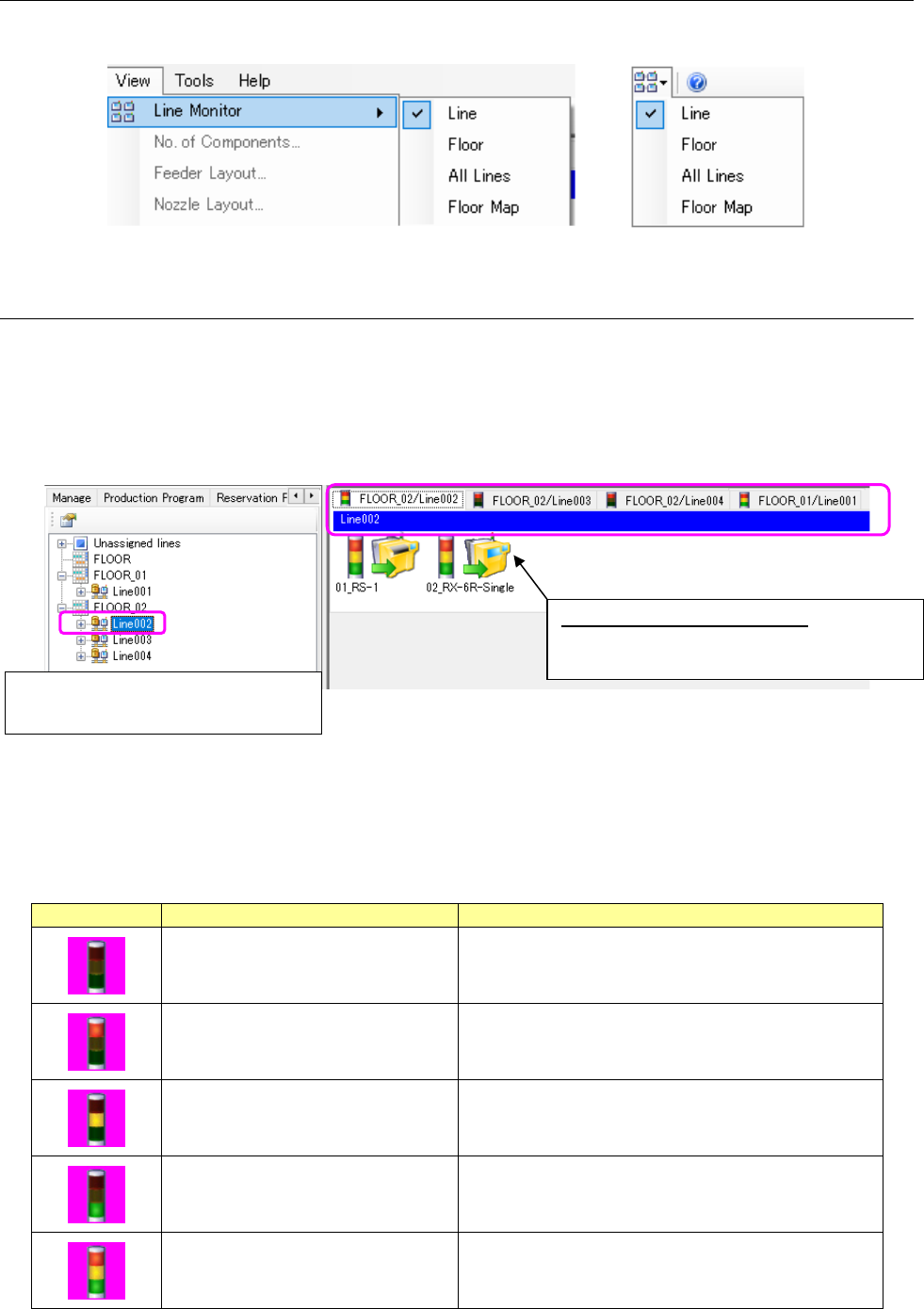
Figure 13.5-7 Switching the display format
13.5.4.1 Displaying each production line
Select the [Line] command from the “Line Monitor” menu that is invoked from the [View] command
or the “Line Monitor” icon of the tool bar.
You can switch the screen by selecting the desired production line or machine from the “production
line configuration” of the Explorer as shown below also.
When you select a machine, the production line to which the selected machine is assigned is
displayed on the screen.
Figure 13.5-8 Active display
* The signal light displayed on the tab indicates the PWB production status of the corresponding
production line. If there is at least one machine whose condition is different from those of other
machines, the condition is displayed in accordance with the following priority:
* The displayed color pattern of the signal light is fixed, and does not depend on the setting of
each machine.
Table 13.5.1 Priority of the displayed colors of the signal light
Signal light
Color of the light (color condition)
Description
No lamp light.
Some machines are not turned on.
Some machines cannot be connected to the system
due to a communication problem.
Red (light) Some errors have occurred at a machine.
Yellow (light)
Operation other than PWB production such as editing
of a program and setup of a machine is performed
with a machine.
Green (light) PWBs are being produced with a machine.
All colors (light) All machines are put in the waiting state.
Select a production line or a machine form
the “floor configuration” of the Explorer.
Active display production line: You can
switch the active production line to another
by selecting the corresponding tab.