JANETS_INM.pdf - 第470页
J aN et s Instr ucti on M anua l 10 . Feed er S et D at a ba se 10 - 14 Displayin g the fee der lay o u t 10.3.12 Y ou c an di sp lay th e la yout of the r eg ist ered f eed er s et dat a for each f eed er g r oup. Selec…
JaNets Instruction Manual 10. Feeder Set Database
10-13
Changing feeder set data 10.3.10
You can change the registered feeder set data. To change data, perform one of the two opera-
tions described below.
1. Select feeder set data to be changed from the “User-defined” feeder list. (You cannot se-
lect two or more data records.)
Next, select the [Edit] command from the menu bar, and then the [Change] command on
the “Edit” menu. The screen for changing feeder set data appears.
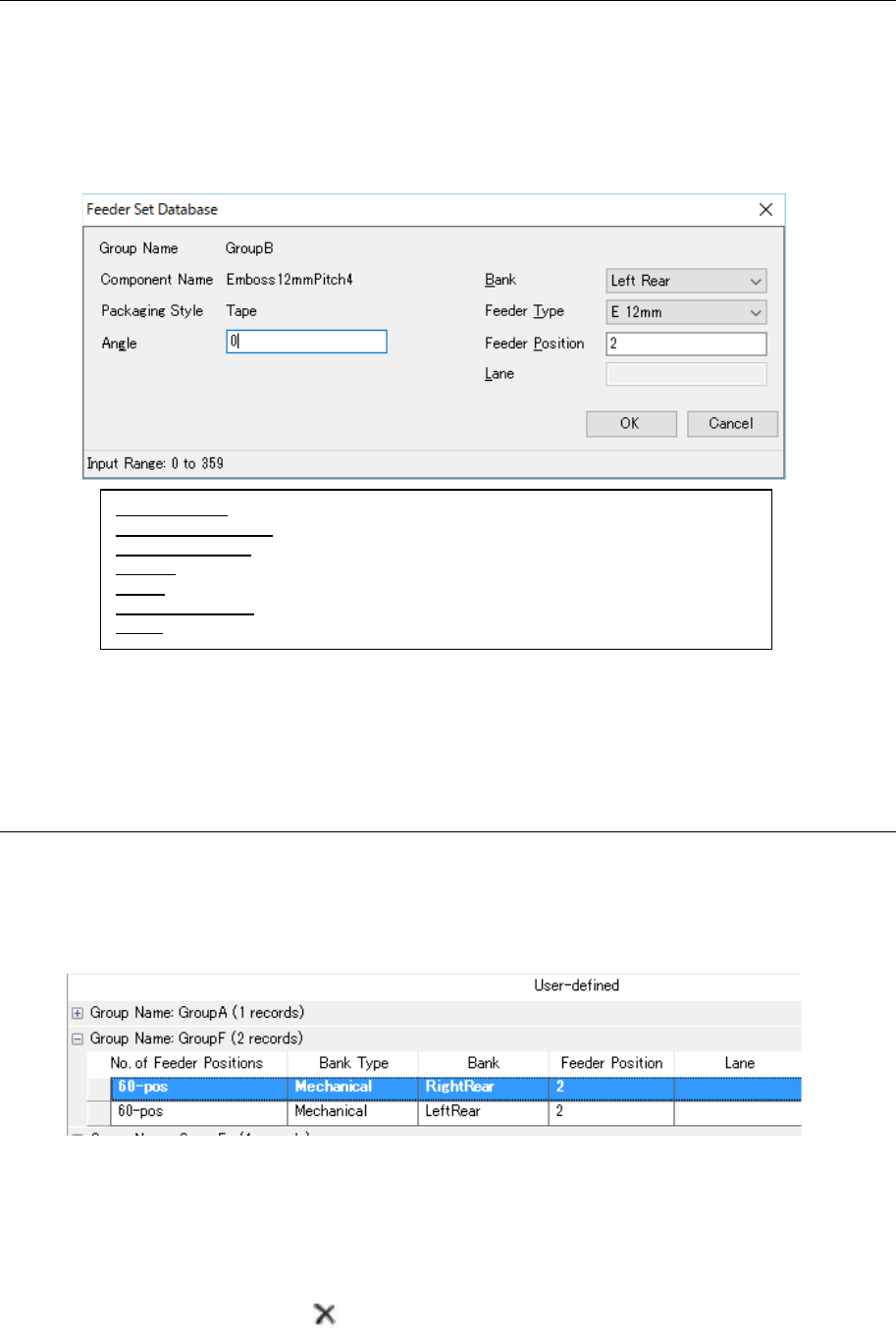
Figure 10.3-15 Screen for changing feeder set data
2. When you double-click the line of feeder set data to be changed on the “User-defined”
feeder list, the screen for changing feeder set data appears. Change the desired feeder
set data on this screen.
Deleting feeder set data 10.3.11
You can delete controlled feeder set data from the database. To delete feeder set data, perform
one of the two operations described below.
1. Select feeder set data to be deleted from the “User-defined” feeder list. (You can select
two or more data records.)
Figure 10.3-16 Selecting feeder set data
Select the [Edit] command from the menu bar, and then the [Delete] command on the “Edit”
menu. The confirmation message for deleting feeder set data appears on the screen.
2. Select feeder set data to be deleted from the “User-defined” feeder list. (You can select two
or more records to be deleted.)
Press the “Delete” button ( ) of the toolbar. The confirmation message for deleting feeder
set data appears on the screen.
Group Name: Displays the group name to which data belongs.
Component Name: Displays the corresponding component name.
Packaging Style: Displays the corresponding packaging style.
Angle: Specify the component angle.
Bank: Select the bank on which the feeder set data is set from the combo box.
Feeder Position: Enter the hole position at which the feeder set data is set.
Lane: Enter the lane number at which the feeder set data is set.
JaNets Instruction Manual 10. Feeder Set Database
10-14
Displaying the feeder layout 10.3.12
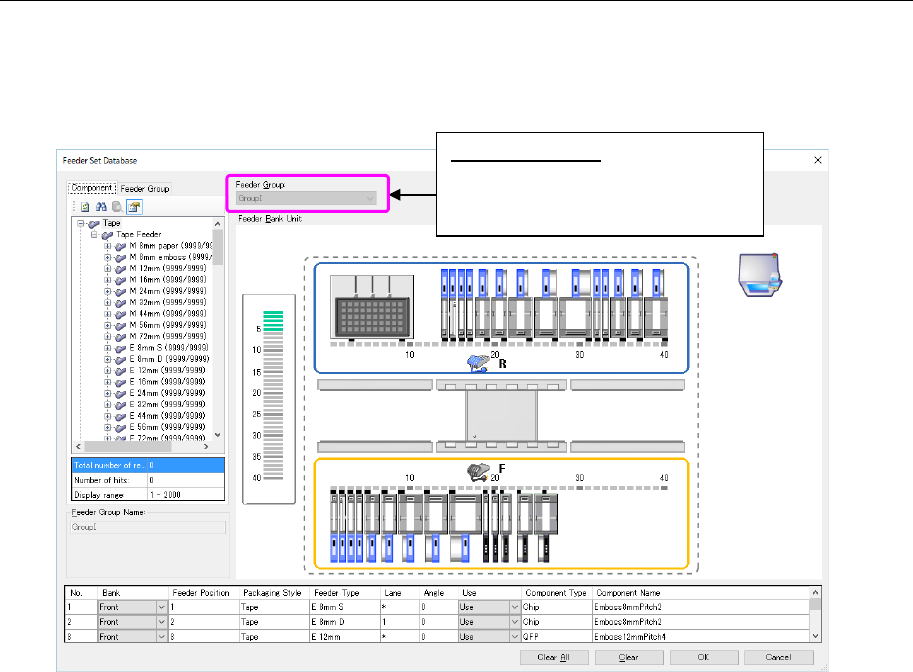
You can display the layout of the registered feeder set data for each feeder group.
Select one feeder group whose layout you want to display, and select the [View] command from
the menu bar, and then the [Feeder Layout] command from the “View” menu. The layout screen
appears.
Figure 10.3-17 “Feeder Layout” screen
* You cannot change the feeder layout or other settings on this screen.
The basic operations are the same as the operations for regular feeder setting from the shop
floor setup. However, the following restrictions are provided.
- The regular group cannot be edited. It is only displayed.
- Feeder resources are neither added nor subtracted.
- A feeder group cannot be arranged from the feeder group.
- The display cannot be changed from this screen to another feeder group. (After the end of
this screen, go back to the feeder setting data base and select a group to be displayed
anew.)
- The functions that are different from Shop floor setup/regular feeder setting screen layout
are not supported.
Feeder Group(G):
The feeder group name that displays
a layout drawing is displayed in a
light color.
JaNets Instruction Manual 10. Feeder Set Database
10-15
Obtaining (importing) external data 10.3.13
You can load the specified production program data, and then register its Pick data in the da-
tabase as a feeder group. To obtain (import) external data, perform one of the three operations
below.
1. Select the [File] command from the menu bar, and then the [Import Data] command from
the “File” menu.
The “Open” dialog box appears on the screen. Select a production program to be added
(you cannot select two or more programs), and then select the <Open> button. The system
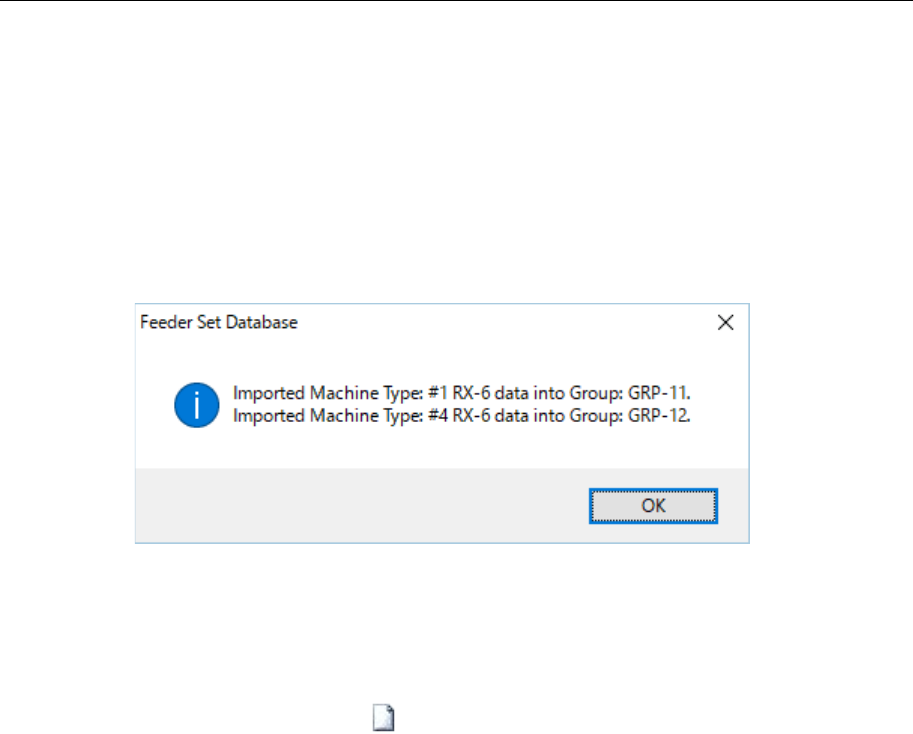
performs the data obtaining process. When it finishes obtaining data, the message indi-
cating that data finishes being obtained appears on the screen.
Figure 10.3-18 Message indicating that data finishes being obtained
* Data you can obtain is component pick-up information stored in the selected production pro-
gram, and it is loaded as a feeder group of each machine. A group name from “GRP1” is au-
tomatically assigned to a feeder group by default.
2. Press the “Import Data” button ( ) of the toolbar.
The “Open” dialog box appears on the screen. Select a production program to be added
(you cannot select two or more programs), and then select the <Open> button. The system
performs the data obtaining process. When it finishes obtaining data, the message indi-
cating that data finishes being obtained appears on the screen.