JANETS_INM.pdf - 第76页
JaNets Instr ucti on Man ual 2. Install ation 2- 48 (3) The “File Sharin g” screen f or the folder appe ars. Select “Everyo ne” from the drop - down list, and then click the <Add> button. When “Everyo ne” is added …
JaNets Instruction Manual 2. Installation
2-47
2.5.3.3 Setting a shared folder
Set a folder stored in the machine so that it can be shared for a file to be transferred or received.
(1) With the right button, click the folder whose name is “Interface” on the drive C of the machine
main unit. When the menu appears on the screen, click [Properties].
RP-1 C:\Interface
RV-1, RV-2, RV-2-3D C:\ProgramData\Sony\SI-V1000\Interface
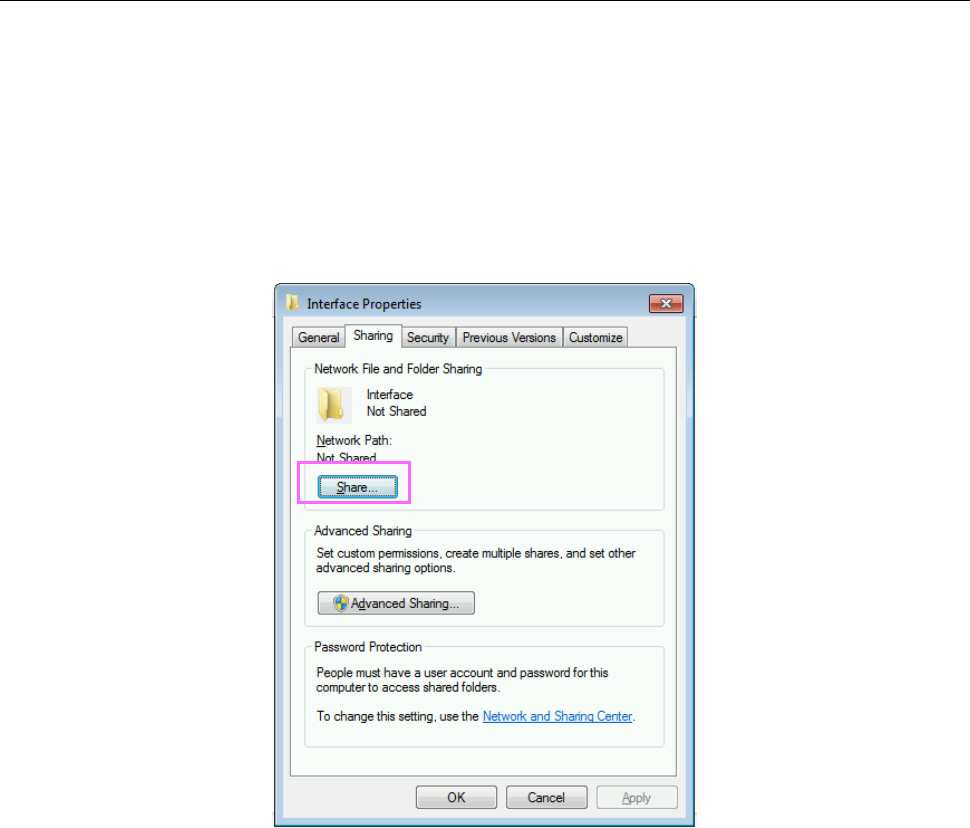
(2) Click the <Share…> button of the “Sharing” tab.
Figure 2.5-29 Properties of the Interface folder
JaNets Instruction Manual 2. Installation
2-48
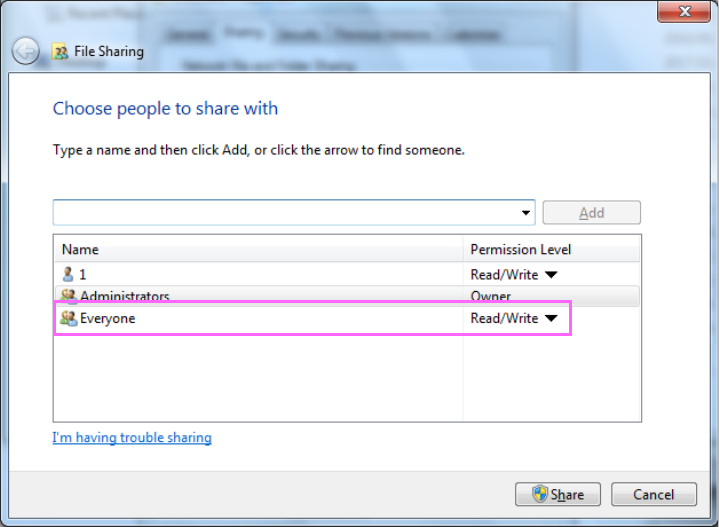
(3) The “File Sharing” screen for the folder appears. Select “Everyone” from the drop-down list,
and then click the <Add> button. When “Everyone” is added to the user names who share
the folder, click the “Permission Level” of the “Everyone,” and then change the setting from
“Read” to “Read/Write.”
Figure 2.5-30 Sharing setting of the Interface folder
(4) Click the <Share> button to start sharing the folder.
You have finished setting up the shared folder here.
JaNets Instruction Manual 2. Installation
2-49
2.5.3.4 Hiding the log-on user selection screen
Make the setting so that the log-on user selection screen cannot appear when the machine starts up.
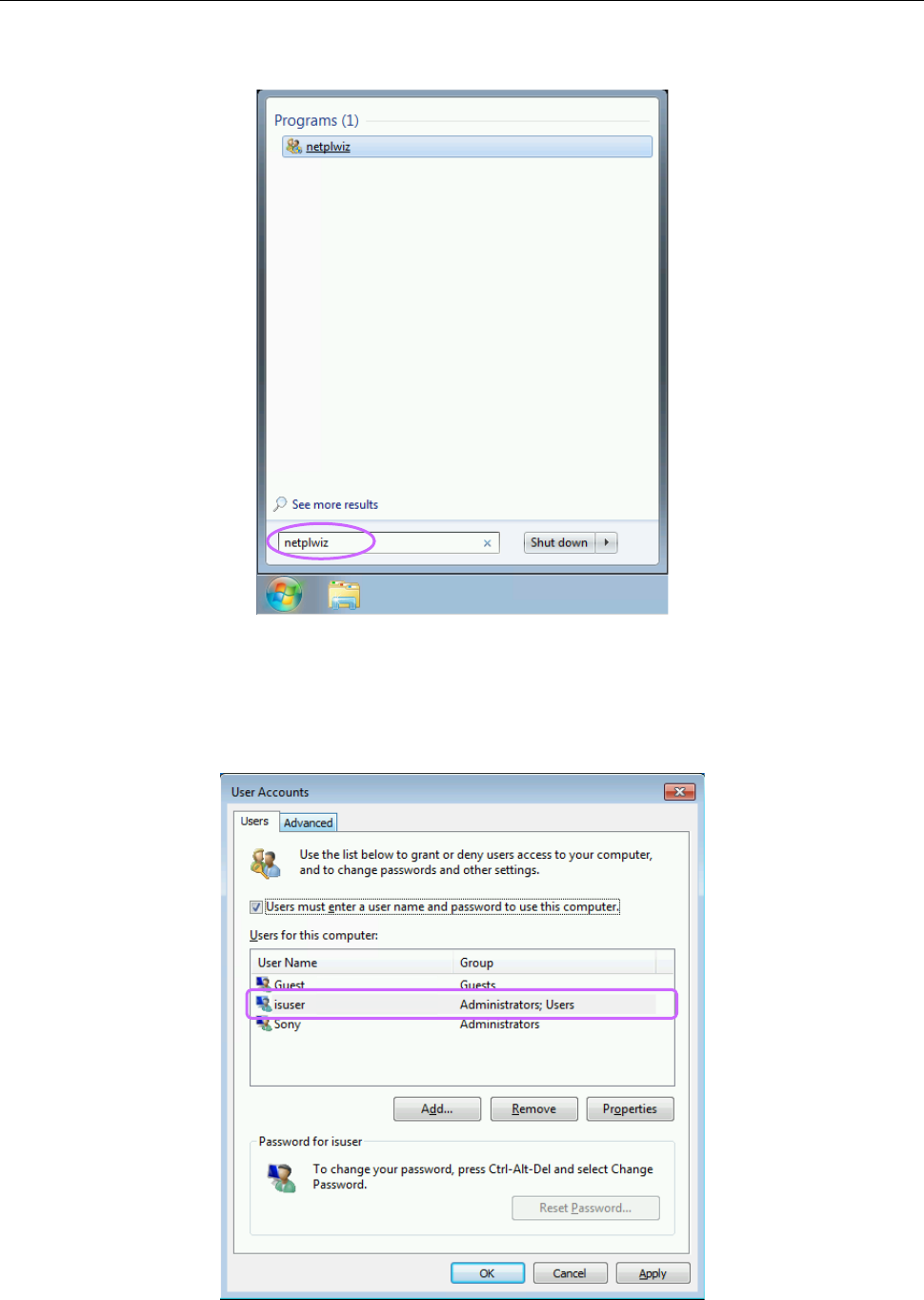
(1) Enter “netplwiz” on the search screen of the “Start” menu of the machine main unit, and then
press the Enter key.
Figure 2.5-31 Search screen invoked from the “Start” menu
(2) The screen for setting a user account is displayed. (The figure indicates the screen displayed
with an RV series machine. However, the same screen is displayed with an RP-1 also
although the displayed user name is different from the name displayed with the RV series
machine.)
Figure 2.5-32 Screen for setting a user account