JANETS_INM.pdf - 第513页
JaNets Instr ucti on Man ual 13 . Program D ownloa der 13 - 17 13.9.3.2 Upl oading data for teaching When you se lect [Pro duction] – [Upload d ata for t eaching], t he “Upload d ata for teac hing” conf irmat ion dialo g…

JaNets Instruction Manual 13. Program Downloader
13-16
13.9.3 Teaching the component pick-up coordinates in a cluster (in production
according to a reservation file)
This is a function that allows you to download data for teaching in a reservation file to the main unit
of the machine, teach the component pick-up coordinates and then upload the data so that the
taught pick-up coordinates are taken over to a production program in a cluster.
<Notes>
* If there is no data for teaching in a reservation file, this function cannot be used. To use this
function, enable the “Creation of data for teaching” check box on the “Cluster Options” tab when
the Job Optimizer performs optimization to optimize a reservation file (see Section 8.3.22.1
“Creating data for teaching” of Chapter 8 “Job Optimizer” for details).
* To enable this function, select the “Yes” radio button for the menu item “Cluster teaching” on the
“Production” screen invoked from the “Set Environments” screen (see Section 13.14.2.1) of the
Program Downloader. Note that the menu item “Inherit Pick Position” is enabled forcibly when
you select the “Yes” radio button for the menu item “Cluster teaching.”
* If the cluster number of the next production program that is to be downloaded is different from that
of the production program being used for the current production when this function is enabled, the
system does not download any production program automatically.
* If the cluster number of a production program to be downloaded is not the same among machines
on the production line when this function is enabled, the system cannot download the production
program. Disable this function, and then download the production program.
* A machine that does not support the component pick-up coordinates takeover function is not
covered with this function. Note that this function cannot be used if there is no machine
supporting the component pick-up coordinates takeover function on a production line used for
production.
13.9.3.1 Downloading data for teaching
When you select [Production] – [Download data for teaching] from the menu, the system loads
data for teaching, and then downloads it to the machine.
* If the cluster number of a production program to be downloaded is not the same among
machines on the production line, the system cannot download the production program.
JaNets Instruction Manual 13. Program Downloader
13-17
13.9.3.2 Uploading data for teaching
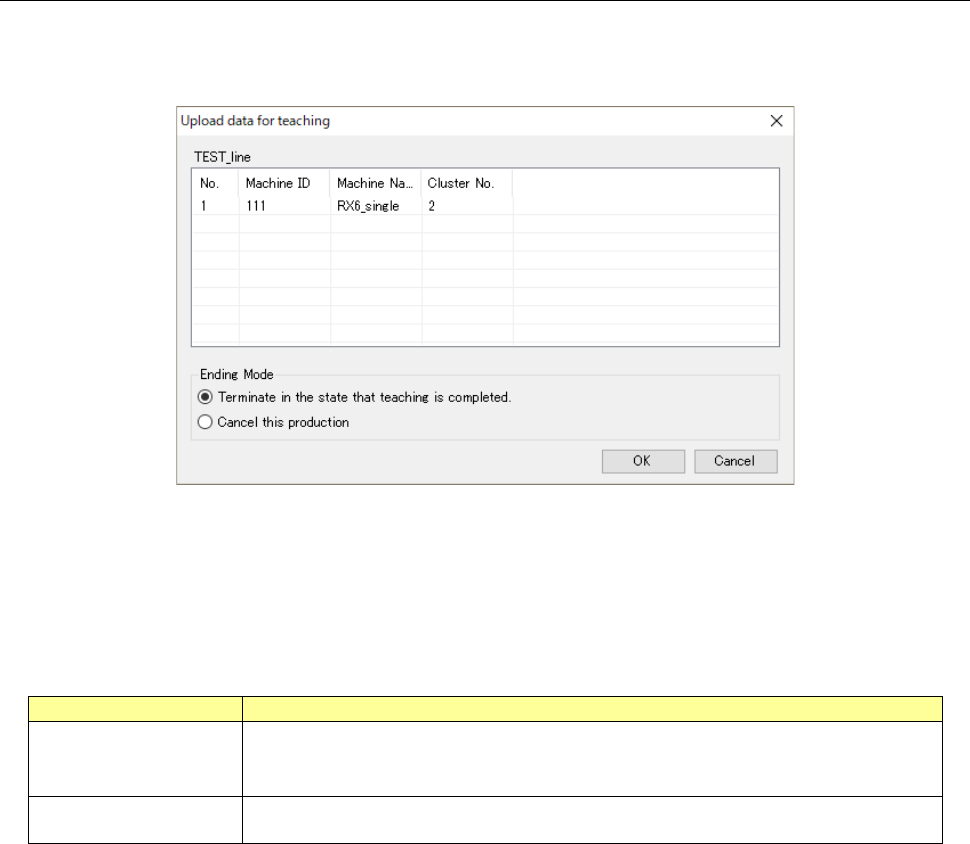
When you select [Production] – [Upload data for teaching], the “Upload data for teaching”
confirmation dialog box appears on the screen.
Figure 13.9-4 “Upload data for teaching” dialog box
When you select the <OK> button to close the dialog box above, the system starts teaching.
After the system finishes uploading data, it operates according to your choice of the menu item
“Ending Mode.”
Table 13.9-1 Ending Mode
Ending Mode
Description
Terminate in the state
that teaching is
completed.
Uploads a production program for teaching from a machine to be specified to upload
data and takes over the component pick-up coordinates. If at least one machine
fails to upload data, the system causes all machines to abort an uploading operation.
Cancel this production
Cancels the downloading state of a production program for teaching without uploading
the production program and taking over the component pick-up coordinates.
JaNets Instruction Manual 13. Program Downloader
13-18
13.9.4 Starting/finishing production
13.9.4.1 Download
After specifying a production program, download the production program to each machine
assigned to the specified production line. When you select the “Production” command from the
menu bar, and then the “Download” command from the “Production” menu (or click the “Download”
tool button of the toolbar), the confirmation dialog box for downloading appears on the screen.
When you select the “Yes” button, the dialog box closes and the system starts downloading the
production program.
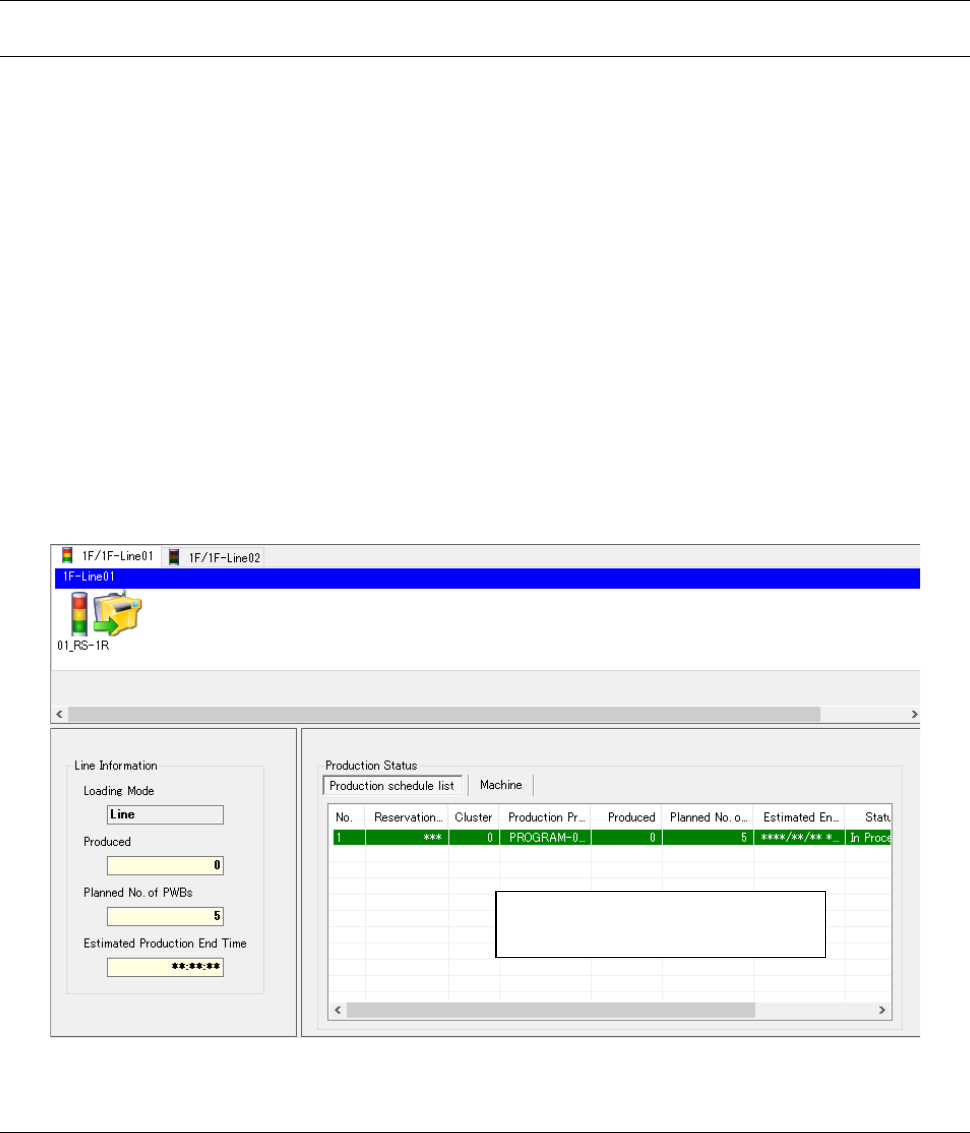
When a production program is downloaded to each machine normally, the downloading conditions
are displayed on the Line Monitor.
* When the license of the External Output function is effective and the check box “Check to see if
the External Output Monitor has started up” is checked off of the menu item “Set confirmation
message” described in Section 13.14.2.3 “Confirmation message setting,” the system checks
to see if the External Output Monitor has started up after closing the confirmation dialog box.
If the External Output Monitor does not start up yet, the confirmation dialog box for downloading
the production program appears on the screen again. To download the production program,
click the <Yes> button. The dialog box closes, and then the system starts downloading the
program.
Figure 13.9-5 Data displayed on the Line Monitor after production programs are downloaded
13.9.4.2 Upload
When the system finishes producing PWBs according to the downloaded production program, it
automatically starts uploading the production program.
* When you do not check the check box “Automatically upload finished programs” of the “Upload”
menu item on the “Set Environments” screen described in the Section 13.14.2.1, no production
program is uploaded.
Press the “Start” button of each
machine to start producing PWBs.