JANETS_INM.pdf - 第674页
JaNets In structio n Manual 17 Program Expl orer 17 - 22 * When you check out a f ile whos e destinati on is not set in a client folder for t he first t ime, the follo win g “ Ch eck out ” co nfirmat ion dial og box star…
JaNets Instruction Manual 17 Program Explorer
17-21
17.3.7.3 Checking out a file
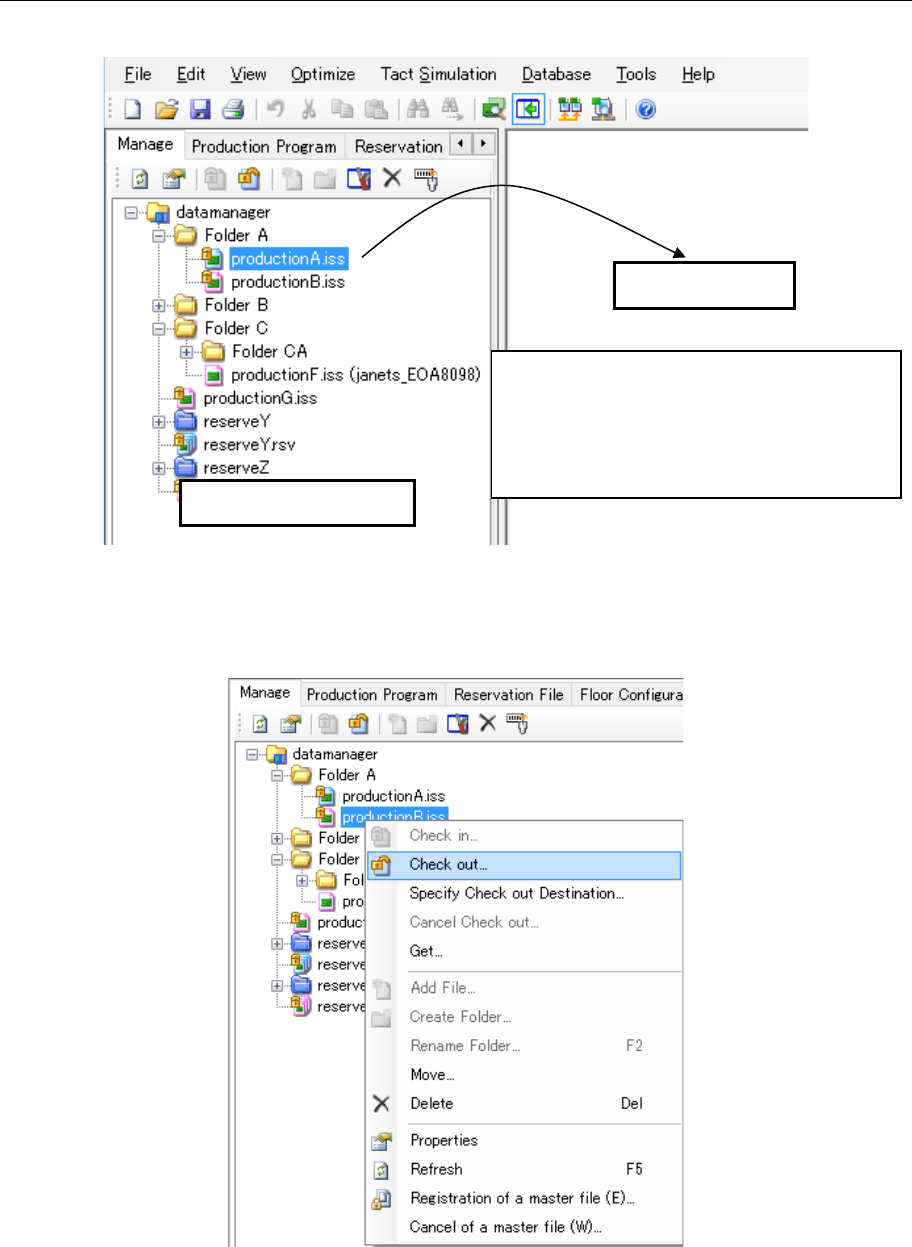
1. Drag and drop a file checked in from the Program Explorer area to the application area.
Figure 17.3-20 “Check out” with the dragging and dropping a file
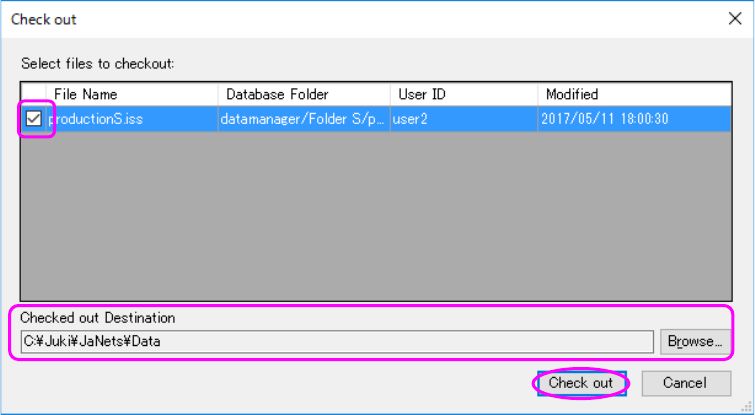
2. Click the right button of a mouse on the “Manage” screen. Select the [Check out] command on
the displayed pop-up menu.
Figure 17.3-21 [Check out] command on the pop-up menu displayed
when you click the right button of a mouse
Application area
Program Explorer area
Drag and drop a file.
* Whether this operation is available or not
depends on the application you are using
(that is, whether the application supports
the check-out function). (Refer to the
specifications of the application you use)
JaNets Instruction Manual 17 Program Explorer
17-22
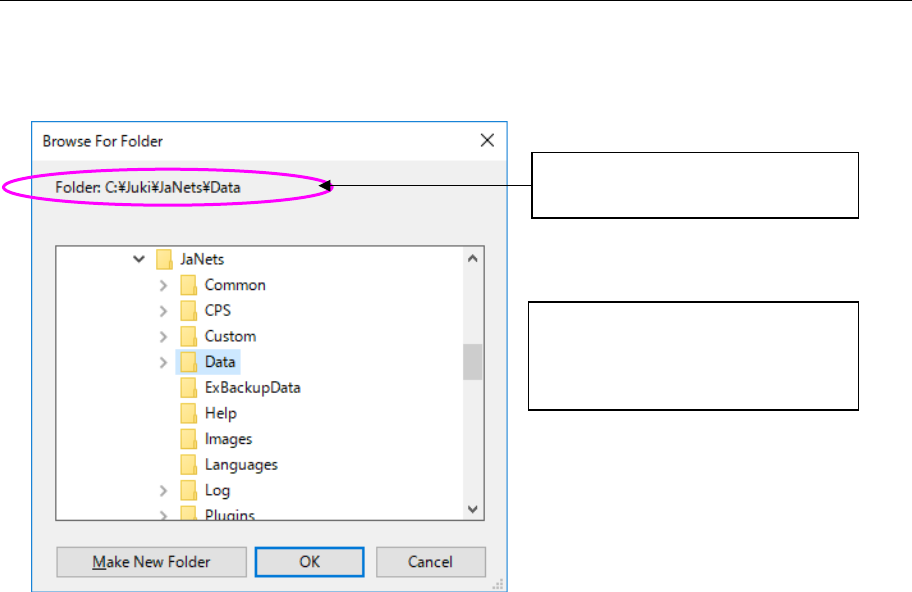
* When you check out a file whose destination is not set in a client folder for the first time, the
following “Check out” confirmation dialog box starts up. When you set the destination, the
system checks out the file. When you try to check it out twice or the more times, the system
checks it out without starting up the confirmation dialog box.
<How to check out a file>
① Put a check mark in the check box(es) corresponding to a file(s) to be checked out (a check
mark is put in all check boxes when the dialog box starts up).
② Specify the destination for checking out a file in the “Check out Destination” (you can change
the destination with the <Browse> button).
③ When you select the <Check out> button, the system copies the selected file(s) in the local
folder and closes the “Check out” confirmation dialog box.
Figure 17.3-22 “Check out” confirmation dialog box
* When you check out a reservation file, production programs registered in the reservation file
are checked out in the folder whose name is the same as that of the reservation file. (The
folder is created in the directory where the reservation file is located.)
• If there is a file whose name is the same as that of a file you are to check out in the
specified local folder, and the data stored in the local file is different from that of the file
you are to check out (the system judges the difference based on the update date of each
file), you have to select which operation to perform, overwrite the local file or cancel the
check-out operation.
• If there is a file whose name is the same as that of a file you are to check out in the local
file, and the local file is being checked out too, you have to select which operation to
perform, change the destination for checking out the file or cancel the check-out
operation.
JaNets Instruction Manual 17 Program Explorer
17-23
17.3.7.4 Specify where to check out a file
Click the right button of a mouse on the “Manage” screen. Select the [Specify Check out
Destination] command on the displayed pop-up menu. The “Browse For Folder” dialog box
appears on the screen.
Figure 17.3-23 “Browse for Folder” dialog box
* The setting made on this dialog box is used as the destination folder when the system checks
out the specified file. If you change this folder setting for a file that is being checked out, the
folder setting is changed from the next checkout operation.
The current destination set for
checking out a file is displayed here.
The local (client) folder configuration
appears on the “Browse For Folder”
dialog box. Select the destination
folder for checking out a file.