JANETS_INM.pdf - 第313页
JaNets In structio n Manual 7. Program Editor 7- 106 “ Dispenser T est Data (Dispenser T est Coordinates) ” screen This scree n allows y ou to edit the co ordinates o f each adh esive d ispensing p oint used f or testing…
JaNets Instruction Manual 7. Program Editor
7-105
7.4.5 Editing dispenser test data
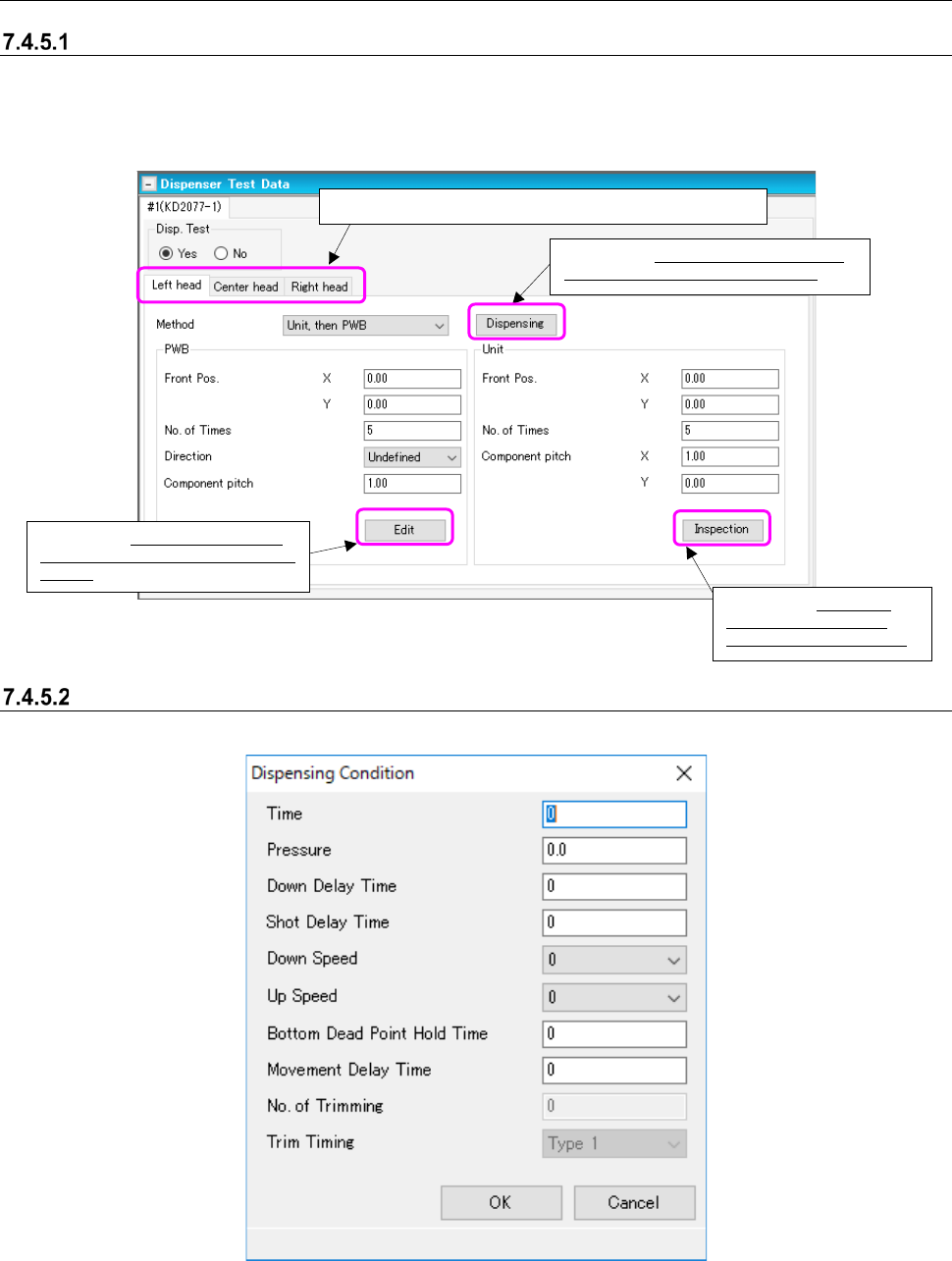
Dispenser test data
When there is an adhesive dispenser in the selected production line, edit data that depends on
each adhesive dispenser. When you select “Dispense Test Data” from the tree view, the “Dis-
penser Test Data” screen appears.
Figure 7.4-144 “Dispenser Test Data” screen
“Dispenser Test (Dispensing Condition)” screen
This screen allows you to set the dispensing conditions of each head.
Figure 7.4-145 “Dispensing Condition” dialog box
Displays the “Dispensing Condition” dia-
log box described in Section 7.4.5.2.
When you switch the tab, you can set data on each head.
Displays the “Dispenser Test Coor-
dinates” screen described in Section
7.4.5.3.
Displays the “Adhesive
Verification” screen de-
scribed in Section 7.4.5.4.
JaNets Instruction Manual 7. Program Editor
7-106
“Dispenser Test Data (Dispenser Test Coordinates)” screen
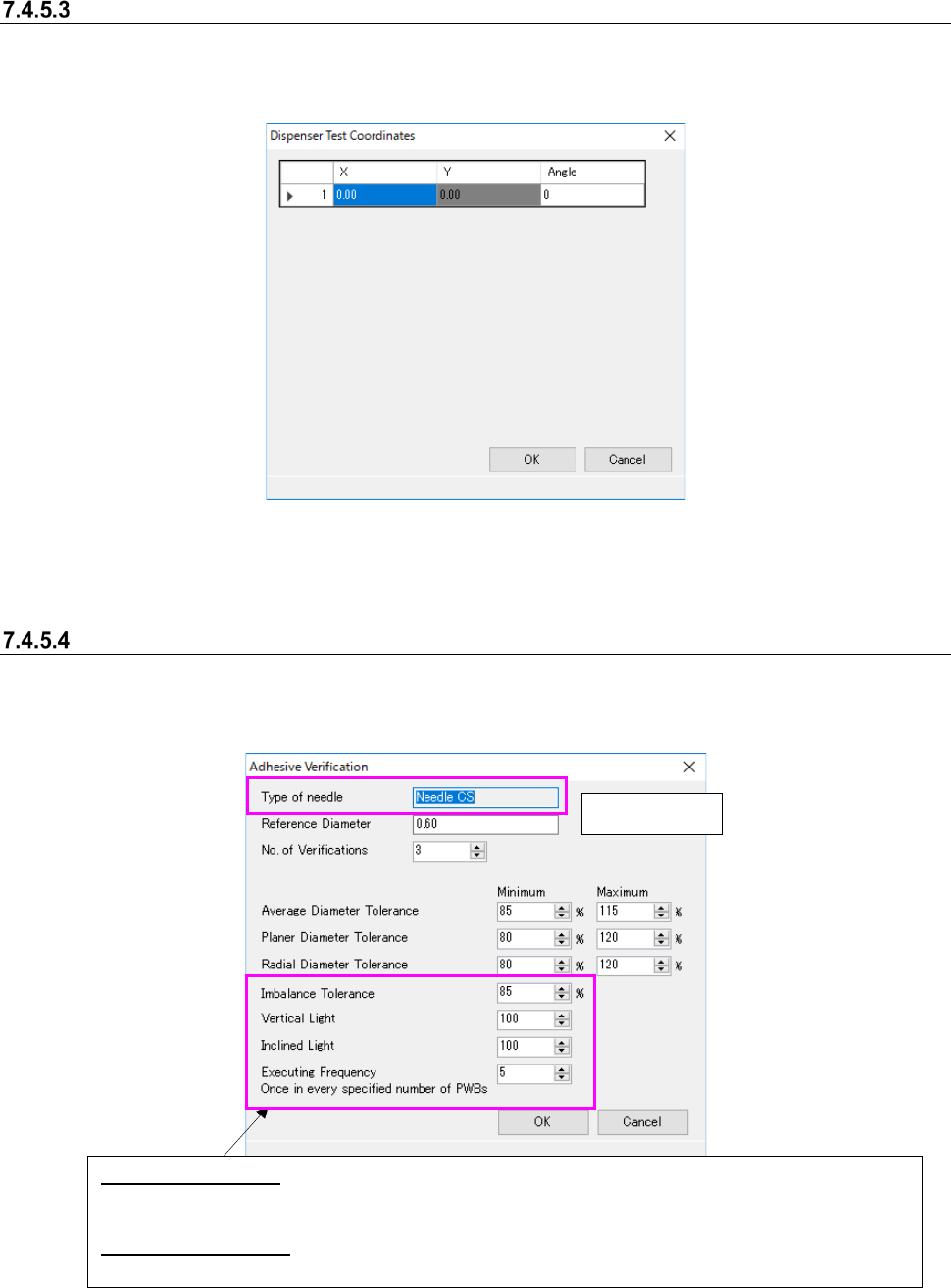
This screen allows you to edit the coordinates of each adhesive dispensing point used for testing.
When you select the <Edit> button on the “Dispenser Test Data” screen, the “Dispense Test Co-
ordinates” screen appears.
Figure 7.4-146 “Dispenser Test Coordinates” screen
* The default values are calculated and displayed based on the settings in the “Front Pos.,” “No. of
Times,” “Direction” and “Pitch between Components” fields.
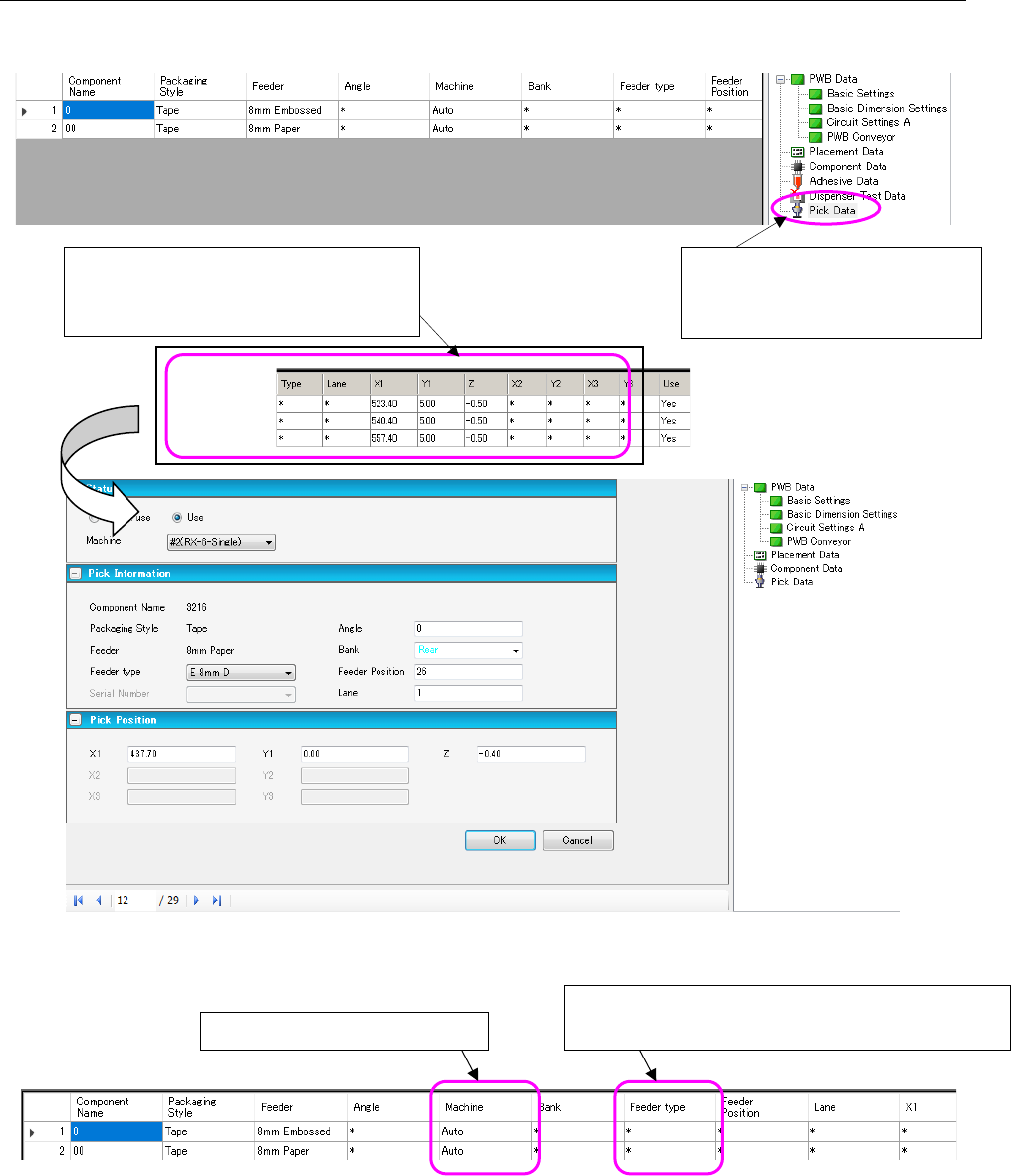
Dispenser Test Data (Adhesive Verification)
Set the inspection conditions for verifying dispenser test data on the following screen. When you
select the <Inspection> button on the “Dispenser Test Data” screen, the “Adhesive Verification”
screen appears.
Figure 7.4-147 “Adhesive Verification” screen
Display only
Imbalance Tolerance: To check adhesive dispensing with a needle for two points or four points, set the
tolerance of the ratio of the minimum diameter of points at which adhesive is dispensed at a time to
the maximum diameter.
Executing Frequency: Specify the frequency of the inspection to be executed: how many boards is the
inspection to be executed per.
JaNets Instruction Manual 7. Program Editor
7-107
7.4.6 Editing pick data
The “Pick Data” screen allows you to set a feeder attachment position and so on.
Figure 7.4-148 Pick data form screen
Figure 7.4-149 Pick List
When you double-click a line of the pick
data list, the following “Pick data form”
screen appears.
When you select “Pick Data” from
the tree view, the “Pick data list”
appears on the screen.
Changes the feeder type.
[Mxxx]: Mechanical bank (Mechanical feeder)
Display only in the line mode