JANETS_INM.pdf - 第420页
JaNets Instr ucti on Man ual 8. Job Optim izer 8- 35 Statu s Displa y Figure 8.3 - 65 Main scr een – [V iew] – [Status] Figure 8.3 - 66 “ Status ” ① After sele cting on e line on the Reservatio n list, select th e [V i e…
JaNets Instruction Manual 8. Job Optimizer
8-34
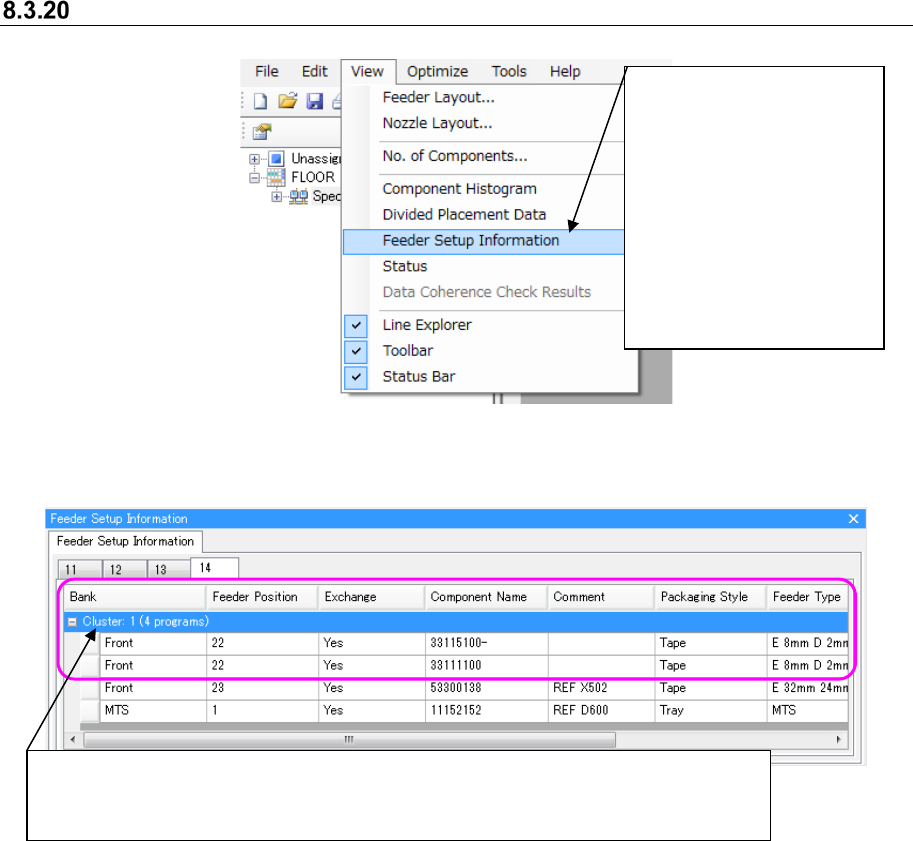
Feeder Setup Information
Figure 8.3-63 Main screen – [View] – [Feeder Setup]
Figure 8.3-64 “Feeder Setup Information”
①
Select the [View]
command, and then the
[Feeder Setup
Information] command.
* If cluster-optimization is
not executed yet or if you
change a production
program after
cluster-optimizing it, you
cannot select this
command.
This area indicates how feeders of each production program are assigned and whether
feeders within the cluster have to be replaced as a result of execution of
cluster-optimization or not.
JaNets Instruction Manual 8. Job Optimizer
8-35
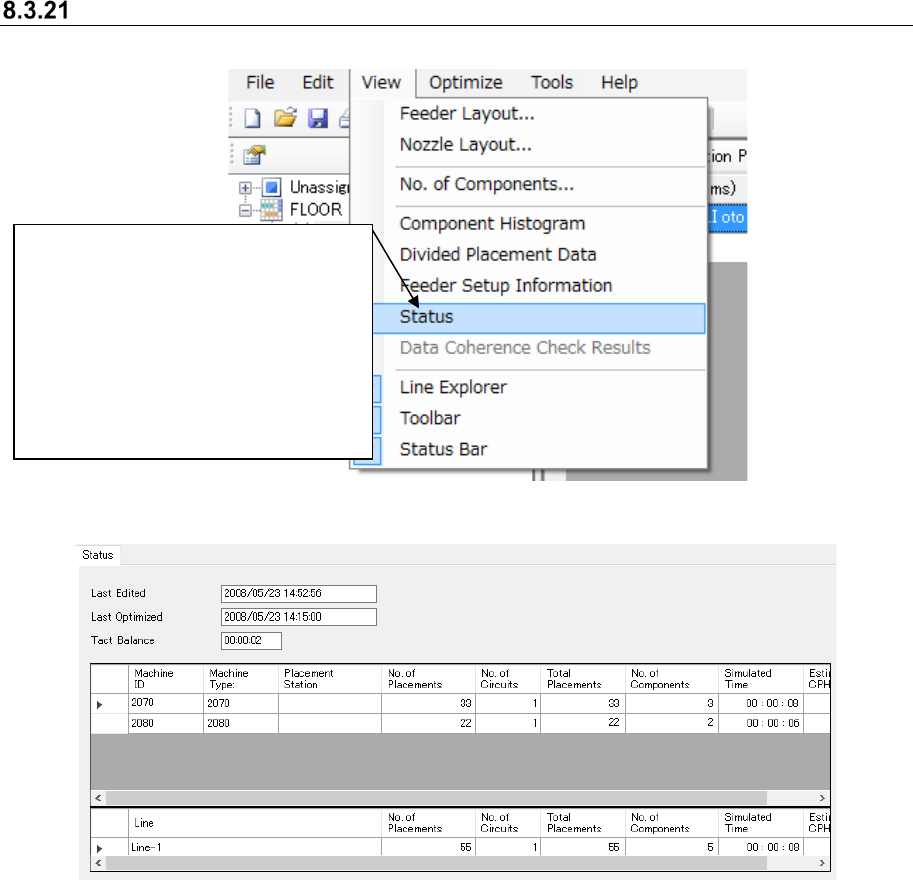
Status Display
Figure 8.3-65 Main screen – [View] – [Status]
Figure 8.3-66 “Status”
①
After selecting one line on the
Reservation list, select the [View]
command, and then the [Status ]
command from the “View” menu.
* If the “tact simulation” (cycle time
simulation) is not performed after
optimization is executed or if no line is
selected from the Reservation list,
you cannot select this command.
JaNets Instruction Manual 8. Job Optimizer
8-36
Optimize
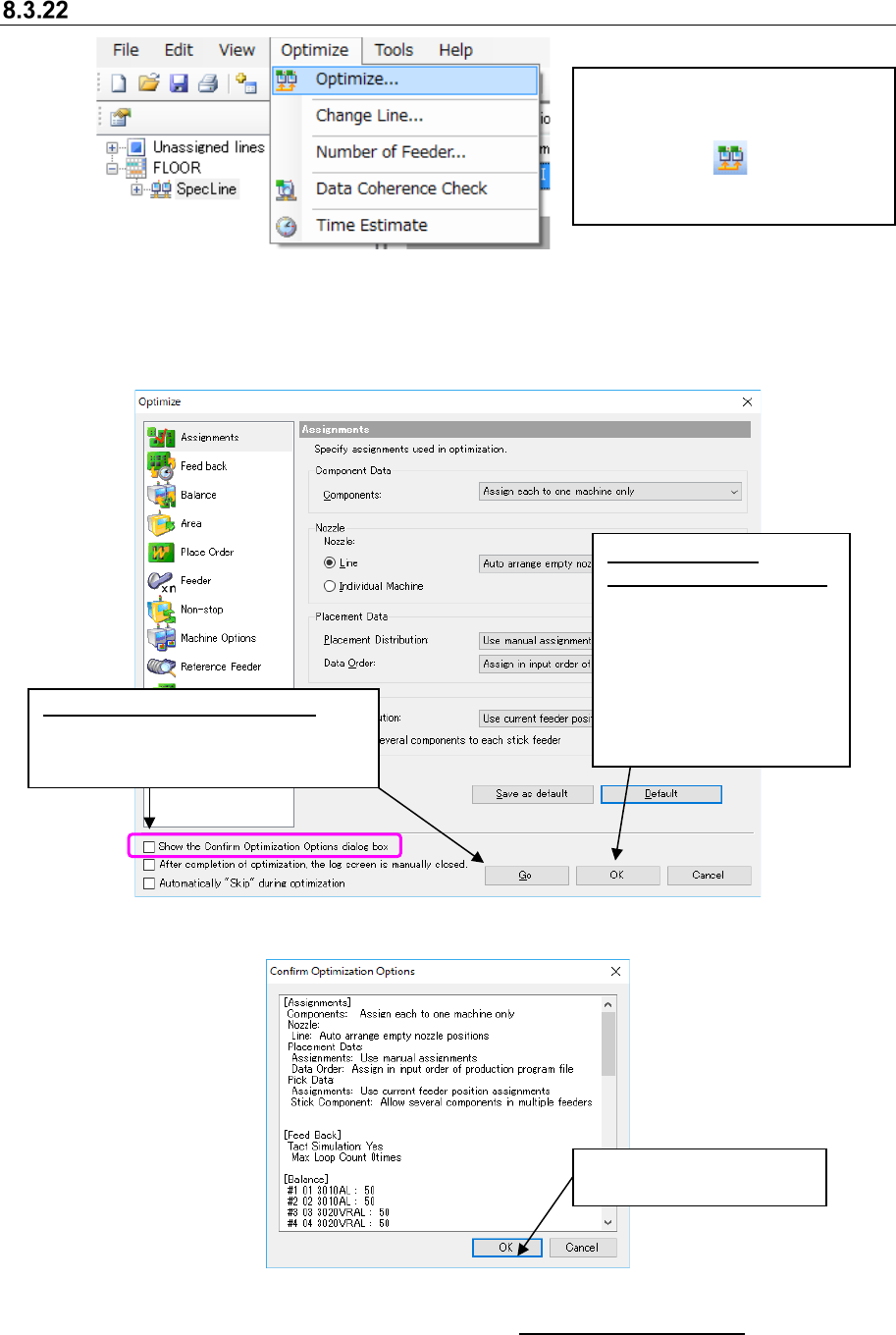
Figure 8.3-67 Main screen – [Optimize] – [Optimize]
* It is impossible to execute both program editor optimization and job optimizer
optimization simultaneously.
* Job Optimizer cannot optimize any machine whose data is created in EPU mode with the
Shopfloor Setup or any production line including a JM series machine.
Figure 8.3-68 “Optimize” dialog box
Figure 8.3-69 “Confirm Optimization Options” dialog box
* When “Auto time estimation” is set to “Execute” in “8.3.27 Set Environments”, time estimation is
automatically executed on “Planned production start day” and at “Planned production start time”
set by reservation file after normal termination. After the time is estimated, the simulation result
is reflected in the reservation.
Select the [Optimize] command, and
then the [Optimize] command from
the “Optimize” menu, or click the
“Optimize” tool ( ) from the
toolbar. The “Optimize” dialog box
shown below appears on the screen.
Click this button to execute
the optimization function.
When you set the
optimization options only:
Click the <OK> button after
changing the settings of the
optimization options on the
“Optimize” dialog box. The
system saves the changed
options without executing the
optimization function.
When you check this check box:
The “Confirm Optimization Options”
dialog box appears on the screen
after you click the <Go>.