JANETS_INM.pdf - 第468页
J aN et s Instr ucti on M anua l 10 . Feed er S et D at a ba se 10 - 12 Copyin g feeder set data 10.3.9 Y ou c an c opy f eeder set data t o an oth er g r oup. Selec t da ta to be c opi ed, an d then s elec t t he [Edi t…
JaNets Instruction Manual 10. Feeder Set Database
10-11
Adding feeder set data 10.3.8
You can add feeder set data to a created feeder group.
To add feeder set data, perform one of the following two operations.
1. Select the [Edit] command from the menu bar, and then the [Add] command on the “Edit”
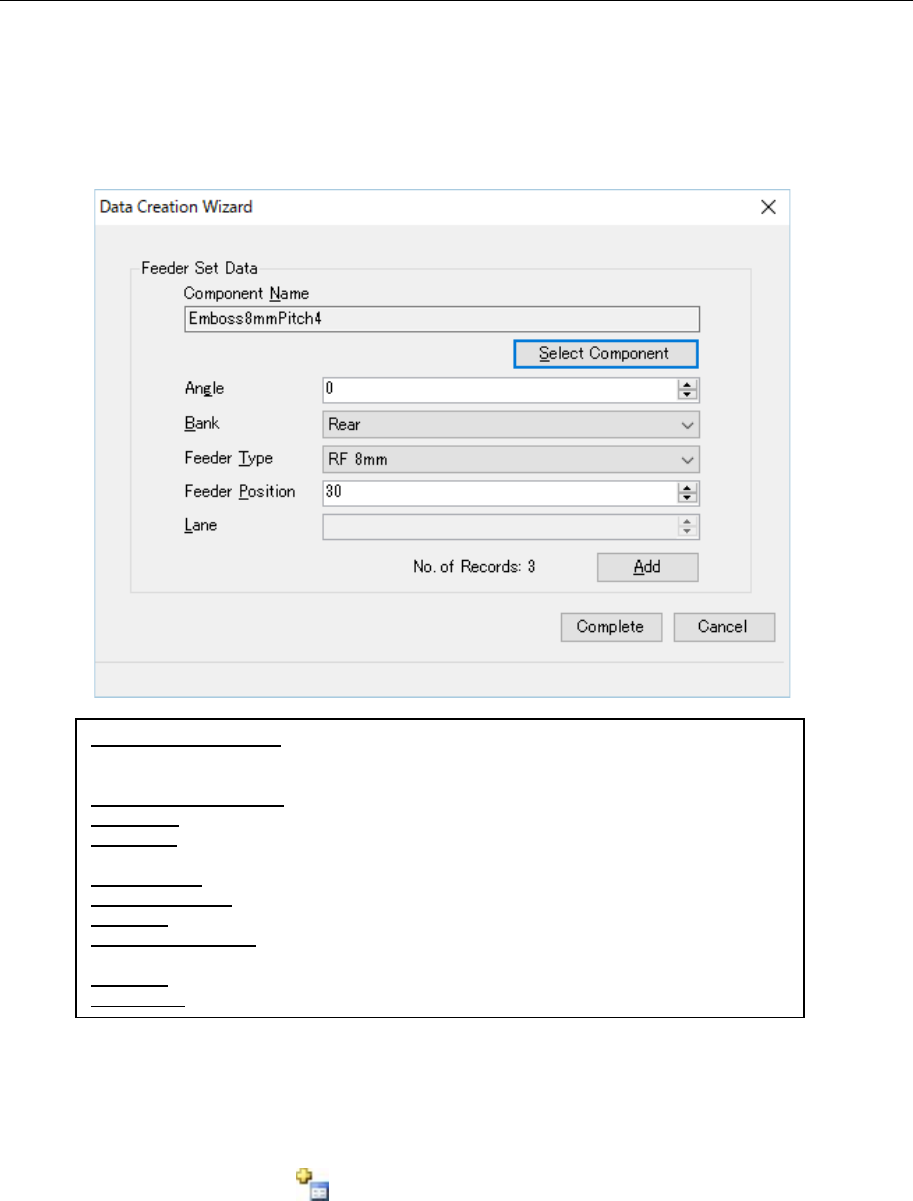
menu. The screen for adding feeder set data appears.
Set and add feeder set data on the displayed screen for adding feeder set data.
Figure 10.3-12 Screen for adding feeder set data
*1 This number also includes the number of feeder set data records already registered.
*2 Unless you select the <Complete> button, no data is registered in the database.
2. Press the “Add” button ( ) of the toolbar.
Since the screen for adding feeder set data appears, set the feeder set data to add it.
Component Name (N): Displays a name of a component to be set in the feeder set
data. The component name you selected on the screen for selecting a component is
displayed here, and you cannot edit it directly.
Select Component (S): Displays the screen for selecting a component.
Angle (G): Enter a component pick-up angle.
Bank (B): Select the component supply position from the bank information set to the
feeder group to be created.
Feeder Type: Select a feeder type that can be set to the feeder position.
Feeder Position: Enter the pick position number to set the feeder.
Lane (L): Enter the lane number of the component pick-up position.
No of data records: The number of feeder set data records added to the feeder group
is displayed here. (*1)
Add (A): Adds the feeder set data you have set to the feeder group. (*2)
Complete: Registers the feeder group, and closes this screen.
JaNets Instruction Manual 10. Feeder Set Database
10-12
Copying feeder set data 10.3.9
You can copy feeder set data to another group.
Select data to be copied, and then select the [Edit] command from the menu bar, and then the
[Copy] command from the “Edit” menu. The screen for selecting the copy destination group
appears.
When you press the “Copy” button ( ) of the tool bar instead, the screen for selecting the
copy destination group also appears.
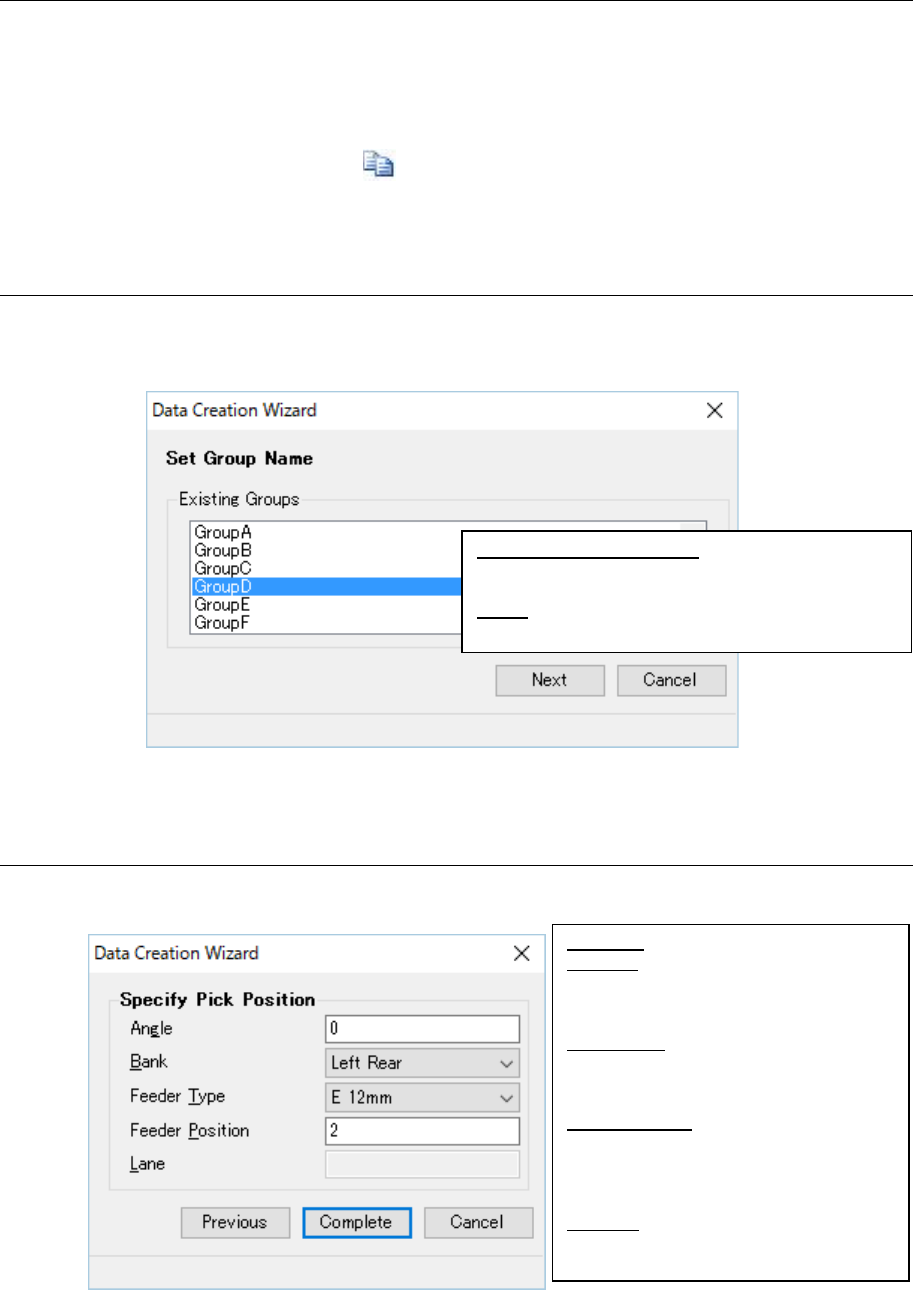
10.3.9.1 Selecting a copy destination group
Select a group to which feeder set data is copied.
Since no permanent group can be changed, it is not displayed on the list.
Figure 10.3-13 Screen for selecting a copy destination group
10.3.9.2 Setting the component pick-up position of the copied data
Set the component pick-up position to the group to which data is copied.
Figure 10.3-14 Screen for setting the component pick-up position to the copied data
“Existing Group” column: Displays the list of the
existing feeder groups. Select an existing group to
which data is added from this list.
Next: Validates your setting, and goes to the screen
for setting the component pick-up position.
Angle (G): Enter a component pick-up angle.
Bank (B): Select the component supply posi-
tion from the bank information set to the
feeder group. Banks you can select vary
depending on the data to be copied.
Feeder Type: Select a feeder type that can be
set to the specified feeder position. Feeder
types that can be set vary depending on the
data to be copied.
Feeder Position: Enter the hole position of
the component pick-up position. The input
range varies depending on the data to be
copied and the group to which data is cop-
ied.
Lane (L): Enter the lane number of the com-
ponent pick-up position. The input range
varies depending on the data to be copied.
JaNets Instruction Manual 10. Feeder Set Database
10-13
Changing feeder set data 10.3.10
You can change the registered feeder set data. To change data, perform one of the two opera-
tions described below.
1. Select feeder set data to be changed from the “User-defined” feeder list. (You cannot se-
lect two or more data records.)
Next, select the [Edit] command from the menu bar, and then the [Change] command on
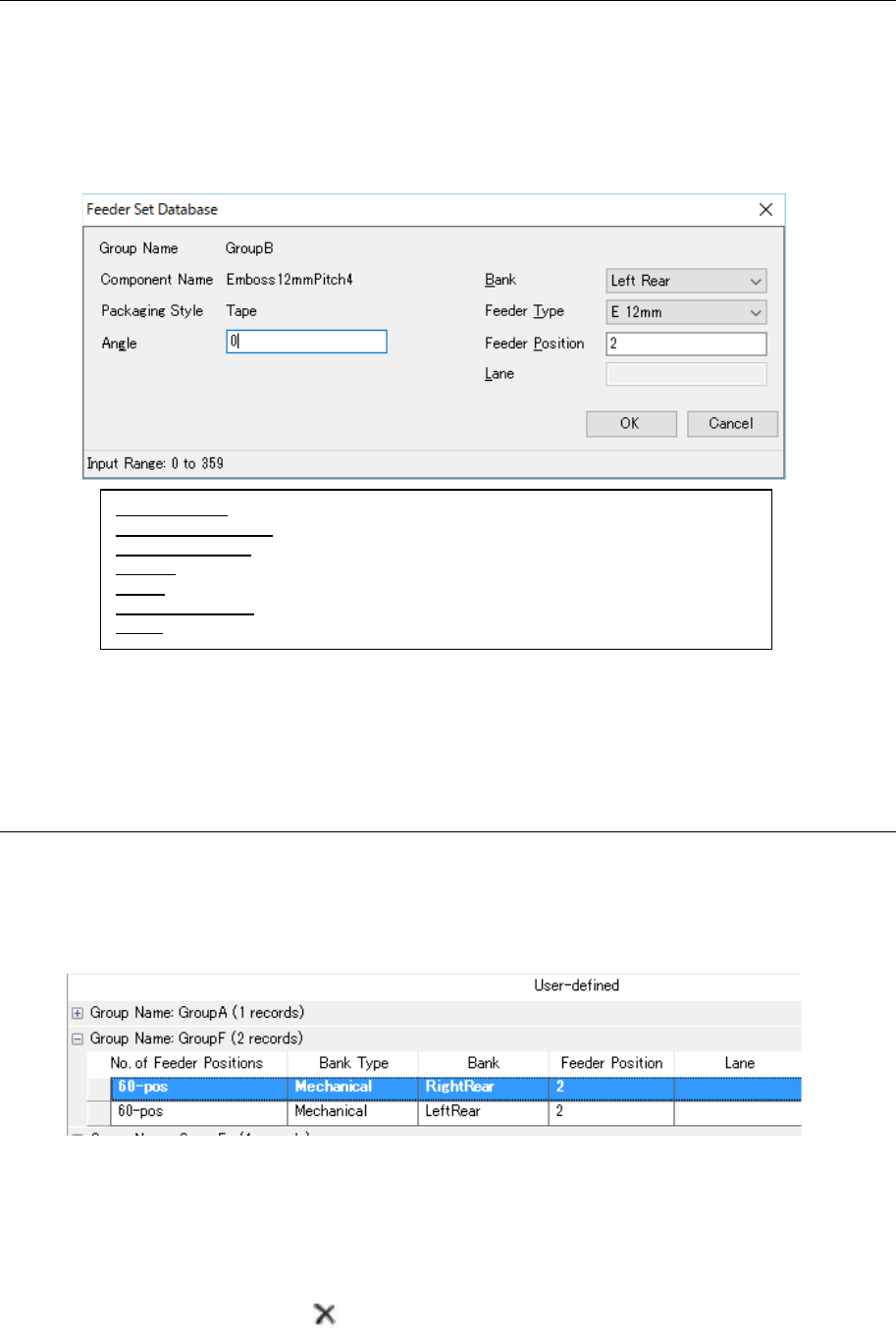
the “Edit” menu. The screen for changing feeder set data appears.
Figure 10.3-15 Screen for changing feeder set data
2. When you double-click the line of feeder set data to be changed on the “User-defined”
feeder list, the screen for changing feeder set data appears. Change the desired feeder
set data on this screen.
Deleting feeder set data 10.3.11
You can delete controlled feeder set data from the database. To delete feeder set data, perform
one of the two operations described below.
1. Select feeder set data to be deleted from the “User-defined” feeder list. (You can select
two or more data records.)
Figure 10.3-16 Selecting feeder set data
Select the [Edit] command from the menu bar, and then the [Delete] command on the “Edit”
menu. The confirmation message for deleting feeder set data appears on the screen.
2. Select feeder set data to be deleted from the “User-defined” feeder list. (You can select two
or more records to be deleted.)
Press the “Delete” button ( ) of the toolbar. The confirmation message for deleting feeder
set data appears on the screen.
Group Name: Displays the group name to which data belongs.
Component Name: Displays the corresponding component name.
Packaging Style: Displays the corresponding packaging style.
Angle: Specify the component angle.
Bank: Select the bank on which the feeder set data is set from the combo box.
Feeder Position: Enter the hole position at which the feeder set data is set.
Lane: Enter the lane number at which the feeder set data is set.