JANETS_INM.pdf - 第465页
J aN et s Instr ucti on M anua l 10 . Feed er S et D at a ba se 10 -9 10. 3. 6.2 Data C han g e W i zar d 2 (for add i ng f eed er s et d ata) Add f eeder s et dat a to a f eed er set gr oup on this scr een. Figur e 10.3…
JaNets Instruction Manual 10. Feeder Set Database
10-8
Changing the bank type of a feeder group 10.3.6
You can change the bank type of a registered feeder group.
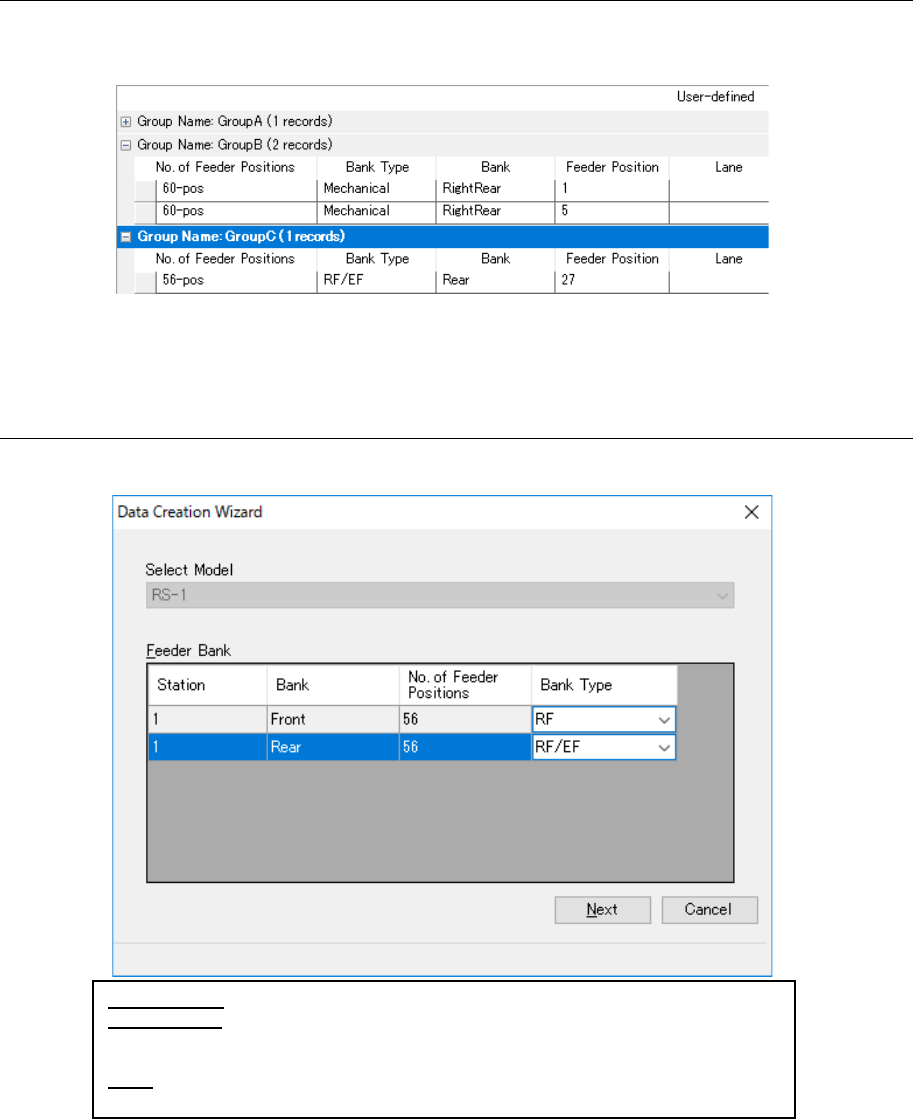
Select a feeder group to be changed from the “User-defined” list.
Figure 10.3-7 Selecting a feeder group
Click the [Edit] command from the menu bar, and then the [Change] to display the screen,
“Data Change Wizard” 1 (for setting a bank).
10.3.6.1 Data Change Wizard 1 (for setting a bank)
Change the bank type on this screen.
Figure 10.3-8 “Data Change Wizard” 1 (for setting a bank)
*1 The machine type cannot be changed on this screen, which is opened by the “Change”
command.
*2 For the machine that can work with both of the bank type, you can change it by selecting a
method from the combo box. If there is no choice, the “Bank Type” cell is displayed in gray.
If “Feeder Set Data” has already been assigned to the feeder bank when you change
“Bank Type”, the added “Feeder Set Data” is cleared after displaying a confirmation mes-
sage.
Select Model: Machine type that is set in the feeder group is displayed here. (*1)
Feeder Bank: Bank information that are set in the feeder group is displayed here.
The menu items “Station,” “Bank,” “No. of Feeder Positions” and “Bank Type” are
displayed. (*2)
Next: Validates your settings and goes to the “Data Change Wizard” 2 (for adding
feeder set data) screen.
JaNets Instruction Manual 10. Feeder Set Database
10-9
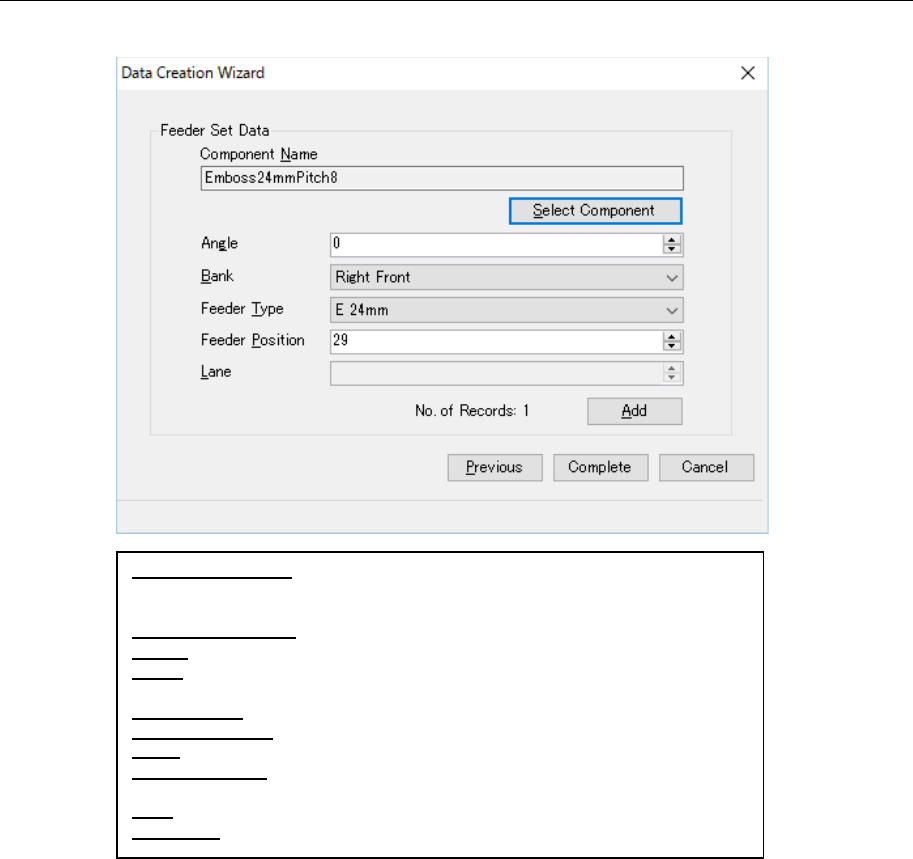
10.3.6.2 Data Change Wizard 2 (for adding feeder set data)
Add feeder set data to a feeder set group on this screen.
Figure 10.3-9 “Data Change Wizard” 2 (for adding feeder set data)
*1 It includes the number of the existing feeder set data records in the same feeder set group.
*2 The added data is not saved in the database until you click the “Complete” button.
*3 The “Complete” button is disabled when “No. of Records” is 0 (zero). (If you change the
bank type, “No. of Records” becomes 0.)
Component Name: A component name to be set in feeder set data is dis-
played here. The component name selected on the screen for selecting a
component is displayed here, and you cannot edit it directly.
Select Component: Displays the screen for selecting a component.”
Angle: Enter a component pick-up angle.
Bank: Select the component supply position from the bank information set to
the feeder group that is to be created.
Feeder Type: Select a feeder type that can be set to the feeder position.
Feeder Position: Enter the pick position number to set the feeder.
Lane: Enter the lane number of the component pick-up position.
No. of Records: The number of feeder set data records added to the feeder
group is displayed here. (*1)
Add: Adds the feeder set data you have set to the feeder group. (*2)
Complete: Registers the feeder group, and closes this screen. (*3)
JaNets Instruction Manual 10. Feeder Set Database
10-10
Deleting a feeder group 10.3.7
This section describes how to delete a controlled feeder group from the database.
There are two methods for deleting a feeder group.
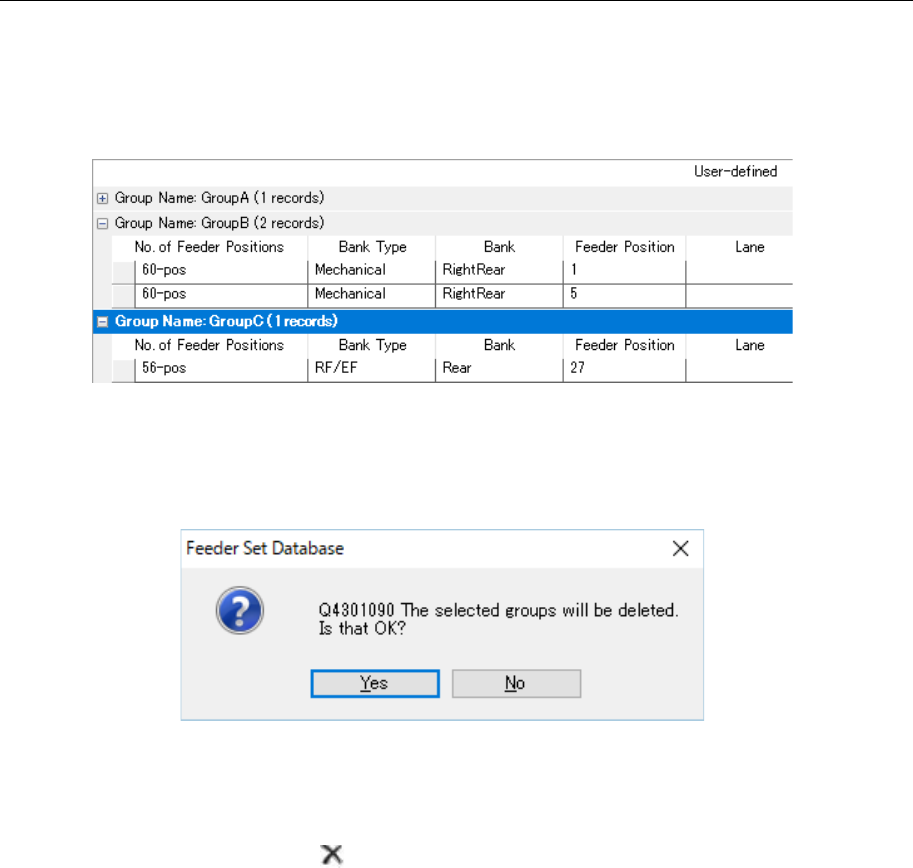
1. Select a group to be deleted from the “User-defined” feeder list (you can select two or
more groups).
Figure 10.3-10 Selecting a feeder group
Select the [Edit] command from the menu bar, and then the [Delete] command on the “Edit”
menu. The confirmation message for the delete operation appears on the screen.
Figure 10.3-11 Confirmation message for deleting a feeder group
2. Select a group to be deleted from the “User-defined” feeder list (you can select two or
more feeder groups).
Press the “Delete” button ( ) of the toolbar. The confirmation message for the delete op-
eration appears on the screen.