JANETS_INM.pdf - 第89页
JaNets Instr ucti on Man ual 2. Install ation 2- 61 (3) When " Figure 2 .5 - 51 "Local Sec urity Policy" scr een " ap pears, se lect Lo cal Policy and Security O ption in seque nce fro m "Sett in…
JaNets Instruction Manual 2. Installation
2-60
2.5.5 The procedure for changing the setting of local security
When OS for the IS client (including a client plus a server) is Windows Vista/Windows 7, a line
consisting of KE-2010-40/KE-2050-60 (OS for the main unit of a machine is Windows NT) is
communicated with IS, change a local security setup. A procedure is shown below:
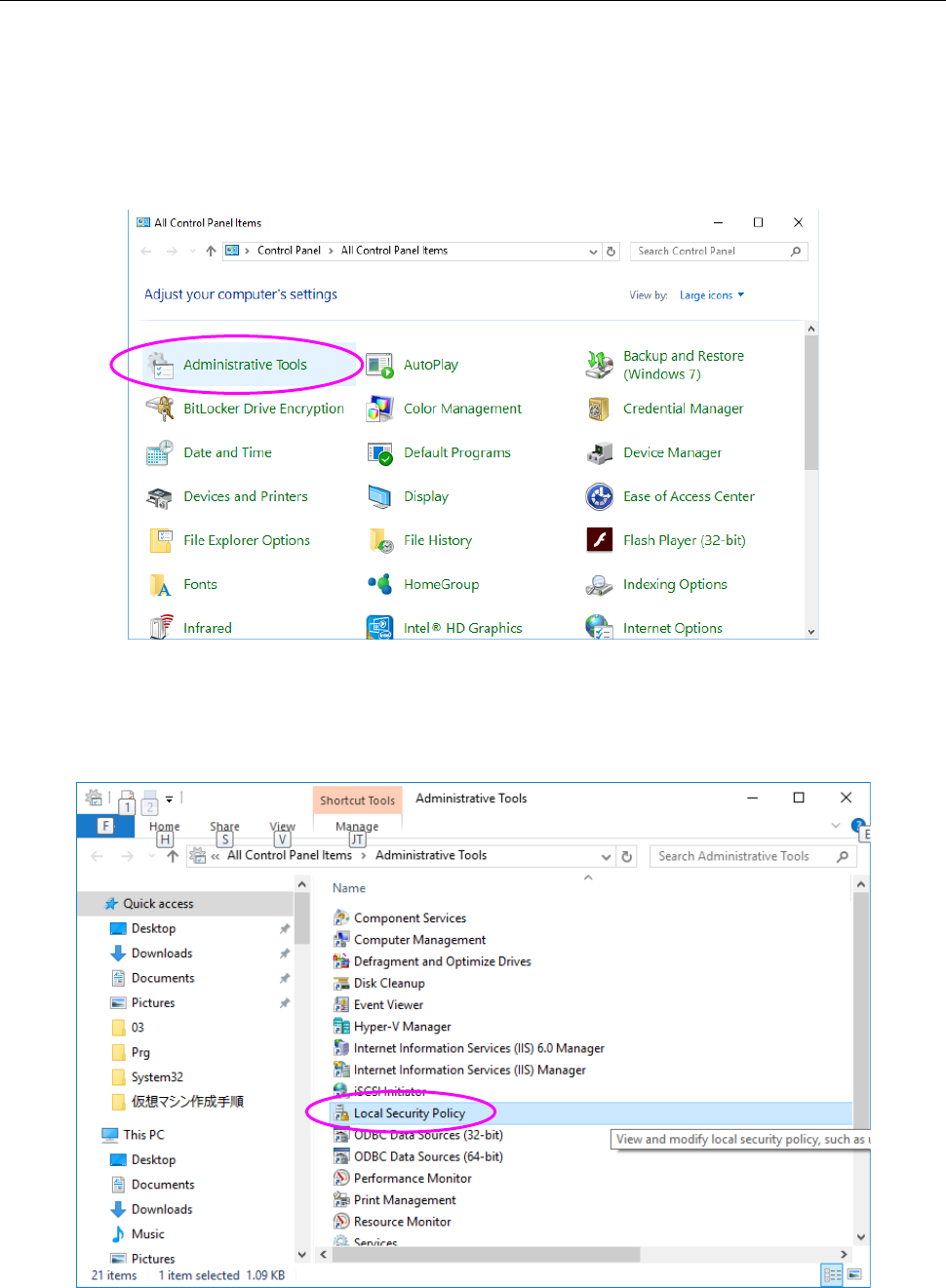
(1) When you select "Start menu", "Windows System Tools" and "Control panel" in sequence,
and set display method to a large icon, "Figure 2.5-49 "Control Panel" screen" appears. And
then click "Administrative Tools."
Figure 2.5-49 "Control Panel" screen
(2) When "Figure 2.5-50 "Administrative Tools" screen" screen appears, double-click "Local
security policy."
Figure 2.5-50 "Administrative Tools" screen
JaNets Instruction Manual 2. Installation
2-61
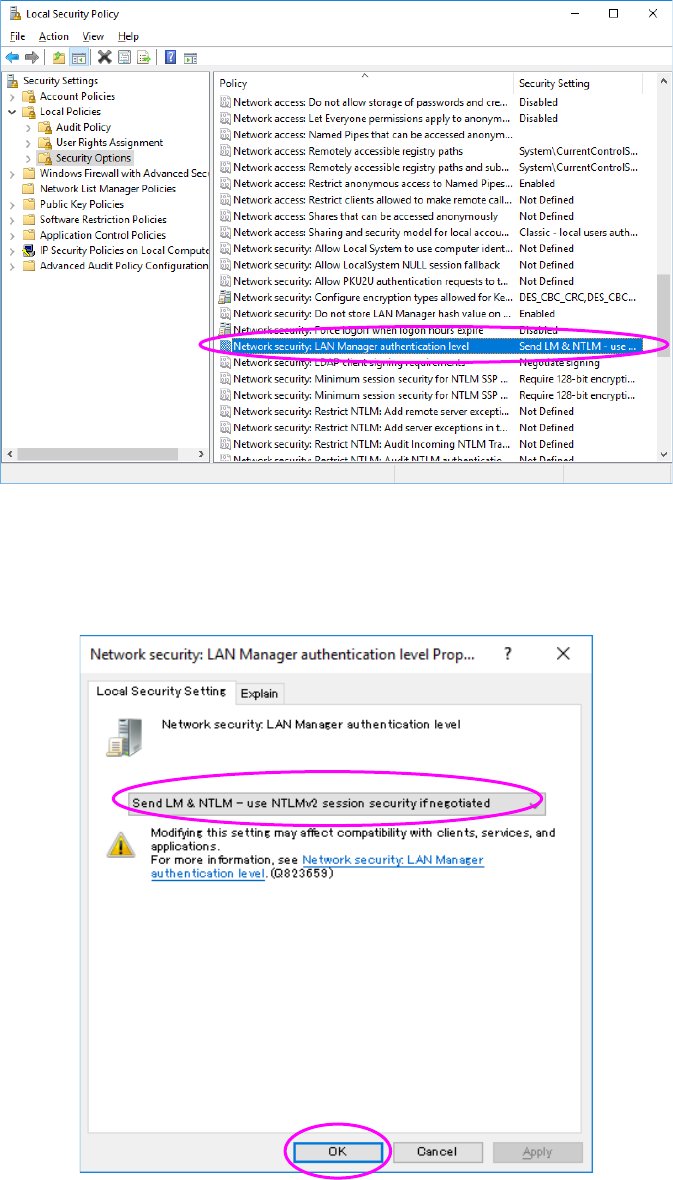
(3) When "Figure 2.5-51 "Local Security Policy" screen" appears, select Local Policy and
Security Option in sequence from "Setting of security", double-click "Network security: LAN
Manager authentication level" from the policy.
Figure 2.5-51 "Local Security Policy" screen
(4) When "Figure 2.5-52 "Network Security" screen" appears, select "Send LM & NTLM (use
NTLMv2 session security if negotiated) from "Local Security Setting," and then press the OK
button.
Figure 2.5-52 "Network Security" screen
The change in the setting of local security ends above.

JaNets Instruction Manual 2. Installation
2-62
2.6 Procedure for Adding the License
Use the protect module update tool to add the license to the protect module.
The procedure for adding the license is described below.
2.6.1 Notes on addition of the license
Terminate all application programs that have been started up.
Do not start up the protect module update tool on the network.
Confirm that the Sentinel Super Pro USB key is attached to the PC that is to be used for this
operation.
2.6.2 Starting up the protect module update tool
The licenses to be added are: “Line Manager,” “External Data Output,” “Exchange JSON Format,”
“Data Manager, “Offline Feeder Setup” and “TraceMonitor.”
The procedure for adding each license is the same. The “Line Manager” license is used as an
example to explain the operation here.
(1) Insert the Line Manager license adding disk (part number: 40189373) into the CD-ROM
drive, and then select the command [Specify a file name to add the license] from the “Start”
menu of the task bar.
Use the keyboard to enter “[D:\ JaNetsProtectKeyUpdater.exe]” (the CD-ROM drive is
supposed to be the drive D), and then click the <OK> button.