JANETS_INM.pdf - 第720页
JaNets In structio n Manual 19 T ra ceMonitor 19 - 21 19 -3-6-7 Filter ing an eve nt Three types of event data are provided: [Load], [Compo] and [MCDat a]. Y ou can displ ay or hide them with t he corresp onding che ck b…
JaNets Instruction Manual 19 TraceMonitor
19-20
19-3-6-5 Selecting the range of the display period
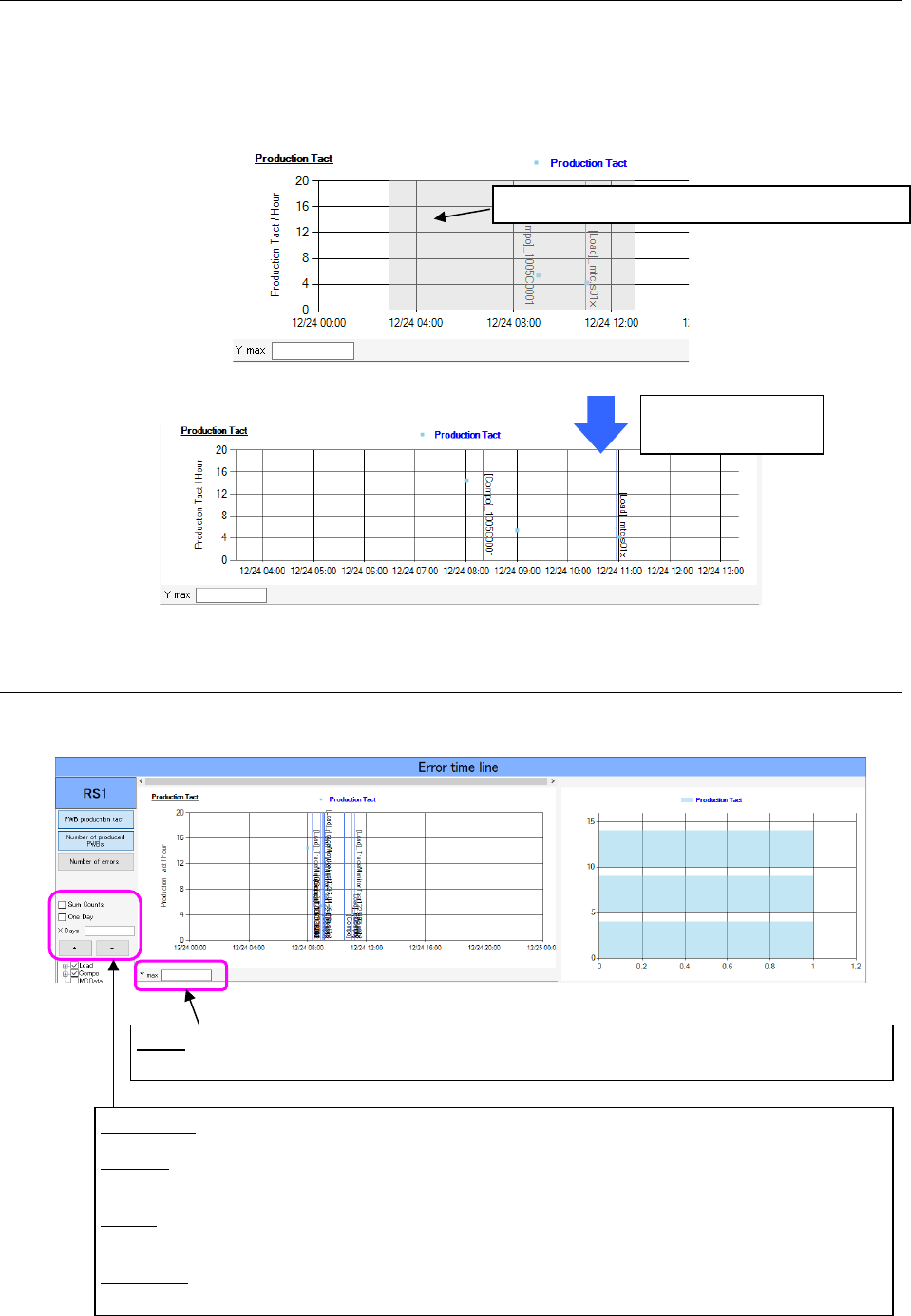
You can select the range of the display period with dragging the desired position of the graph with
the mouse left button.
The shortest display range you can select is one hour.
Only if you do not check off the “One Day” check box, you can return the display range to the initial
range by pressing the mouse right button on the graph.
Figure 19-3-35 The range for the display period is being selected.
Figure 19-3-36 After the range for the display period is selected
19-3-6-6 Display option
You can change the displayed graph with the items on the left side of the screen: Sum Counts, One
Day and X Days and the setting of the item “Y max” displayed under each graph.
Figure 19-3-37 Display options of the timeline data
The range being selected is displayed in light gray.
Selection of the range
for the display period
Y max: Sets the maximum displayed value of the Y-axis of the graph and that of the histogram.
You can set this value for each graph.
Sum Counts: Changes the values of the graph to the integrated values.
One Day: Sets the display period in units of days. When you check off this check box, the
following items are disabled: “X Days” and +/- button operations.
X Days: Sets the display period in units of the entered number of days. The shortest display
period is 0.042 (one hour).
+/- buttons: Time-axis enlargement/reduction buttons. The + button enlarges the display period,
while the – button reduces the display period.
JaNets Instruction Manual 19 TraceMonitor
19-21
19-3-6-7 Filtering an event
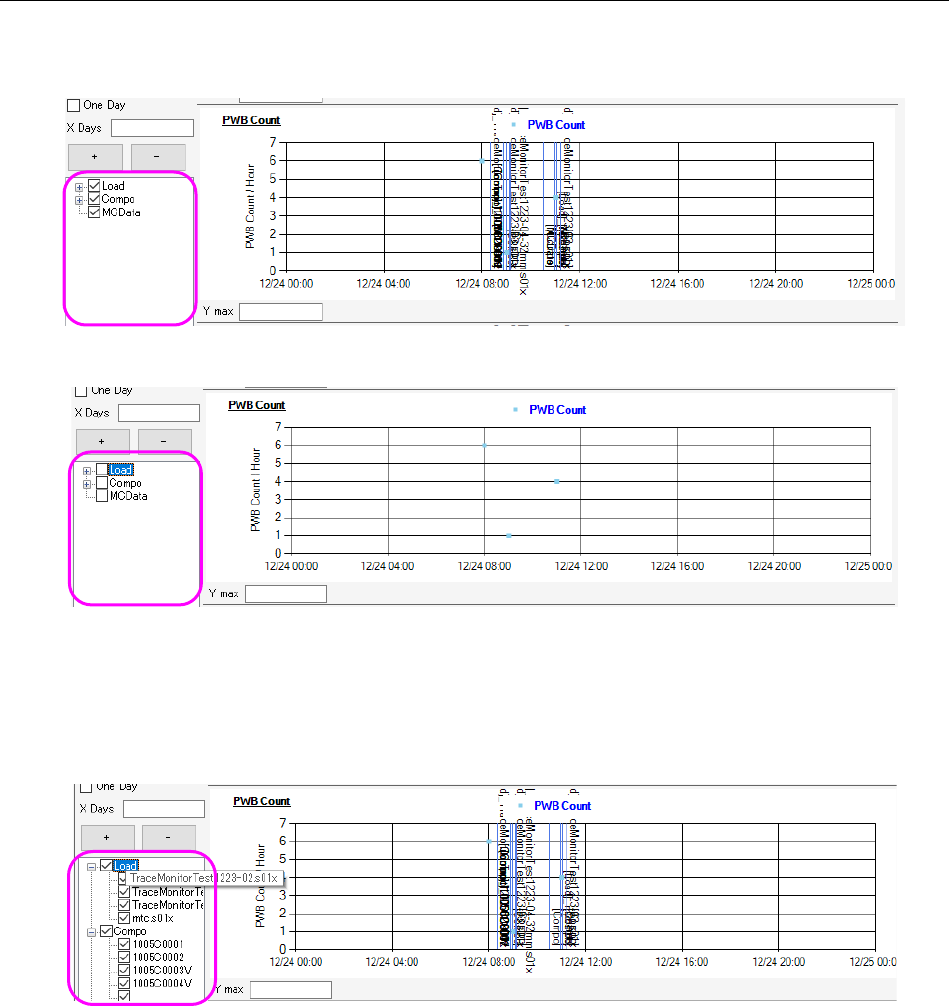
Three types of event data are provided: [Load], [Compo] and [MCData]. You can display or hide
them with the corresponding check boxes.
Figure 19-3-38 Check boxes for filtering an event (when data is displayed)
Figure 19-3-39 Check boxes for filtering an event (when data is hidden)
In addition, TraceMonitor can filter events, [Load] event and [Compo] event, according to the
assigned parameters (production program name/component name) also.
Since any parameter is not assigned to [MCData], you can display or hide it only.
Figure 19-3-40 Filtering each event according to a parameter
JaNets Instruction Manual 19 TraceMonitor
19-22
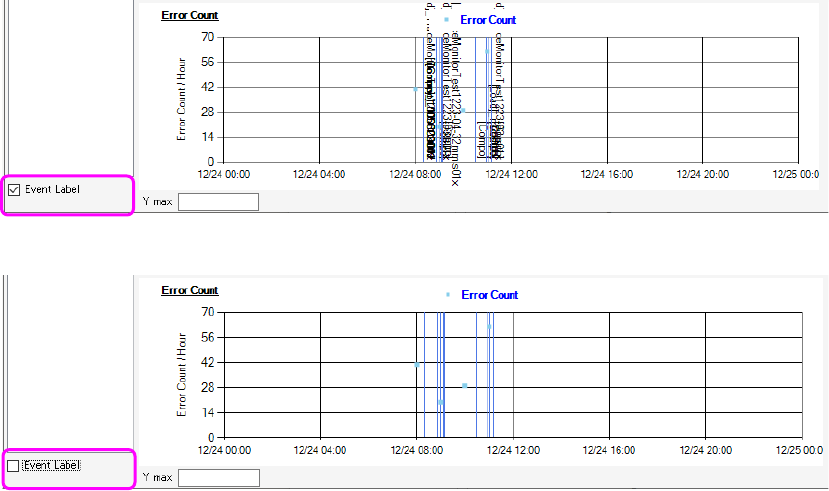
You can switch whether to display a label (character string) or not with the corresponding check box
also.
Figure 19-3-41 When EventData label is displayed
Figure 19-3-42 When Event data label is hidden