JANETS_INM.pdf - 第333页
JaNets In structio n Manual 7. Program Editor 7- 126 (8) R eplac emen t co nten ts (P ick Condi tio ns (P ick Conditions Ge neral Sett ings)) Set data on the c ompone nt pick - u p conditi ons to be r eplaced on the “ Pi…
JaNets Instruction Manual 7. Program Editor
7-125
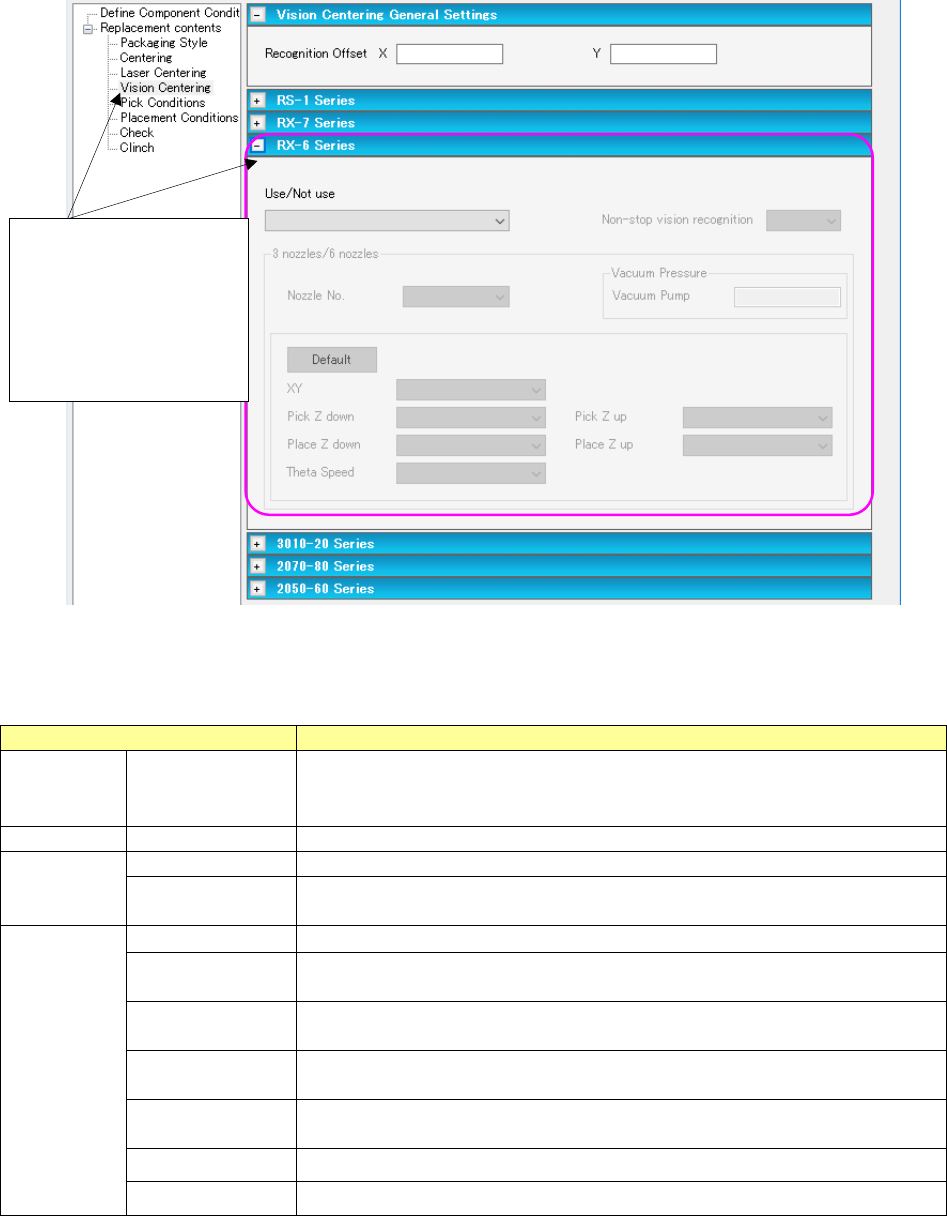
(7) Replacement contents (Vision Centering) for an RX-6 series
This section describes data to be replaced that is set on the “Vision Centering (RX-6 series”
screen as a typical example.
Figure 7.6-11 “Replacement contents (Vision Centering (RX-6 Series))” screen
Table 7.6-3 Menu items on the “Replacement contents
(Vision Centering (RX-6 Series))” screen
Menu item
Description
Use/Not use
Use/Not use
Specify whether to use the vision centering method or not in the combo box.
Select one of the following: “Use (applicable to “Use” data only),” “Use
(applicable to “Not use” data only),” “Use (applicable to all data)” and “Not use.”
Nozzle No.
Nozzle number
Set a nozzle number in the combo box.
Vacuum
Pressure
Ejector
Set the ejector whose pressure reaches a value for picking up a component.
Vacuum Pump
Set the vacuum pump whose pressure reaches a value for picking up a
component.
Speed
XY
Set the XY-axes speed in the combo box.
Pick Z down
Set the speed for moving down the Z-axis to pick up a component in the combo
box.
Pick Z up Set the speed for moving up the Z-axis to pick up a component in the combo
box.
Place Z down
Set the speed for moving down the Z-axis to place a component on a board in
the combo box.
Place Z up Set the speed for moving up the Z-axis to place a component on a board in the
combo box.
Theta
Set the theta-axis speed in the combo box.
<Default> button
Restores each speed to the default value.
Select “Vision Centering”
from the tree view to dis-
play the “Vision Centering
General Settings” screen.
Then, open the “RX-6/
RX-6R” screen on the
right side.
JaNets Instruction Manual 7. Program Editor
7-126
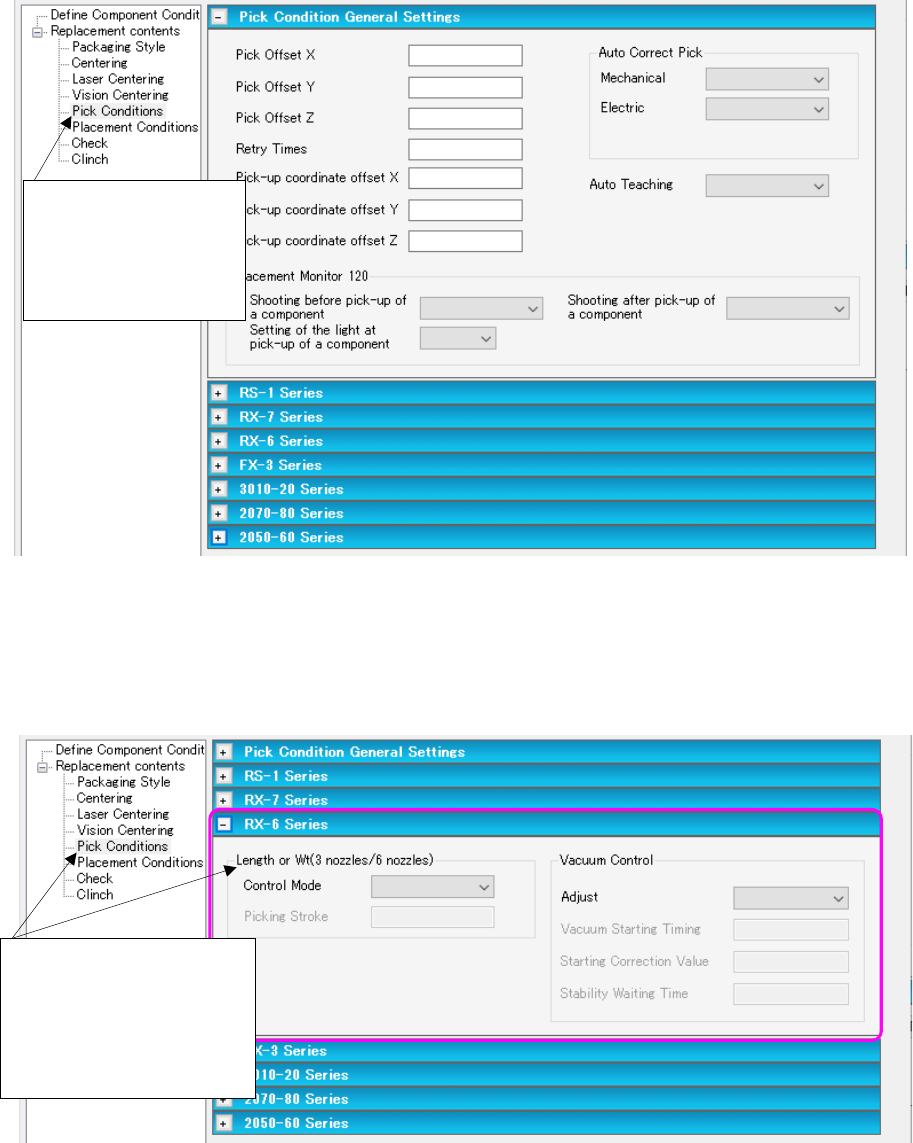
(8) Replacement contents (Pick Conditions (Pick Conditions General Settings))
Set data on the component pick-up conditions to be replaced on the “Pick Conditions (Pick
Conditions General Settings)” screen.
Figure 7.6-12 “Replacement contents
(Pick Conditions (Pick Conditions General Settings))” screen
(9) Replacement contents (Pick Conditions) for an RX-6 series
This section describes data to be replaced that is set on the “Pick Conditions (RX-6 series)”
screen as a typical example.
Figure 7.6-13 “Replacement contents
(Pick Conditions (RX-6 Series))” screen
Select “Pick Conditions”
from the tree view to
display the “Pick Condi-
tions General Settings”
screen.
Select “Pick Conditions”
from the tree view to display
the “Pick Conditions Gen-
eral Settings” screen. Then,
open the “RX-6/RX-6R”
screen on the right side.
JaNets Instruction Manual 7. Program Editor
7-127
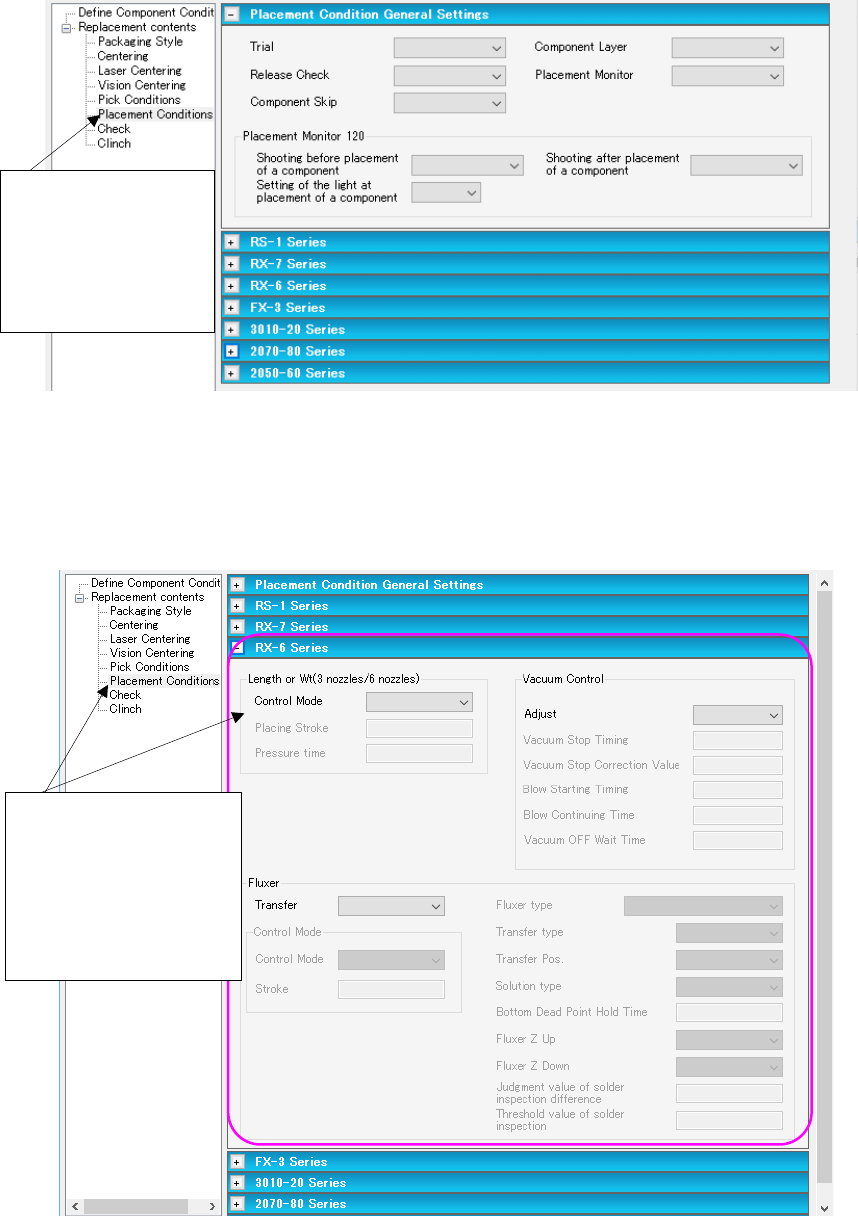
(10) Replacement contents (Placement Conditions (Placement Conditions General Settings))
Set data on the component placement conditions to be replaced on the “Placement Condi-
tions (Placement Conditions General Settings)” screen.
Figure 7.6-14 “Replacement contents (Placement Conditions
(Placement Conditions General Settings))” screen
(11) Replacement contents (Placement Conditions) for an RX-6 series
This section describes data to be replaced that is set on the “Placement Conditions (RX-6
series)” screen as a typical example.
Figure 7.6-15 “Replacement contents
(Placement Conditions (RX-6 Series))” screen
Select “Placement
Conditions” from the
tree view to display the
“Placement Conditions
General Settings”
screen.
Select “Placement Condi-
tions” from the tree view
to display the “Placement
Conditions General Set-
tings” screen. Then, open
the RX-6 series screen on
the right side.