JANETS_INM.pdf - 第551页
JaNets Instr ucti on Man ual 13 . Program D ownloa der 13 - 55 13.14 S etting the Env ironment When you se lect the “T ools” comman d from t he menu bar , and then the “S et Enviro nments” command f rom the “T ools” menu…
JaNets Instruction Manual 13. Program Downloader
13-54
13.13 Information on the Supervised Condition
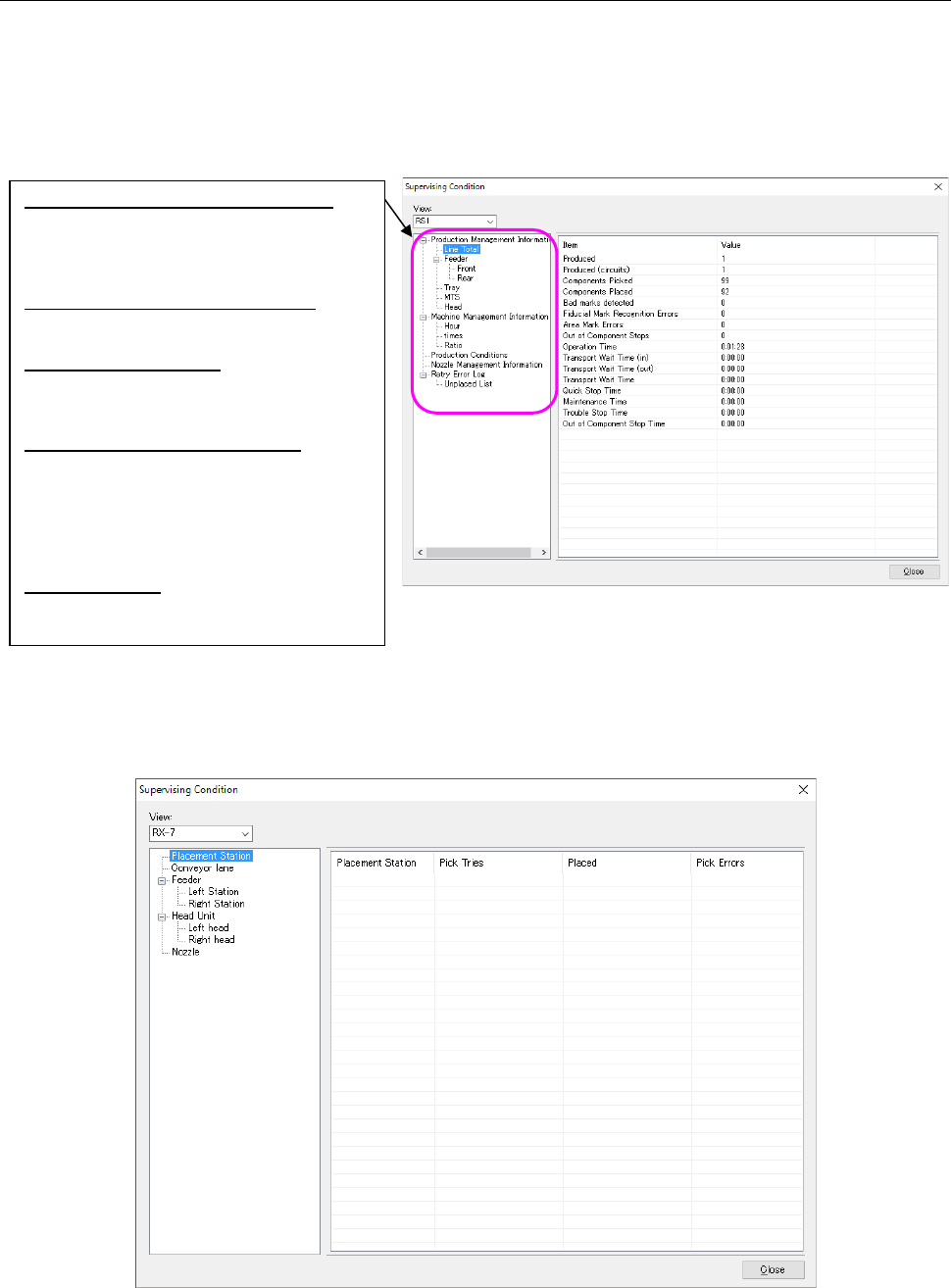
When you select the “View” command from the menu bar, and then the “Supervising Condition”
command from the “View” menu, the system displays various types of information such as the
production management information of a machine that is producing PWBs and the machine
management information.
Note that this menu command cannot be selected unless any production program is downloaded
to the active production line
Figure 13.13-1 “Supervising Condition” dialog box
When an RX-7 series is a candidate for a display, machine management information, a production
condition, nozzle management information, and a retry error log are not displayed. Only the
information on placement of components for production is displayed. Moreover, the data currently
displayed is reset when production finishes.
Figure 13.13-2 “Supervising Condition” dialog box (RX-7/RX-7R)
Production Management Information:
Displays information on component
placement operations of PWB production.
This information is reset when the current
PWB production finishes.
Machine Management Information:
Displays information obtained when a
machine is operating. Data is accumulated.
Production Conditions:
Displays the conditions for producing
PWBs with the production program
downloaded at the present.
Nozzle Management Information:
Displays the number of times nozzles
were replaced, the number of component
pick-up operations that have been
performed and the number of component
mounting operations that have been
performed.
Retry Error Log:
Displays a log of errors that have occurred
at a machine.
JaNets Instruction Manual 13. Program Downloader
13-55
13.14 Setting the Environment
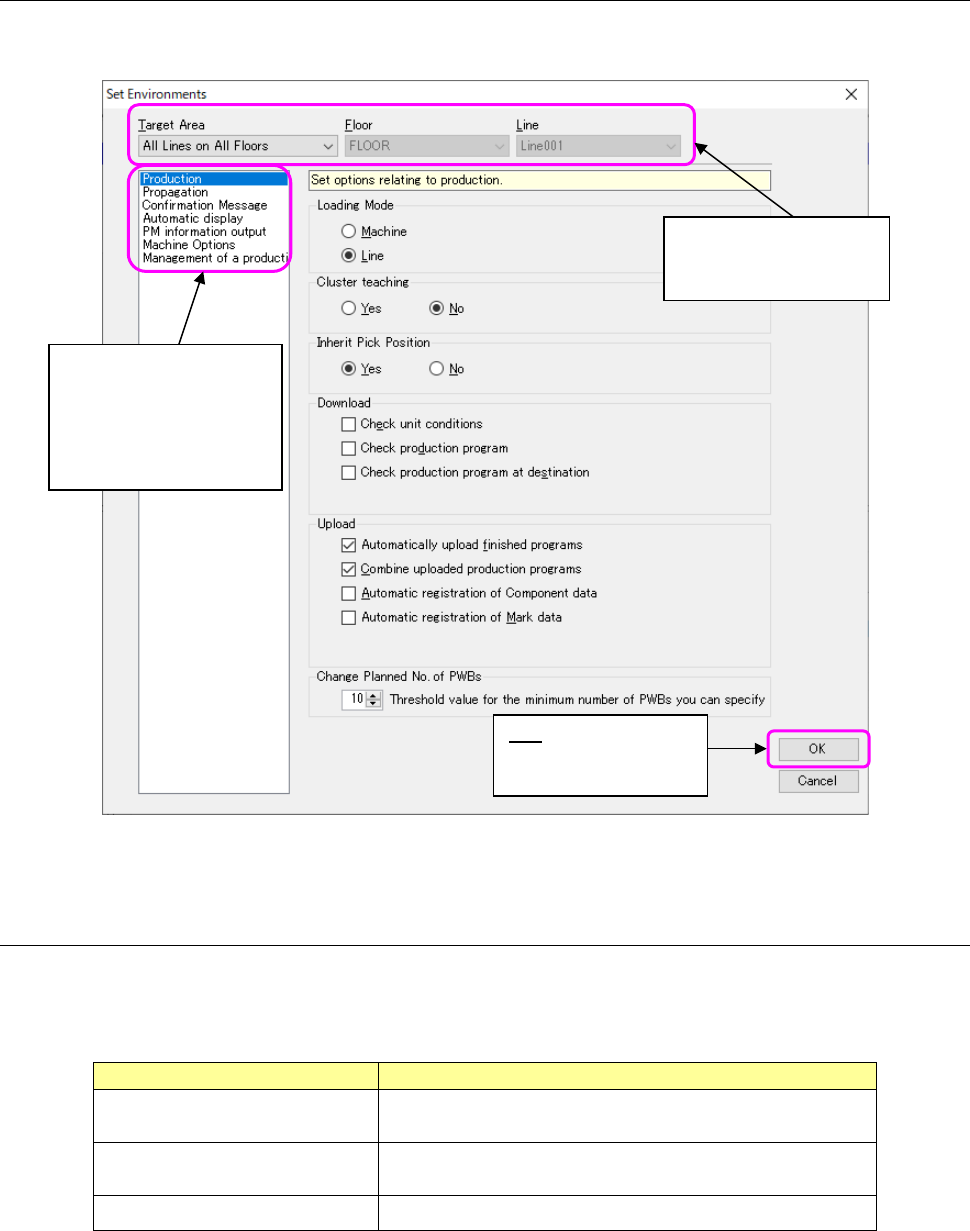
When you select the “Tools” command from the menu bar, and then the “Set Environments”
command from the “Tools” menu, the following dialog box appears on the screen.
Figure 13.14-1 “Set Environments” dialog box
13.14.1 Setting target
For “Setting target”, it can be selected whether the common setting is used for all the lines or an
individual setting is used for each floor/line.
Table 13.14-1 File output setting
Tool button item
Description
Common to all the lines
Common settings are performed for all the production lines
registered in the monitor line.
Common to floors
Settings are performed for each floor in which the monitor
line is arranged.
Individually for each line Settings are performed for each monitor line.
OK:
Saves the settings you
made on this screen.
Select the setting item.
* When you switch the
selected item to another
one here, the screen
displayed on the right
side changes too.
Setting target
Set the target to apply
the set contents.
JaNets Instruction Manual 13. Program Downloader
13-56
13.14.2 Setting each item
13.14.2.1 Settings for PWB production
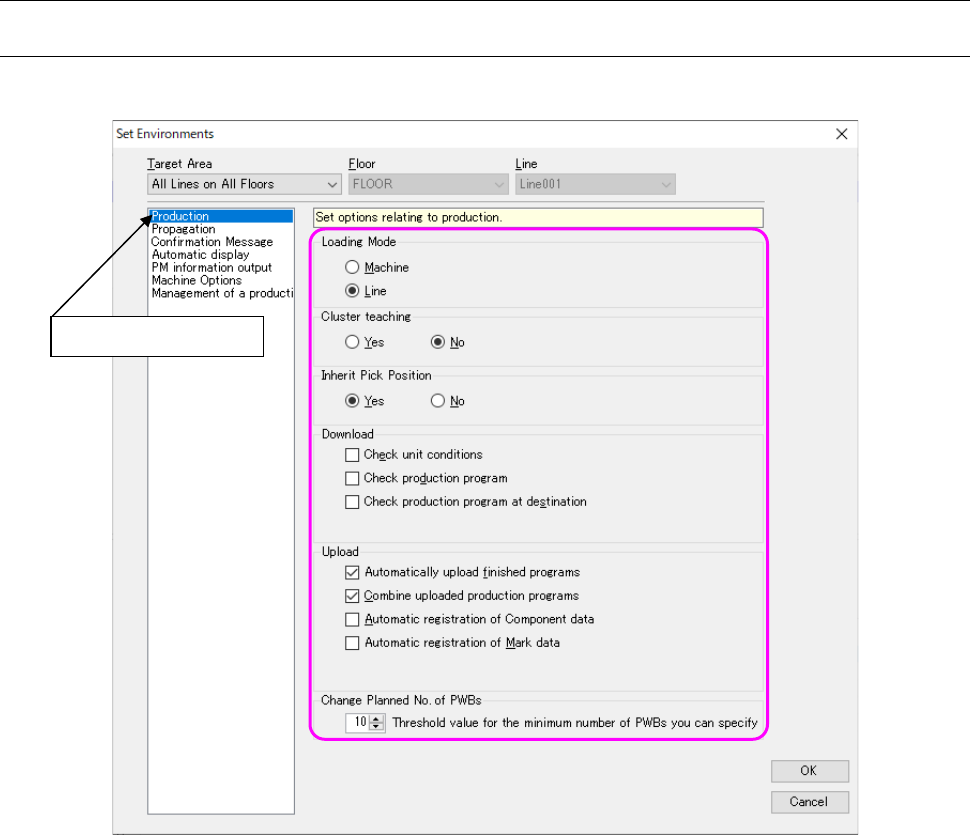
Make settings for production. (Set options relating to production).
Figure 13.14-2 Setting “Production” on the “Set Environments” screen
<Production method>
Machine unit: Online production is executed in the unit of machine.
Line unit: Online production is executed in the unit of line.
<Cluster teaching>
Specify whether to teach the component pick-up coordinates in a cluster. See Section “13.9.3
Teaching the component pick-up coordinates in a cluster (in production according to a reservation
file)” for details.
Select “Production.”