JANETS_INM.pdf - 第187页
JaNets In structio n Manual 5. Shopflo or Setu p 5- 67 Detai ls settin g scree n The detailed informat ion on a f eeder curre ntly bein g selected i s displaye d here. Y ou can cha nge settings of so me items a lso. Figu…
JaNets Instruction Manual 5. Shopfloor Setup
5-66
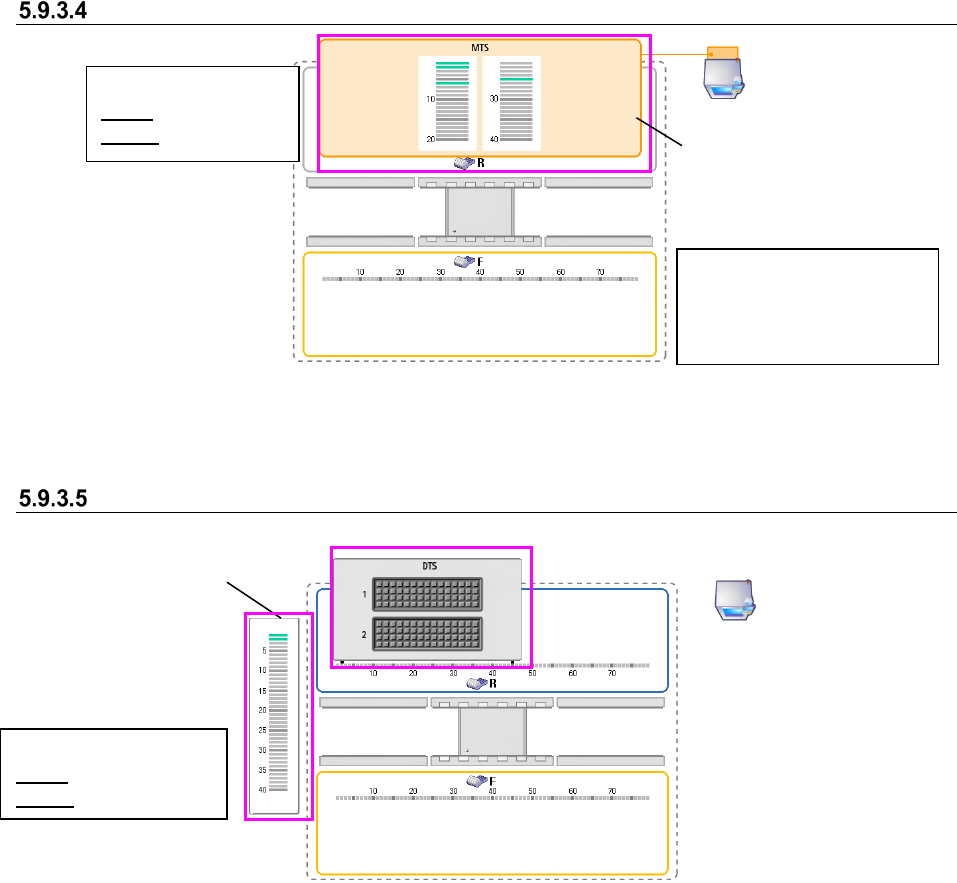
When an MTS is set
Figure 5.9-14 Feeder bank unit (when an MTS is set)
When a DTS is set
Figure 5.9-15 Feeder bank unit (when a DTS is set)
The position on which an MTS
tray is attached is displayed on
the R (rear) bank.
<Color of a tray base>
Gray: Not set base
Green: Set base
Tray assignment
screen
<Color of a tray feeder>
Gray: Not set tray
Green: Set tray
You can set a feeder type
that can be attached for each
machine model on only the F
(front) bank.
JaNets Instruction Manual 5. Shopfloor Setup
5-67
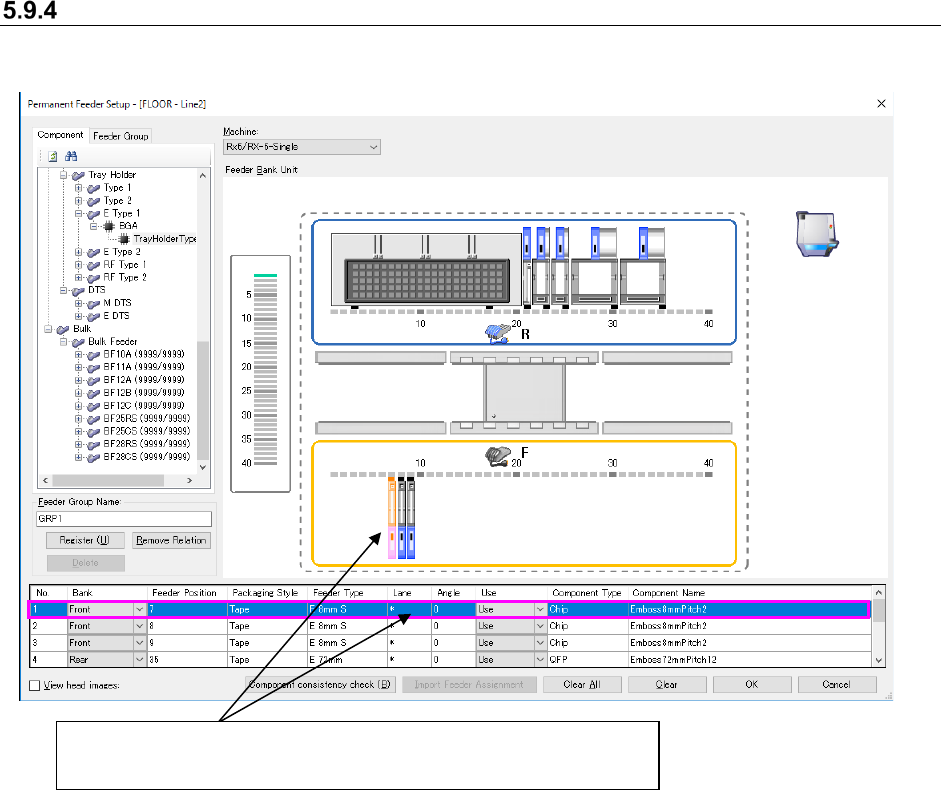
Details setting screen
The detailed information on a feeder currently being selected is displayed here. You can change
settings of some items also.
Figure 5.9-16 Details setting screen
* When you select two or more feeders, they are selected on the Details setting screen too.
Feeder currently being selected
(Its detailed information is selected on the Details setting screen too.)
JaNets Instruction Manual 5. Shopfloor Setup
5-68
Operations(Details setting screen)
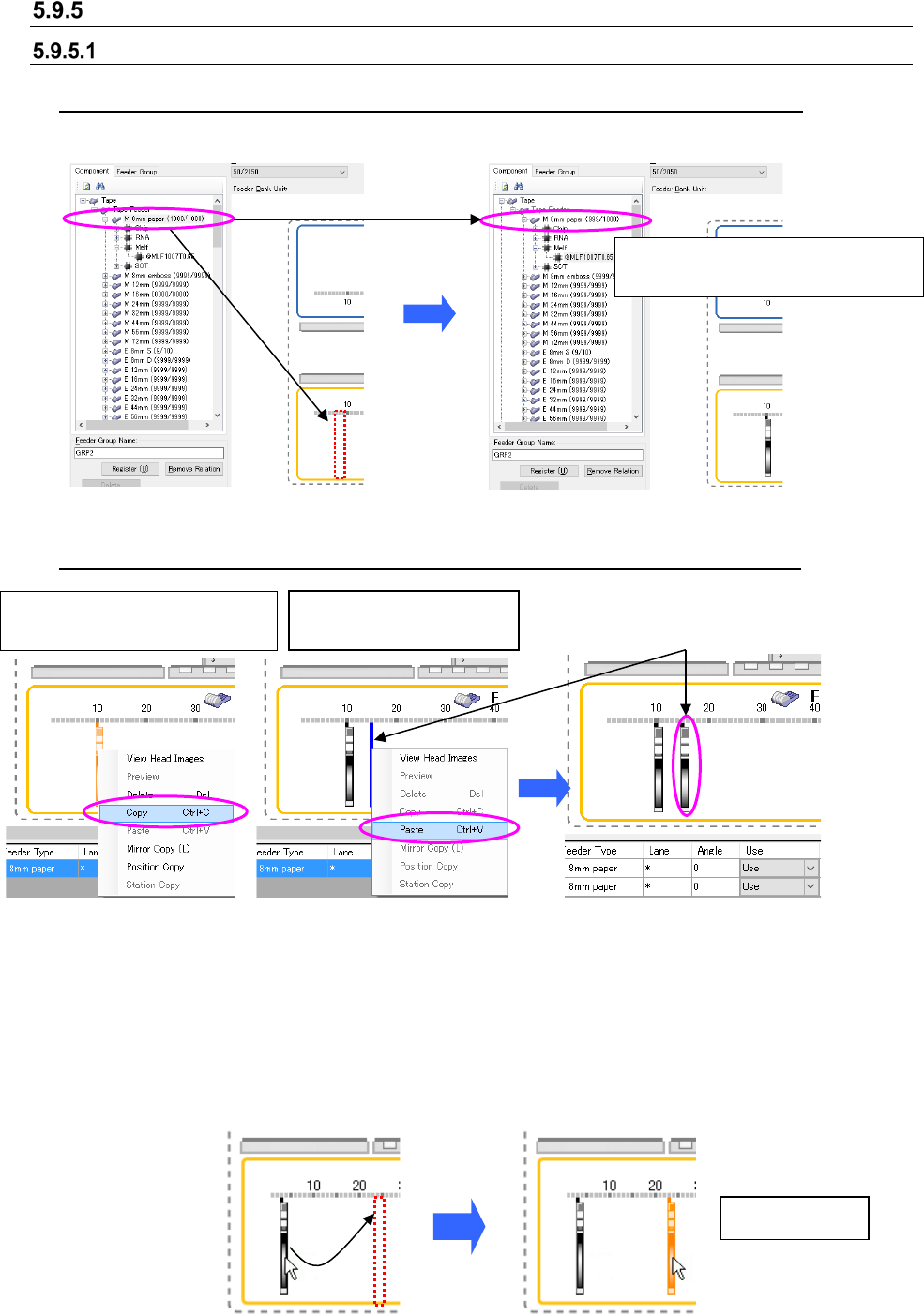
Assigning a feeder (as a permanent feeder)
Changing a feeder assignment from the tree screen (by dragging and dropping)
When the mechanical feeder has been assigned the mechanical bank
Figure 5.9-17 Feeder assignment (Dragging)
Figure 5.9-18 Feeder assignment (Dropping)
Changing a feeder assignment from the layout screen (by copying and pasting)
Figure 5.9-19Feeder assignment (Copying)
Figure 5.9-20 Feeder assignment
(Pasting)
* When you select two or more feeders to copy them, they are pasted in the order you copied
them.
* You can paste a feeder by switching a machine selected in the “Machine” field also.
You can copy a feeder as described below too.
While holding down the Ctrl key, select a feeder already assigned, and move the cursor. The
selected feeder is copied.
Figure 5.9-21 Copying a feeder to the same type of bank (Ctrl key + Dragging and dropping)
“1” is subtracted from the number of
the feeder resources.
Copied feeder
Paste the copied feeder at
the desired position.
Copy a feeder, which you want to
change the assignment.
Paste it onto the focused
position