JANETS_INM.pdf - 第507页
JaNets Instr ucti on Man ual 13 . Program D ownloa der 13 - 11 13.5.4.2 Di splaying each floor Select the [ Floor] comm an d from t he “Line Monitor” menu t hat is invo ked from the [V iew] co mmand or the “Line Mo nitor…
JaNets Instruction Manual 13. Program Downloader
13-10
13.5.4 Switching the Display Format of the Line Monitor
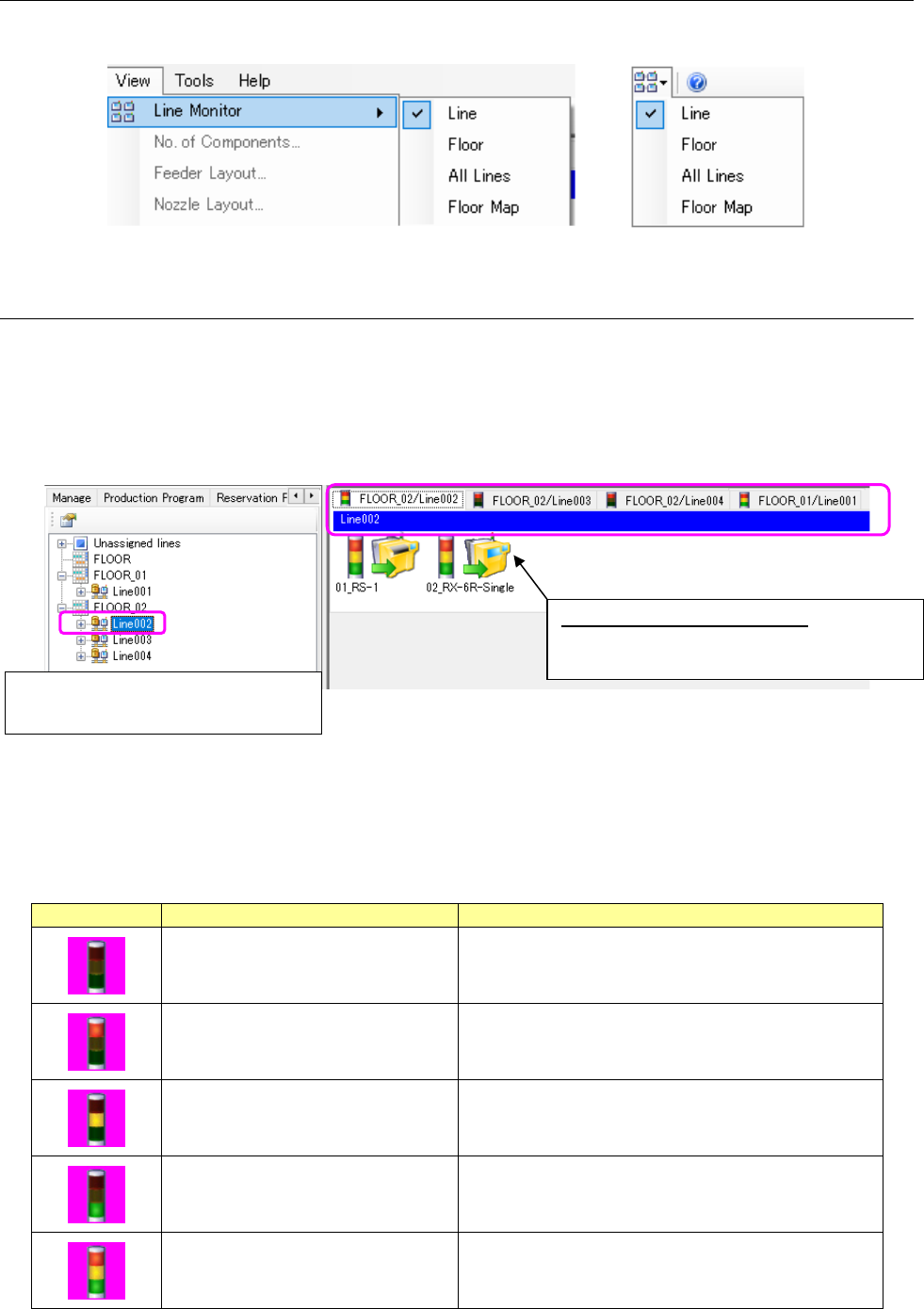
Select the menu commands: [View] and [Line Monitor] in this order or select the “Line Monitor”
icon of the tool bar, and then select the display format.
Figure 13.5-7 Switching the display format
13.5.4.1 Displaying each production line
Select the [Line] command from the “Line Monitor” menu that is invoked from the [View] command
or the “Line Monitor” icon of the tool bar.
You can switch the screen by selecting the desired production line or machine from the “production
line configuration” of the Explorer as shown below also.
When you select a machine, the production line to which the selected machine is assigned is
displayed on the screen.
Figure 13.5-8 Active display
* The signal light displayed on the tab indicates the PWB production status of the corresponding
production line. If there is at least one machine whose condition is different from those of other
machines, the condition is displayed in accordance with the following priority:
* The displayed color pattern of the signal light is fixed, and does not depend on the setting of
each machine.
Table 13.5.1 Priority of the displayed colors of the signal light
Signal light
Color of the light (color condition)
Description
No lamp light.
Some machines are not turned on.
Some machines cannot be connected to the system
due to a communication problem.
Red (light) Some errors have occurred at a machine.
Yellow (light)
Operation other than PWB production such as editing
of a program and setup of a machine is performed
with a machine.
Green (light) PWBs are being produced with a machine.
All colors (light) All machines are put in the waiting state.
Select a production line or a machine form
the “floor configuration” of the Explorer.
Active display production line: You can
switch the active production line to another
by selecting the corresponding tab.
JaNets Instruction Manual 13. Program Downloader
13-11
13.5.4.2 Displaying each floor
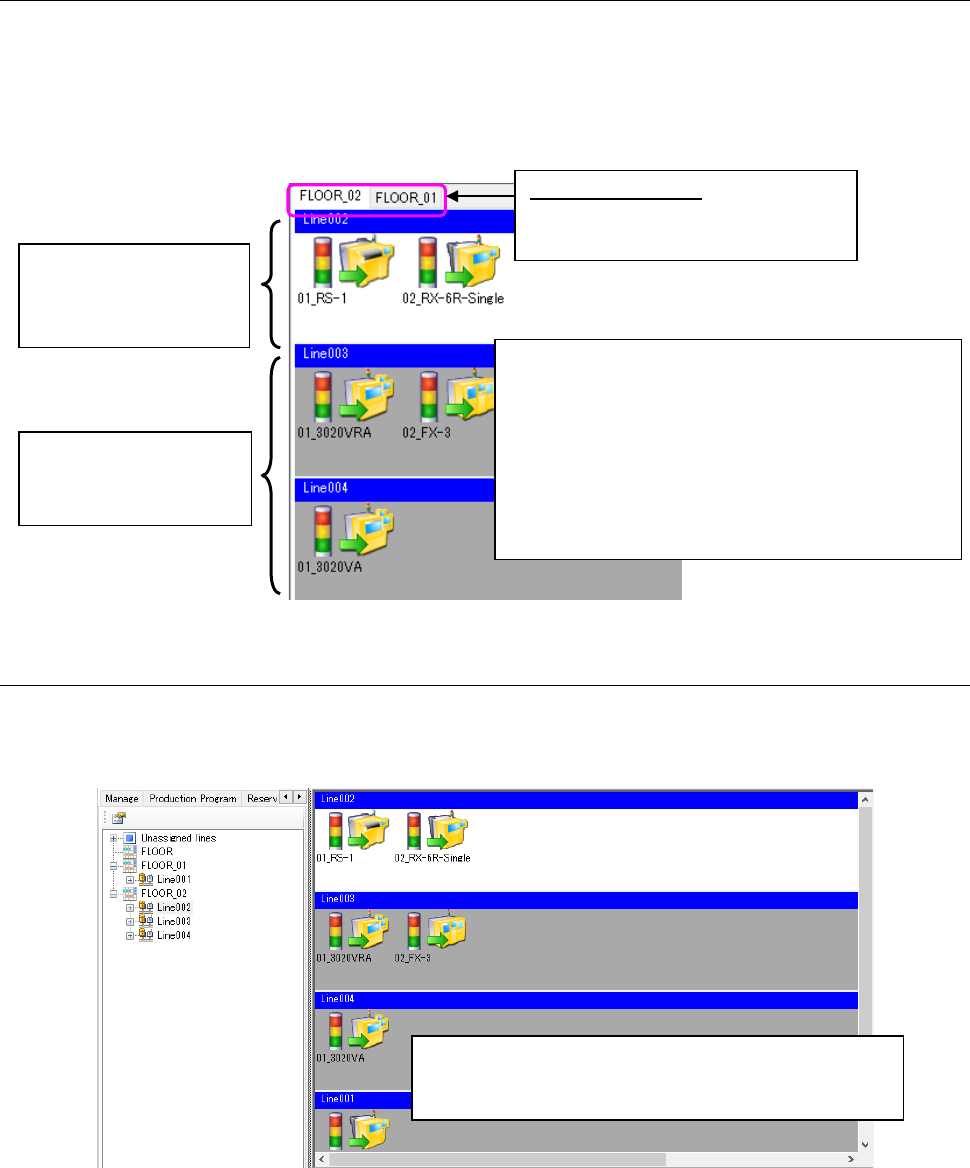
Select the [Floor] command from the “Line Monitor” menu that is invoked from the [View]
command or the “Line Monitor” icon of the tool bar. Or, select the desired floor from the “floor
configuration” of the Program Explorer. You can switch the screen by selecting the desired
production line or machine from the “production line configuration” of the Program Explorer also.
When you select a machine, the production line to which the selected machine is assigned is
displayed on the screen.
Figure 13.5-9 Line Monitor (for each floor)
13.5.4.3 Displaying all production lines
Select the [All Lines] command from the “Line Monitor” menu invoked from the [View] command or
the “Line Monitor” icon of the tool bar. When you select a machine, the screen is switched to the
production line to which the selected machine is assigned.
Figure 13.5-10 Line Monitor (for all production lines)
Inactive display line
(The background color is
gray.)
Active display production
line
(The background color is
white.)
Each production line is called “a production line panel.”
Click the desired production line panel to make it active
or inactive.
There is only one active display production line on one
floor.
* Even though you select a floor, production line or
machine not assigned or any of these not registered
in the production line to be monitored, the screen is
not switched to the corresponding screen.
Active display floor: You can switch
the active floor to another by
selecting the corresponding tab.
The active display production line, production line
information and production status are the same as those
described in Section 13.5.4.2 “Displaying each floor.”
JaNets Instruction Manual 13. Program Downloader
13-12
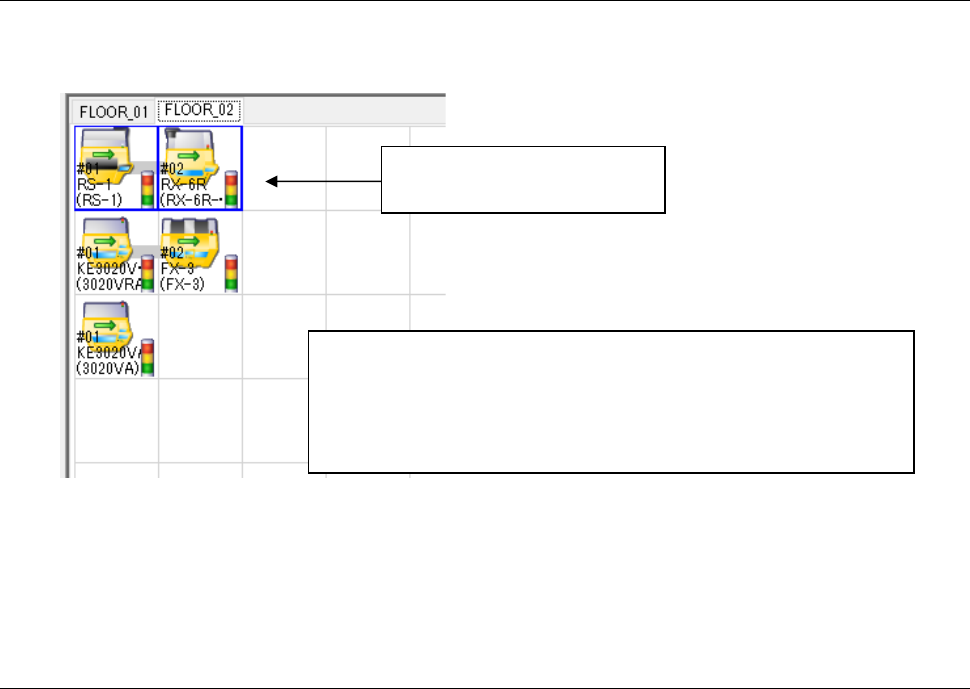
13.5.4.4 Displaying the floor map
Select the [Floor Map] command from the “Line Monitor” menu invoked from the [View] command
or the “Line Monitor” icon of the tool bar.
Figure 13.5-11 Line Monitor (for the floor map)
* You cannot use the Program Downloader to perform any editing operation of the production
line configuration such as creation of a production line that is supposed to be performed with
the Shopfloor Setup.
13.6 Line Explorer
The Program Explorer displays the line configurations. The Program Explorer displays the list of
information on settings of a floor or production line too.
When you select a mounter, the production line including the selected
mounter is displayed as the active production line.
You cannot select any mounter that is not used on the floor.
The production line information and the production status are the same
as those described in Section 13.5.4.2 “Displaying each floor.”
The blue frame indicates the
active display production line.