JANETS_INM.pdf - 第108页
JaNets Instr ucti on Man ual 3. Launcher 3- 13 Quit tin g the La unc he r Click the < > button prov ided on t he upper rig ht side of the launcher . Figure 3.6 -1 Exit button The confirmat ion me ssag e appears. Cl…
JaNets Instruction Manual 3. Launcher
3-12
TraceMonitor
Use/Not use:
When you select the “Use” radio button, TraceMonitor is displayed
on the “Shared” screen of the Launcher.
Collect:
When you put a checkmark in this check box, information on each device is collected.
If you do not have the TraceMonitor license, it is not displayed on the screen.
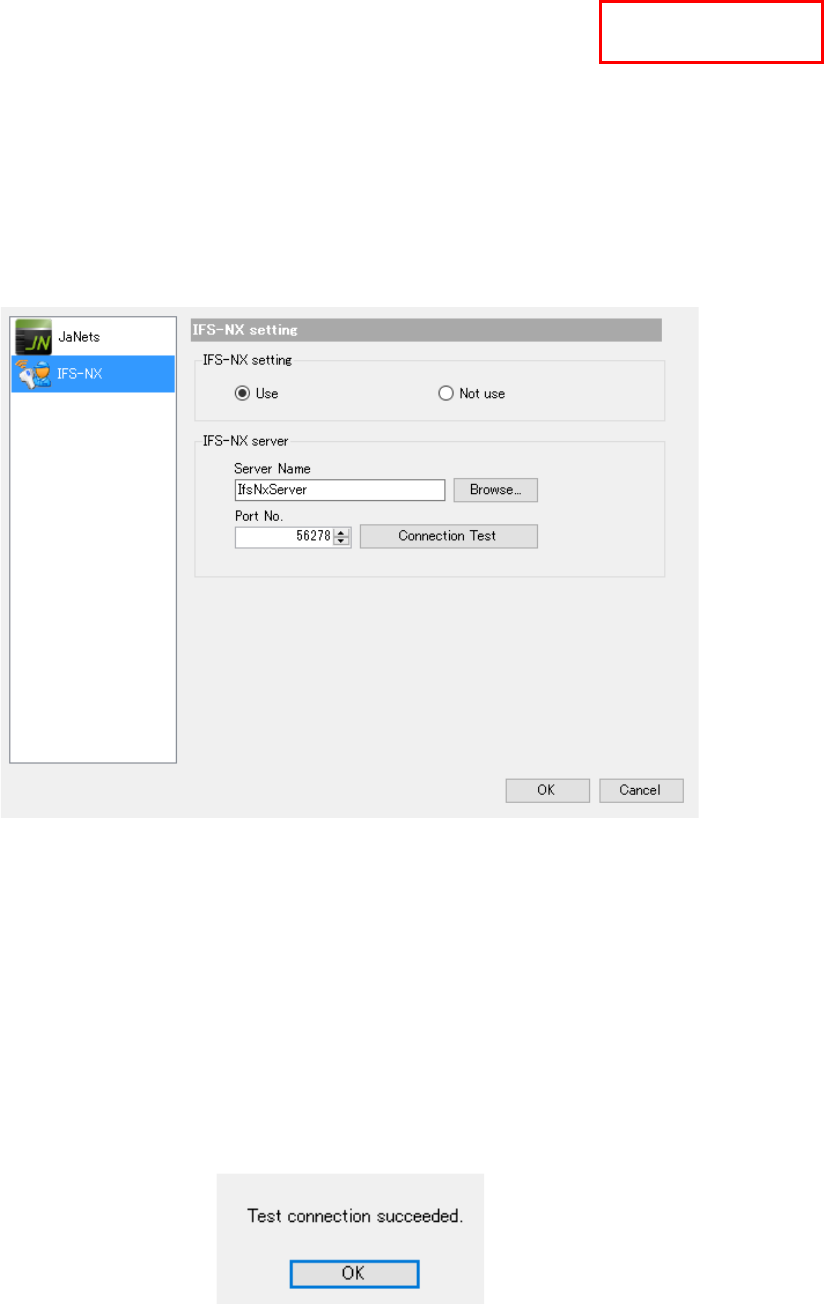
When you select “IFS-NX,” you can make settings of the environment for IFS-NX.
When linking to the IFS-NX, select the "Use" of the IFS-NX and set up a server name etc. to
perform a connection test.
When you do not use the IFS-NX, select the "Not use."
Figure 3.5-7 “Set Environments” dialog box (for setting the IFS-NX)
IFS-NX Configuration : Set whether to use the IFS-NX function.
Server Name : Enter a server name directly, or select the <Browse> to specify a
network computer.
Browse : When you click this button, the dialog box for browsing the network
computers appears on the screen.
Port No. : Enter the port number of the IFS-NX server.
When you select the <Connection Test> button after setting a server name, the system performs
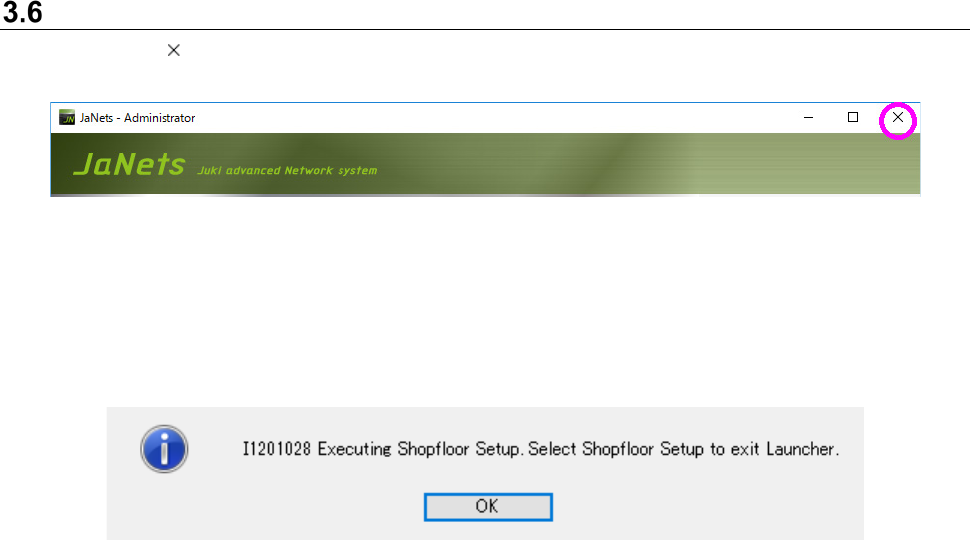
the connection test for the IFS-NX. When the system is connected to the IFS-NX successfully, the
following message appears on the screen.
Figure 3.5-8 When the system is connected to the IFS-NX server successfully
When you click the <OK> button, the “Set Environments” dialog box reappears.
TraceMonitor
JaNets Instruction Manual 3. Launcher
3-13
Quitting the Launcher
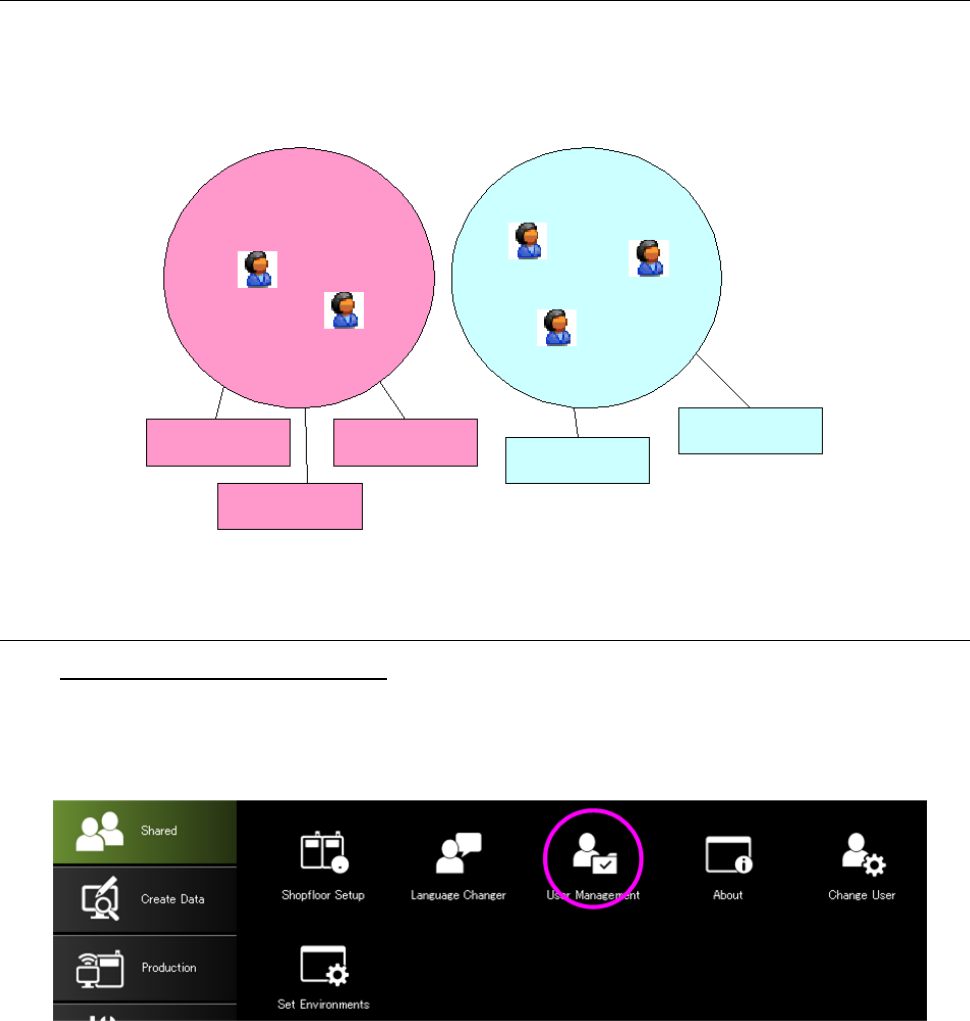
Click the < > button provided on the upper right side of the launcher.
Figure 3.6-1 Exit button
The confirmation message appears. Click the <Yes> button.
If any JaNets application is running when you try to quit the JaNets Launcher, the following
message indicating that the application is running appears on the screen.
Figure 3.6-2 Message that some application is running
(Example: The Shopfloor Setup application is running.)
JaNets Instruction Manual 4. User Management
4-1
4. User Management
What is the User Management?
Put each user in a group and define the operation authority and display setting collectively for the
group.
Figure 4-1 Relation between a group and users
4.1 Starting Up the User Management
To start up the User Management:
Select the “Shared” tab of the Launcher, and then the “User Management” icon, or select the
[User Management] command from the toolbar, and then the [User Management] command on
the “User Management” menu.
Figure 4.1-1 Launcher screen
User group 1
User group 2
User 1
User2
User3
User5
User4
Operational
privilege 1
Operational
privilege 2
Operational
privilege 3
Operational
privilege 4
Operational
privilege 5