JANETS_INM.pdf - 第390页
JaNets Instr ucti on Man ual 8. Job Optim izer 8-5 Main screen – Line explorer Y ou can select the d isplay or non - displ ay of the line explorer by select ing “Dis play” – “L ine explorer .” When you c lick “Line expl …
JaNets Instruction Manual 8. Job Optimizer
8-4
How to Operate the Job Optimizer
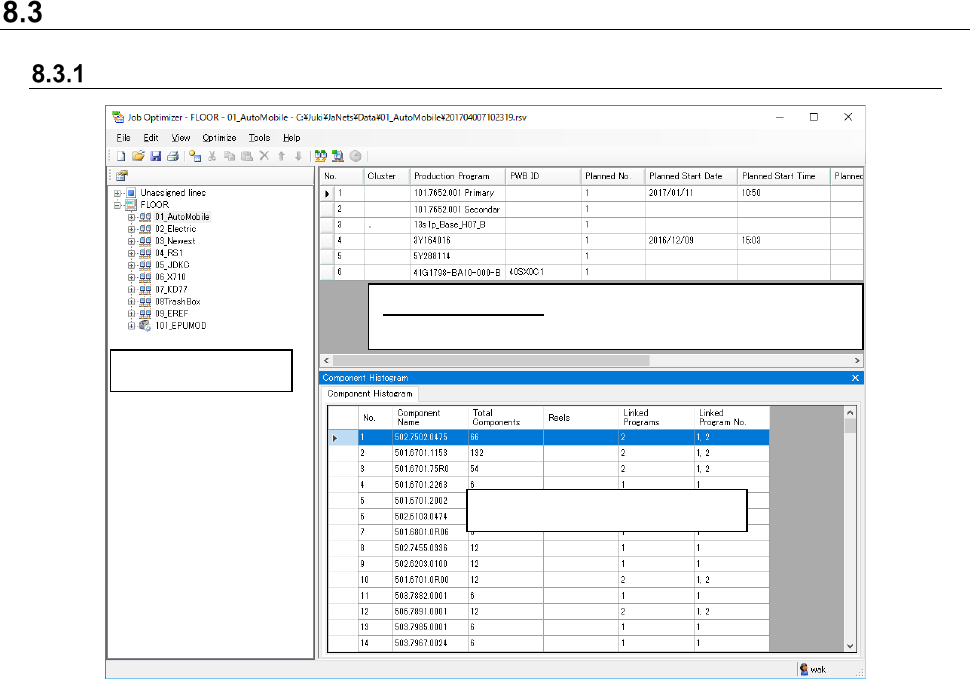
Explanation of the main screen
Figure 8.3-1 Main screen
Line explorer
Reservation list: up to 100 production programs
can be reserved.
Detailed data display area
JaNets Instruction Manual 8. Job Optimizer
8-5
Main screen – Line explorer
You can select the display or non-display of the line explorer by selecting “Display” – “Line
explorer.”
When you click “Line explorer” with the right button of the mouse, a pop-up menu will be displayed.
Main screen – Program Explorer
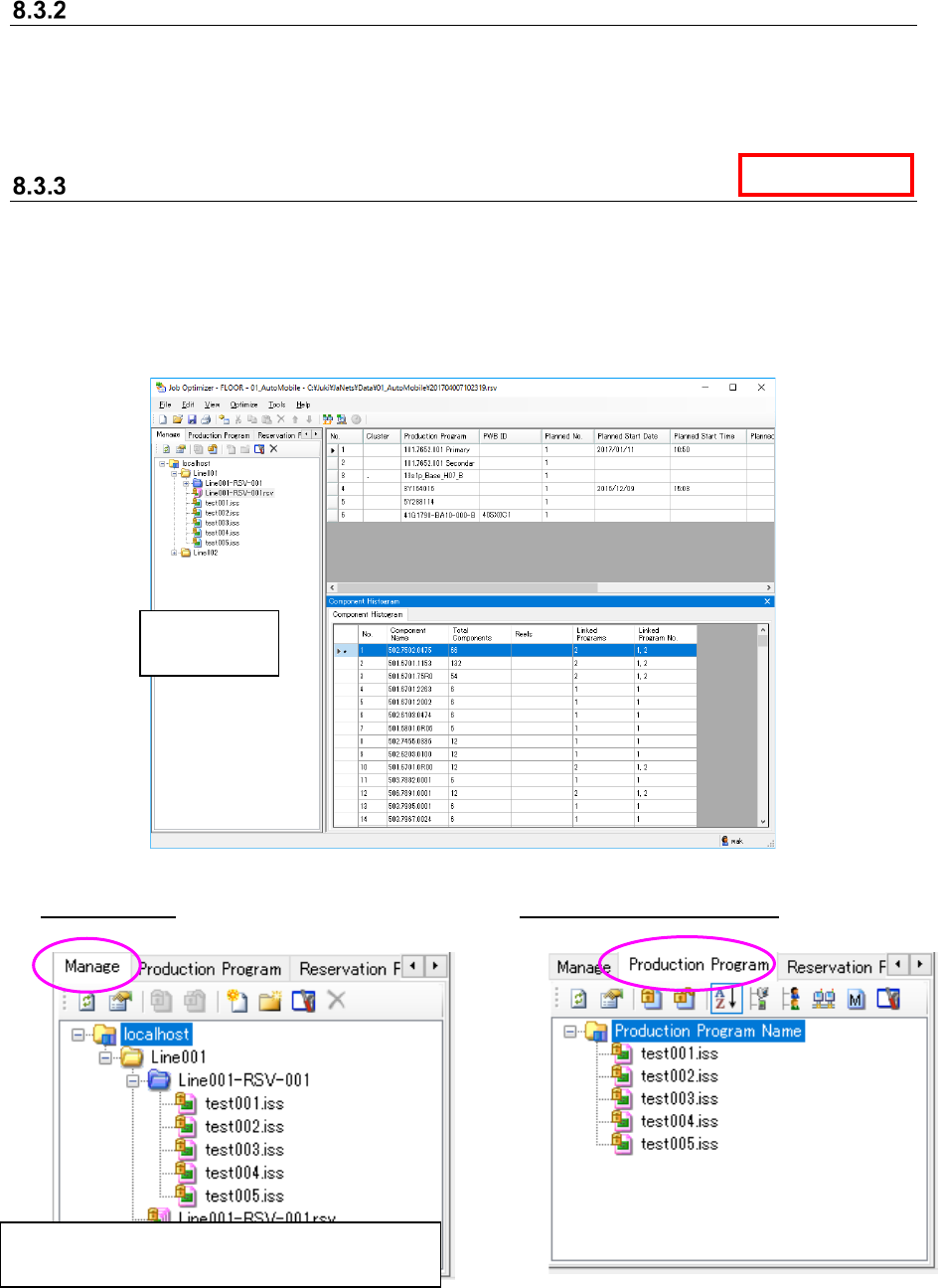
The Program explorer displays the following tabs: “Manage,” “Production Program,”
“Reservation File” and “Floor Configuration.”
When you click the “Program Explorer” menu command with the right button, the pop-up menu
appears on the screen.
When you select the menu commands [View] – [Program Explorer], you can display or hide the
Program Explorer.
Figure 8.3-2 Main screen (Program Explorer)
“Manage” tab “Production Program” tab
Figure 8.3-3 Program Explorer (Manage)
Figure 8.3-4 Program Explorer
(Production Program)
Data Manager
Program
Explorer
All files (production programs and reservation files)
managed by the database are displayed here.
JaNets Instruction Manual 8. Job Optimizer
8-6
8.3.3.1 Production Program
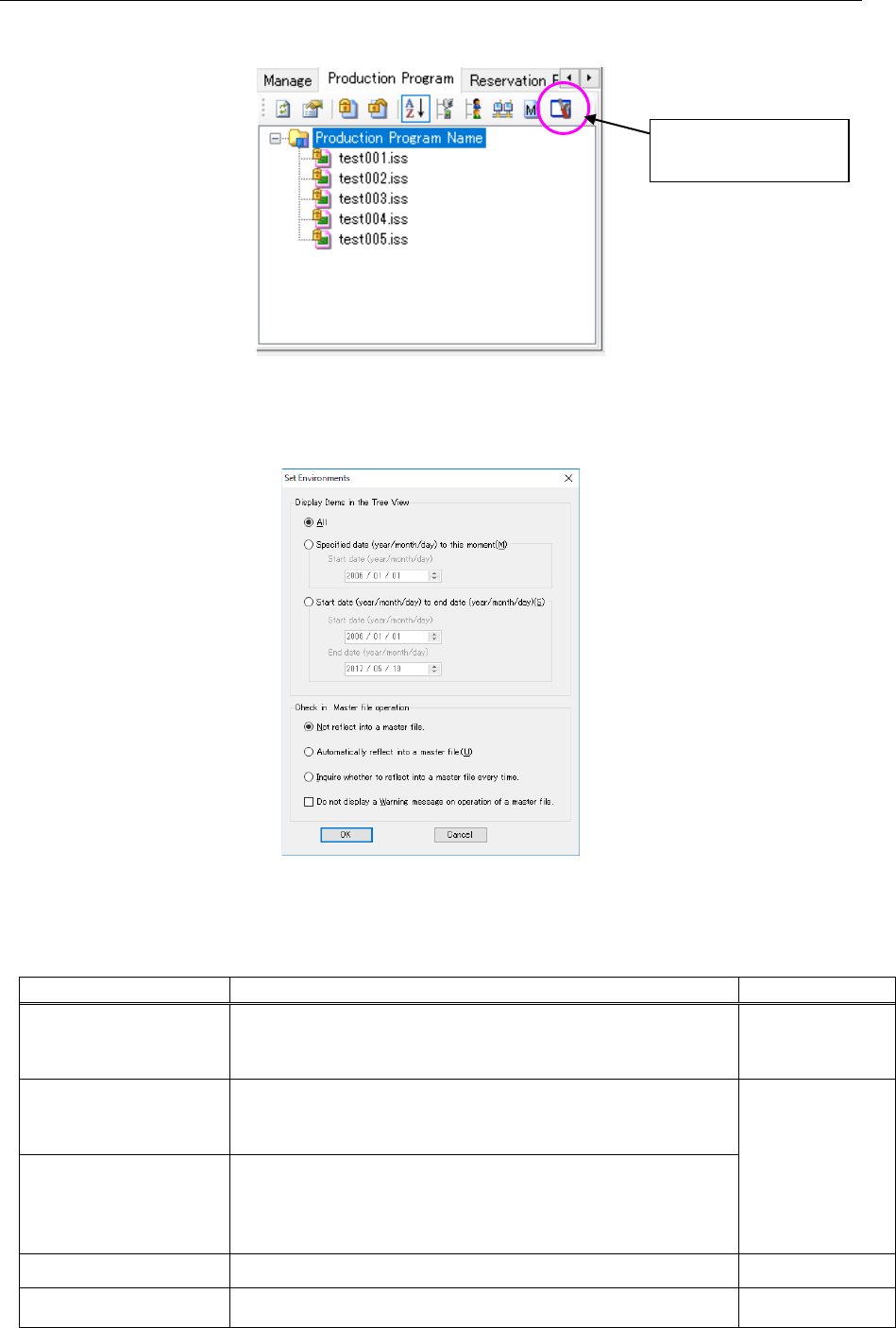
The <Set Environments> icon allows you to search a production program or a reservation file by
date to display the result in the tree structure.
Figure 8.3-5 Program Explorer (Production Program)
When you click the “Set Environments,” the “Set Environments” screen appears.
Figure 8.3-6 “Set Environments” screen for the Program Explorer
Table 8.3-1 List of the menu items displayed on the “Set Environments” screen
for the Program Explorer
Displayed menu item
Function
Remarks
All Displays all production programs, reservation files, folders and
reservation folders registered in the Program Explorer.
Same as the
conventional
specifications.
Specified date
(year/month/day) to this
moment
Displays production programs, reservation files, and divided files
registered in the Program Explorer or updated from the date
specified in the “Start date” field until now.
All of the root
folder, folders and
reservation
folders are
displayed.
Start date
(year/month/day) to end
date (year/month/day)
Displays production programs, reservation files, and divided files
registered in the Program Explorer or updated from the date
specified in the “Start date” field to the date specified in the “End
date” field.
OK Displays the Program Explorer according to the set menu items.
Cancel Cancels the setting you have made.
<Set Environments>
icon