JANETS_INM.pdf - 第745页
JaNets In structio n Manual B. T roubleshootin g B- 12 Clic k “P rograms” fro m the “ Cont rol P anel, ” and then “ T urn W indows f eatures o n or of f. ” When the list o f the Windows functions app ears on t he scree n…
JaNets Instruction Manual B. Troubleshooting
B-11
B.5 JaNets Cannot Communicate with Some Mounter.
[Phenomenon]
JaNets cannot communicate with a mounter: KE-2050/2060/2070/2080 series, KE-3000 series
or FX-3 series mounter or a KD-2077 dispenser.
As a result of Windows 10 Fall Creators Update (released in October, 2017), the protocol
“SMBv1” for sharing Windows files was disabled. This causes a JaNets PC not to
communicate with any mounter or dispenser described above: it cannot obtain the status or
download/upload data from/to such a machine.
[Corrective action]
Enable “SMBv1” at the JaNets PC (Windows 10). Note that any machine other than those
described above operates normally, so you must not perform this operation for such a machine.
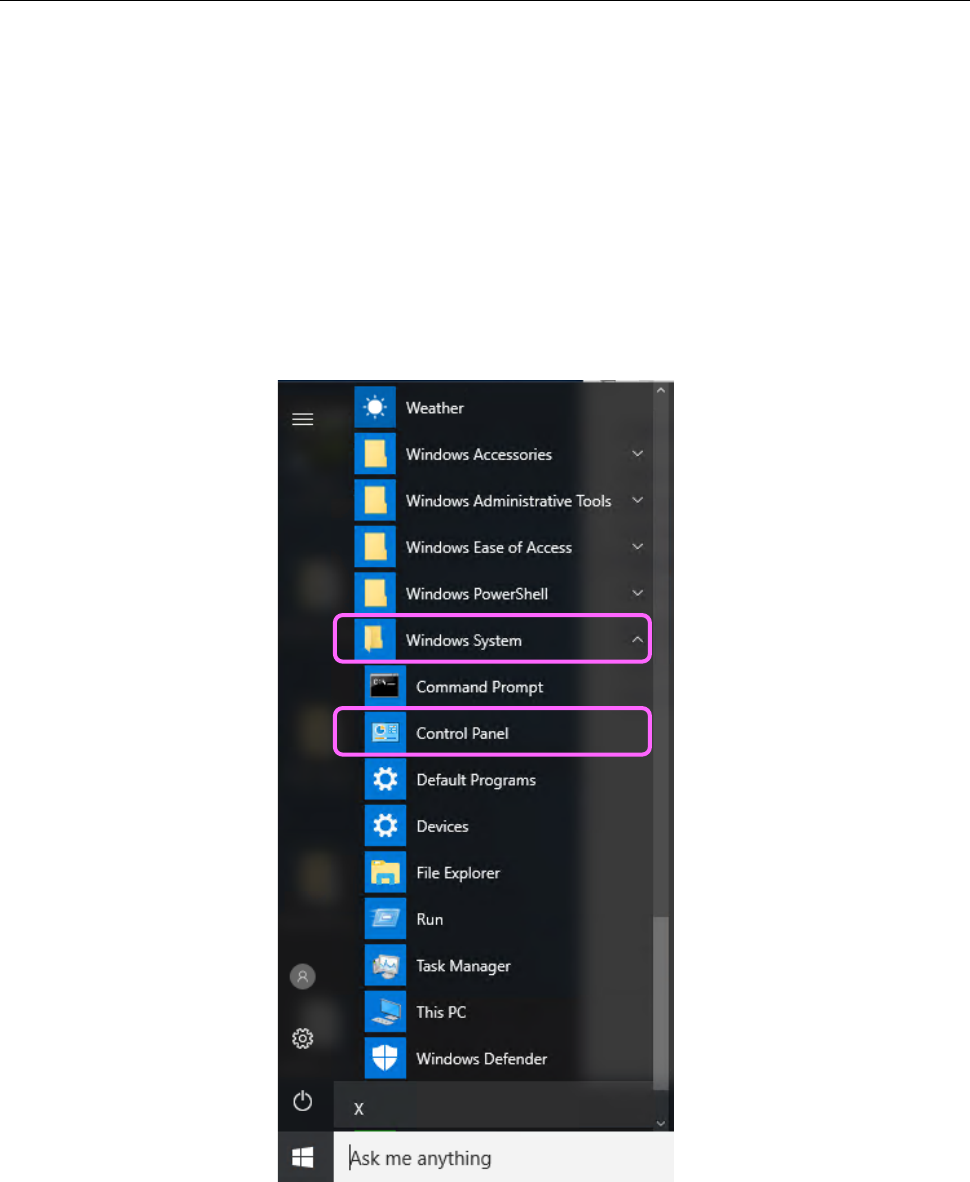
Click “Windows System,” from the start menu of Windows 10, and then “Control Panel.”
JaNets Instruction Manual B. Troubleshooting
B-12
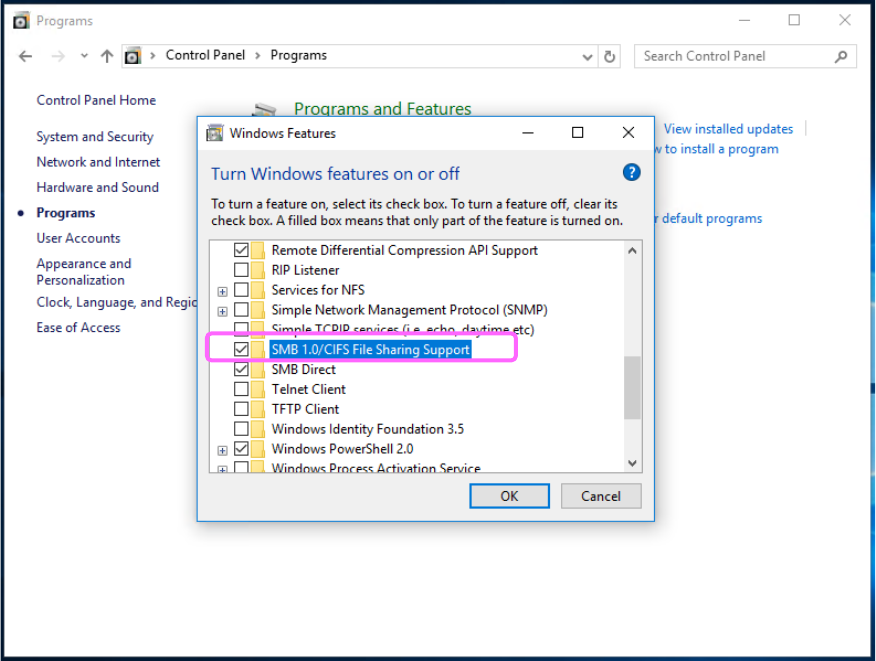
Click “Programs” from the “Control Panel,” and then “Turn Windows features on or off.”
When the list of the Windows functions appears on the screen, check off the check box “SMB
1.0/CIFS File Sharing Support,” and then click the <OK> button. When you are prompted to
restart the PC, restart it.
JaNets Instruction Manual C. Database Management Tool
C-1
<Appendix>
C. Database Management Tool
What is the Database Management Tool?
This tool is used to save data of the database onto any other medium in order to avoid a risk of
irreparable inconsistent data or data loss. It is also used to restore the backed up data.
C.1 Starting up or Quitting the Tool
How to start up the tool: When you click [Start] -> [Juki] and then “Data Manager Tool” on the
PC on which Data Manager is installed, this tool starts up.
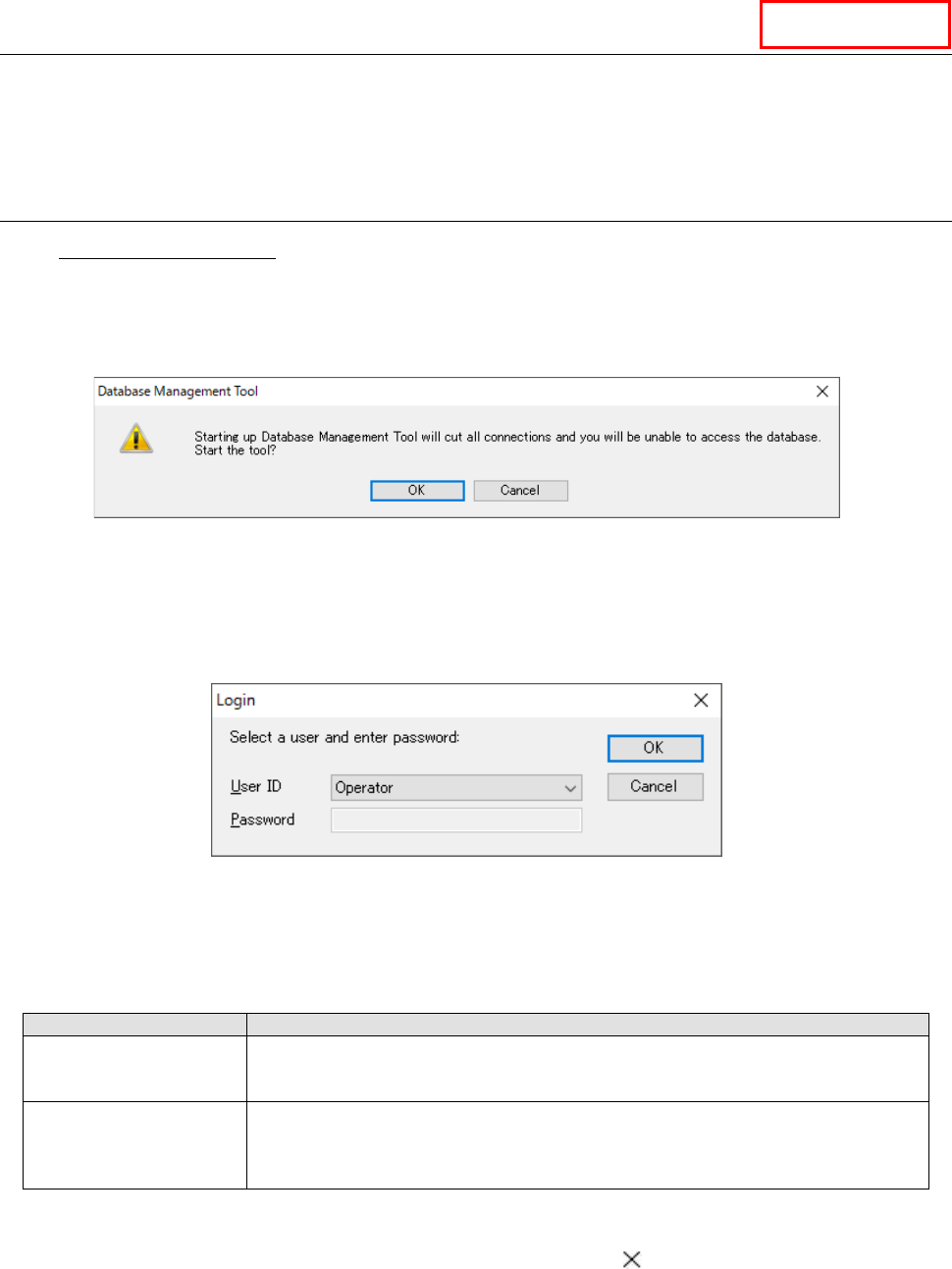
When you start up the “Database Management Tool,” all connections to the databases are
disconnected.
Figure C.1-1 Dialog box for confirmation of start-up
When you press the <OK> button on the dialog box for confirmation of start-up, the “Login”
dialog box appears on the screen.
When you press the <Cancel> button, the system stops starting up the “Database Management
To o l . ”
Figure C.1-2 “Login” dialog box
Regardless of user management of the JaNets, login as a user who has one of the following
privileges.
Table C.1-1 Differences between privileges unique to user IDs
User
Privilege
Operator
This type of user can back up/restore the database or make settings of the automatic
back-up function.
This type of user does not enter any password to login.
Maintenance engineer
This type of user can maintain the database, import/export a table of data, move
database data as well as perform the operations the “Operator” user above can
perform. Since this type of user may damage the system due to his/her operational
mistake, this user ID is supposed to be used by our service engineer basically.
When you press the <OK> button, the system authenticates you, and when you login
successfully, the “Database Management Tool” starts up.
When you press the <Cancel> button, or when you press the button, the system aborts
start-up of this tool.
Data Manager