JANETS_INM.pdf - 第552页
JaNets Instr ucti on Man ual 13 . Program D ownloa der 13 - 56 13.14.2 Setting each it em 13.14.2.1 Settings for PWB production Make setti ngs for prod uction . ( Set optio ns relat ing to product ion ). Figure 13.14 -2 …
JaNets Instruction Manual 13. Program Downloader
13-55
13.14 Setting the Environment
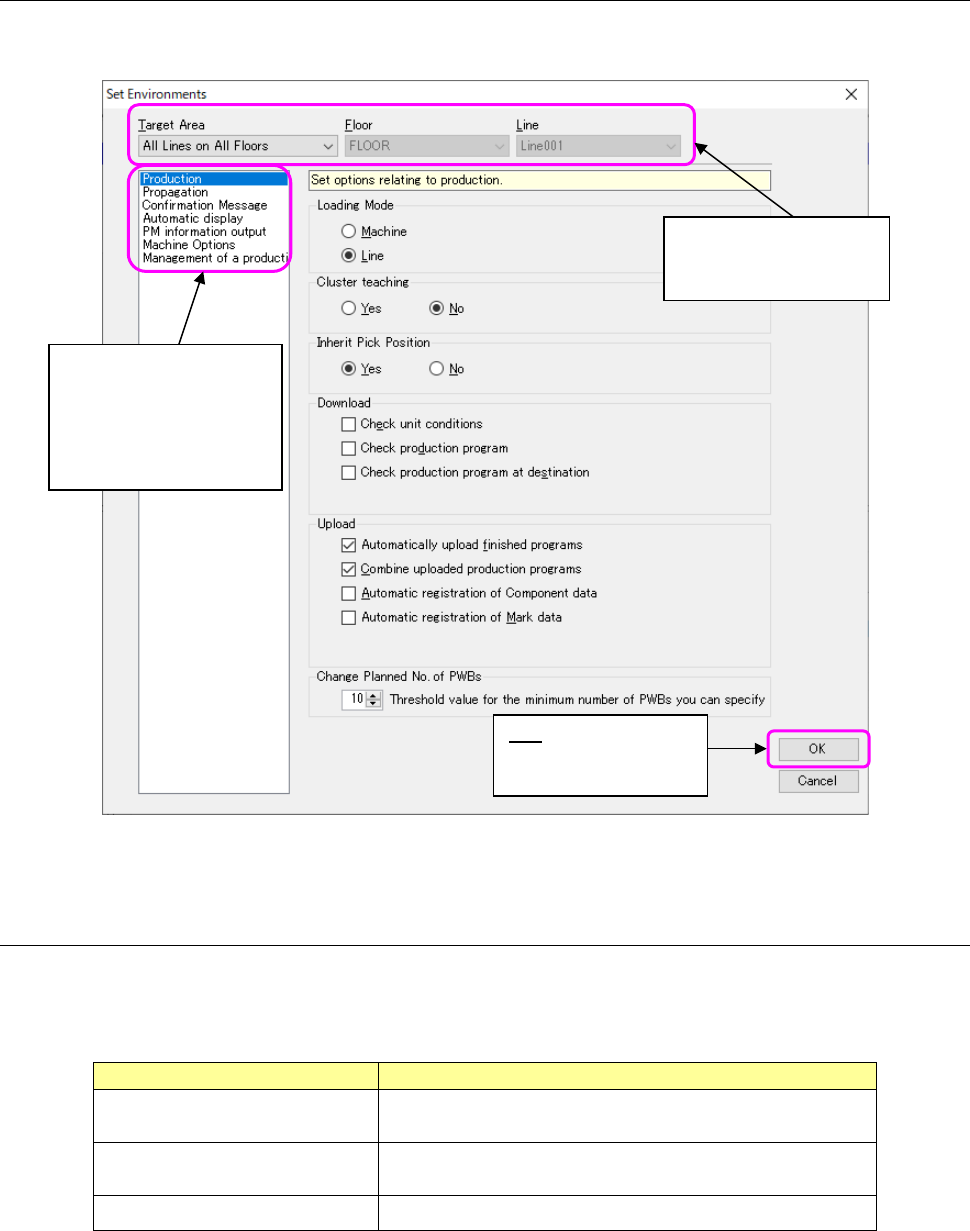
When you select the “Tools” command from the menu bar, and then the “Set Environments”
command from the “Tools” menu, the following dialog box appears on the screen.
Figure 13.14-1 “Set Environments” dialog box
13.14.1 Setting target
For “Setting target”, it can be selected whether the common setting is used for all the lines or an
individual setting is used for each floor/line.
Table 13.14-1 File output setting
Tool button item
Description
Common to all the lines
Common settings are performed for all the production lines
registered in the monitor line.
Common to floors
Settings are performed for each floor in which the monitor
line is arranged.
Individually for each line Settings are performed for each monitor line.
OK:
Saves the settings you
made on this screen.
Select the setting item.
* When you switch the
selected item to another
one here, the screen
displayed on the right
side changes too.
Setting target
Set the target to apply
the set contents.
JaNets Instruction Manual 13. Program Downloader
13-56
13.14.2 Setting each item
13.14.2.1 Settings for PWB production
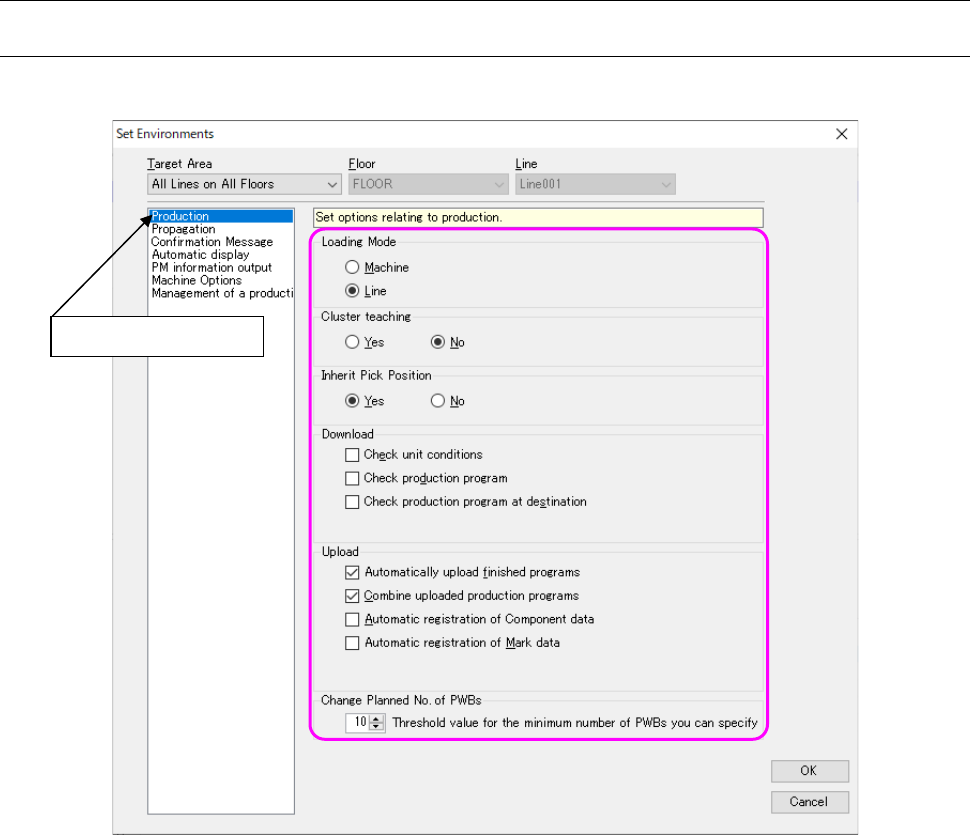
Make settings for production. (Set options relating to production).
Figure 13.14-2 Setting “Production” on the “Set Environments” screen
<Production method>
Machine unit: Online production is executed in the unit of machine.
Line unit: Online production is executed in the unit of line.
<Cluster teaching>
Specify whether to teach the component pick-up coordinates in a cluster. See Section “13.9.3
Teaching the component pick-up coordinates in a cluster (in production according to a reservation
file)” for details.
Select “Production.”

JaNets Instruction Manual 13. Program Downloader
13-57
<Succession of pick coordinates>
It is set whether pick coordinates are to be succeeded or not. If this item is set to “Yes”, the pick
coordinates of each component of the production program uploaded in each machine will be succeeded to
the production program that will be downloaded next time. The succession of pick coordinates is
applicable only to the case where the same component is picked up from the same place. In the case of a
new component name, the pick coordinates of the new component are set and succeeded to the
subsequent production program.
To delete the data on the pick coordinate succession, it can be deleted by selecting “Tool” – “Delete pick
coordinate succession data”. The former succession data is deleted and the pick coordinates of the
production program to be downloaded next time are succeeded to the pick coordinates of the production
program to be downloaded hereafter.
* For RX-7 series, pick coordinates are not succeeded. (There is an automatic pick position
correcting function on the RX-7 series side.)
<Setting for “Download”>
Check unit conditions
If the settings with a machine are different from those with the “Shopfloor Setup,” the warning
message is displayed on the screen and the “Device Status” dialog box is automatically displayed on
the screen when you check this check box.
Check production program
Check to see if a component whose supply unit cannot be used is included in a production program,
an illegal nozzle is used, or the version number of a production program is different from others.
When the coherence of the above-mentioned is not maintained, the warming message appears on
the screen, and the confirmation dialog box that allows you to check the list of coherence error data
appears on the screen.
Check production program at destination
Check this check box to download a production program to a machine. In the case of RX-7 series, this
function checks whether any production program is already downloaded. In the RX-6/FX-3 series or
KE-3000 series, this function checks whether any production program is already read into the
machine. When you select the “Yes” button, it continues downloading the program.
<Setting for “Upload”>
Automatically upload finished programs:
Specify whether to upload a downloaded production program automatically after the system finishes
producing PWBs according to this program. When you do not check this check box, the system does
not upload the production program.
Combine uploaded production programs:
Specify whether to combine production programs after they are uploaded from all machines of the
production line.
When you do not check this check box, the changed item of a machine is not reflected in the iss
production program.
Automatic registration of Component data:
Specify whether to register Component data of the combined programs in the Component Database
automatically after finishing the production program combining processing. When the check box
“Combine uploaded production programs” is not checked off, this function is disabled forcibly also.
Automatic registration of Mark data:
Specify whether to register mark data of the combined programs in the Mark Database automatically
after finishing the production program combining processing. When the check box “Combine
uploaded production programs” is not checked off, this function is disabled forcibly also.
Automatic check-in:
Specify whether to automatically display the dialog box for checking in a reservation file/production
program used for finished PWB production. When you select the <No use> button for the menu item
“Server” on the “Set Environments” screen of the JaNets Launcher, this check box is not displayed on
the screen. The system does not display the dialog box if it performs production according to a
reservation file, and the next reservation file is registered when the production finishes.