JANETS_INM.pdf - 第691页
JaNets In structio n Manual 17 Program Expl orer 17 - 39 ③ Check in the product ion pr ogram file: On the Progra m Explorer area, right - click o n the f ile name “ Pr oduction Program A.iss ” a nd select the “ Check in …
JaNets Instruction Manual 17 Program Explorer
17-38
17.9 Case Example
The general operation of the file management is described below, using the "Program Editor" as
an example.
(1) Example A: Check out and Check in
① Check out a production program file:
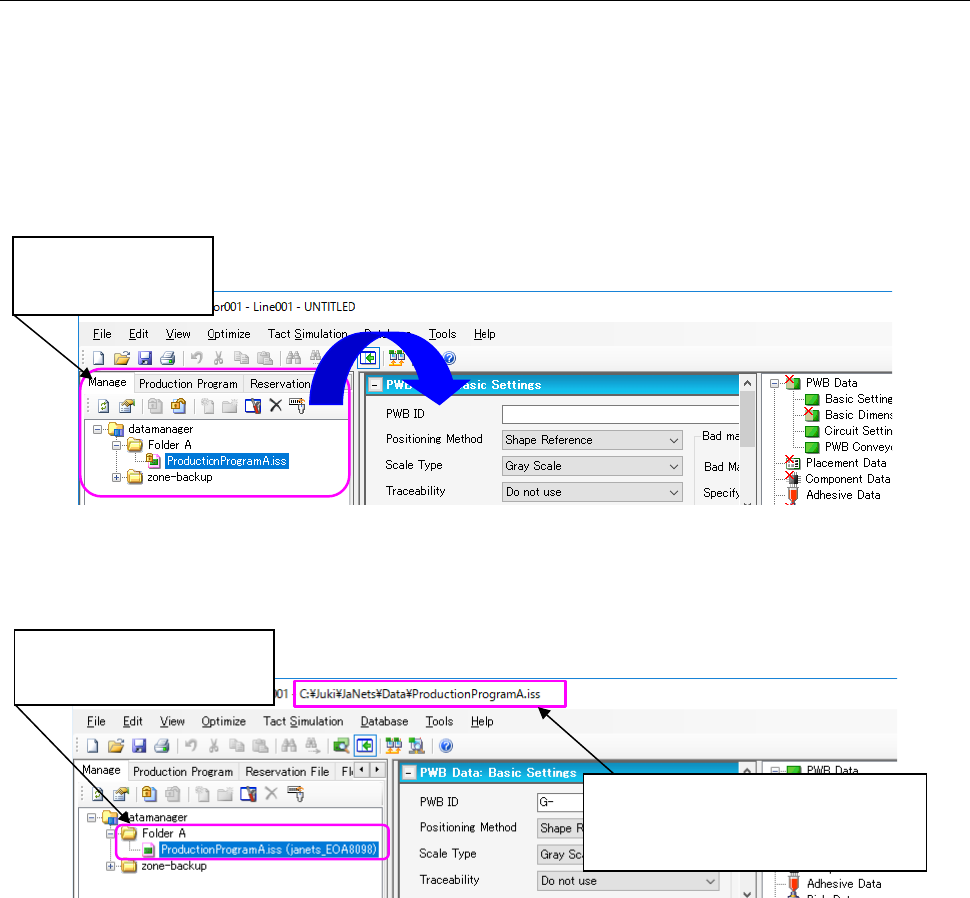
Click-hold on the production program file “ProductionProgramA.iss” at the Program
Explorer area, and drag and drop it on the application area.
(* To “Check out” a file, the file has to be in the checked-in state.)
Figure 17.9-1 Before checking out (drag and drop a file)
Once you checked out the file, it is copied to the client PC, and Program Editor loads it
automatically.
Figure17.9-2 After checking out
* In this state, contents of the file “ProductionProgramA.iss” in the database and in a client PC
are the same.
(When you check out a production program file, if the client PC already has a file that has the
same name with a different date of update, a dialog message appears asking whether you
want to overwrite it or not.)
* Since the file “ProductionProgramA.iss” on the database has already been checked out,
you cannot check it out from the database.
② Edit the file “ProductionProgramA.iss” by the Program Editor and save it.
* Contents of the file “ProductionProgramA.iss” in the database and in a client PC are now
different.
Displays information
managed by the
database.
Location of the file that is being edited
by Program Editor.
(Shows which file is being checked
out, and loaded by Program Editor.
The state of the file
changed; it is currently being
checked out.
JaNets Instruction Manual 17 Program Explorer
17-39
③ Check in the production program file:
On the Program Explorer area, right-click on the file name “ProductionProgramA.iss” and
select the “Check in” from the pop-up menu. Contents of the file “ProductionProgramA.iss”,
which is edited on the client PC, are reflected to the file on the database.
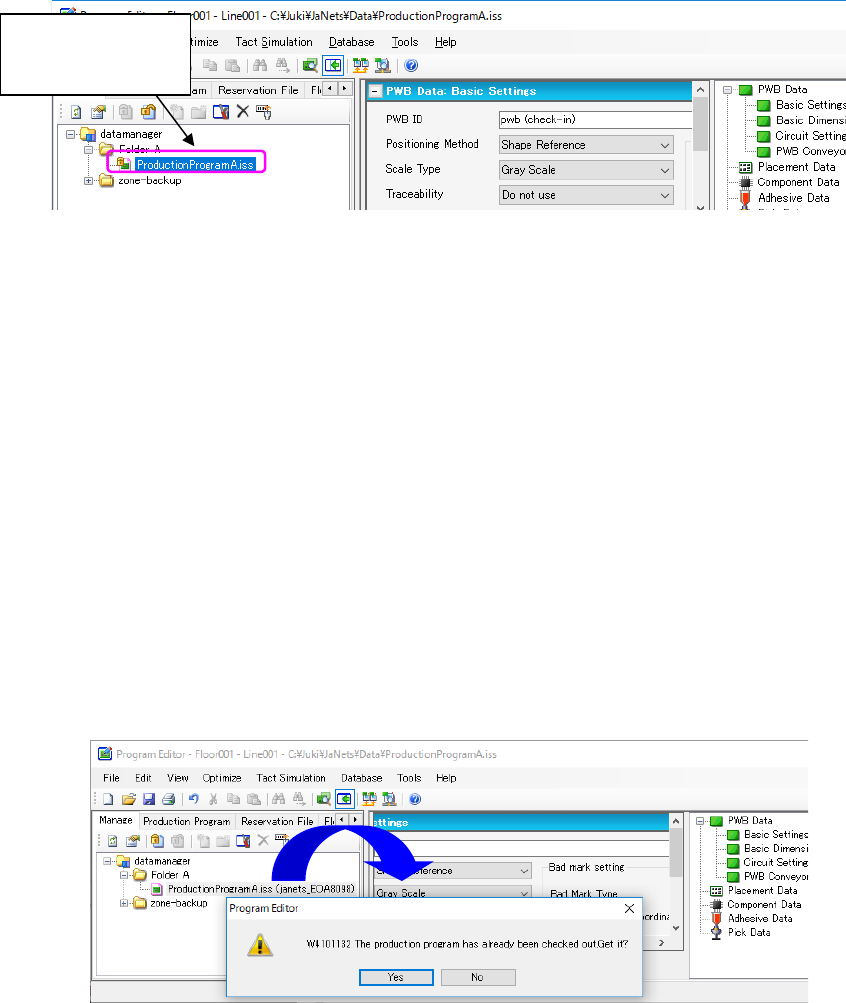
Figure 17.9-3 After checking in
* Once the file that you edited is checked in, the file “ProductionProgramA.iss” in the database
is overwritten; contents of the file in the database and in the client PC become the same.
* The file “ProductionProgramA.iss” is now in the checked-in state; it can be checked out again.
(2) Example B: Difference between “Check out” and “Get”
① “Check out” a production program file :
Procedures are the same as ① of Example A; Click-hold on the production program file
“ProductionProgramA.iss” on the Program Explorer area, and drag and drop it on the
application area.
(* To “Check out” a file, the file has to be in the checked-in state.)
Once you checked out the file, it is copied to the client PC, and Program Editor loads it
automatically.
② “Get” a production program file :
Again drag and drop the same file “ProductionProgramA.iss”, which is currently in the
checked-out state; this operation is to “Get” the file.
(* To “Get” a file by the drag-and-drop operation, the file has to be in the checked-out state.)
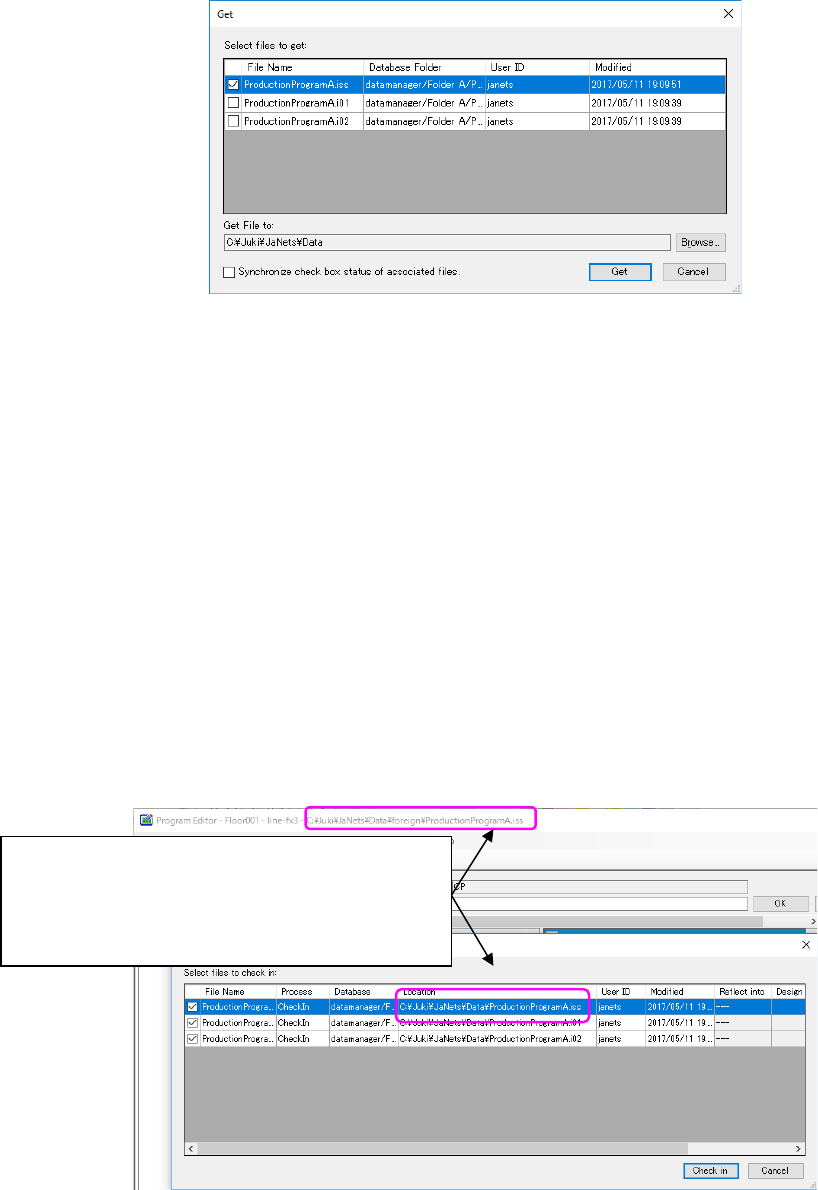
Figure17.9-4 “Get” a production program file (drag and drop a file)
Every time when you “Get” a file, a message appears asking whether you want to “Get” the file
or not. Click <Yes> on the message box and specify a local path (location to store the file you
“Get”) on the client PC.
(During the check out operation, this message does NOT appear; once the location is specified
on a client PC, the system always uses the same location to have a checked-out file.)
The state of the file
changed; it has
been checked in.
JaNets Instruction Manual 17 Program Explorer
17-40
Figure 17.9-5 “Get” a file: confirmation dialog
* It is not allowed to specify a location that already has a checked-out file with the same
name. In that case, specify a different location, check in the checked-out file, or cancel the
check out of the checked-out file.
(This is the same with the "Check out” operation; it is not allowed to check out a file when a
specified location already has a checked-out file with the same name.)
Once you click <Get> on this screen, the file is copied to the client PC, and Program Editor
loads the file.
(When you “Get” a file, if the client PC already has a file with the same name, a message
appears asking whether you want to overwrite it or not.)
③ Edit the file “ProductionProgramA.iss” by Program Editor and save it.
* You are now editing the file that is copied to the client PC by the “Get” operation. (A file
copied by the “Check-out” and a file copied by the “Get” operation is stored in different
locations on a client PC.)
④ If you do the "Check in" operation on the Program Explorer area; the file
"ProductionProgramA.iss", which you checked out on procedure ①, is to be checked in to
the database.
Firgure17.9-6 “Check in” a file: confirmation dialog
* The "Check in" operation applies to a file copied to a client PC by the "Check out" operation.
* The “Check in” operation does NOT apply to a file copied to a client PC by the “Get” operation.
When you need to store the file into the database, register it as a new file. The newly
registered file is treated as another production program file, which is not related to the original
file “ProductionProgramA.iss” in the database.
The location of the file being edited and that of the
file being checked out are different.
The file name of both files is the same
(ProductionProgramA.iss), but each file belongs to a
different location.