JANETS_INM.pdf - 第195页
JaNets In structio n Manual 5. Shopflo or Setu p 5- 75 Clearing a feeder assignment Deleting fee ders one by one Select a feed er icon (y ou can two or m ore feeder icons) within t he feeder att achment area, and click t…
JaNets Instruction Manual 5. Shopfloor Setup
5-74
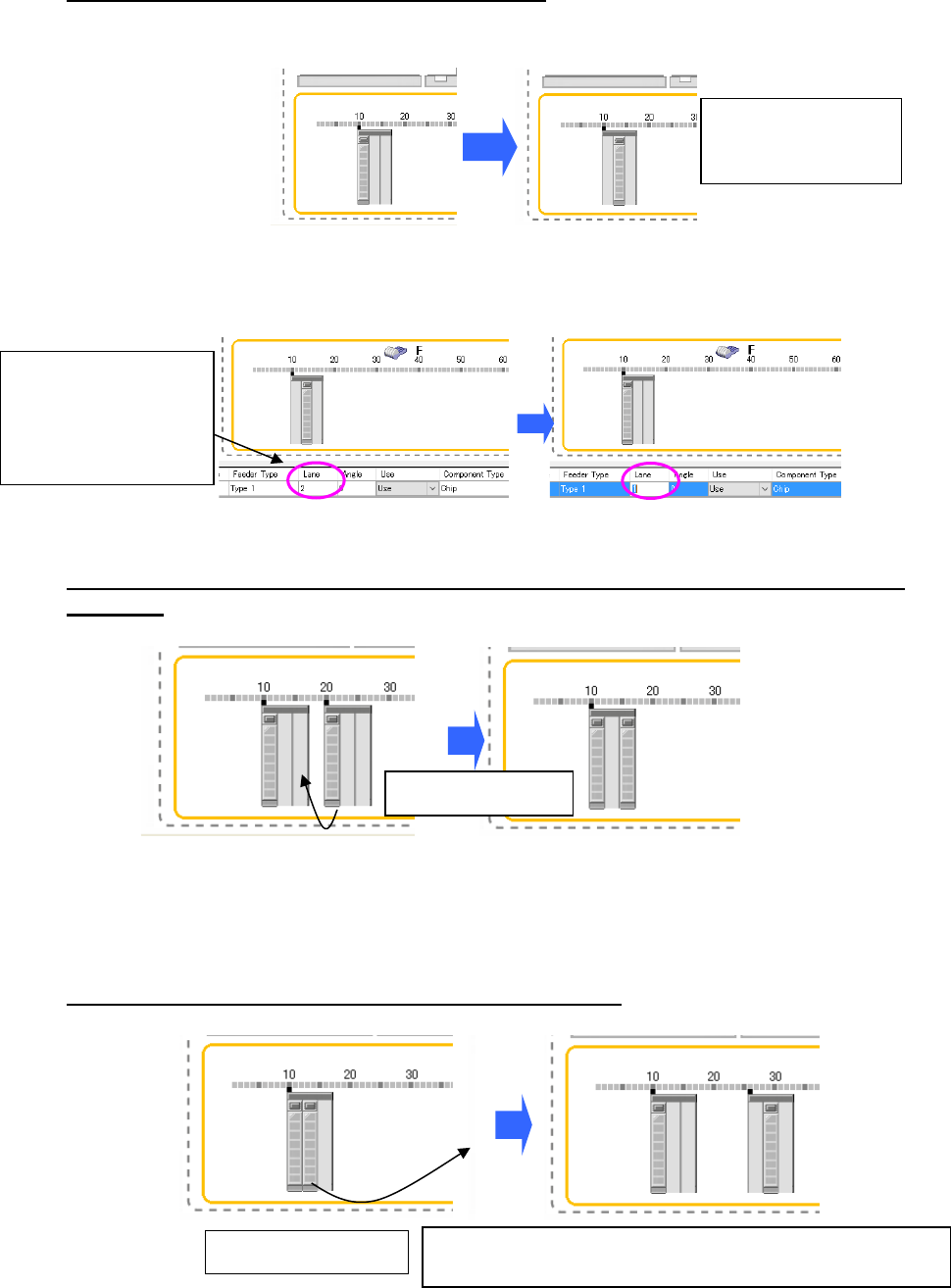
Changing the position of a lane already assigned
Drag the icon of the lane already assigned, and drop it on the desired lane position. The lane is
moved to that position.
Figure 5.9-37 Assigning a feeder having two or more lanes (Moving a lane)
You can also change the lane position on the Details setting screen.
Figure 5.9-38 Details setting screen (Before/after moving a lane)
When a lane is moved between the feeders of the same type attached on the different
positions.
Figure 5.9-39 Before/after moving a lane (between the different feeders)
* When you move a lane from a feeder to which two or more lanes are already assigned,
only a lane is moved.
When a lane is assigned to the bank attachment position
Figure 5.9-40 Moving a lane (to another attachment position)
You cannot select two
or more lanes at the
same time.
Drag & drop a lane.
Drag & drop a lane.
A new feeder is assigned to the position a lane is dropped. “1” is
subtracted from the number of the feeder resources.
Put this cell in the
editing state, and enter
the desired lane
number here (“2” in this
example).
JaNets Instruction Manual 5. Shopfloor Setup
5-75
Clearing a feeder assignment
Deleting feeders one by one
Select a feeder icon (you can two or more feeder icons) within the feeder attachment area, and
click the <Clear> button on the “Permanent Feeder Setup” screen. When the confirmation
message appears on the screen, select the <Yes> button. You can clear a feeder assignment by
performing the operation below also.
Select a feeder icon, and press the [Del] key of the keyboard. After the confirmation message
appears on the screen, clear the selected feeder.
* When you delete a tray holder itself, all components assigned to the tray holder are cleared.
* When you delete a feeder having two or more lanes, all components assigned as a lane of the
feeder are cleared.
Deleting feeders at a time
When you select the <Clear All> button on the “Permanent Feeder Setup” screen, the confirmation
message appears on the screen. Select the <Yes> button. The system clears all feeders assigned
to a machine currently displayed on the screen.
Copying a feeder assignment
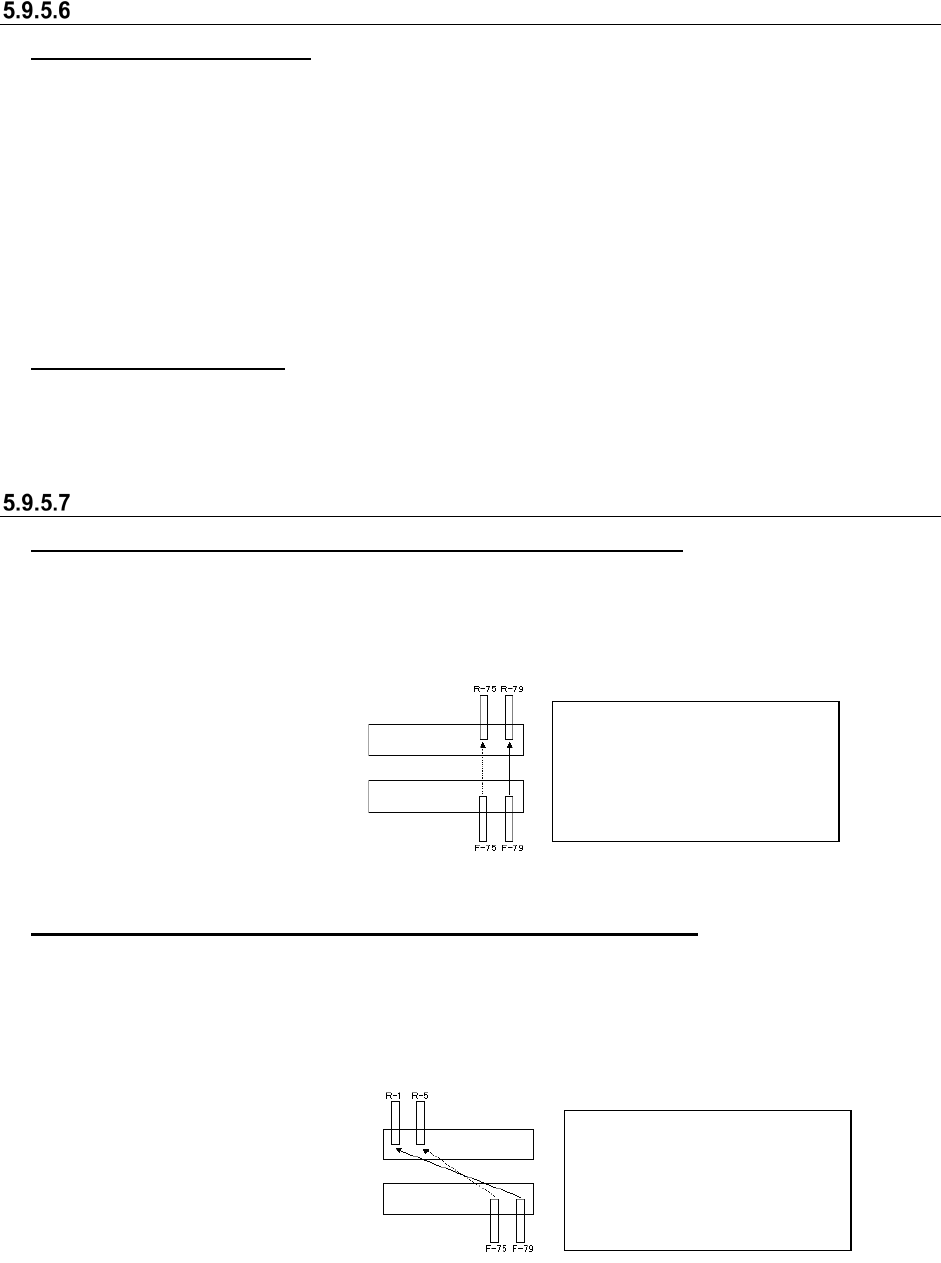
Copying a feeder assignment symmetrically with respect to a line
Drag a mouse to surround a feeder(s) to be copied and select it (them). Click the right button of the
mouse to display the pop-up menu. Select the [Mirror Copy] command from this pop-up menu.
The [Mirror Copy] command is enabled for a machine equipped with the front and rear banks only.
Figure 5.9-41 Feeder assignment position when the system copies a feeder
Copying a feeder assignment symmetrically with respect to a point
Drag a mouse to surround a feeder(s) to be copied and select it (them). Click the right button of the
mouse to display the pop-up menu. Select the [Position Copy] command from this pop-up menu.
The [Position Copy] command is enabled for a machine equipped with the front and rear banks
only.
Figure 5.9-42 Feeder assignment position when the system copies a feeder
When you select a feeder on
the front side, it is copied to the
rear side. When you select a
feeder on the rear side, it is
copied to the front side.
When you select a feeder on
the front side, it is copied to the
rear side. When you select a
feeder on the rear side, it is
copied to the front side.
When feeders are copied symmetrically with respect to a point
JaNets Instruction Manual 5. Shopfloor Setup
5-76
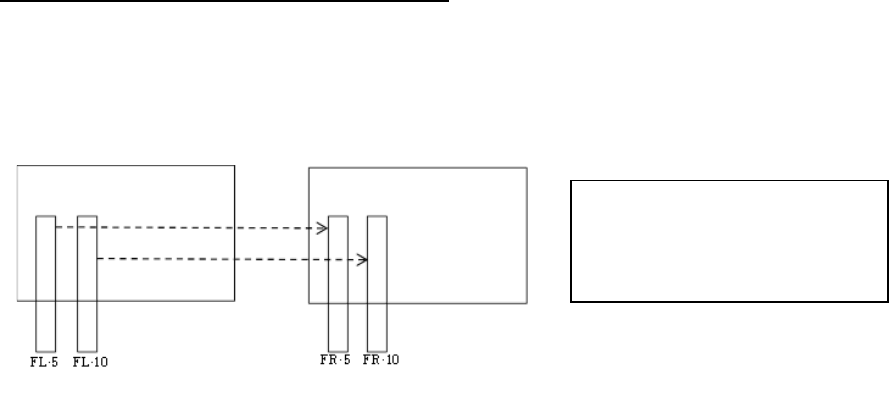
Copying a feeder assignment symmetrically
Drag a mouse to surround a feeder(s) to be copied and select it (them). Click the right button of the
mouse while the feeder(s) is (are) being selected to display the pop-up menu. Select the [Station
Copy] command from this pop-up menu.
The [Station Copy] command is enabled for a machine equipped with the left and right stations
only.
Figure 5.9-43 Feeder assignment position when the system copies a feeder
* No tray component can be copied even though you execute the [Mirror Copy]/[Position
Copy]/[ Station Copy] command. In addition, if you select any feeder located on both the front
side and the rear side (or the left station and right station), the system will not copy it.
* The copying is available only when the both banks are the same types (the number of holes
and the driving method).
When you select a feeder on the left
side, it is copied to the right side.
When you select a feeder on the right
side, it is copied to the left side.