JANETS_INM.pdf - 第599页
J aN et s Inst ructi on Manual 15 . Log Control Tool 15 - 13 15.2.10 Pri nt ing Selec t the [Fil e] com m and fr om the m enu bar, and then the [Pr int] com m and f r om the “ File ” m enu. The “ Pri nt ” d ial og b ox a…
JaNets Instruction Manual 15. Log Control Tool
15-12
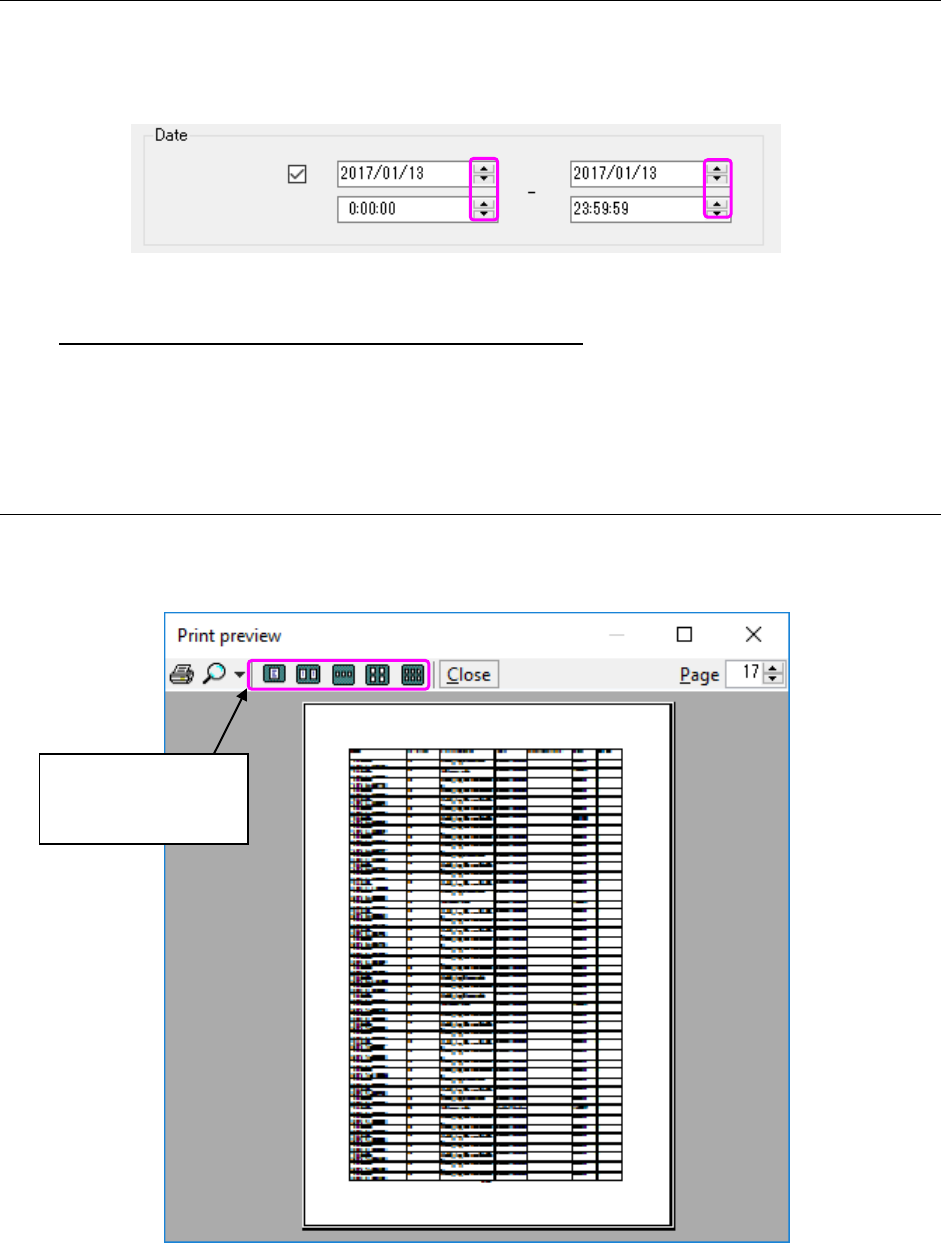
15.2.8 Setting the “Date”
You can enter the date directly in this field. If you do not enter any date as the time period, the
<OK> button is not enabled on the “Filter Setup” dialog box. Note that you can enter a value in the
time field also.
Figure 15.2-8 Setting the “date” from the calendar
* About the filter items, “User,” “Client” and “ClassMethod”
When you change the data displayed in the Log Viewer by adding a new log, the system
recreates the list for selecting filter items. Unless you quit the Log Control Tool, or unless
you select the [View New Log File] command, the items selected on the list are maintained.
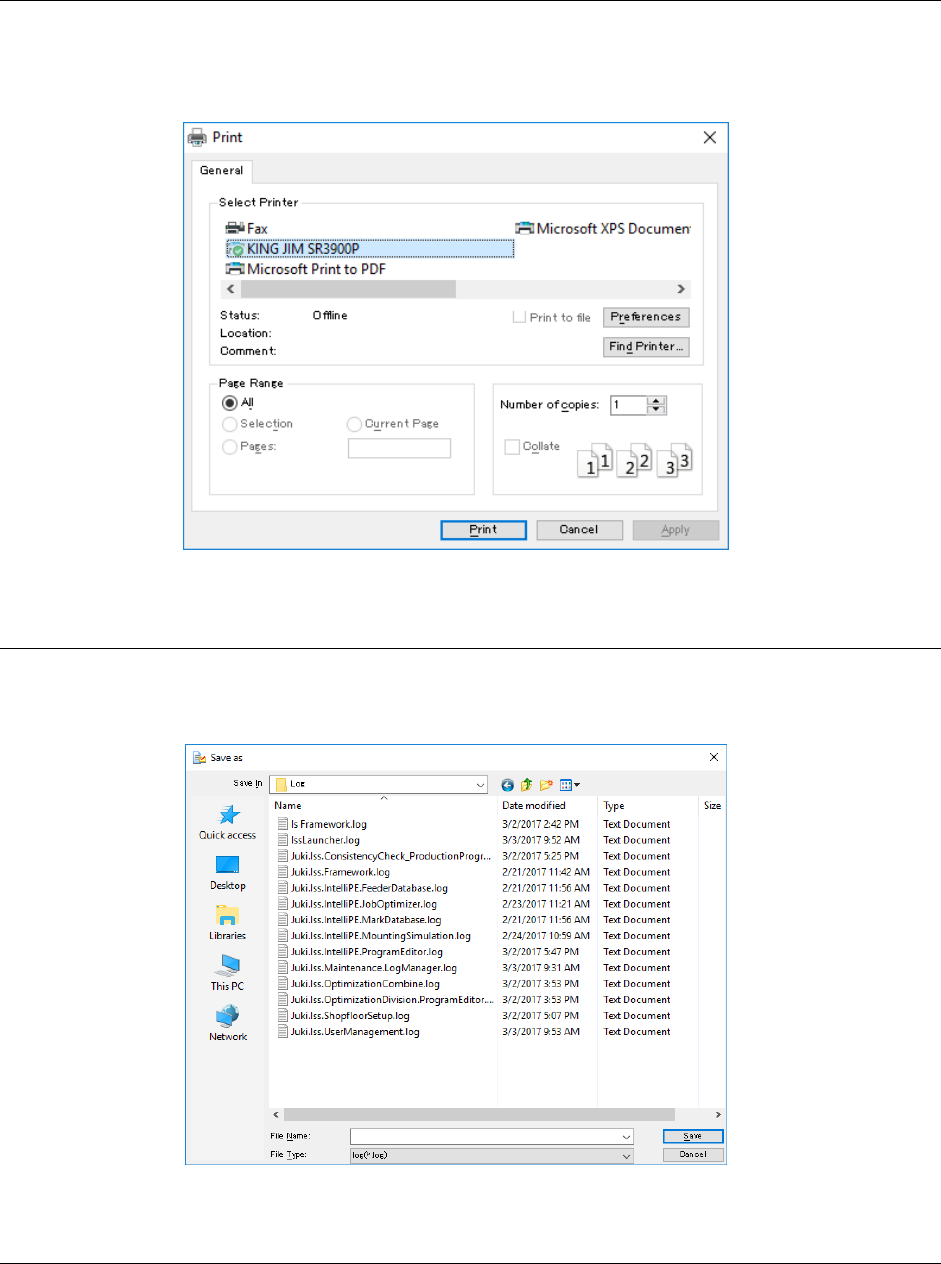
15.2.9 Previewing how log(s) are printed
Select the [File] command from the menu bar, and then the [Preview] command from the “File”
menu.
Figure 15.2-9 “Print preview” dialog box
Select the number of
pages to be displayed
at a time.
JaNets Instruction Manual 15. Log Control Tool
15-13
15.2.10 Printing
Select the [File] command from the menu bar, and then the [Print] command from the “File” menu.
The “Print” dialog box appears on the screen. After you make settings for printing a log(s), the
system starts printing it (them). You can print only a log(s) being displayed in the Viewer. (Logs
not displayed under the conditions specified with the filter will not be printed.)
Figure 15.2-10 “Print” dialog box
15.2.11 Outputting a log as text
Select the [File] command from the menu bar, and then the [Save as Text] command from the
“File” menu. You can output only a log(s) being displayed in the Viewer. (Logs not displayed under
the conditions specified with the filter will not be output.)
Figure 15.2-11 Dialog box for outputting a log as text
15.2.12 Searching a character string
When you select the [Edit] command from the menu bar, and then the [Search] command from
the “Edit” menu, the dialog box for searching a character string appears on the screen, and you
can search the desired character string.
After you execute this search function, the cursor jumps to the line of the character string that was
searched in the Viewer.
JaNets Instruction Manual 15. Log Control Tool
15-14
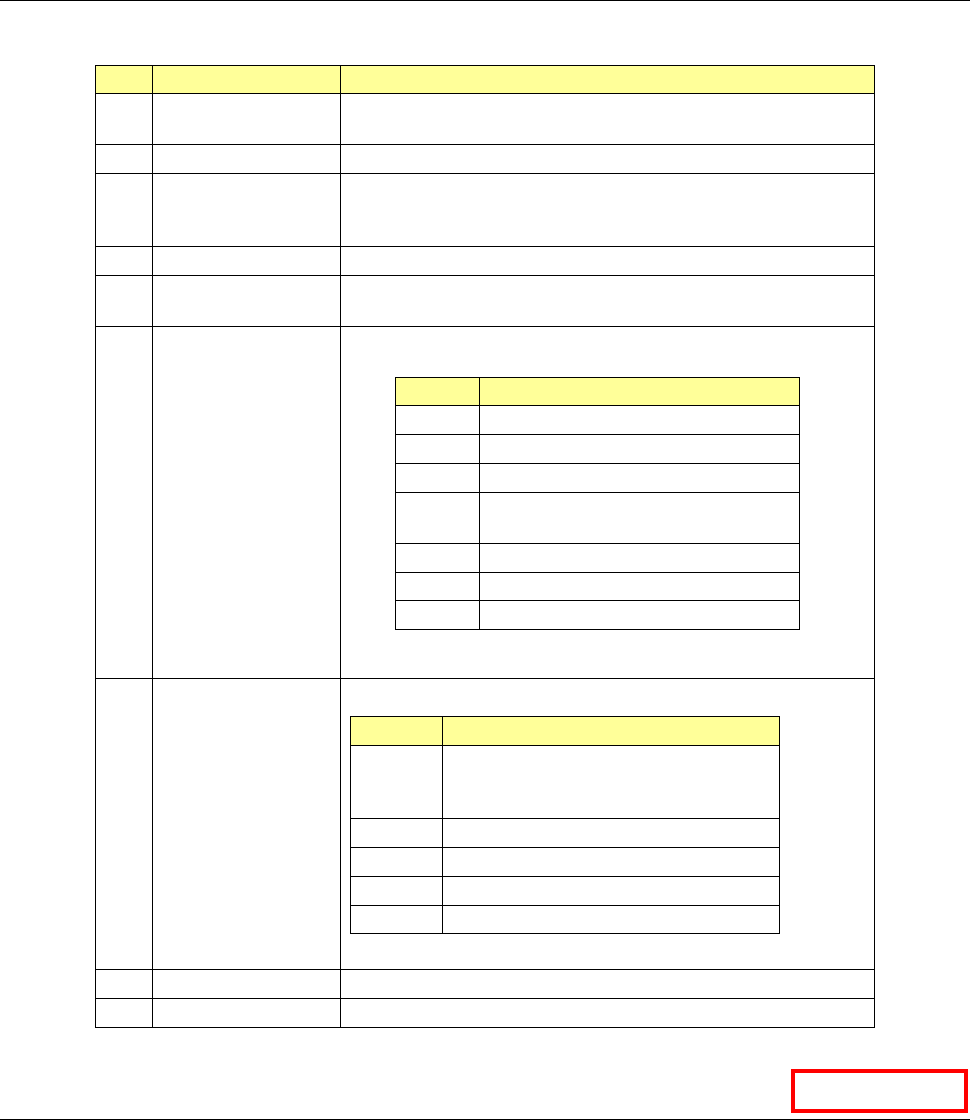
15.3 Logs
Table 15.3-1 Description of each log display item
No.
Log display item
Description
① Date Displays the time when the corresponding log was output.
(That is, the time indicated with the PC that output the log.)
②
Log Type
” “O”: Operation logs “S”: Service logs
③ Application Displays which application’s log is displayed on the screen.
(In case of a service log, the system displays the name of an
application that invoked the service.)
④
User
Displays the login name.
⑤ Class & Method Displays which program was executed to generate the
corresponding log.
⑥ Type Displays the output data type (such as an operation and an
error).
Item
Description
OPRT
Operations
EROR
Error
WARN
Details of a warning
EXCP Details of the circumstance under
which an exception occurred
PROC
Method invoke port
METH
Method IN/OUT port
DBUG
Debug message for development
⑦ Level Displays the following data by each number.
Level
Description
1 Operation, process, error, or details of
the circumstance under which an
exception occurred
2
Input/output data
3
Method invoke port
4
Method IN/OUT port
5
Debug message for development
⑧
Message
Displays the log output message.
⑨
Information
Displays the detailed information on the message.
15.4 Service Log
You can manage a service log when the system is set to be connected to a server.
Although the operation is the same as that of a log for other application programs, you cannot
execute the [Log Setup] command.
Data Manager