JANETS_INM.pdf - 第392页
JaNets Instr ucti on Man ual 8. Job Optim izer 8-7 8.3.3 .2 Reservation File If you chang e the exist ing floor nam e, line nam e or line conf igurat ion with Sho pfloor Setup, the correspond ing line nam e or line conf …
JaNets Instruction Manual 8. Job Optimizer
8-6
8.3.3.1 Production Program
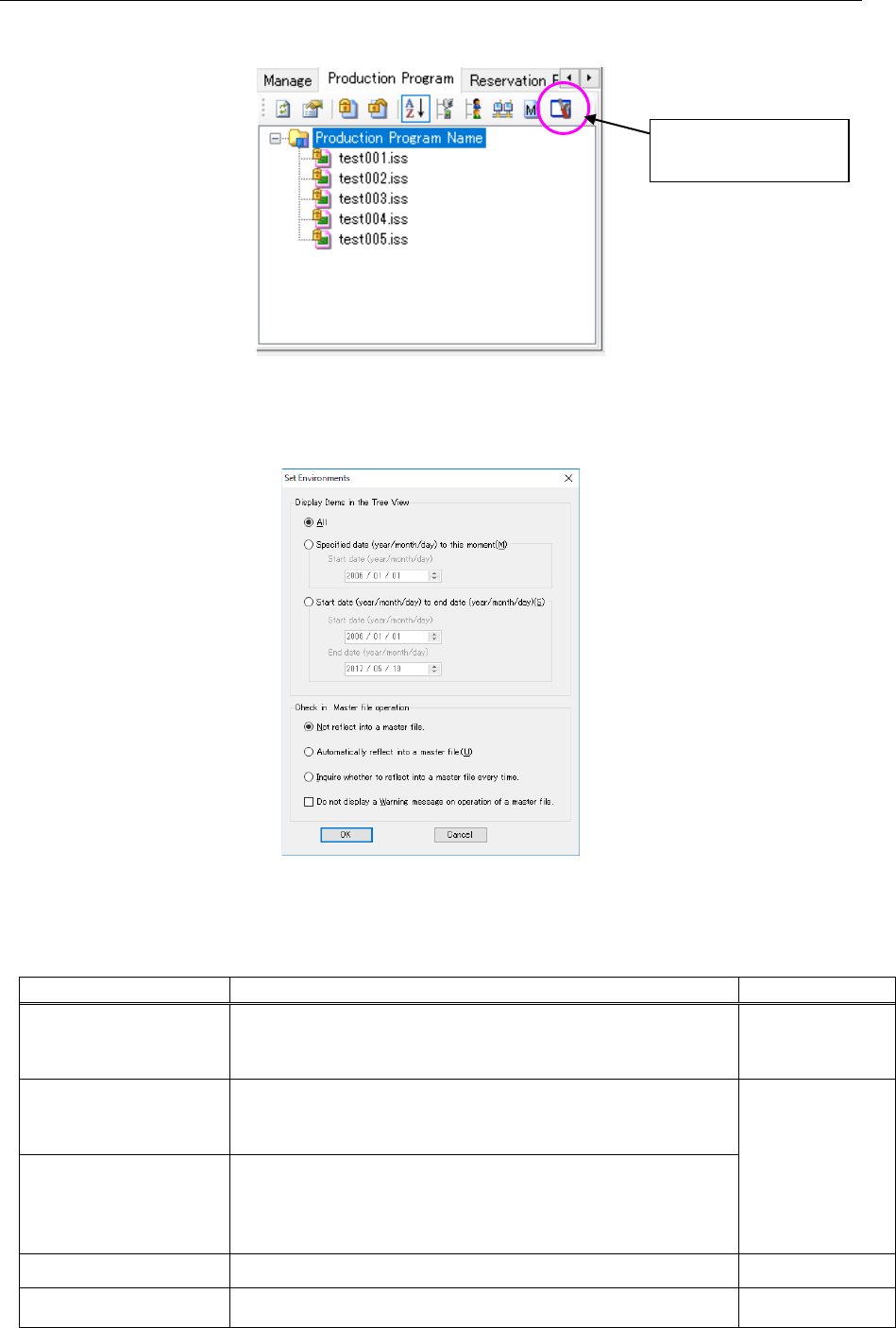
The <Set Environments> icon allows you to search a production program or a reservation file by
date to display the result in the tree structure.
Figure 8.3-5 Program Explorer (Production Program)
When you click the “Set Environments,” the “Set Environments” screen appears.
Figure 8.3-6 “Set Environments” screen for the Program Explorer
Table 8.3-1 List of the menu items displayed on the “Set Environments” screen
for the Program Explorer
Displayed menu item
Function
Remarks
All Displays all production programs, reservation files, folders and
reservation folders registered in the Program Explorer.
Same as the
conventional
specifications.
Specified date
(year/month/day) to this
moment
Displays production programs, reservation files, and divided files
registered in the Program Explorer or updated from the date
specified in the “Start date” field until now.
All of the root
folder, folders and
reservation
folders are
displayed.
Start date
(year/month/day) to end
date (year/month/day)
Displays production programs, reservation files, and divided files
registered in the Program Explorer or updated from the date
specified in the “Start date” field to the date specified in the “End
date” field.
OK Displays the Program Explorer according to the set menu items.
Cancel Cancels the setting you have made.
<Set Environments>
icon
JaNets Instruction Manual 8. Job Optimizer
8-7
8.3.3.2 Reservation File
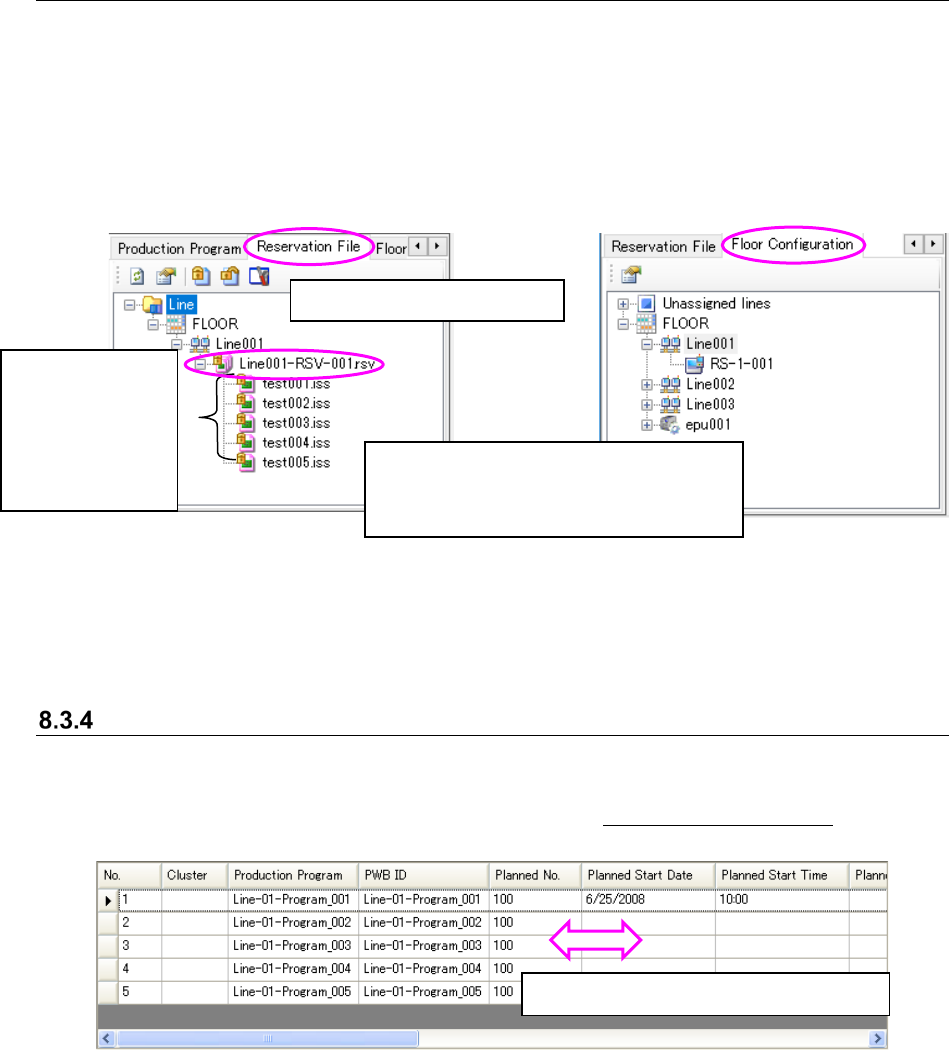
If you change the existing floor name, line name or line configuration with Shopfloor Setup, the
corresponding line name or line configuration specified in a reservation file is not changed
accordingly.
Therefore, when you display them with the Program Explorer, a list of reservation files may be
displayed under a floor or production lien that does not exist.
To use such a reservation file, open it again, and then save it for the production line that is being
used.
Figure 8.3-7 Program Explorer
(Reservation File)
Figure 8.3-8 Program Explorer
(Floor Configuration)
Main screen – Displaying the Reservation list
Up to 100 production programs can be reserved. You can set the columns that are always
displayed even though you scroll the screen horizontally.
For the method of setting the column to be fixed, refer to “8.3.27 Set Environments.”
Figure 8.3-9 Main screen – Reservation list
You can adjust the width of each column.
The floor name, production line name and
production line configuration that are to be used
are displayed here.
* A floor(s) and a production line(s) that do not
exist are displayed in red.
Production
programs (*.iss
format): displayed
in order of
reservations.
* You cannot
operate these
programs on this
screen.
Reservation file (*.rsv format)
JaNets Instruction Manual 8. Job Optimizer
8-8
Main screen – Reservation list detailed data display area
When no data is displayed in the detailed data display area at all, the production program
reservation area is expanded and displayed over the detailed data display area.
Figure 8.3-10 Main screen – Detailed data display area
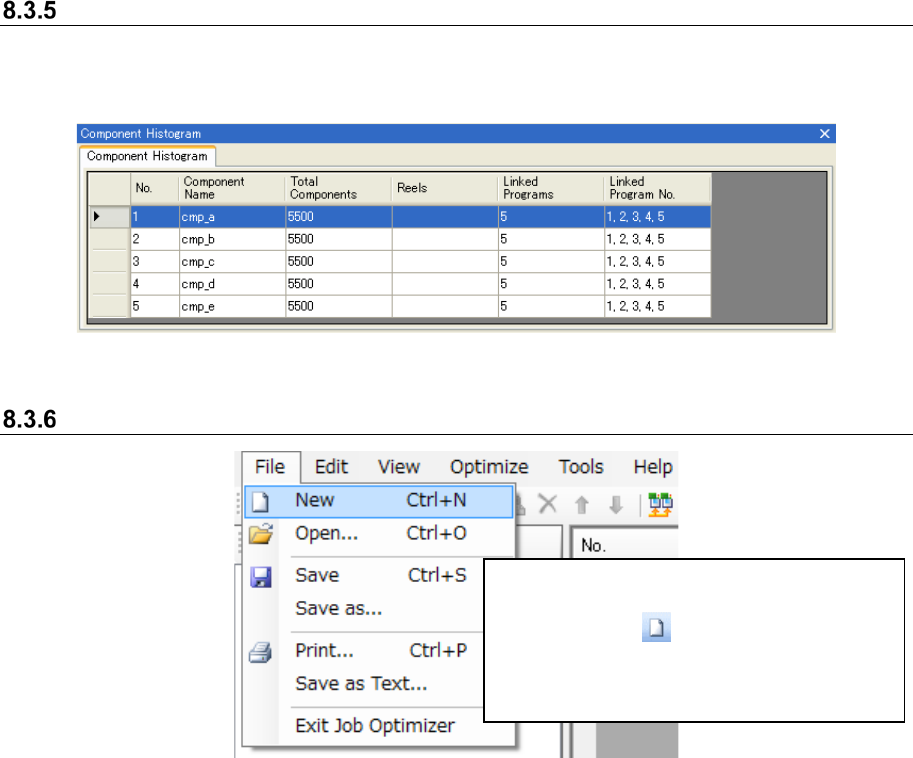
Creating a new reservation file
Figure 8.3-11 [File] – [New]
Select the [File] command and then the
[New] command from the “File” menu, or
click the “New” ( ) tool from the toolbar.
* While you are editing the reservation list,
the “Confirmation to change” message
appears on the screen.