JANETS_INM.pdf - 第114页
J aN et s Inst r ucti on Manual 4. User Manage ment 4-6 4.4 Changing the P asswor d Selec t a user w hose pas sw or d you want to chang e on the “U ser Manag em ent” sc reen. W hen you selec t the <C hang e Passw or d…
JaNets Instruction Manual 4. User Management
4-5
4.3 Setting the Properties
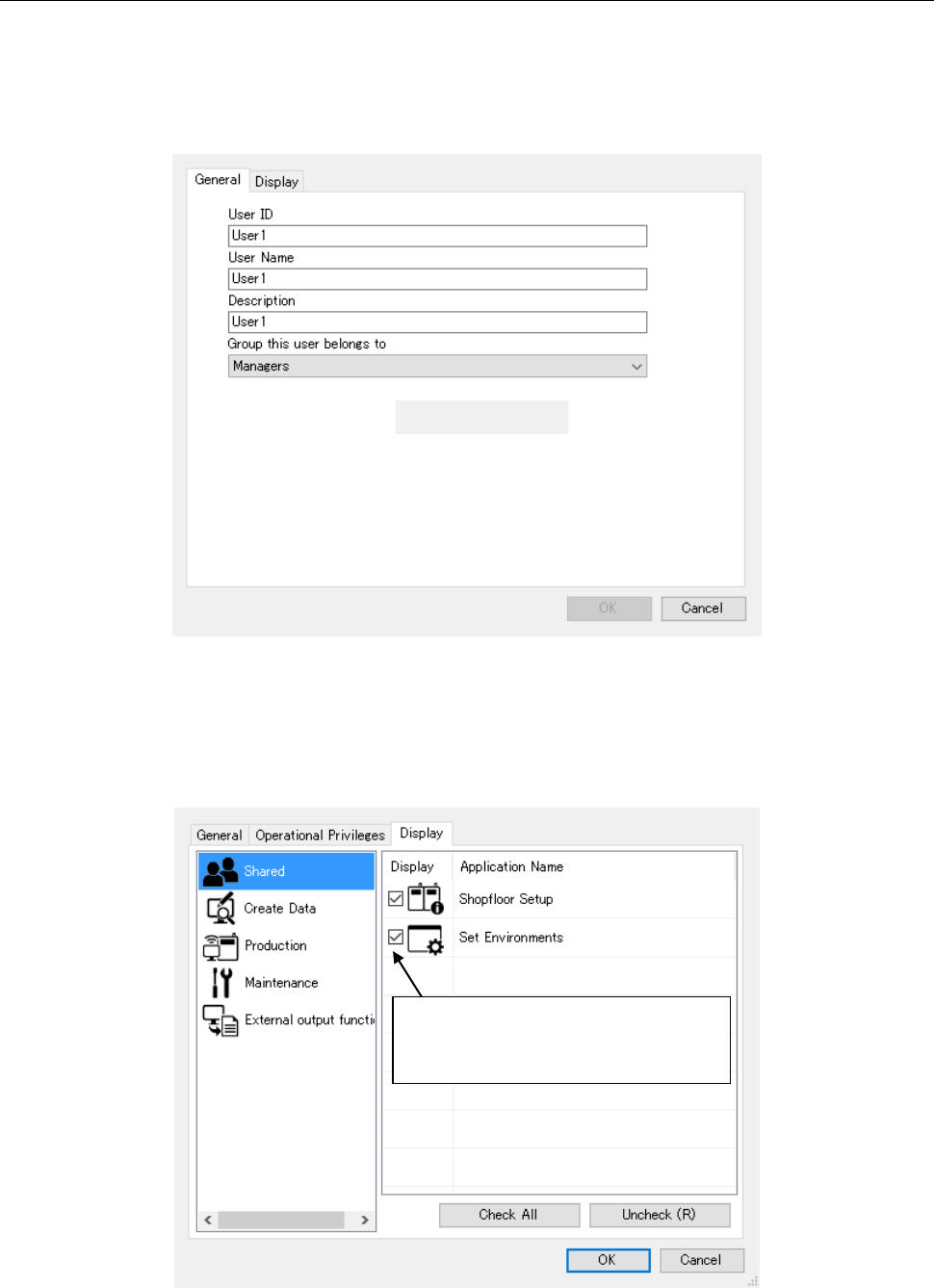
This function displays the detailed information on a user such as a user ID and a user name.
When you select the <Properties> button on the “User Management” screen, the system displays
the detailed information screen for the specified user. However, if you select “Administrator,” the
<Properties> button is displayed in gray and you cannot select it.
Figure 4.3-1 “Properties” dialog box – Detailed information screen
An application to be displayed in the launcher can be selected by display setting.
The applications to be set are displayed in the launcher for each of the group setting in which the
user belongs and the user setting.
Figure 4.3-2 “Properties” dialog box – Display setting screen
* The application is displayed by
checking off. It is not displayed by
removing a displayed check-off mark.
JaNets Instruction Manual 4. User Management
4-6
4.4 Changing the Password
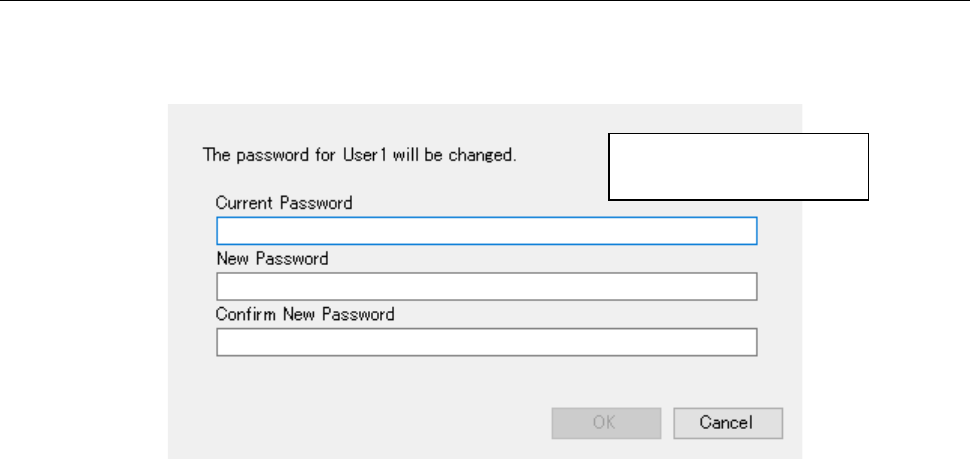
Select a user whose password you want to change on the “User Management” screen. When
you select the <Change Password> button on this screen, the following screen appears.
Figure 4.4-1 “Change Password” screen
You can specify up to 16
half-width characters.
JaNets Instruction Manual 4. User Management
4-7
4.5 Setting a Group
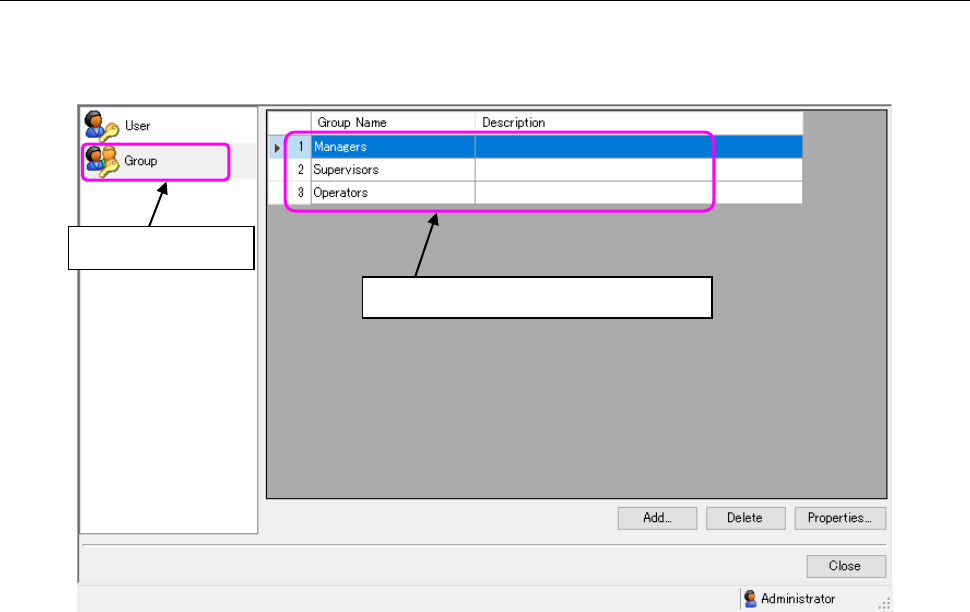
Select the “Group” icon on the “User Management” screen, and set the group to which a user
belongs. Set the operational privilege of each application on this Group setting screen.
Figure 4.5-1 Group setting screen
* If a user does not have the operational privilege, “Edit user/group,” you cannot operate the
screen above. You can display the list of groups only.
Select this icon.
The list of groups is displayed here.