JANETS_INM.pdf - 第430页
JaNets Instr ucti on Man ual 8. Job Optim izer 8- 45 Conditi ons of same parts The condit ions to be ha ndled as sam e part s betwee n programs are sho wn below . ● The part nam es ar e same ( upper c ase and lower c ase…
JaNets Instruction Manual 8. Job Optimizer
8-44
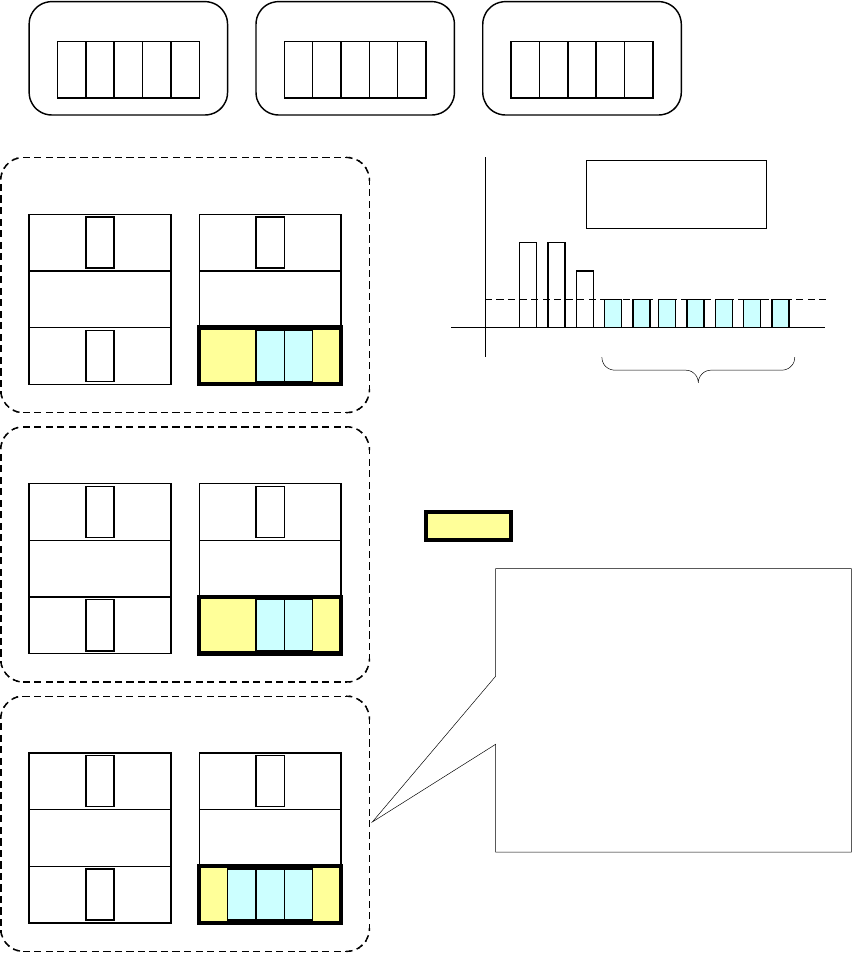
The example of the feeder assignments to a non-cluster area is shown below.
Program 1
A B
C
D E
Program 2
A
B
C
Program 3
A
B
If the front side of the Station 2 is specified as a non-cluster area
when "1" is set in the "No. of Production Programs"
0
1
2
3
4
5
A B C D E
Number of each
type of components
used with programs
F
G
H
I J
F G H I J
Since the usage frequency
is 1 or less, these
components are assigned
to a non-cluster area.
Station 1 Station 2
F GA
B
C
Program 2
Non-cluster area
Front
Front
Rear Rear
Station 1
Station 2
I
J
A
B C
Program 3
FrontFront
Rear Rear
H
Station 1
Station 2
D E
A
B
C
Program 1
Front
Front
Rear Rear
Components D, E, F, G, H, I and J are
assigned to the front side of the Station 2,
which is a non-cluster area, and any
feeders are not used with two or more
programs (that is, there are no common
feeders).
Common feeder assignment is considered
for other cluster areas with the Programs
1, 2 and 3 (a cluster is to be created).
Figure 8.3-77 Overview of a non-cluster area
JaNets Instruction Manual 8. Job Optimizer
8-45
Conditions of same parts
The conditions to be handled as same parts between programs are shown below.
● The part names are same (upper c
ase and lower case are not distinguished)
● The part types are same
● The packing style is same (the tape part includes the feeding pitch)
If any of these conditions are not fulfilled, the feeders are allocated at the different positions even
if the parts names are same.
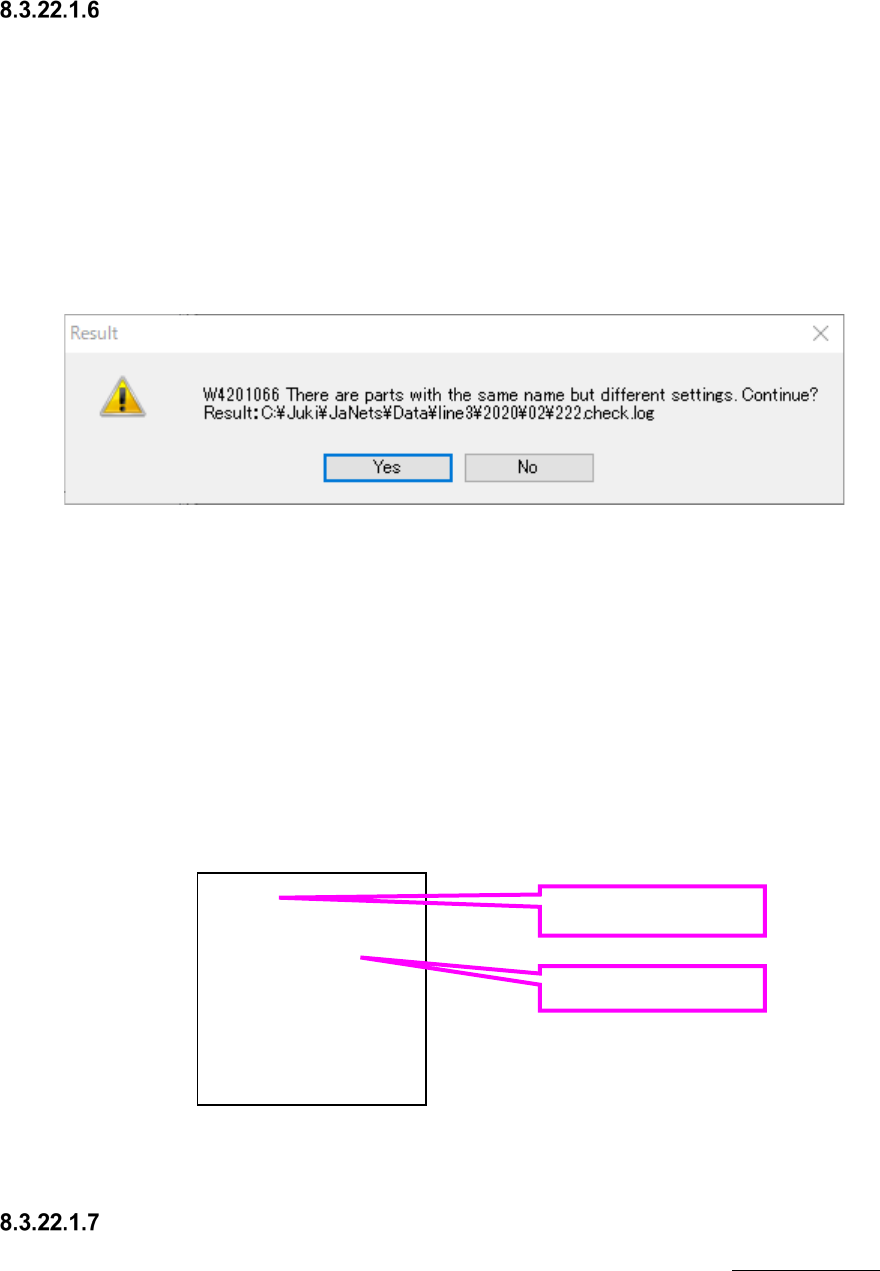
If there are parts whose packing styles are different although the part names are same between
programs at the optimization, a warning will be displayed.
Figure 8.3-78 Setting unmatched warning
If you want to continue the optimization without any change, click "Yes".
If you want to cancel the optimization, click "No".
The part name whose setting is unmatched and the production program that uses it are saved in
the log file shown in the warning.
If the log file already exists, it will be overwritten.
The log shown below means that the part name chip is used for program1.iss and program3.iss,
however, the settings are unmatched, and the part name chip2 is used for program2.iss and
program4.iss, however, the settings are unmatched.
Figure 8.3-79 Content of log file
Others
For other precautions that are not provided in optimization options, refer to “7-7-4-12 Others” of
Program editor.
chip
program1.iss
program3.iss
chip2
program2.iss
program4.iss
Part name
Production program
name
JaNets Instruction Manual 8. Job Optimizer
8-46
8.3.22.2 “Optimizing” dialog box
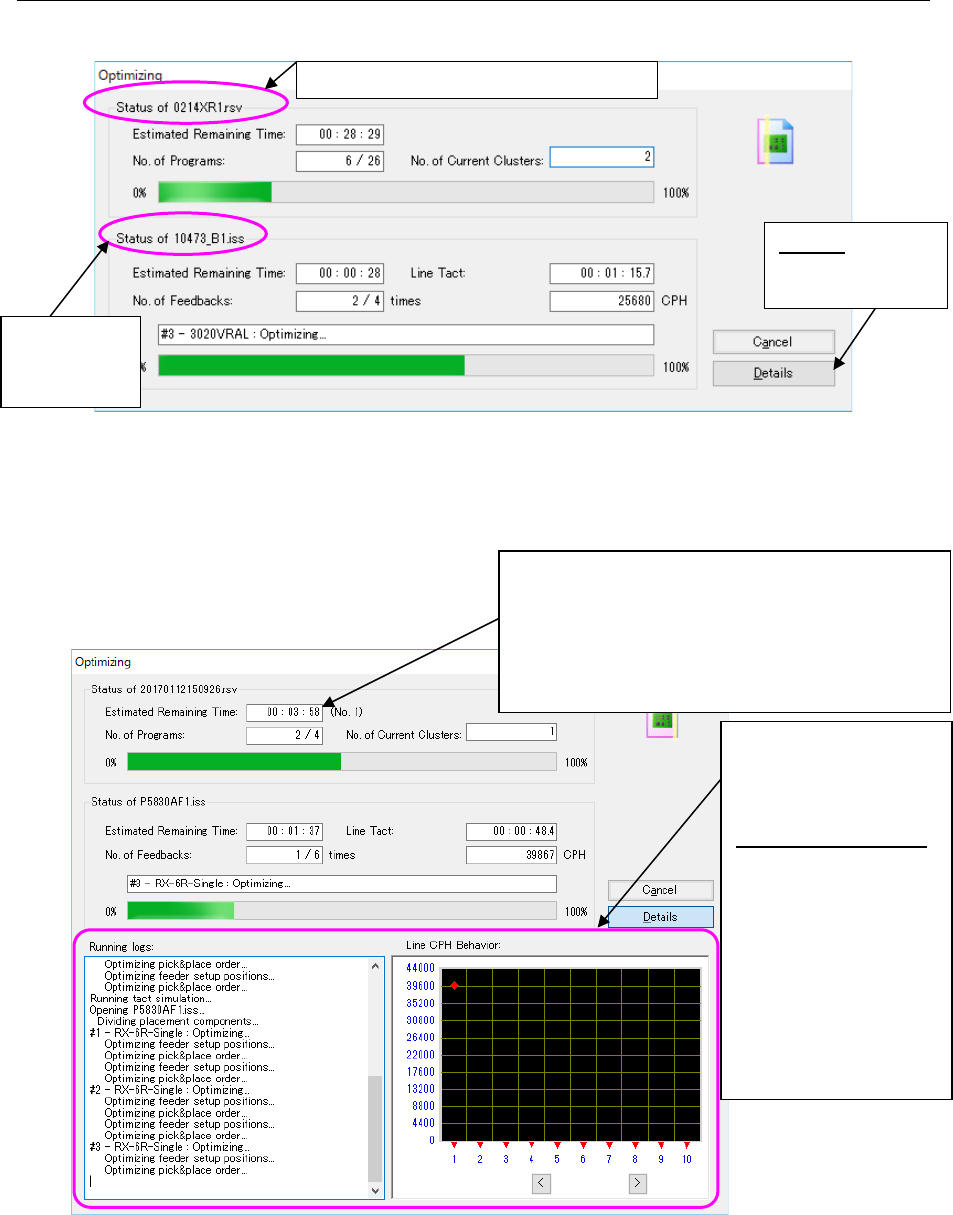
When the Optimization starts, the following “Optimizing” dialog box appears on the screen.
Figure 8.3-80 “Optimizing” dialog box (without the running logs)
displayed with the Job Optimizer
When you select the <Details> button in the above dialog box, both he “Running logs” and the
“Line CPH Behavior” are also displayed.
Figure 8.3-81 “Optimizing” dialog box (with running logs)
displayed with the Job Optimizer
When optimization is done normally, the “Optimizing” dialog box is closed, and control is returned
to the application invoking the Optimize application (Program Editor). When you invoke the
Optimize application from the Program Editor, the optimized production program is displayed on
the screen.
Production
program
(*.iss format)
Details: “detail
screen” appears
or not. Please
Reservation program (*.rsv format)
If optimization fails when the “Fix all feeder position
within a cluster” radio button is selected on the
“Multi-optimize Options” screen and you recreate the
production program, the number of times you have
recreated the program is indicated here.
If the conditions you have set are very hard to satisfy,
this number tends to be large.
Both the “Running logs”
and the “Line CPH
Behavior” are displayed
on the screen.
Line CPH Behavior :
When you enable the
Feed Back option
and then start the
Optimization
function, the
transition of the line
cycle time per
feed-back is
displayed on the
graph (unit: CPH).