JANETS_INM.pdf - 第105页
JaNets Instr ucti on Man ual 3. Launcher 3- 10 Server Name: Enter the host n ame or t he IP address of the Dat a Manag er to which t he system is to be connected or click t he <Brows e> button t o select t he conne…
JaNets Instruction Manual 3. Launcher
3-9
Setting the Environment
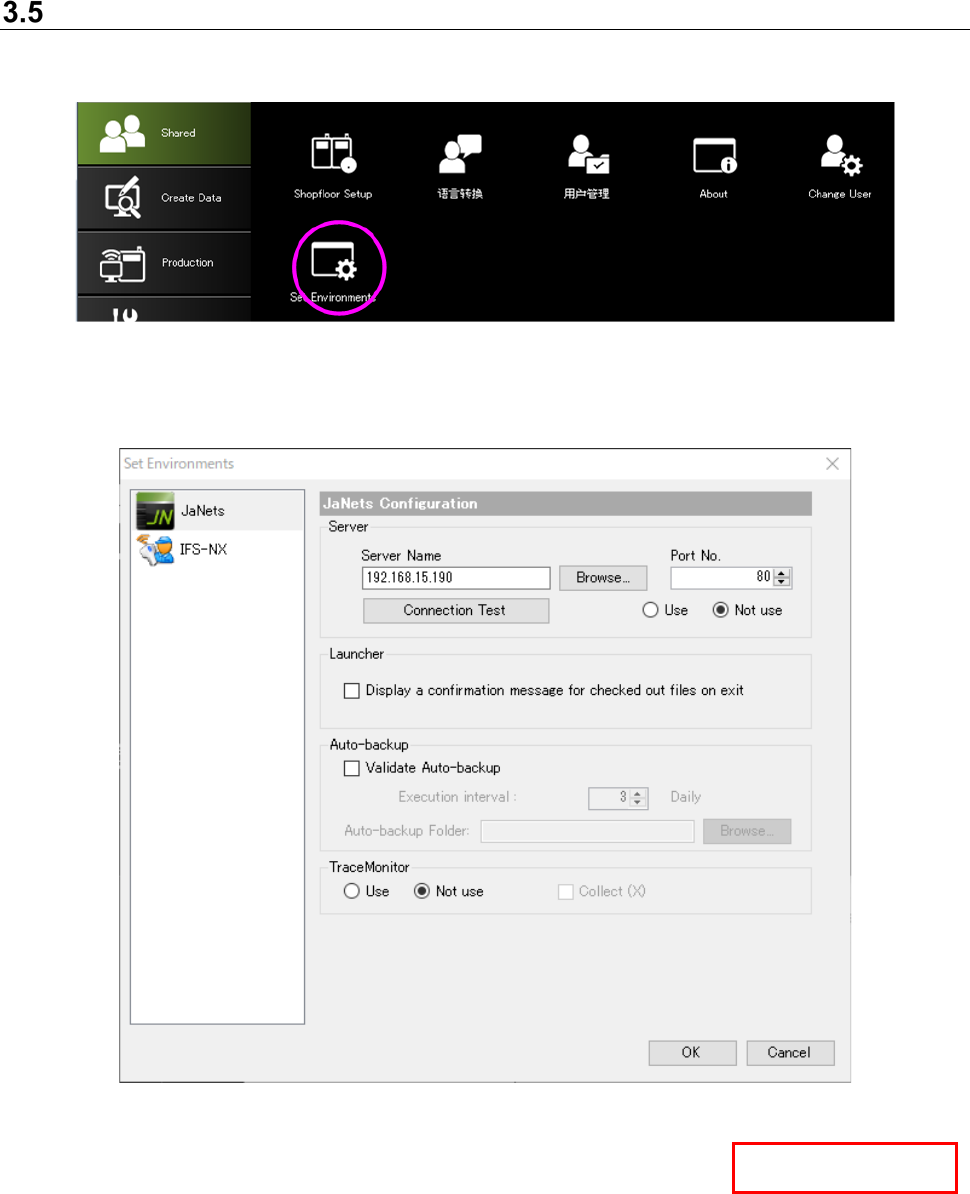
Select the [Shared] command, and then the [Set Environments] command on the “Shared” menu.
Figure 3.5-1 [Set Environments] menu command
Perform environment settings of JaNets by selecting JaNets.
Figure 3.5-2 “Set Environments” dialog box (for setting the IFS-NX)
Server
Use/Not use:
Specify whether to use the Data Manager or not with the corresponding button.
* To reflect your change of this setting, you have to restart the launcher.
* In case of changed the setting from “Not Use” to “Use”, it is overwritten to the data status of
Data Manager.
* In case of changed the setting from “Use” to “Not Use”, perform this action after “Monitor
Releasing” and “Check-in” because the line monitoring state and the check-out state by
JaNets operation at your own PC will remain reflected to Data Manager.
Data Manager
JaNets Instruction Manual 3. Launcher
3-10
Server Name:
Enter the host name or the IP address of the Data Manager to which the system is to be
connected or click the <Browse> button to select the connecting destination PC.
Port No.:
Enter the port number of the Data Manager to which the system is to be connected.
Normally use the default number (80).
Connection Test:
Runs a connection test for the Data Manager.
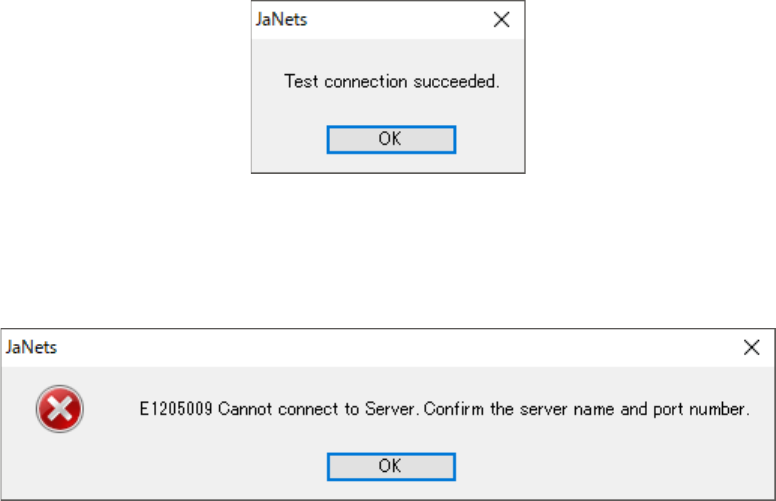
When the connection test finishes successfully, the following screen appears.
Figure 3.5-3 When the test connection succeeded
If the connection test fails, the following screen appears.
Check the server name, the port number and the network settings of the PC.
Figure 3.5-4 When the connection test failed
JaNets Instruction Manual 3. Launcher
3-11
Launcher
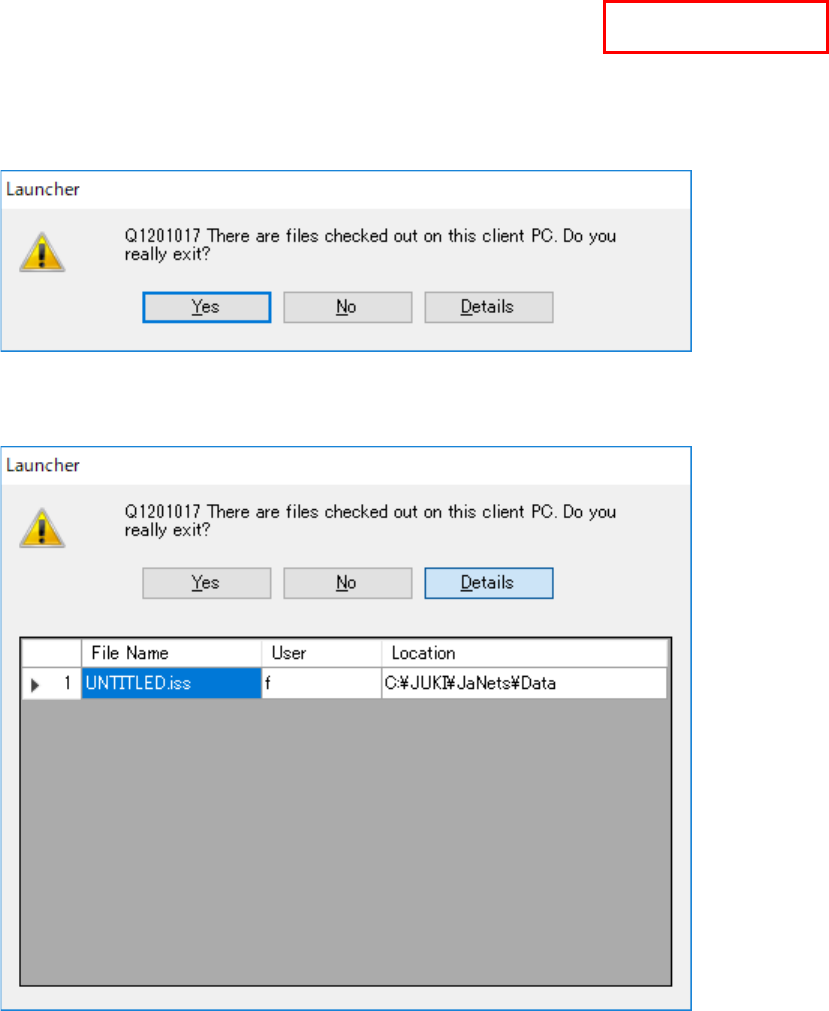
Display a confirmation message for checked out files on exit:
When this item is checked, the message appears if there is any file checked out with the
Program Explorer on termination.
The default setting is OFF.
Figure 3.5-5 If there is any file checked out with the Program Explorer
When you press the <Details> button, the list of files checked out appears on the screen.
Figure 3.5-6 List of files checked out
Automatic backup
Validate the automatic backup:
When this item is checked off, the MDB files of the component database, feeder database,
mark database set in the shop floor setup at the end of launcher are backed up. The default
setting is OFF.
Execution interval:
Set up the backup time to be executed in some days subsequent to the last backup. The
default setting is 3 days.
Automatic backup folder:
Specify the folder for backup. Specify a folder that permits writing.
Data Manager