JANETS_INM.pdf - 第632页
JaNets In structio n Manual 16 Component D ataba se 16 - 32 R epl ac emen t Component data that conform with the cond itions set can r eplace setti ngs with the replacem ent item. Selec t [Edit] – [Replace ment] . Settin…
JaNets Instruction Manual 16 Component Database
16-31
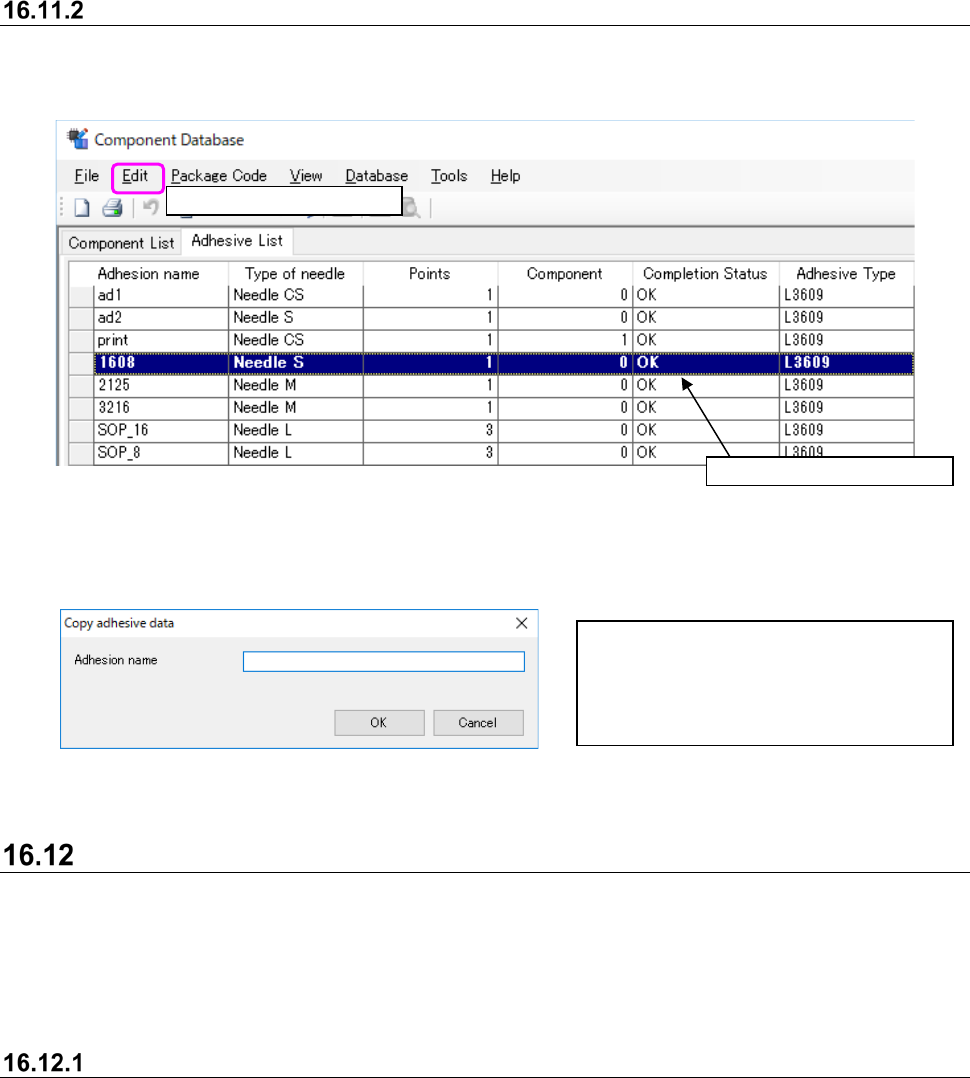
Copying adhesion data
This works from the top of the component databse overview screen. The rows copied are added to
the final row.
Figure 16.11-3 Adhesion data copying
Operate ①and ②to display the screen below. Adhesion names input into the screen below
become multiple copies of the adhesion pattern name.
Figure 16.11-4 Adhesion pattern name input screen
Find
Select the [Edit] - [Find] command and a dialog box appears to input search conditions. Input the
search conditions and press the [OK] button to move to a grid that matches the search parameters.
The same kind of operations can be used below to find component data - component name,
adhesion pattern - adhesion pattern name and others.
Find next
Select the [Edit] - [Find next] command to move to the string column of the next find object. The
search dialog [Direction] set the direction search moves in.
Select
②
[Edit] - [Copy].
Adhension Name: Holds up to 8
characters of alphanumeric code.
OK: Sets the input of the adhesion name
into the adhesion pattern data
overview screen.
Select
①
the lines to copy.
JaNets Instruction Manual 16 Component Database
16-32
Replacement
Component data that conform with the conditions set can replace settings with the replacement
item.
Select [Edit] – [Replacement].
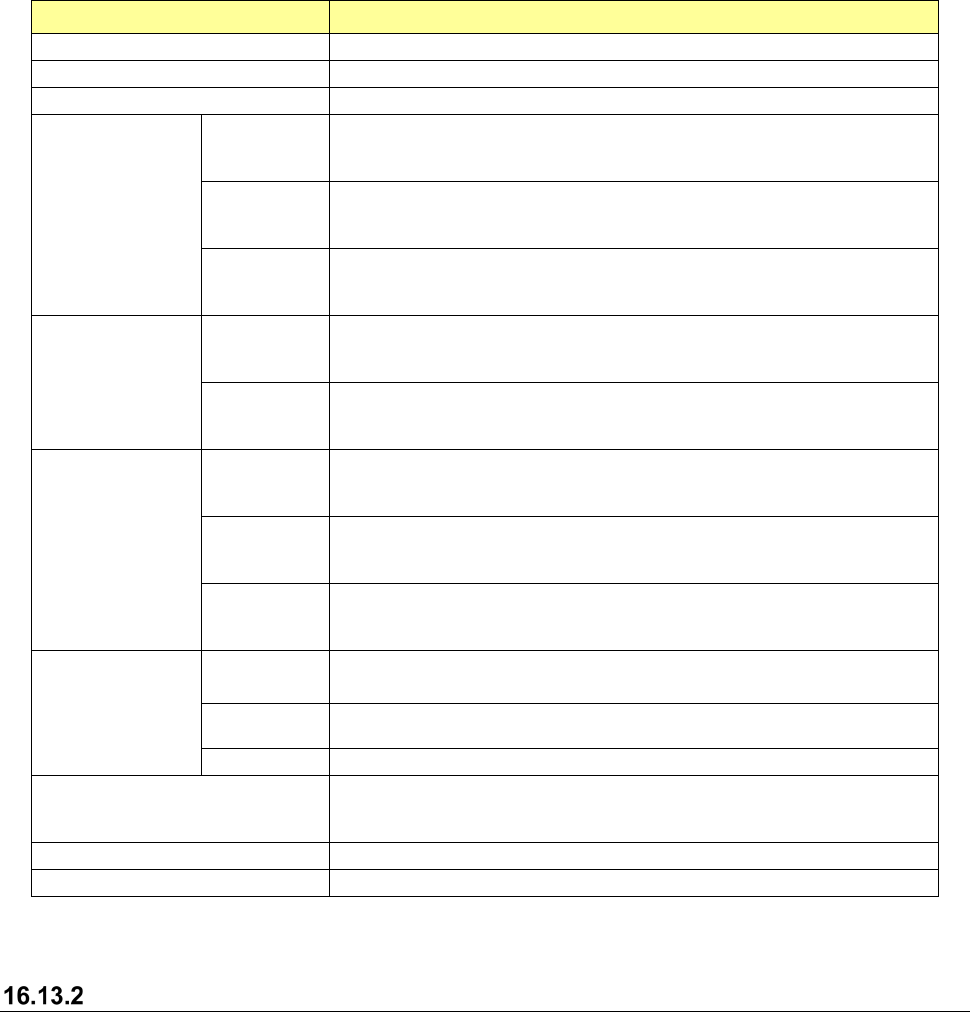
Setting the replacement conditions
The extraction conditions of a replacement component are set in the screen as follows:
Figure 16.13-1 Define Component Conditions screen
JaNets Instruction Manual 16 Component Database
16-33
Item Description
Component Type
Select a component type to be replaced from the combo box.
Packaging Style
Select a packaging style to be replaced from the combo box.
Centering Method
Select a centering method to be replaced from the combo box.
Outer Dimensions
Width
Enter the minimum and maximum values of the width of the component to
be replaced.
The input range is from 0.001 to 180.000.
Length
Enter the minimum and maximum values of the length of the component
to be replaced.
The input range is from 0.001 to 180.000.
Height
Enter the minimum and maximum values of the height of the component
to be replaced.
The input range is from 0.000 to 999.999.
Package Size
Width
Enter the minimum and maximum values of the width of the component to
be replaced.
The input range is from 0.010 to180.000.
Length
Enter the minimum and maximum values of the length of the component
to be replaced.
The input range is from 0.010 to180.000.
Moldline
Width
Enter the minimum and maximum values of the body width of a
component to be replaced.
The input range is from 0.01 to 180.00.
Length
Enter the minimum and maximum values of the body length of a
component to be replaced.
The input range is from 0.01 to 180.00.
Height
Enter the minimum and maximum values of the body height of a
component to be replaced.
The input range is from 0.01 to 55.00.
Tag
Narrow down
with a tag
When you check off this check box, a component having the tag selected
in the tag list is to be replaced.
Select
Allows you to select a tag associated with a component that is to be
replaced from the list window.
Clear
Clears the selected tag from the tag list.
<Replace> button
Starts the replacement process.
If you do not specify any replacement item, the <Replace> button is
disabled.
<Clear> button
Clears all the displayed items.
<Close> button
Closes this “Replacement” screen.
Replacement contents
Specify data to be replaced.
See Section 7.6.2.1 “Replacing component data” of Chapter 7 for details.