JANETS_INM.pdf - 第582页
J aN et s Inst ructi on Manual 14 . Snapshot Tool 14 -3 Men u T abl e 14.2 -1 Descri pti on of each menu item M enu it em Descripti on Fil e (F) Exi t S nap shot T ool (X) Qui ts the Snap shot T ool. Co lle ct (S )… F5 S…
JaNets Instruction Manual 14. Snapshot Tool
14-2
14.2 Operations
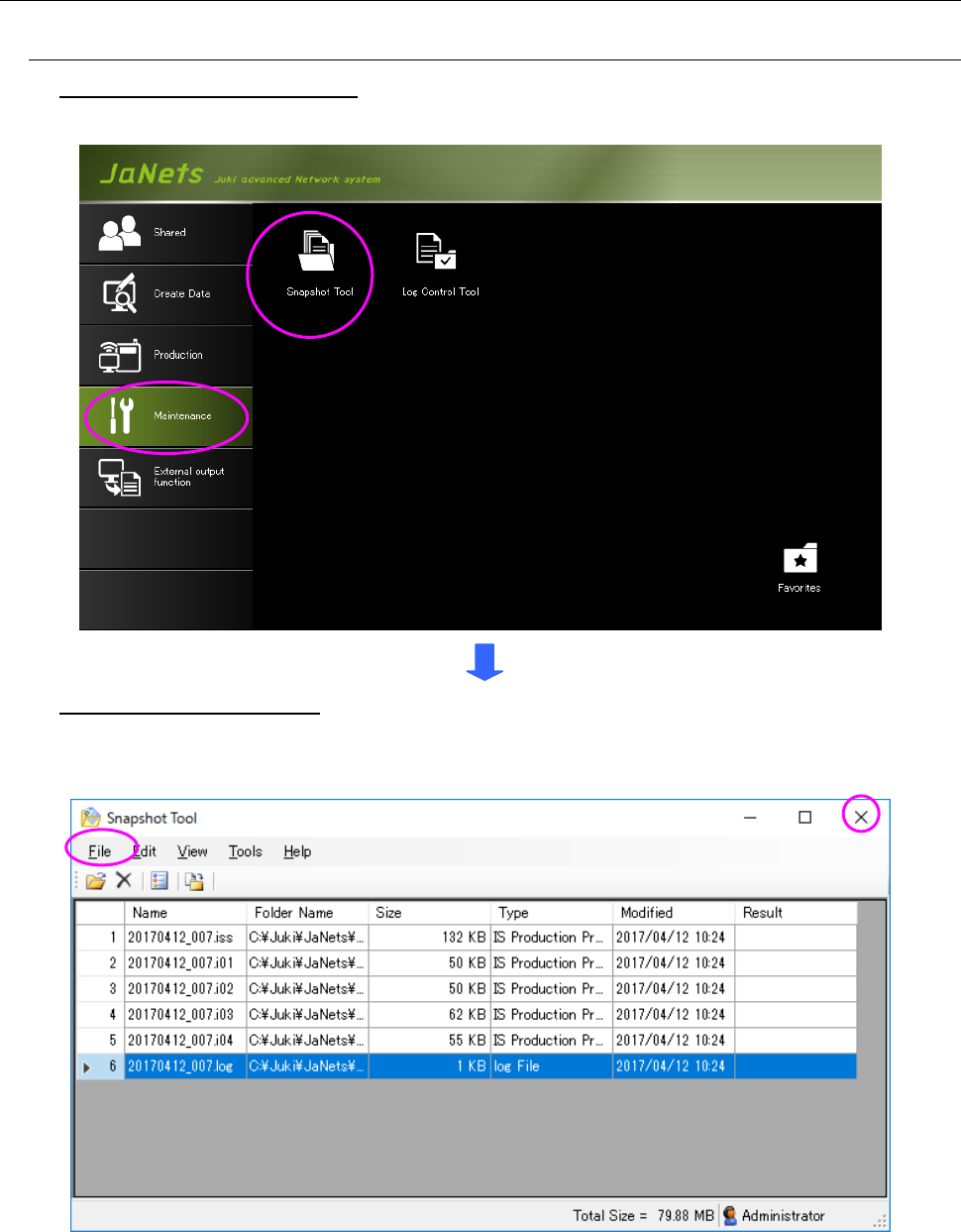
14.2.1 Starting up and quitting the Snapshot Tool
To start up the Snapshot Tool: Double-click the “Maintenance” tab of the JaNets Launcher, and
then the “Snapshot Tool” icon.
To quit the Snapshot Tool: Select the [File] command, and then the [Exit Snapshot Tool]
command on the “File” menu. Or, select the close button (×) at the upper right corner of the title
bar.
Figure 14.2-1 “Snapshot Tool” dialog box
JaNets Instruction Manual 14. Snapshot Tool
14-3
Menu
Table 14.2-1 Description of each menu item
Menu item
Description
File (F)
Exit Snapshot Tool (X)
Quits the Snapshot Tool.
Collect (S)… F5
Starts collecting data and starts up the “Save as” dialog box for
specifying the file name after compressing.
Edit (E)
Add (A)
Starts up the “Adding an output file” dialog box.
Delete (D) DELETE
Deletes a file from the selected list.
View (V)
Show all (O)
Displays the entire list of objects to be collected or part of it.
Program Explorer (E) *1
Displays/hides the Program Explorer.
(You can select the “Manage,” “Production Program” or
“Reservation File” tab.)
Tools (T) Set Environments
Starts up the “Set Environments” dialog box.
Help (H)
Table of Contents (C)
Displays the table of contents.
About (A)
Displays the version information.
*1 This menu item can be used when a Data Manager option is added to the system.
14.2.2 Screen configuration
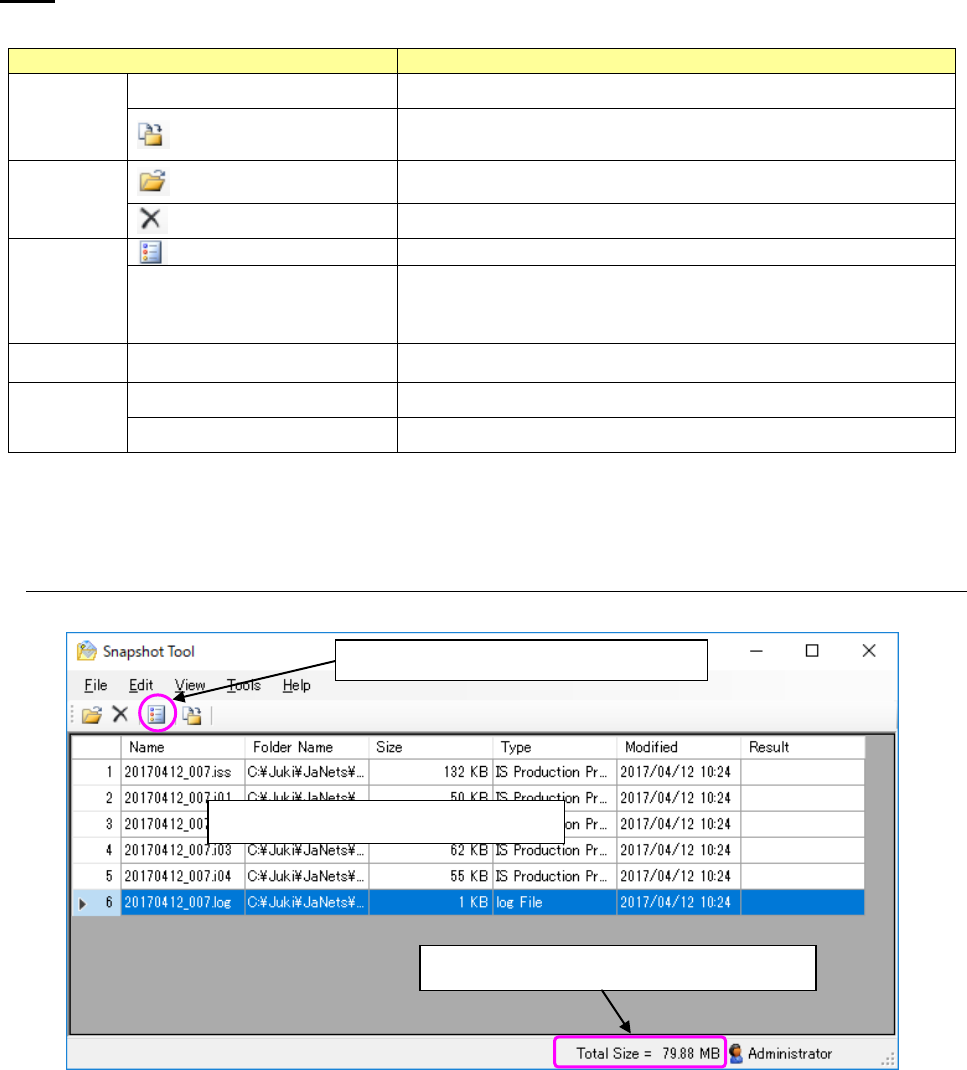
Figure 14.2-2 “Snapshot Tool” screen
Display area for objects to be collected
Displays the total size of files to be collected
“Show all”/ “Show part” switching icon
JaNets Instruction Manual 14. Snapshot Tool
14-4
14.2.2.1 Display area of the list of objects to be collected
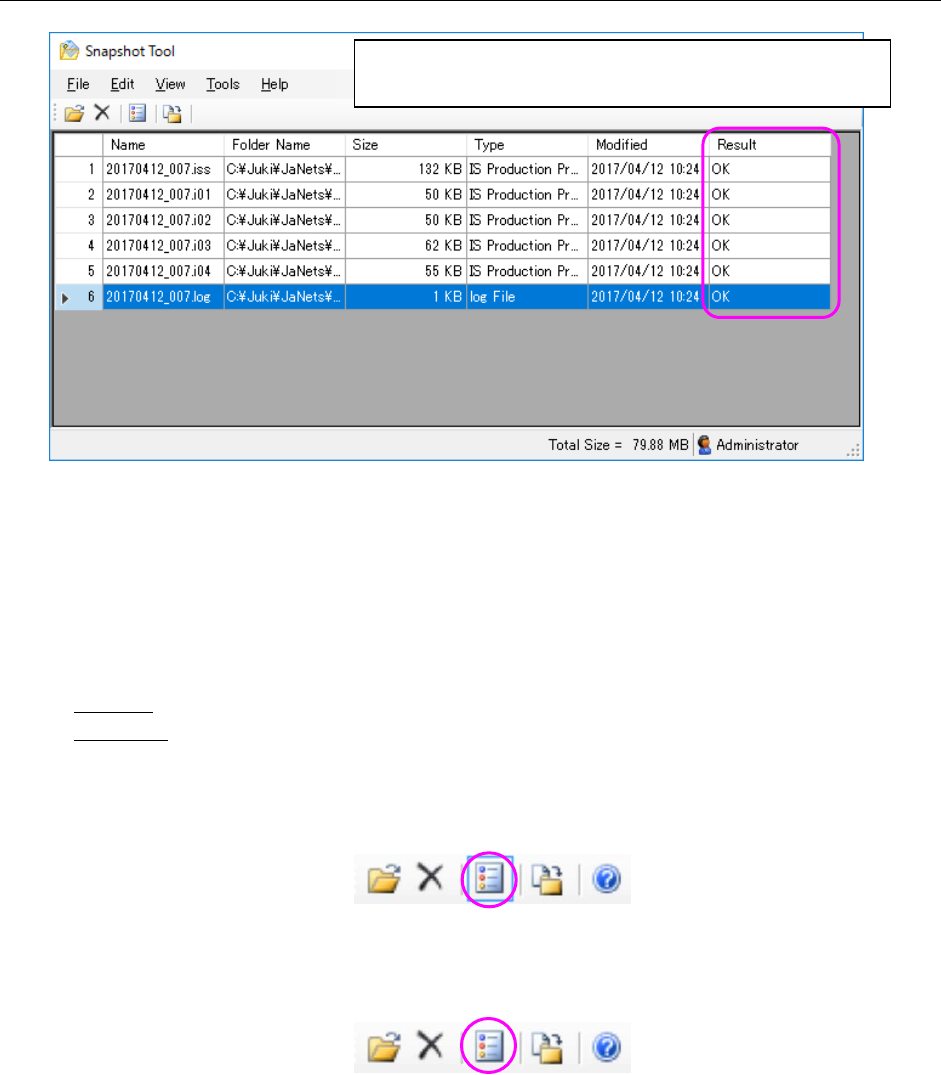
Figure 14.2-3 List of objects to be collected
W
hen the Snapshot Tool starts up, it automatically searches files to be collected and displays
them.
<
Supplementary description of the function for displaying the entire list of objects to be collected
or part of it>
Show all : Displays all collected files on the list.
Show part : Displays files other than JaNets environment files (whose
extension is specified to be collected on the “Set Environments” dialog box).
W
hen you select the [Show all] command, the icon is displayed as shown below.
Figure 14.2-4 Icon displayed when you select the [Show all] command
W
hen you select the [Show part] command, the icon is displayed as shown below.
Figure 14.2-5 Icon displayed when you select the [Show part] command
* A
s items displayed for each file on the screen, the system displays a file name (“Name”),
a
folder name under which the file is stored (“Folder Name”), the file size (“Size”), the file type
(“T
ype”), the update date and time (“Modified”) and the result (“Result”). The “Result” indicates
whether a file is collected successfully or not (OK/NG) when it is collected and compressed.
This field becomes blank for a file that is not collected yet or one added to the list after t
he
sy
stem collects files.
After collecting data, the system indicates whether it succeeds
in collecting data or not by displaying “OK” or “NG” here.