JANETS_INM.pdf - 第678页
JaNets In structio n Manual 17 Program Expl orer 17 - 26 Figure 17.3 - 27 When the check b oxes ar e synchro nized (on the left)/When the c heck boxes are not sync hronized (on the right) * Y ou ma y not be ab le to chan…
JaNets Instruction Manual 17 Program Explorer
17-25
17.3.7.6 Obtaining a file from the database
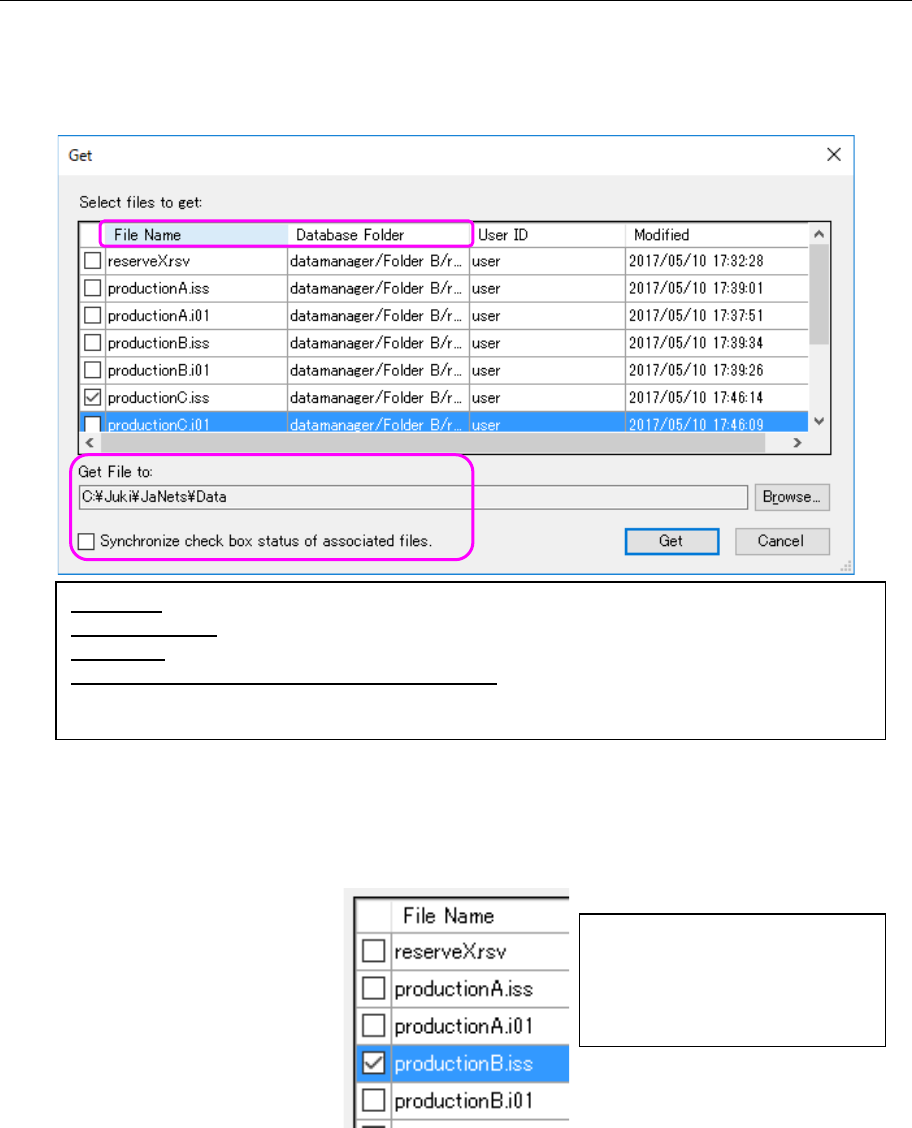
When you select the [Get] command on the pop-up menu displayed when you click the right
button of a mouse on the “Manage” screen, the “Get” confirmation dialog box appears on the
screen. The list of the selected files is displayed on this dialog box. Files associated with the
selected file are automatically added to this list also.
Figure 17.3-25 “Get” confirmation dialog box
① When you put a check mark in the check box located before the “File Name,” the
corresponding file is to be obtained.
Figure 17.3-26 Selecting a file to be obtained
File Name: Displays the name of a file to be obtained.
Database Folder: Displays the destination folder in which the corresponding file is stored.
Get File to: Displays where the corresponding file is to be obtained from.
Synchronize check box status of associated files:
Switches whether to synchronize the operation indicated with the check box
located before each associated file name with one another or not.
Unlike the checkout operation, the
system does not automatically
checks to see if there is any
associated file or not. You can
obtain the specified file only.
JaNets Instruction Manual 17 Program Explorer
17-26
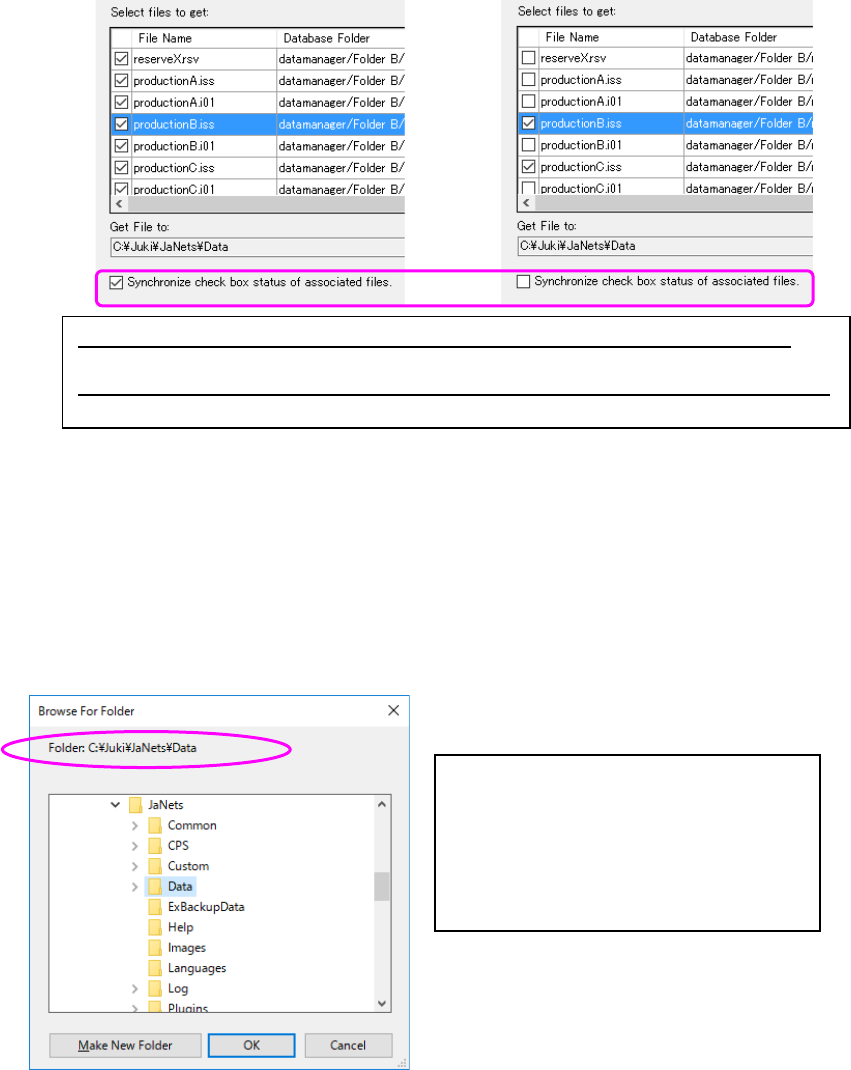
Figure 17.3-27 When the check boxes are synchronized
(on the left)/When the check boxes are not synchronized (on the right)
* You may not be able to change the checking condition of the check box depending on the
application. (Refer to the specifications of the application.)
② Although the destination to which the obtained file is to be output is set by default, you can
change it at this point. Select the <Browse> button on the “Get” confirmation dialog box to
display the “Browse For Folder” dialog box.
Figure 17.3-28 “Browse For Folder” dialog box
③ When you select the <Get> button on the “Get” confirmation dialog box, the specified file is
copied in the local (client) folder, and the system closes the dialog box.
* Even though you change the folder from which a file is obtained, basically the folder is
changed for the current file only. Note that a folder for a reservation file and its registered
production programs, or one for divided files and their source production program is changed
together.
- If another file with the same name already exists in the local folder, overwrite it or cancel
the operation.
- If another file with the same name already exists in the local folder and is being checked
out, change the location for the “Get File to” or cancel the operation.
When the check box “Synchronize check box status of associated files” is checked:
all files associated with the file “productionB.iss” are to be obtained.
When the check box “Synchronize check box status of associated files” is not checked:
only the file “productionB.iss” is to be obtained.
Select a folder to which the obtained file is
to be output on the “Browse For Folder”
dialog box.
* The destination to which the obtained file
is to be output initially is:
JaNets installation folder\Data
JaNets Instruction Manual 17 Program Explorer
17-27
17.3.7.7 Displaying the properties of a production program/reservation file
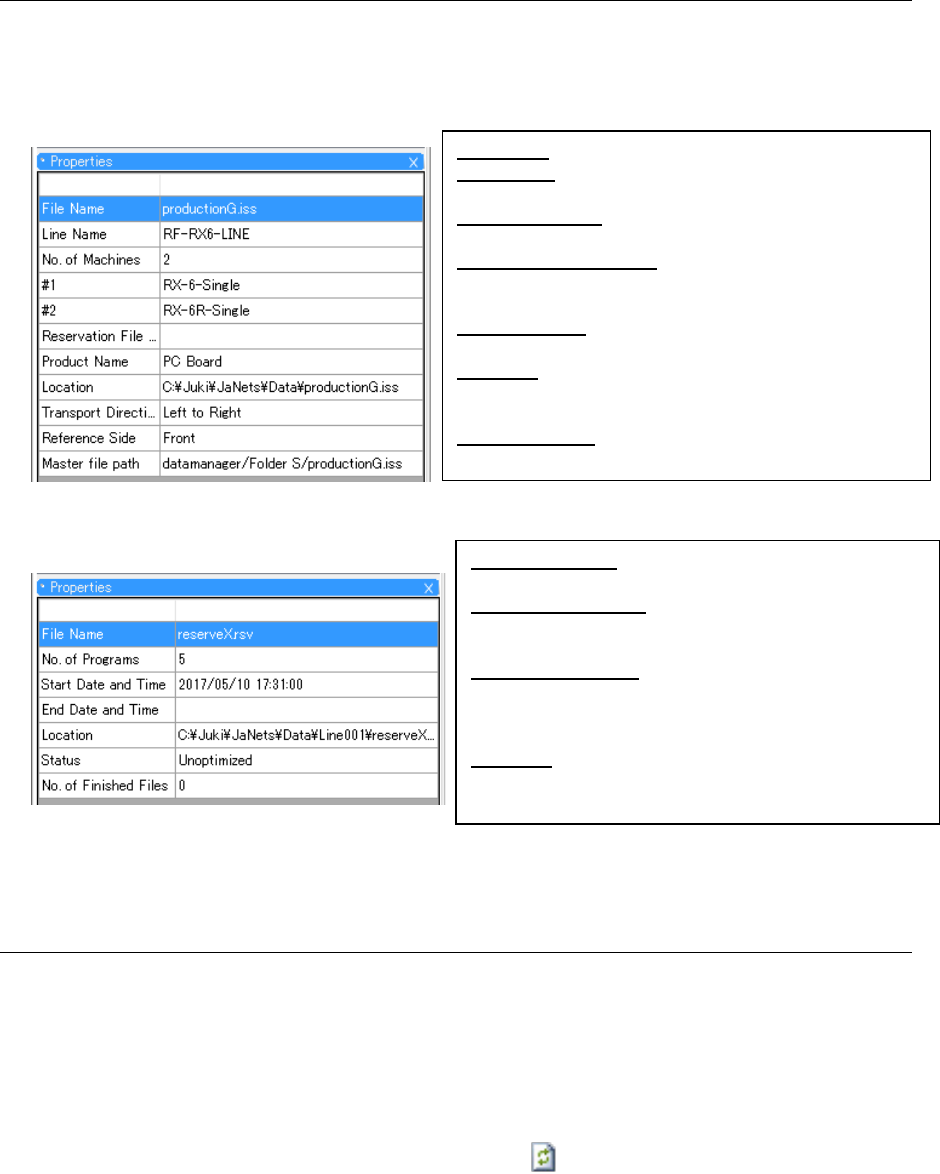
When you select the “properties” icon from the toolbar of the “Manage,” “Production Program” or
“Reservation File” screen, the “Properties” screen appears. When you select a tree item on this
screen, its information is displayed on the “Properties” screen.The following items are displayed
as the properties of a production program/a reservation file.
Figure 17.3-29 Properties of a production file
Figure 17.3-30 “Properties” screen for a reservation file
17.3.7.8 Updating the database
The Program Explorer does not display any information located in the database on a real-time
basis. When you perform the following operations, the system accesses the database and
displays the updated information.
1. When the Program Explorer starts up, the system accesses the database (When you starts up
the Program Explorer newly, it displays the newer information than that displayed with the
Program Explorer, which is started up already).
2. Select the “Update to the latest information” icon ( ) on the toolbar for the Program Explorer.
3. Click the right button of a mouse on the Program Explorer screen to display the pop-up menu.
Select the [Refresh] command on this pop-up menu.
4. When you check in/out a file or drag and drop it to access the database and operate it, the
system updates the displayed information.
* When the Program Explorer is started up with two or more applications, only the Program
Explorer, which is started up with the application that updated the displayed information,
updates the displayed information.
File Name: Displays the name of a production program.
Line Name: Displays the name of a production line for
which a production program is set.
No. of Machines: Displays the number of machines
configuring the production line.
Reservation File Name: Displays the name of an added
reservation file (If there is not such a reservation
file, this cell becomes blank).
Product Name: Displays the name of a product
registered in the current version.
Location: Displays the local destination in which a file
is stored (set as the destination for checking out
the file).
Master file path: Displays the registration destination
of a master file to which a production program file
No. of Programs: Displays the number of production
programs added to the reservation file.
Start Date and Time: Displays the earliest production
date and time among those of the added
production programs.
End Data and Time: Displays the last production date
and time among those of the added production
programs (If there is not such date and time, this
cell becomes blank).
Location: Displays the destination folder in the same
manner as the “Location” on the “Properties”
screen for a production program.