JANETS_INM.pdf - 第235页
JaNets In structio n Manual 7. Program Editor 7- 28 “ Packaging Style ” wi ndow “Packaging Style (Tape)” window W hen you sel ect “ Ta p e ” in the “ Component Packag ing ” fiel d on the “ B asic Set tings ” scre en, and…
JaNets Instruction Manual 7. Program Editor
7-27
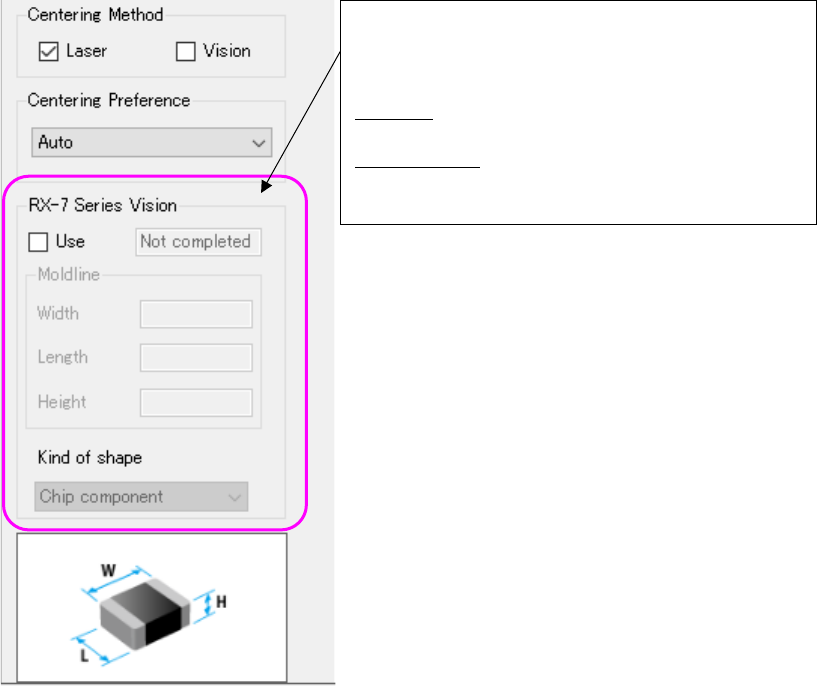
To create data for an RX-7 series, put a checkmark in the “Use” check box of the “RX-7 series Vi-
sion” column. You can set data related to an RX-7 series.
Figure 7.4-36 “Basic Settings” screen (RX-7 Series Vision)
To assign an RX-7 series you have to set data for an
RX-7 series. Therefore, put a checkmark in the “Use”
check box. The default setting for putting a checkmark
in this check box can be made on the “Set environ-
ments” screen.
Mold line: Set the dimensions of the molded section
as the size of the component body.
Kind of shape: Select the component shape type
defined with an RX-7 series
JaNets Instruction Manual 7. Program Editor
7-28
“Packaging Style” window
“Packaging Style (Tape)” window
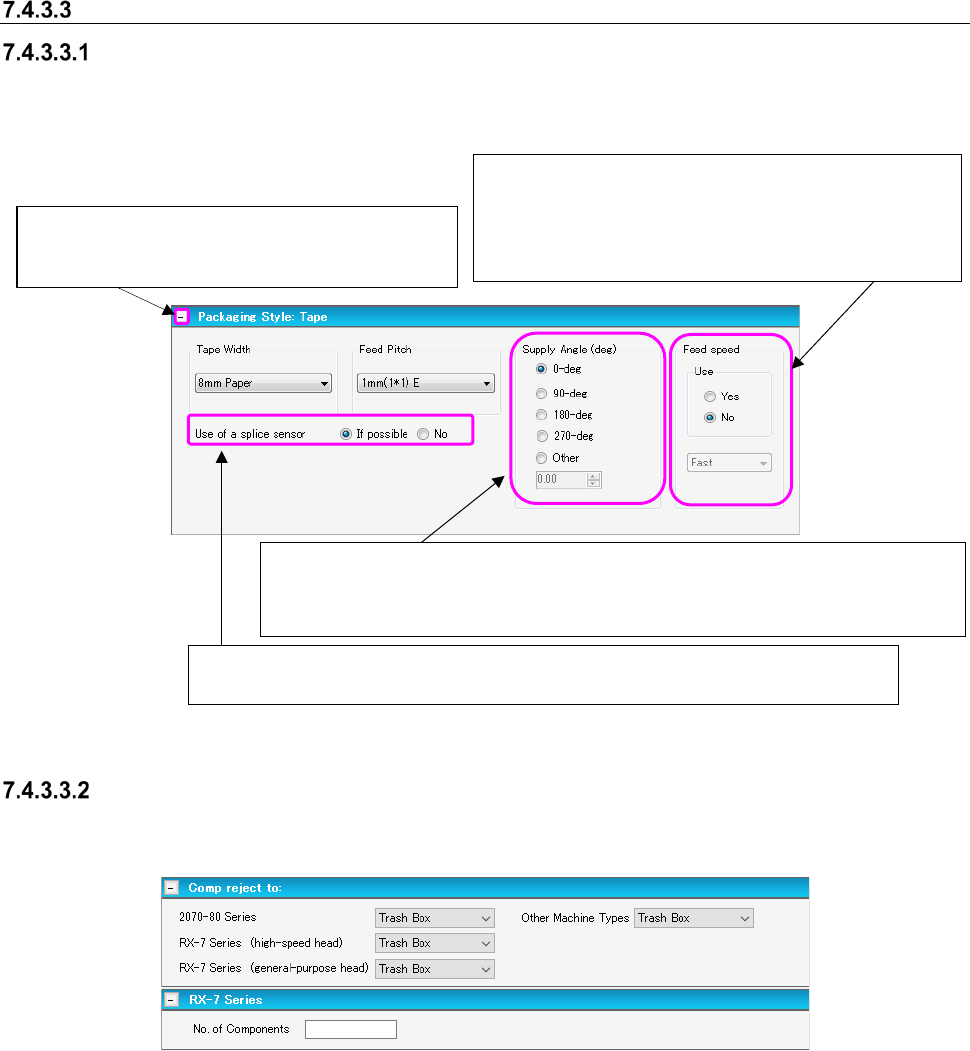
When you select “Ta pe” in the “Component Packaging” field on the “Basic Settings” screen, and
select the “Component Data” from the tree view and then “Packaging Style,” the following screen
appears.
Figure 7.4-37 “Packaging Style (Tape)” window
“Comp reject to” column for the “Packaging Style (common to “Tape”/
“Stick”/“Tray”/“Bulk”)” window
This column allows you to enter where to discard a component.
Figure 7.4-38 “Comp reject to” column for the “Packaging Style (Tape)” window
* During the actual production, the component is discarded or returned to the location that you
specify here. However, this setting is not used for the optimization and the simulation of the
production. This means that this setting is not required when using a general feeder that is cre-
ated with the "Feeder Model Wizard".
* The menu items “RX-7 series (high-speed head),” “RX-7 series (general-purpose head)” and the
“RX-7 series Vision” panel are displayed only when you put a checkmark in the “Use” check box
of the “RX-7 series Vision” column.
The default value set in the “No. of Components” is decided depending on the setting on the “Set
environments” screen.
When you click this button, the input screen closes.
* This button functions in the same way on the
screens described below too.
Enter the angle for encapsulating a component against the component supply direc-
tion. Select the corresponding radio button, or enter the angle in the edit field.
* The operation for entering the “Supply Angle” is the same on the screens de-
scribed below too.
Feed speed: For each component, specifies the feeding
speed of the electric feeder. When “No” is selected, the
system uses the default speed defined for each electric
feeder.
* This function is available only when an electrical
feeder is used.
Set it whether you use a splice sensor for the detection of the splice joint.
* When use RF, please validate setting.
JaNets Instruction Manual 7. Program Editor
7-29
“Packaging Style (Stick)” window
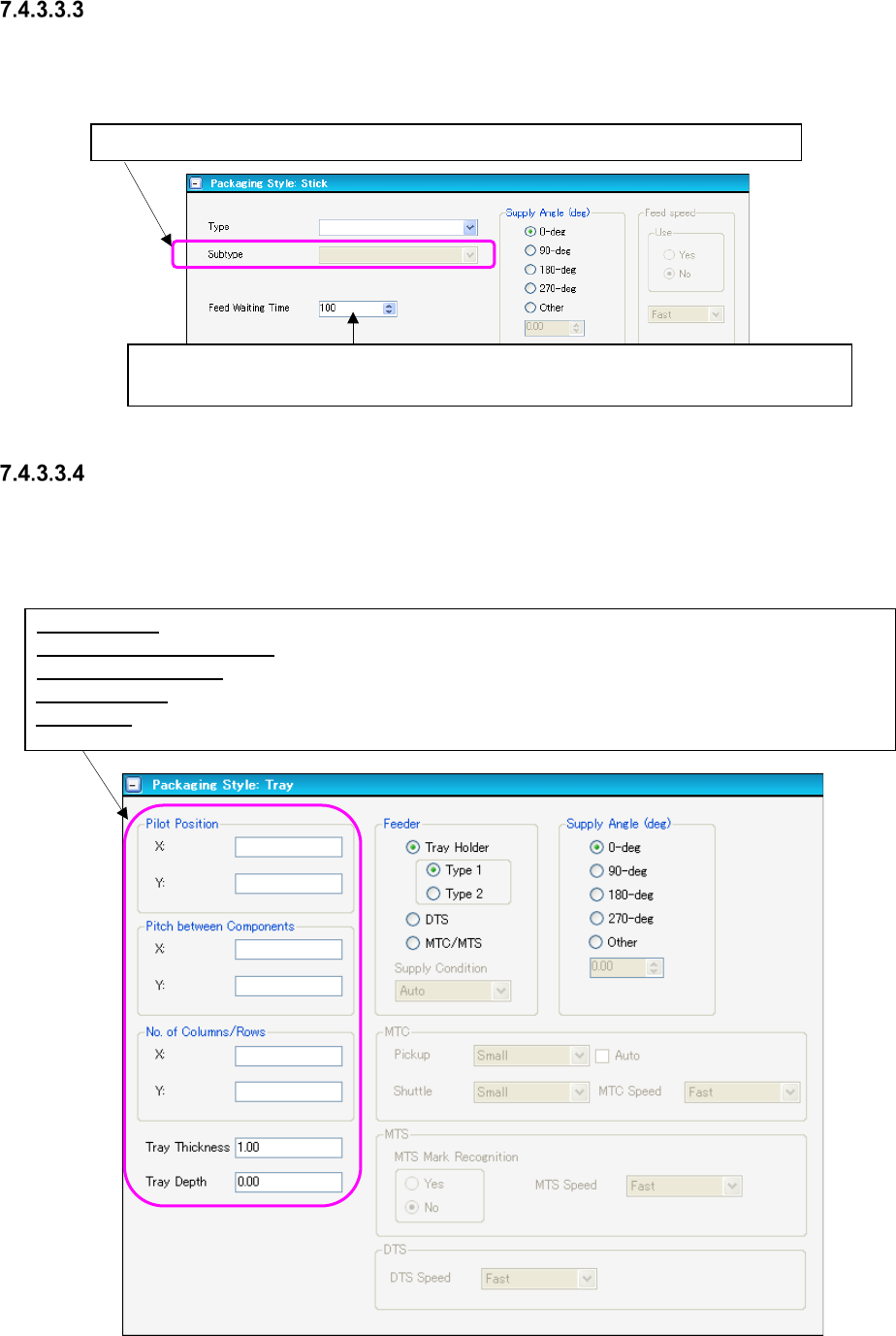
When you select “Stick” in the “Component Packaging” field on the “Basic Settings” screen, and
select “Component Data” from the tree view and then “Packaging Style,” the following window
appears on the screen.
Figure 7.4-39 “Packaging Style (Stick)” window
“Packaging Style (Tray)” window
When you select “Tray” in the “Component Packaging” field on the “Basic Settings” screen, and
select “Component Data” from the tree view and then “Packaging Style,” the following window
appears on the screen.
Figure 7.4-40 “Packaging Style (Tray)” window
Specify the ratio of the waiting time from when a component is picked up until when the
next component becomes able to be picked up to the default waiting time of each type.
Pilot Position: Enter the distance from the outer of a tray to the center position (X, Y) of a component.
Pitch Between Components: Enter the pitch between two consecutive components (X, Y).
No. of Columns/Rows: Enter the number of columns and that of rows in the X or Y direction respectively.
Tray Thickness: Enter a value in mm (based on the height of a component).
Tray Depth: Enter the depth of the tray..
This field becomes able to be selected when you select the “Type” field above.