JANETS_INM.pdf - 第220页
JaNets In structio n Manual 7. Program Editor 7- 13 Item Contents Mark ty pe Height Set the mar k heigh t. The input r ange i s0.00 to9 99.9 9. The thickne ss / in side diameter S et the thi ckness of the lin e of the m …
JaNets Instruction Manual 7. Program Editor
7-12
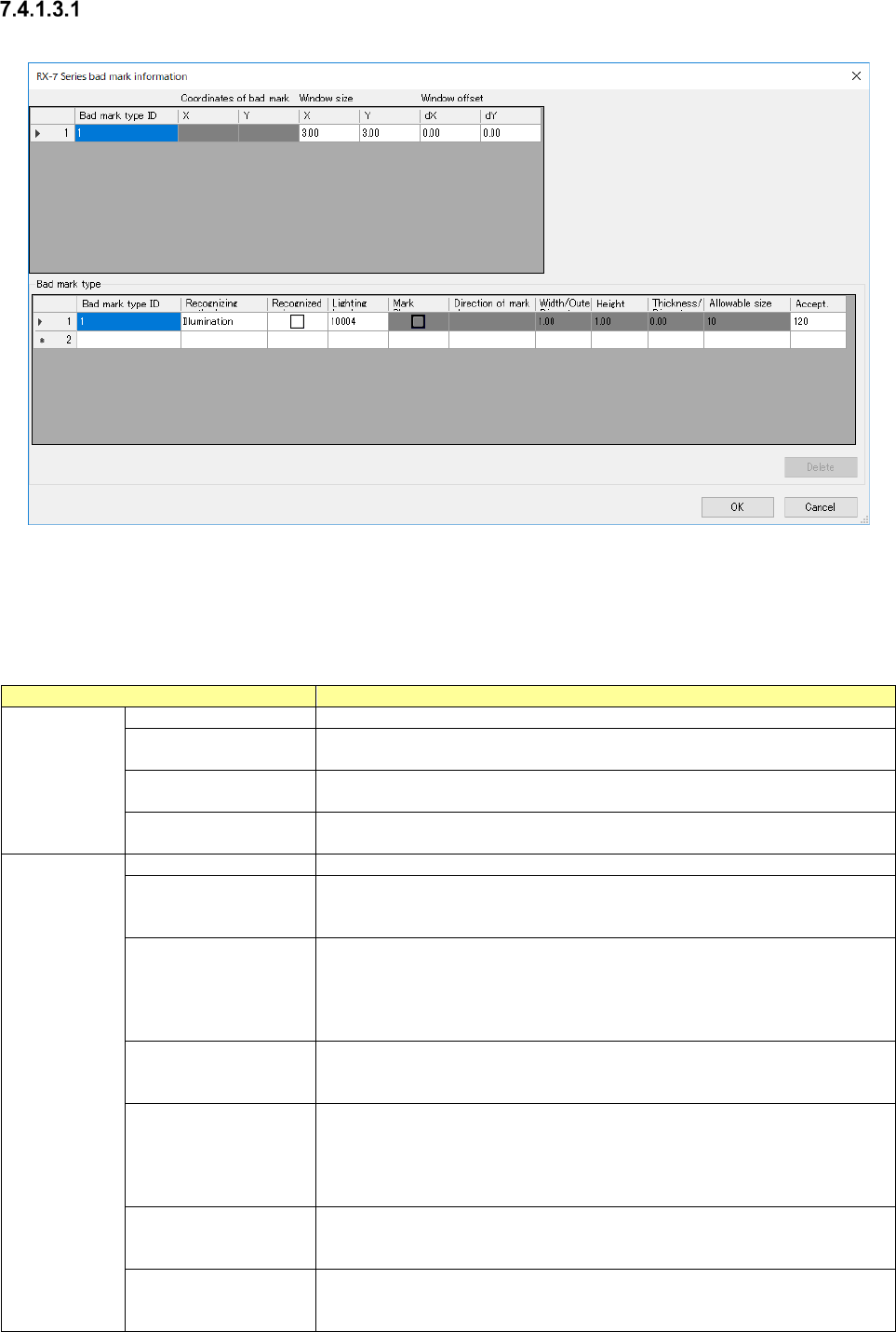
RX-7 Series bad mark information
When you press the <RX-7 series Option> button, the screen like one shown below appears.
Figure 7.4-8 RX-7 series bad mark information screen
The “RX-7 Series bad mark information” screen allows you to make settings for recognizing a bad
mark with the RX-7 series.
Table 7.4-5 Setting items to RX-7 series bad mark information
Item
Contents
Mark
Bad mark type ID
Set an ID of a bad mark type to be used.
Coordinates of bad
mark XY
Set coordinates for recognizing a bad mark.
The input range is-999.99 to999.99.
Window size
XY
Set the size of the window for recognizing a bad mark.
The input range is0.00 to999.99.
window offset
dX,dY
Set offset viewed from the coordinates for recognizing a bad mark.
The input range is-999.99 to999.99.
Mark type
Bad mark type ID
ID of a mark type
Recognizing
Set the bad mark recognition method, either “Illumination” or “Shape.”
When you click this item with the right button, the pop-up menu is displayed
on the screen.
Recognized color
Set the brightness of a bad mark.
You can set this item only when you select “Illumination” for the menu item
“Recognizing.”
□: The mark is bright as compared with the board.
■
: The mark is dark as compared with the board.
Lighting level
Set the light turning on method.
When you double-click this item, the screen for setting the light turning on
method opens.
Mark Shape
Set the mark shape.
You can set this item only when you select “Shape” for the menu item
“Recognizing.”
When you double-click this item, the screen for setting the light turning on
method opens.
Direction of mark
shape
Set the mark direction.
You can set the mark direction only when you select a shape having orien-
tations for the menu item “Mark Shape.”
Width/outer diameter
Set the mark width.
The When mark shape of ○、● ◎ Enter the outer diameter of the circle.
The input range is0.00 to999.99.
JaNets Instruction Manual 7. Program Editor
7-13
Item
Contents
Mark type
Height
Set the mark height.
The input range is0.00 to999.99.
The thickness / inside
diameter
Set the thickness of the line of the mark. .
You can set this item only when you select a linear shape.
When the mark shape is ◎, enter the diameter of the inner circle.
The input range is0.00 to999.99.
Allowable size range
Set the allowable range of the size of a found mark for the mark size speci-
fied above.
You can set this item only when you select “Shape” for the menu item
“Recognizing.”
The input range is1 to99.
Accept.
Set a threshold value of the image gradation to be used for black-and-white
judgment when you select “Illumination” for the menu item “Recognizing.”
The input range is0 to255.
Set the mark shape coincident index to be applied when a mark is recog-
nized if you select “Illumination” for the menu item “Recognizing.”
The input range is0 to1000.
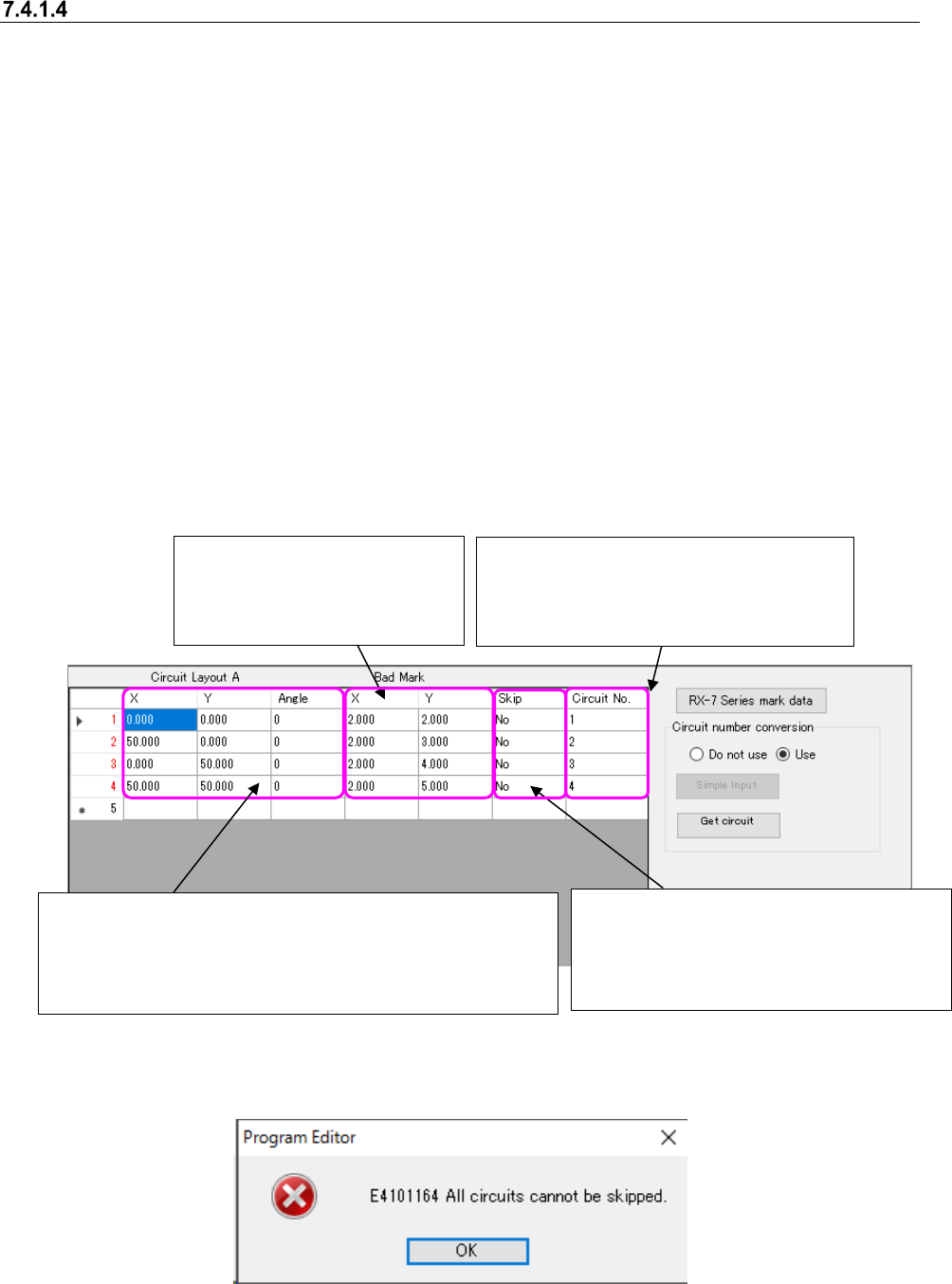
When you double-click the “Lighting level” cell, the screen like one shown below appears, and you
can set the light level.
Figure 7.4-9 RX-7 Series Lighting level screen
Table 7.4-6 Setting items to RX-7 Series Lighting level
Item
Contents
Lighting time
Choose from at all times or Flash.
Lighting value
Set brightness of each lighting at the time of the mark recognition.
In the case of at all times, you will input range from 0 to 4.
In the case of Flash, it will input range is 0 to 8.
Default value is 4.
JaNets Instruction Manual 7. Program Editor
7-14
Editing PWB Data (Circuit Layout)
When you select the “PWB Data” from the tree view, and then the “Circuit Layout A” or “Circuit
Layout B,” the following screen appears. When you do not select “Non-matrix circuit” as the “PWB
Configuration,” or when you select “Do not use” as the “Reference Circuit,” you cannot enter any
value on this screen.
When PWB configuration is the "single circuit," the "circuit layout A" cannot be selected.
In the following cases, the "circuit layout A" can be selected.
- When PWB configuration is the "non-matrix circuit,"
- When PWB configuration is the "matrix circuit" or the "non-matrix circuit" and the “Extension”
is selected for specifying bad mark coordinates through the "PWB data" - "Basic setting” and
the bad mark is set to the “Use” through the “PWB data” – “Circuit setting A.”
- When PWB configuration is the "matrix circuit" or the "non-matrix circuit" and the “Extension”
is selected for specifying bad mark coordinates through the "PWB data" - "Basic setting” and
the placement circuit specification is set to the “Use” through the “PWB data” – “Circuit setting
A.”
- When the production line includes an RV-1 and/or an RV-2, the “Matrix Circuit” or “Non-matrix
Circuit” is selected as the “PWB Configuration,” “Use” is selected for the “L/R Use Same Bad
Mark Recognition” on the “PWB Data” – “Basic Settings,” and “Use” is selected as the “Bad
Mark”
Figure 7.4-10 Example of the “PWB Data (Circuit Layout)” screen
A circuit skip can be set to the "Yes" in no circuits.
Figure 7.4-11 Skip Setting Error
It is an item that can be entered only when PWB configu-
ration is the "non-matrix circuit." If it is the "matrix circuit,"
the item cannot be changed. The circuit coordinates are
calculated with the circuit information set in the "PWB da-
ta"- “Circuit setting A” to display.
Enter extended bad mark co-
ordinates. It is an item which is
not displayed when not using
an extended bad mark.
Specify the circuit to place components.
Right-click to select the "Yes" or "No." A
default is "No" (circuit to place). It is an
item that is not displayed when the
placement circuit specification is not used
Enter the circuit number used with the
upload machine. This menu item is dis-
played only when “Use” is selected for the
menu item “Circuit number conversion.”