JANETS_INM.pdf - 第51页
JaNets Instr ucti on Man ual 2. Install ation 2- 23 [Note] * When you spec ify the drive in which the Win dows sy stem is stored ( that is, the drive C), and the n click the <O K> button, t he follo wing warn ing a…
JaNets Instruction Manual 2. Installation
2-22
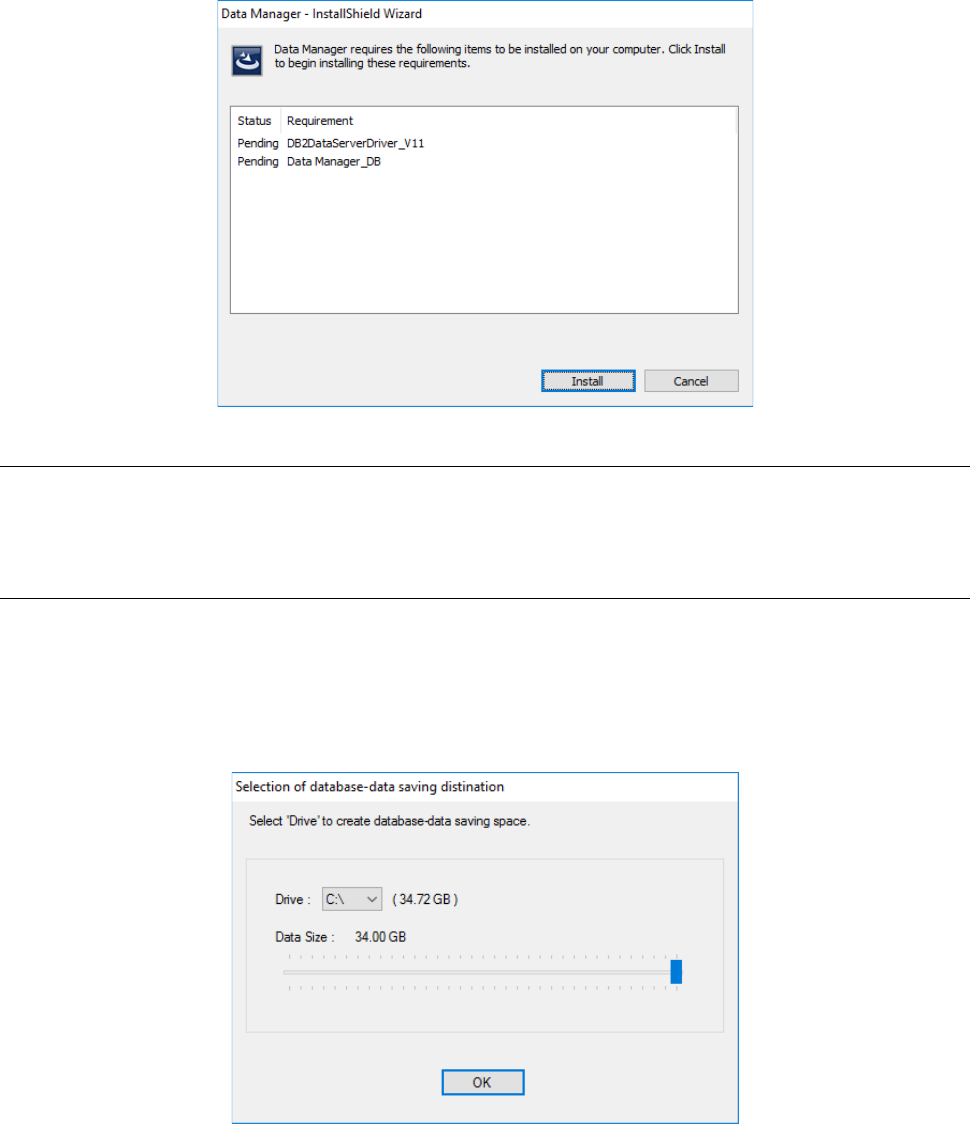
When the installer starts up, the following screen appears. Click the <Install> button.
2.2.3.7 Installing the DB2 Data Server Driver
The driver of the database service to be used with the Data Manger is automatically installed on
the PC.
2.2.3.8 Installing the DataManager DB
Create the database for the Data Manger.
2.2.3.8.1 Specifying the database creation drive and the database size
The “Selection of database-data saving destination” screen allowing you to specify the destination
drive in which the database will be stored and the data size appears during installation.
Specify the “Drive” and “Data Size” fields, and then click the <OK> button. The database starts
being created.
JaNets Instruction Manual 2. Installation
2-23
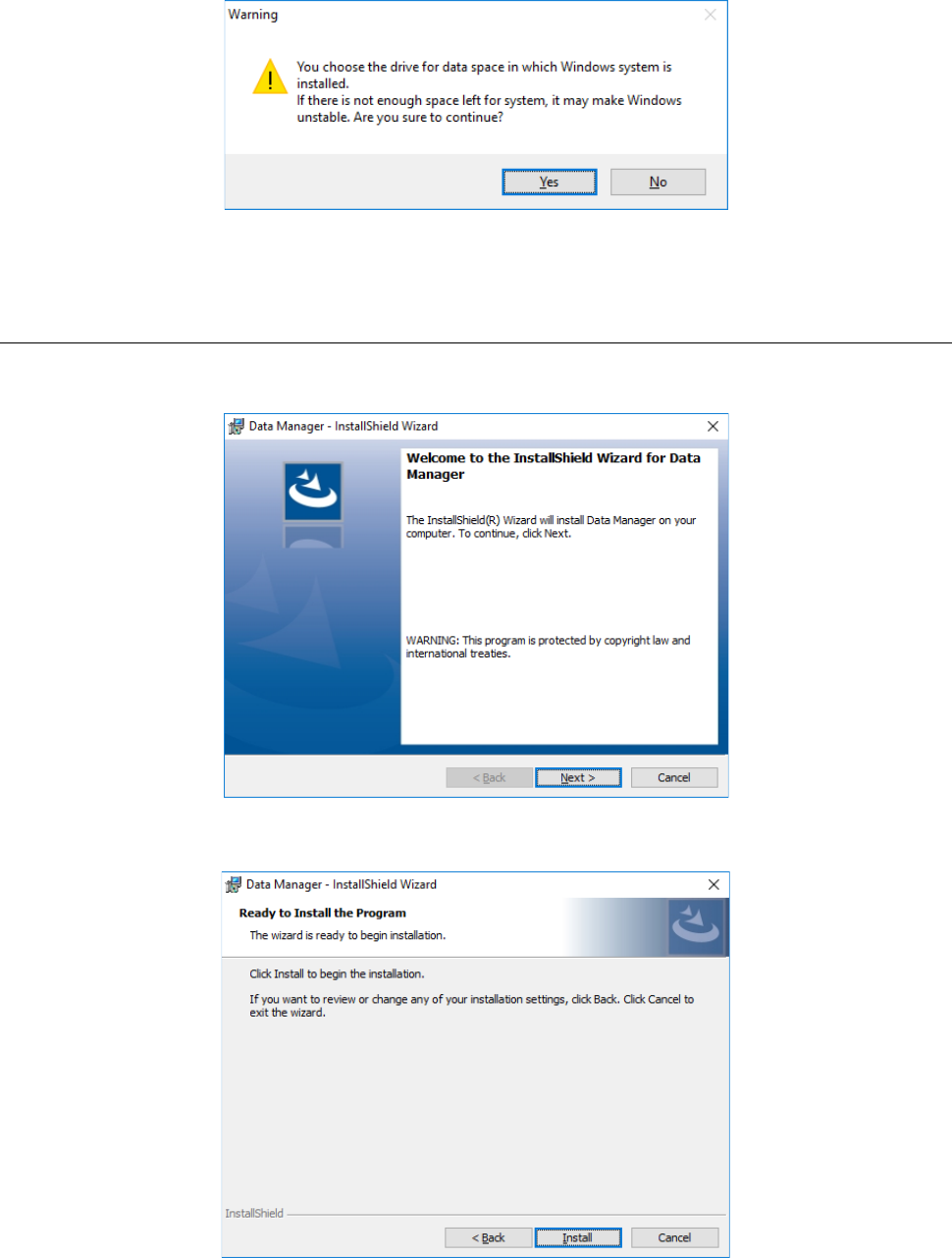
[Note]
* When you specify the drive in which the Windows system is stored (that is, the drive C), and then
click the <OK> button, the following warning appears on the screen. When you click the <Yes>
button for this warning, the database starts being created. When you click the <No> button, the
screen is switched back to the “Selection of database-data saving destination” screen.
* The data size is calculated by subtracting 20 % of the entire drive capacity from the unoccupied
space of the drive, and then displayed on the screen.
2.2.3.9 Installing the Data Manager
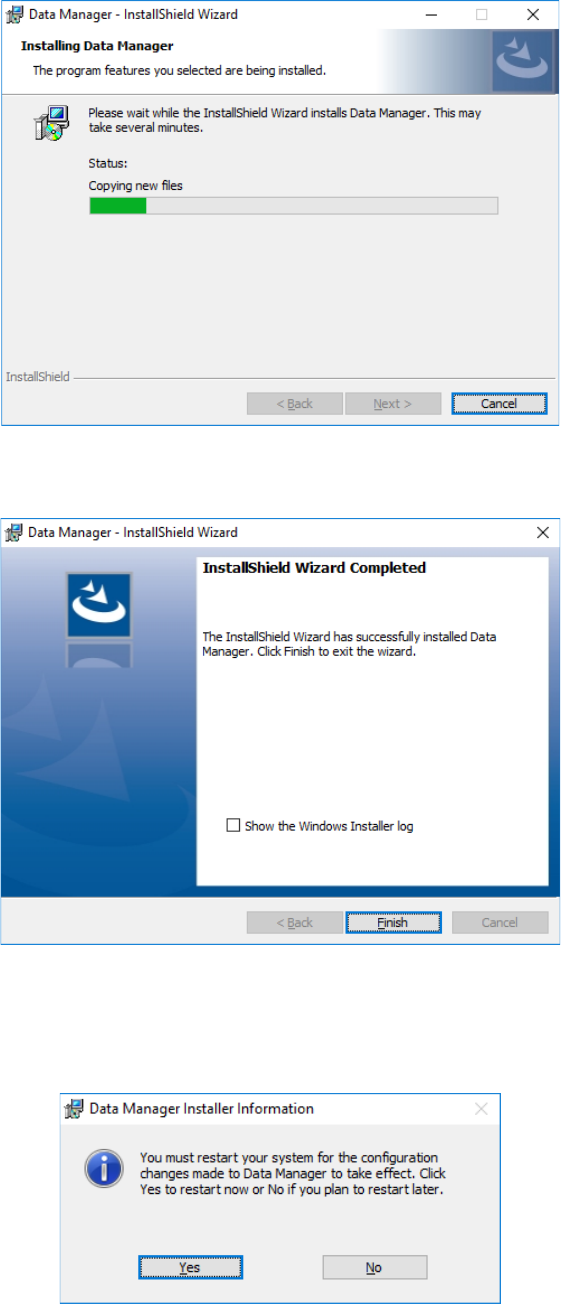
After the Data Manger DB is installed on the PC, the installer for the Data Manager automatically
starts up. Click the <Next> button.
When the screen for waiting for installation, “Ready to Install the Program,” appears, click the
<Install> button to start installation.
JaNets Instruction Manual 2. Installation
2-24
When installation finishes, the following screen appears. Click the <Finish> button to finish the
installation procedure.
2.2.3.9.1 After the Data Manager finishes being installed on the PC
When installation of the Data Manager finishes, the screen for requesting restart of the PC
appears. Click the <Yes> button to restart the PC.
You have finished installing the Data Manager newly at this point.