JANETS_INM.pdf - 第312页
JaNets In structio n Manual 7. Program Editor 7- 105 7.4.5 Editing di spen ser test da ta Dispenser test dat a When ther e is an adhesiv e di spens er in the se lecte d product ion line, edit data t hat depends on each a…
JaNets Instruction Manual 7. Program Editor
7-104
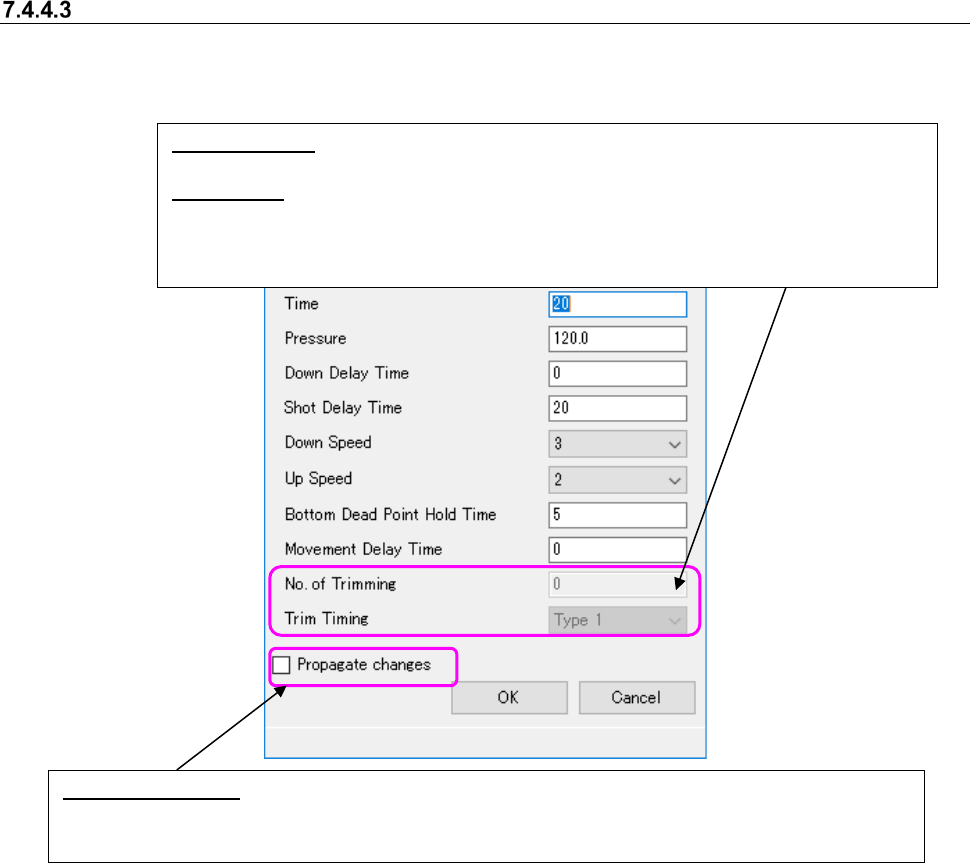
Adhesive dispensing conditions
When you select the <Settings> button on the Adhesive data form screen, you can set the condi-
tions of each adhesive dispensing point.
Figure 7.4-143 “Dispensing Condition” screen
*1 When you change the setting of the menu item “Pressure”
The values set in the “Pressure” menu item on the “Dispensing Condition” screen of all ad-
hesive dispensing points of adhesive data whose needle types are the same are changed.
This change is made regardless of the setting of the “Propagate changes” check box.
*2 About the default settings made with the Shopfloor Setup application
When an adhesive dispenser is assigned to the selected production line, and a needle set
with the Shopfloor Setup application is selected, the settings made with the Shopfloor Setup
application are enabled. If any adhesive dispenser is not assigned to a production line, the
initial settings with the Program Editor are not changed.
No. of Trimming: Displays the number of times the Z-axis moves up and down to trim dis-
pensed adhesive (0 to 9).
Trim Timing: Displays the timing for trimming the dispensed adhesive (“Type 1” to “Type 3”).
* The menu items above are displayed only. The values set with the Shopfloor Setup appli-
cations are displayed here.
* The default values of other menu items are set with the Shopfloor Setup application.
Propagate changes: Specify whether to change the adhesive dispensing conditions of all adhesive dis-
pensing points of adhesive data whose needle types and adhesive dispensing time are the same as
one another at a time. When you select the <OK> button, your setting of this check box is activated.
JaNets Instruction Manual 7. Program Editor
7-105
7.4.5 Editing dispenser test data
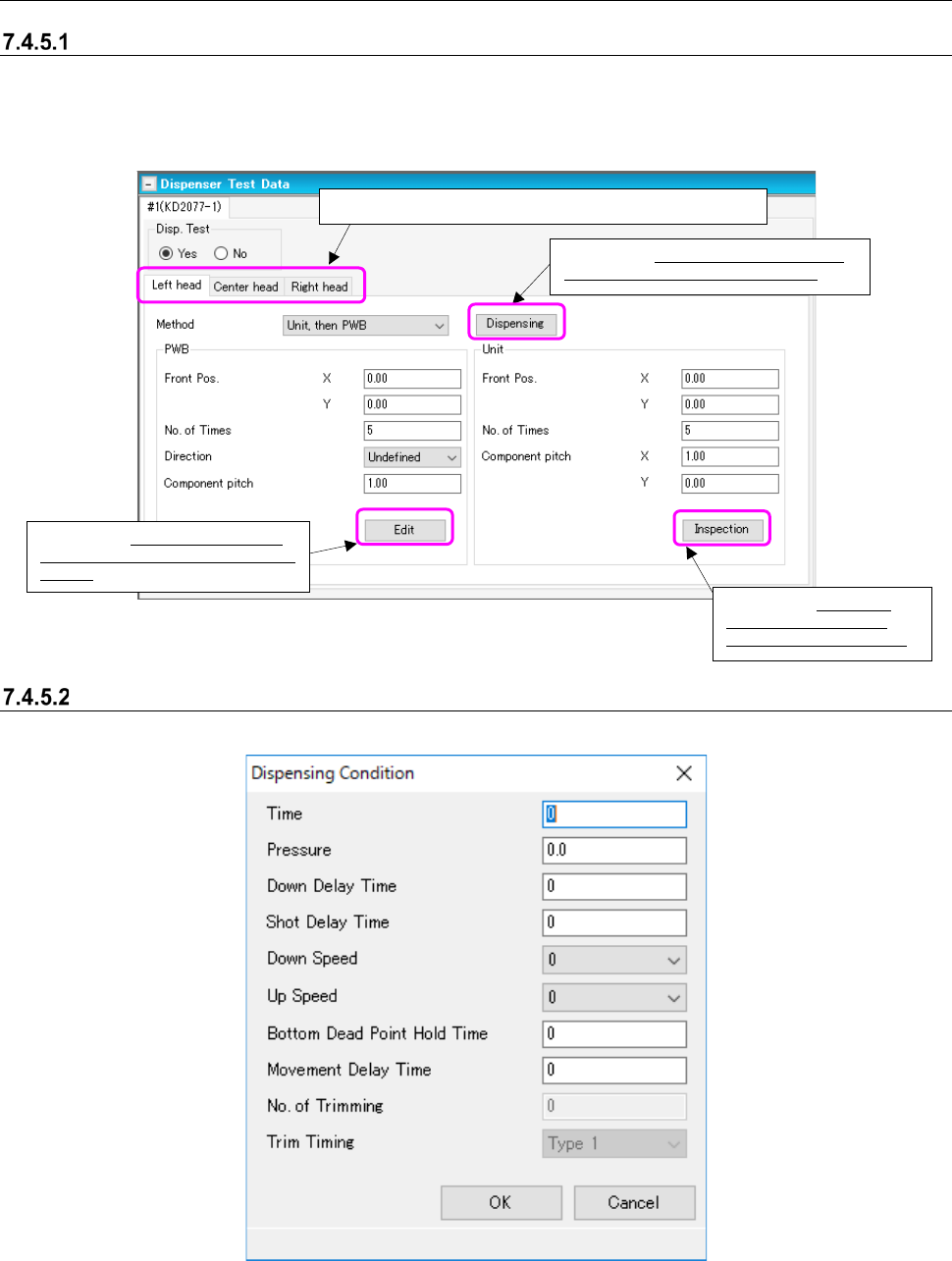
Dispenser test data
When there is an adhesive dispenser in the selected production line, edit data that depends on
each adhesive dispenser. When you select “Dispense Test Data” from the tree view, the “Dis-
penser Test Data” screen appears.
Figure 7.4-144 “Dispenser Test Data” screen
“Dispenser Test (Dispensing Condition)” screen
This screen allows you to set the dispensing conditions of each head.
Figure 7.4-145 “Dispensing Condition” dialog box
Displays the “Dispensing Condition” dia-
log box described in Section 7.4.5.2.
When you switch the tab, you can set data on each head.
Displays the “Dispenser Test Coor-
dinates” screen described in Section
7.4.5.3.
Displays the “Adhesive
Verification” screen de-
scribed in Section 7.4.5.4.
JaNets Instruction Manual 7. Program Editor
7-106
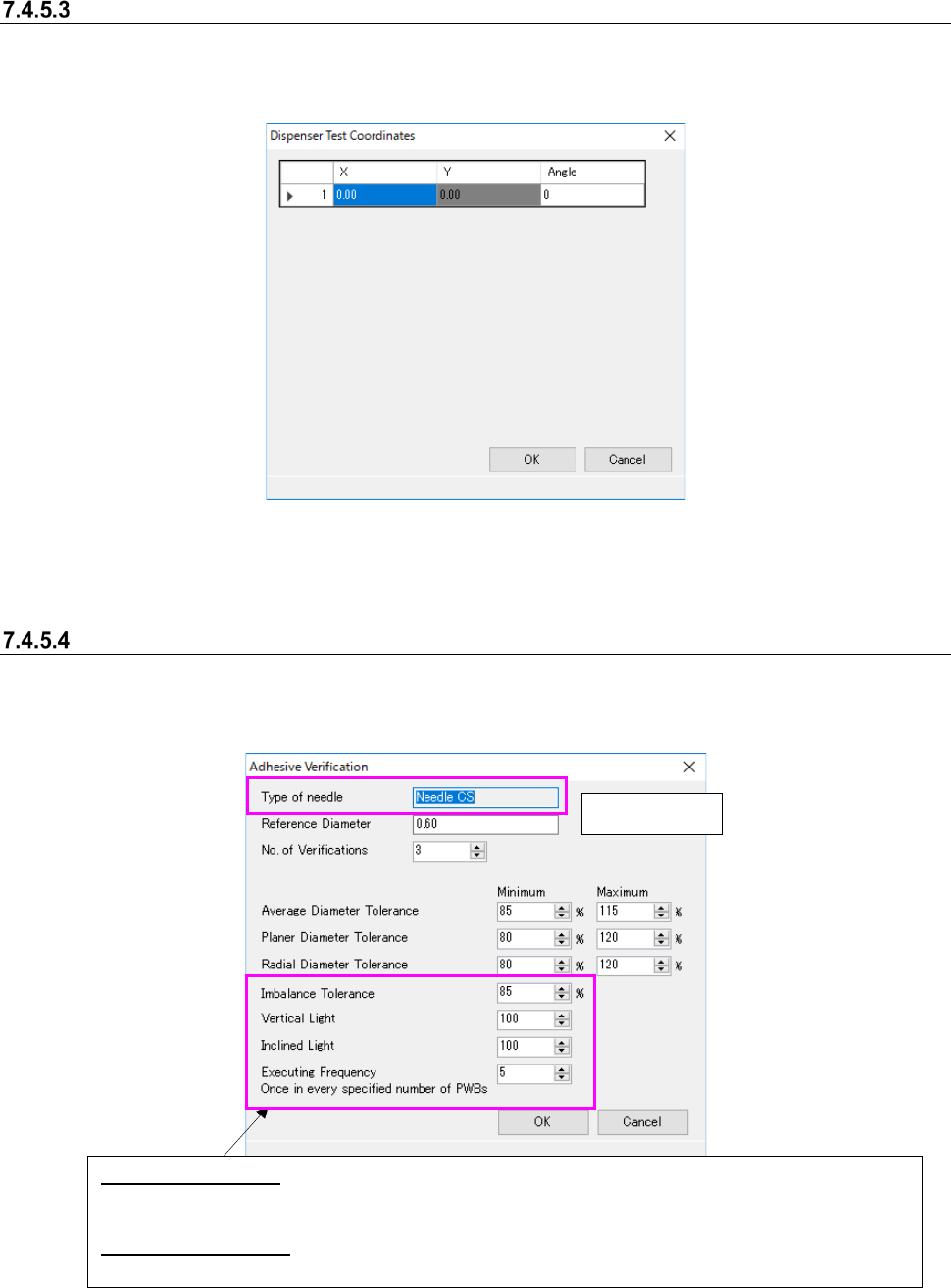
“Dispenser Test Data (Dispenser Test Coordinates)” screen
This screen allows you to edit the coordinates of each adhesive dispensing point used for testing.
When you select the <Edit> button on the “Dispenser Test Data” screen, the “Dispense Test Co-
ordinates” screen appears.
Figure 7.4-146 “Dispenser Test Coordinates” screen
* The default values are calculated and displayed based on the settings in the “Front Pos.,” “No. of
Times,” “Direction” and “Pitch between Components” fields.
Dispenser Test Data (Adhesive Verification)
Set the inspection conditions for verifying dispenser test data on the following screen. When you
select the <Inspection> button on the “Dispenser Test Data” screen, the “Adhesive Verification”
screen appears.
Figure 7.4-147 “Adhesive Verification” screen
Display only
Imbalance Tolerance: To check adhesive dispensing with a needle for two points or four points, set the
tolerance of the ratio of the minimum diameter of points at which adhesive is dispensed at a time to
the maximum diameter.
Executing Frequency: Specify the frequency of the inspection to be executed: how many boards is the
inspection to be executed per.