JANETS_INM.pdf - 第275页
JaNets In structio n Manual 7. Program Editor 7- 68 For com ponen ts : S OP , HSOP , SOJ, TSOP , TSOP2, QFP , PLCC, PQFP (BQFP), J- lead socket (SKT - J), gul l - wing soc ket (SK T - G) and so cket with a bumper (S KT -…
JaNets Instruction Manual 7. Program Editor
7-67
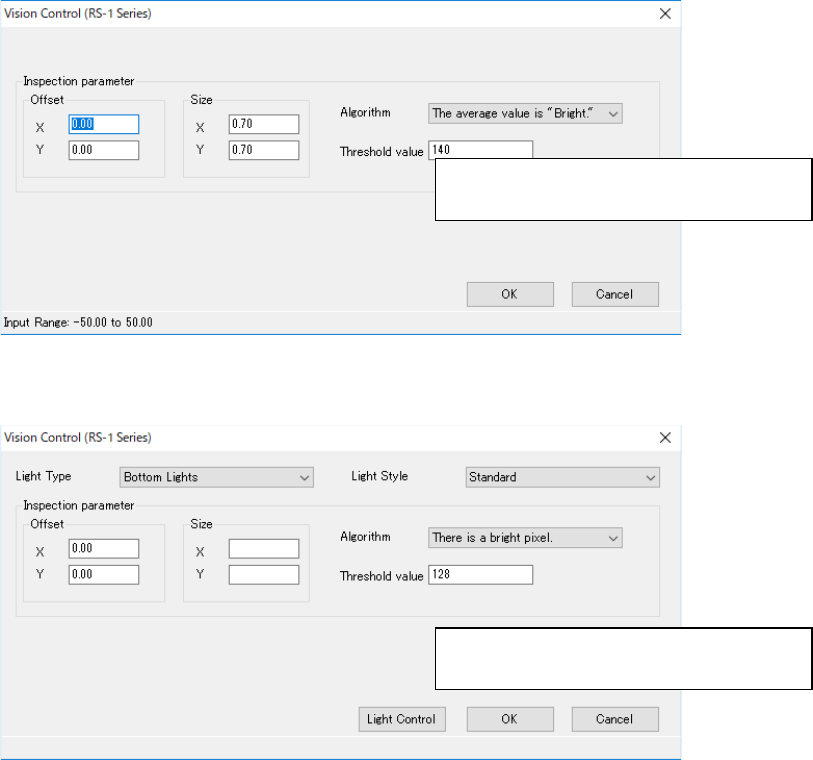
When you press the <Edit> button, the following screen appears.
Figure 7.4-99 Screen for entering data for determining the side of a component,
front or rear (in case of a chip)
Figure 7.4-100 Screen for entering data for inspecting the direction of a component
(in case of a BGA or FBGA component)
On the lower panel of the main screen for a vision component, you have to set the recognition type
and the base style of each component type mainly. The menu items to be displayed vary de-
pending on the component type. The example is shown below.
Specify recognition parameters for deciding
the side of a component, front or rear.
Specify recognition parameters for inspect-
ing the direction of a component
JaNets Instruction Manual 7. Program Editor
7-68
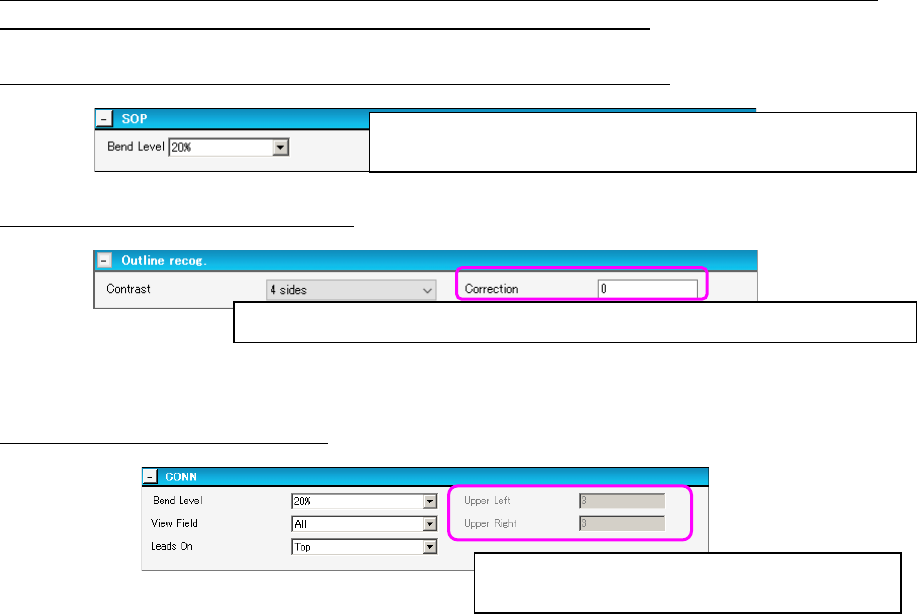
For components: SOP, HSOP, SOJ, TSOP, TSOP2, QFP, PLCC, PQFP (BQFP), J-lead socket
(SKT-J), gull-wing socket (SKT-G) and socket with a bumper (SKT-B):
The following example shows the screen for setting an SOP component.
Figure 7.4-101 SOP item setting screen
For an outline-recognized component:
Figure 7.4-102 Outline-recognized component setting screen
For a unidirectional lead connector:
Figure 7.4-103 Unidirectional lead connector setting screen
Select the level for detecting a bent lead.
* The “Bend Level” should also be set on the following screens.
Enter a correction value for the brightness when light is turned on a component.
Enter the number of leads on the upper left side
and that on the upper right side.
JaNets Instruction Manual 7. Program Editor
7-69
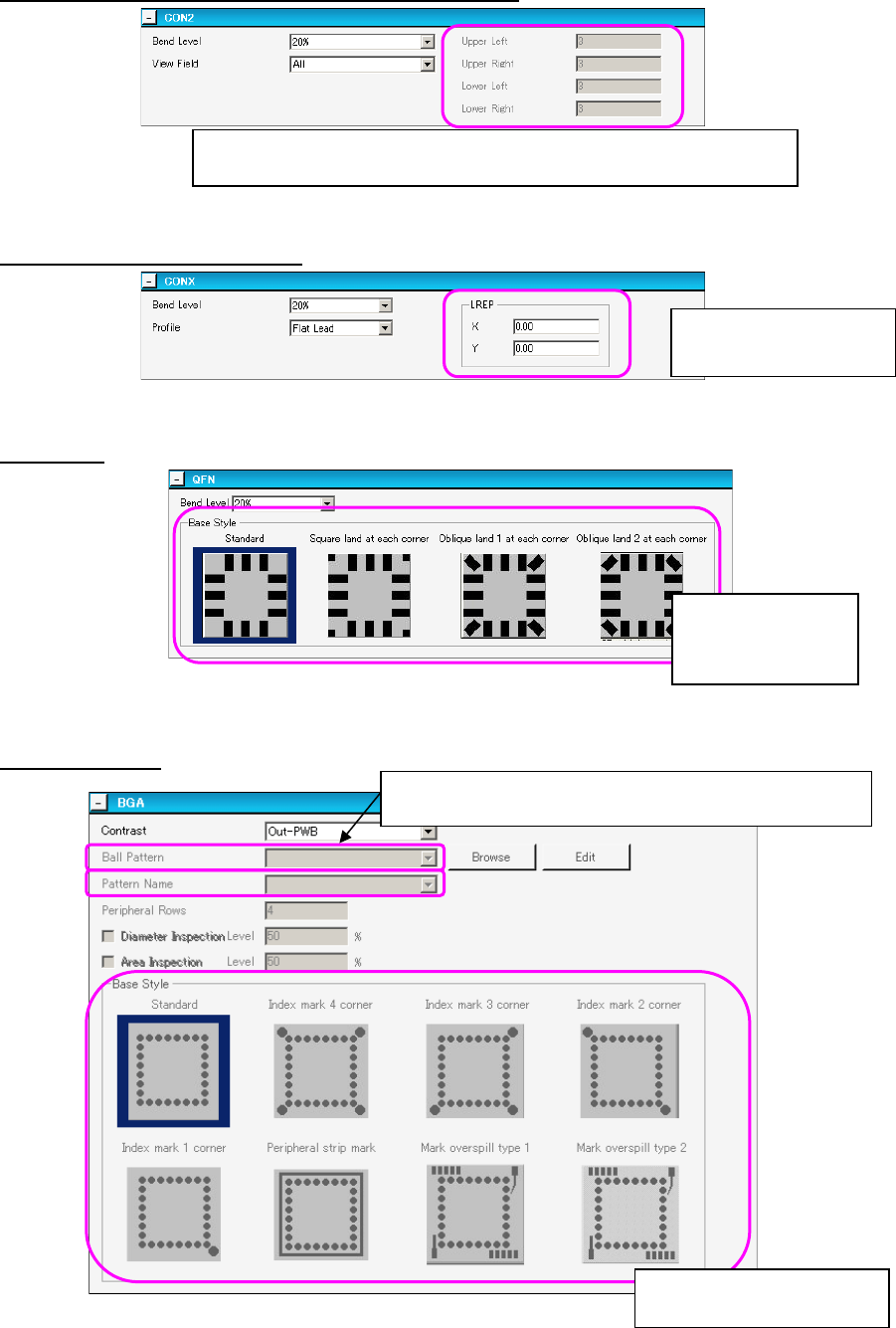
For a bi-directional lead connector or a Z lead connector
Figure 7.4-104 Bi-directional lead connector setting screen
For an extended-lead connector:
Figure 7.4-105 Extended-lead connector setting screen
For a QFN:
Figure 7.4-106 QFN setting screen
For a BGA/FBGA
Figure 7.4-107 BGA setting screen
Enter the number of leads on the upper left side, that on the upper right
side, that on the lower left side and that on the lower right side.
Enter the rightmost lead
position, X and Y.
Select the corre-
sponding bit
map pattern.
Select the corresponding bit
map pattern.
Ball Pattern: When you select “Peripheral BGA,” enter the
number of lines in the “Peripheral Rows” field.